Why Windows 10 Fails to Install from Usb
Windows 10 installation from a USB drive can fail for many reasons, including incorrect BIOS settings, corrupted boot files, and USB compatibility issues. This guide walks you through the most common causes and provides clear, step-by-step solutions to fix each one. By the end, you will know exactly what to check and how to get your Windows 10 USB installation working.
Trying to install Windows 10 from a USB drive only to hit a wall of errors is incredibly frustrating. You follow the steps, plug in the drive, and nothing happens. Or maybe the setup starts but crashes midway through. You are not alone. Thousands of users run into this problem every day, and the good news is that most of the time, the fix is simpler than you think.
Whether you are building a new PC, reinstalling Windows on an old machine, or trying to recover a broken system, the USB installation method should be straightforward. But it is not always. Why does Windows 10 fail to install from USB? The answer usually comes down to a handful of common culprits. In this article, we will break down each one and give you the exact steps to fix it.
We will cover everything from BIOS settings and USB formatting to corrupted installation media and hardware conflicts. By the time you finish reading, you will have a clear roadmap to get your Windows 10 USB installation working. Let us dive in.
Key Takeaways
- USB Formatting Matters: Using the wrong file system or partition style is one of the top reasons Windows 10 fails to install from USB.
- BIOS Settings Are Critical: Incorrect boot order or disabled USB legacy support can block the installation entirely.
- Corrupted Installation Media: A damaged or incomplete USB drive will cause setup errors that are hard to diagnose.
- Hardware Conflicts Exist: Faulty USB ports, incompatible drives, and power issues can all interfere with the installation process.
- Simple Fixes Work Most of the Time: Recreating the bootable USB, updating BIOS, and checking cables solve the majority of problems.
📑 Table of Contents
Common Reasons Windows 10 Fails to Install from USB
The first step to fixing any problem is understanding what caused it. Windows 10 USB installation failures usually stem from a few predictable sources. Let us look at each one closely.
Incorrect BIOS or UEFI Settings
Your motherboard controls how the computer boots up. If the BIOS settings are not configured correctly, the system will simply ignore the USB drive. This is the single most common reason for installation failure. Many users plug in the USB, restart the PC, and expect Windows to launch automatically. But that only works if the USB is set as the first boot device.
You also need to check whether your system uses Legacy BIOS or UEFI mode. Windows 10 supports both, but the USB drive must match the mode your motherboard is set to. If you created the USB in UEFI mode but your BIOS is set to Legacy, the installation will not start. The reverse is also true. This mismatch causes a lot of confusion, especially for first-time installers.
Another setting to check is Secure Boot. While Secure Boot improves security, it can sometimes block unsigned installation media. Disabling it temporarily during the install process often resolves the issue. Similarly, USB Legacy Support must be enabled in the BIOS. Without it, older USB drives may not be recognized during the boot phase.
Corrupted or Improperly Created Bootable USB
The USB drive itself might be the problem. If the bootable USB was not created correctly, Windows 10 will fail to read it. This can happen for several reasons. The ISO file might be incomplete or corrupted. The tool you used to write the image might have encountered an error. Or the USB drive might have bad sectors that corrupted the installation files.
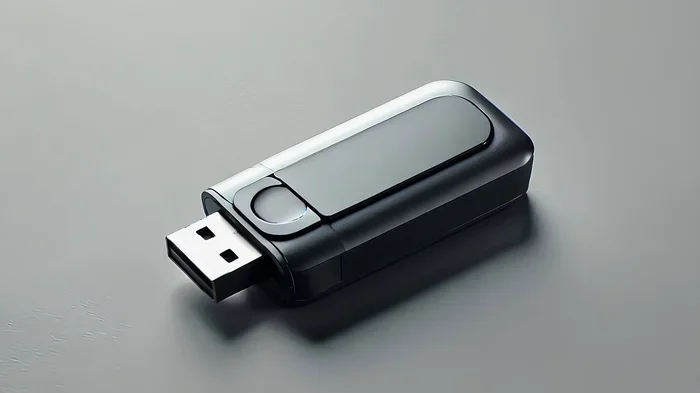
Using a low-quality USB drive also increases the risk of failure. Cheap flash drives often have inconsistent write speeds and poor durability. For a smooth Windows 10 installation, use a reliable USB 3.0 drive with at least 8GB of storage. The speed of the drive matters too. A slow USB 2.0 drive can cause the setup to hang or time out during file copying.
One more thing people overlook is the tool used to create the bootable media. The official Microsoft Media Creation Tool is the safest choice. Third-party tools sometimes format the drive in a way that is not fully compatible with Windows setup. If you have tried everything else, recreating the bootable USB with the official tool is always worth a try.
USB Port and Cable Issues
It sounds simple, but a loose connection or a faulty USB port can stop the installation dead in its tracks. Not all USB ports are created equal. Front-panel ports on desktop cases often provide less power and can be unreliable during the boot process. Plugging the USB drive into a rear motherboard USB port is almost always a better choice.
USB hubs can also cause problems. If you are using a hub to connect the USB drive, try plugging it directly into the PC. Hubs sometimes cannot deliver enough power during the boot phase, which causes the system to disconnect the drive. Even the USB cable matters if you are using an external enclosure or adapter.
For users who have been struggling with USB connectivity issues in general, checking the physical connection first can save a lot of time. Sometimes the simplest fix is just trying a different port or a different cable. If you have also experienced issues where your mouse not connecting to your laptop via USB, the same port or controller issue might be at play.
Partition Style Mismatch (MBR vs GPT)
This is one of the more technical reasons, but it is very common. Windows 10 requires the partition style of the USB drive and the target drive to match the boot mode. UEFI systems use GPT (GUID Partition Table), while Legacy BIOS systems use MBR (Master Boot Record). If there is a mismatch, the installer will not recognize the drive or will throw an error during the setup process.
For example, if you created a GPT-formatted USB on a system set to Legacy BIOS mode, the installer will fail to boot. You need to either recreate the USB in the correct format or change the BIOS boot mode to match. This is why checking your BIOS settings before creating the bootable drive is so important.
The diskpart utility in Windows can help you check and convert the partition style if needed. However, be careful when using diskpart because it can erase data on the selected drive. Always double-check which drive you are targeting before running any commands.
Incompatible or Faulty USB Drive
Not every USB drive works well for installing Windows 10. Some drives have firmware that does not play nicely with the Windows setup process. Others are simply too old or too slow to handle the installation files. If you have tried all the software fixes and still cannot get the USB to work, the drive itself might be the issue.
Test your USB drive on another computer to see if it is recognized. If the drive is not detected anywhere, it has likely failed and needs to be replaced. Using a different USB drive is one of the fastest ways to rule out hardware problems. A good quality USB 3.0 flash drive from a reputable brand will save you a lot of headaches.
How to Fix Windows 10 USB Installation Failures
Now that you know the most common causes, let us walk through the fixes. These steps are ordered from the simplest solutions to the more advanced ones. Start at the top and work your way down.
Step 1: Recreate the Bootable USB Drive
The fastest fix in most cases is to start fresh. Download the Windows 10 ISO directly from the Microsoft website. Use the official Media Creation Tool to write the image to a new USB drive. Make sure you select the correct drive when the tool prompts you. Do not guess. Selecting the wrong drive will erase data on that drive.
After creating the new bootable USB, restart your computer and enter the BIOS. Set the USB drive as the first boot device. Save the changes and let the setup begin. In many cases, this alone resolves the problem.
Step 2: Adjust BIOS and Boot Settings
Enter your BIOS by pressing the appropriate key during startup. This is usually F2, Del, F12, or Esc, depending on your motherboard manufacturer. Once inside, look for the boot order and move the USB drive to the top of the list.
Check the following settings:
- Boot Mode: Set to UEFI or Legacy depending on how you created the USB.
- Secure Boot: Temporarily disable it if the USB was created without a digital signature.
- USB Legacy Support: Enable this if your USB drive is not being detected during boot.
- CSM (Compatibility Support Module): Enable CSM if you are using an older USB drive or MBR partition style.
Save your changes and exit the BIOS. The system should now boot from the USB drive. If it does not, try a different USB port and repeat the process.
Step 3: Check the USB Drive and Ports
Try plugging the USB drive into a different port. On a desktop, use a rear USB port directly connected to the motherboard. Avoid front-panel ports and USB hubs. If you are on a laptop, try every USB port available.
If the drive still does not show up, test it on another computer. This will tell you whether the drive itself is faulty or whether the problem lies with the original PC. If the drive works on another system, the issue is likely with the BIOS or USB controller on the first PC.
Step 4: Fix Partition Style and Disk Compatibility
If you are seeing errors related to partitions or disk layout, you need to align the USB drive with your system boot mode. Use the diskpart tool to check the current partition style of the target drive.
Open Command Prompt as administrator and type the following commands:
- diskpart
- list disk
- select disk X (replace X with the USB drive number)
- clean
- convert gpt (for UEFI) or convert mbr (for Legacy BIOS)
After converting the partition style, recreate the bootable USB using the Media Creation Tool. This ensures the USB is formatted correctly for your system. If you are planning to install an NVMe SSD alongside the Windows installation, make sure the SSD is also formatted with the correct partition style before you begin.
Step 5: Update BIOS and USB Drivers
An outdated BIOS can cause USB boot failures. Check your motherboard manufacturer’s website for the latest BIOS version and flash it if needed. This is a more advanced step, so proceed with caution. Always plug your PC into a power source and avoid interrupting the BIOS update process.
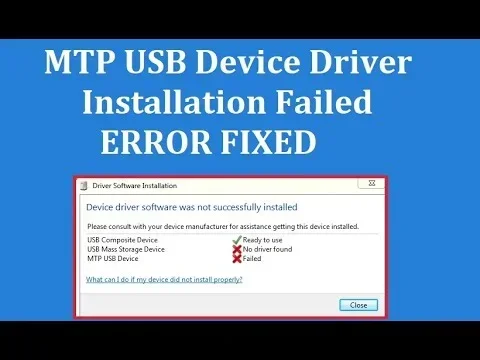
You should also consider whether your USB drivers are up to date. In some cases, outdated USB controller drivers prevent the system from recognizing the bootable drive. Updating the chipset drivers from the motherboard manufacturer’s support page can resolve this.
Preventing Future USB Installation Failures
Once you get Windows 10 installed successfully, you will want to avoid running into the same problems again. A few simple habits can make a big difference.
Always create the bootable USB on a reliable computer with a stable power supply. Power interruptions during the creation process can corrupt the installation media. Use a high-quality USB 3.0 drive from a trusted brand. Avoid using drives that have been lying around for years without being tested.
Before you start the installation, back up any important data on the target drive. The Windows setup process will format the drive, and all existing data will be erased. If you are working on a laptop, make sure the battery is fully charged or keep the charger plugged in throughout the process. A sudden power loss during installation can brick the system.
For long-term PC health, consider taking steps to protect your PC from power surges with a surge protector or UPS. Power fluctuations can damage hardware and corrupt installation media, leading to further headaches down the road.
Also, keep your BIOS updated and store your bootable USB drives properly. Treat them like any other important tool. A well-maintained USB drive will serve you reliably every time you need to install or recover Windows.
When to Seek Professional Help
Most Windows 10 USB installation problems can be solved with the steps outlined above. But sometimes, the issue goes deeper. If you have tried every fix and the installation still fails, there may be a hardware problem with your motherboard, USB controller, or target storage drive.
Signs that you need professional help include repeated BSOD (Blue Screen of Death) errors during setup, the BIOS not detecting the USB drive at all even after trying multiple drives and ports, or the installation stalling at the same point every time. These symptoms can point to failing hardware that needs diagnosis by a technician.
If you are also planning to upgrade your system, such as installing RAM on your laptop or adding a new storage drive, make sure those components are compatible with your motherboard before troubleshooting the USB installation further. Sometimes a failing RAM module or an incompatible SSD can cause seemingly unrelated installation errors.
Conclusion
Why does Windows 10 fail to install from USB? The reasons are usually straightforward: incorrect BIOS settings, corrupted boot media, USB compatibility issues, or partition style mismatches. The good news is that most of these problems have simple, actionable fixes. By recreating the bootable USB, adjusting your BIOS, and checking your hardware connections, you can overcome the vast majority of installation failures.
Take your time with the process. Rushing through the steps is one of the easiest ways to make mistakes. Double-check your BIOS settings, use quality USB drives, and always create the installation media with the official Microsoft tool. With the right preparation, your Windows 10 USB installation should go smoothly.
If you run into trouble, work through the fixes in this guide one by one. You will find the solution. And once Windows 10 is up and running, you can move on to setting up your system, installing drivers, and getting everything customized to your needs. You have got this.
Frequently Asked Questions
Can a faulty USB drive prevent Windows 10 from installing?
Yes, a damaged or low-quality USB drive is one of the most common reasons for installation failure. If the drive has bad sectors or slow write speeds, the setup files may become corrupted during the boot process. Always use a reliable USB 3.0 drive with at least 8GB of storage for the best results.
Why does my PC not recognize the USB drive during boot?
This usually happens when the BIOS boot order is not set correctly or when USB Legacy Support is disabled. Enter your BIOS settings and make sure the USB drive is listed as the first boot device. Also check that USB Legacy Support is enabled, especially if you are using an older USB drive.
Should I use MBR or GPT when creating a Windows 10 bootable USB?
It depends on your system boot mode. UEFI systems require GPT, while Legacy BIOS systems require MBR. Check your BIOS settings to determine which mode your PC uses, and then format the USB drive accordingly. Mismatching the partition style with the boot mode is a frequent cause of installation failure.
Is it better to use USB 2.0 or USB 3.0 for installing Windows 10?
USB 3.0 is strongly recommended. It offers faster transfer speeds, which reduces the time it takes to copy installation files and lowers the chance of the setup hanging or timing out. USB 2.0 works but is significantly slower and more prone to errors during the installation process.
What should I do if the Windows 10 setup keeps crashing during USB installation?
First, try recreating the bootable USB with the official Microsoft Media Creation Tool. If the problem persists, check your RAM and storage connections. Faulty RAM or a loose SATA cable can cause setup crashes. You can also try disabling Secure Boot in the BIOS, as it sometimes conflicts with unsigned installation media.
Can power issues affect a Windows 10 USB installation?
Absolutely. A sudden power loss or an unstable power supply during installation can corrupt the setup files or damage the system. Always keep your laptop plugged in and use a surge protector for desktop PCs. For added protection, consider a UPS (Uninterruptible Power Supply) to guard against power fluctuations.