Does Mini Displayport to Hdmi Work
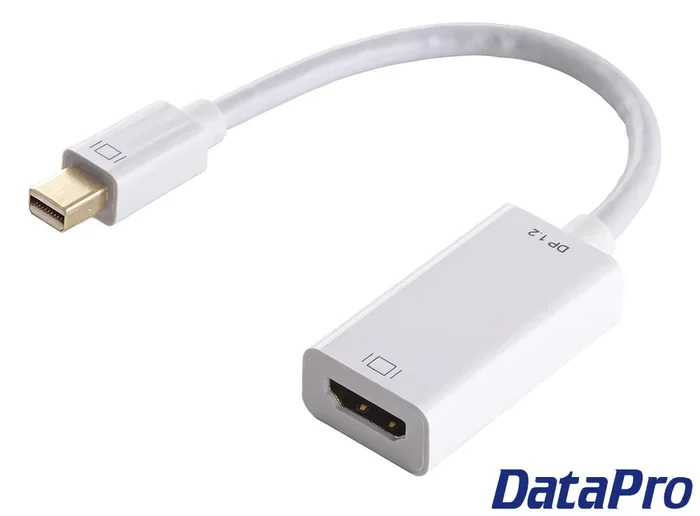
Yes, Mini DisplayPort to HDMI works and is one of the most reliable ways to connect a laptop or desktop to an HDMI display. You just need the right adapter or cable, and your device will send both video and audio through the connection. This guide covers everything you need to know about Mini DisplayPort to HDMI compatibility, setup, and troubleshooting.
If you have ever stared at a wall of cables and adapters trying to connect your laptop to a monitor, you are not alone. The Mini DisplayPort to HDMI connection is one of the most common questions people ask when setting up a second screen or hooking up a projector. The good news is that it works, and it works well.
Whether you are connecting a MacBook, a desktop workstation, or a gaming rig, understanding how Mini DisplayPort to HDMI adapters and cables function saves you time and frustration. In this guide, we walk through everything you need to know. From compatibility to setup to troubleshooting, we cover it all.
Key Takeaways
- Mini DisplayPort to HDMI works reliably: You can connect laptops, desktops, and monitors using a simple adapter or cable.
- Active adapters are often required: Passive cables alone may not work for all devices, especially with audio and higher resolutions.
- Check your device compatibility first: Not all Mini DisplayPort versions support the same resolutions or features.
- Common issues are easy to fix: Driver updates, cable quality, and adapter type solve most problems.
- Both video and audio can transmit: A proper Mini DisplayPort to HDMI setup carries sound alongside the video signal.
- 4K support depends on your adapter: Make sure your adapter supports the resolution you need.
- Thunderbolt ports use Mini DisplayPort protocol: Thunderbolt 1 and 2 connectors share the same form factor as Mini DisplayPort.
📑 Table of Contents
What Is Mini DisplayPort?
Mini DisplayPort is a compact video output port developed by Apple. It first appeared on MacBooks in 2008 and quickly became a standard on many laptops and desktops. Despite its small size, it delivers high-quality digital video and audio signals.
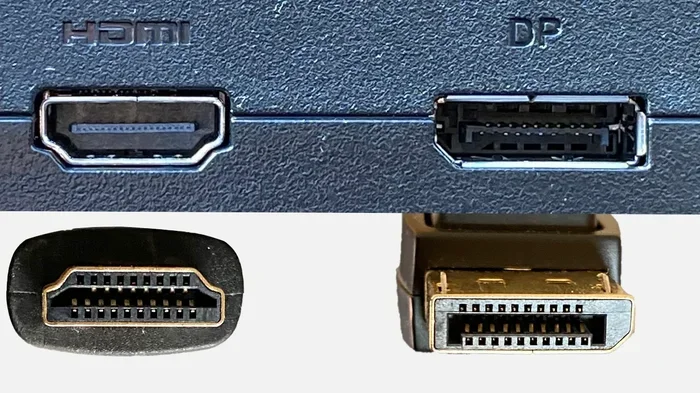
The Mini DisplayPort connector looks similar to a regular DisplayPort connector but is significantly smaller. It measures about 7.5 millimeters across, making it ideal for thin laptops and compact devices. Many people confuse it with Thunderbolt ports because the physical shape is identical in the first and second generations of Thunderbolt.
Here are some key facts about Mini DisplayPort:
- Developed by Apple in 2008
- Supports video resolutions up to 2560 x 1600 at 60Hz
- Carries both audio and video signals
- Used on MacBooks, some Dell laptops, and many desktop GPUs
- Thunderbolt 1 and 2 use the same connector shape
If your device has a Mini DisplayPort, you are in luck. Connecting it to an HDMI display is straightforward with the right adapter. The Mini DisplayPort to HDMI connection is well-supported across operating systems including Windows, macOS, and Linux.
Does Mini DisplayPort To Hdmi Work?
The short answer is yes. A Mini DisplayPort to HDMI connection works in most situations. But the details matter. Whether your setup functions perfectly depends on a few factors, including the type of adapter you use, your device’s graphics capabilities, and the resolution you want to output.
Let us break this down so you understand exactly what to expect.
Passive vs Active Adapters
This is the most important distinction when setting up a Mini DisplayPort to HDMI connection. Not all adapters are created equal.
Passive adapters simply change the physical connector shape. They do not convert the signal. These work when your device outputs a native DisplayPort signal and the receiving display accepts it as HDMI. Passive adapters are cheap and work well for basic setups.
Active adapters contain chipsets that actively convert the DisplayPort signal into an HDMI signal. These are necessary in situations where passive adapters fail. Active adapters also support audio transmission in many cases where passive ones do not.
Here is a quick comparison:
- Passive adapters: Low cost, no power needed, limited compatibility
- Active adapters: Higher cost, require power, broader compatibility
- Active adapters with audio: Best option for full video and sound
If you experience no signal or no sound, switching from a passive to an active adapter often solves the problem immediately.
Resolution and Refresh Rate Support
Your Mini DisplayPort to HDMI setup can support various resolutions depending on the adapter quality and your GPU. Most adapters handle 1080p at 60Hz without any issues. This covers the vast majority of monitors, TVs, and projectors.
For 4K resolution, you need an adapter that supports DisplayPort 1.2 or higher. Some budget adapters only support 4K at 30Hz, which causes a noticeable flicker. If you want smooth 4K at 60Hz, invest in a quality active adapter that explicitly lists 4K 60Hz support.
Here are common resolution outcomes:
- 1080p at 60Hz: Works with almost any adapter
- 1440p at 60Hz: Works with most quality adapters
- 4K at 30Hz: Works with basic adapters
- 4K at 60Hz: Requires a high-quality active adapter
How To Set Up Mini DisplayPort to HDMI
Setting up a Mini DisplayPort to HDMI connection is simple. Follow these steps and you will be up and running in minutes.
Step-by-Step Setup
- Identify your output port. Look at your laptop or desktop and confirm you have a Mini DisplayPort. It is a small, rectangular port with a slight notch on one side.
- Choose your adapter or cable. Decide whether you need a passive adapter, an active adapter, or a full cable with built-in conversion.
- Connect the Mini DisplayPort end. Plug it firmly into your device. You should feel a slight click when it seats properly.
- Connect the HDMI end. Plug the HDMI connector into your monitor, TV, or projector.
- Power on the display. Turn on your external monitor or TV and select the correct HDMI input.
- Check your display settings. On Windows, go to Settings > Display. On macOS, go to System Settings > Displays. Your new screen should appear automatically.
That is it. No software installation is typically required. The connection is plug-and-play in most cases.
Quick Tips for a Smooth Setup
- Use a high-quality adapter. Cheap adapters cause flickering and signal loss.
- Update your graphics drivers. Outdated drivers can prevent detection of external displays.
- Check your cable length. Longer cables can degrade signal quality. Keep it under 6 feet for best results.
- Try a different HDMI port. Some TV HDMI ports have compatibility issues with certain adapters.
- Disconnect and reconnect. A simple reseat often fixes detection problems.
Common Issues and How To Fix Them
Even though Mini DisplayPort to HDMI is a reliable connection, issues can happen. Here are the most common problems and how to solve them.
No Signal on the Display
If your external monitor shows nothing, start by checking the physical connections. Make sure both ends of the adapter or cable are firmly seated. Try a different HDMI port on your display. If that does not work, test with a different adapter.
Sometimes the issue is related to GPU load. If your graphics card is working extremely hard, it may not properly initialize the external display. In such cases, you might notice your GPU spikes to 100 even before the display connects. Updating your graphics drivers often resolves this.
No Audio Through HDMI
Video works but there is no sound? This is a common issue with Mini DisplayPort to HDMI adapters. Passive adapters often do not carry audio. Switch to an active adapter that explicitly supports audio transmission.
On Windows, right-click the speaker icon in your taskbar and select your HDMI output device. On macOS, go to System Settings > Sound and choose the HDMI output.
Flickering or Intermittent Signal
Flickering usually points to a faulty cable or adapter. Replace the adapter first, as it is the most common culprit. If the flickering stops, your original adapter was defective or of poor quality.
Another cause is an incompatible resolution setting. Try lowering the output resolution to 1080p and see if the flickering stops. If it does, your adapter may not support the higher resolution you selected.
Display Detects but Shows Black Screen
A black screen with detection usually means the resolution or refresh rate is unsupported by the adapter. Boot into safe mode and reset your display settings. Then reconnect with a lower resolution.
Mini DisplayPort to HDMI vs Other Connection Options
When you are choosing how to connect your device to a display, you have several options. Here is how Mini DisplayPort to HDMI compares to alternatives.
Comparison Table
Connection Type | Video Quality | Audio Support | Cost | Common Devices
Mini DisplayPort to HDMI | Up to 4K | Yes (with active adapter) | Low | MacBooks, some laptops
USB-C to HDMI | Up to 4K or 8K | Yes | Low to Medium | Modern laptops, tablets
VGA to HDMI | Up to 1080p (converted) | Sometimes | Very Low | Older projectors, monitors
DVI to HDMI | Up to 1080p | No (DVI carries no audio) | Low | Older desktops, monitors
Mini DisplayPort to HDMI remains one of the best options for older MacBooks and devices with a Mini DisplayPort output. It delivers excellent video quality and, with the right adapter, full audio support.
If your device has a USB-C port instead, a USB-C to HDMI adapter is a more modern alternative. However, if your device only has Mini DisplayPort, there is no better option than a dedicated Mini DisplayPort to HDMI adapter.
Best Practices for Mini DisplayPort to HDMI
To get the most out of your Mini DisplayPort to HDMI setup, follow these best practices.
- Buy from reputable brands. Brands like Cable Matters, Belkin, and Satechi make reliable adapters. A quality adapter prevents signal issues and lasts longer.
- Match your adapter to your needs. If you need 4K at 60Hz, do not buy a budget 1080p adapter. Check the specifications before purchasing.
- Keep drivers updated. Regularly update your GPU drivers to ensure the best compatibility with external displays.
- Use the shortest cable possible. Shorter cables maintain better signal integrity and reduce the chance of interference.
- Test with multiple displays. If one display does not work, test with another to rule out a display-side problem.
Following these simple tips ensures a stable, high-quality connection every time you plug in your external monitor or TV.
Final Thoughts
Mini DisplayPort to HDMI works reliably for most users. It is a straightforward connection that lets you hook up laptops, desktops, and workstations to HDMI monitors, TVs, and projectors. The key is choosing the right adapter type, checking your resolution needs, and keeping your drivers up to date.
Whether you are setting up a home office, connecting to a projector for a presentation, or extending your desktop for gaming, the Mini DisplayPort to HDMI connection gets the job done. Invest in a quality adapter, follow the setup steps outlined above, and you will enjoy a seamless display experience.
If you run into issues, start with the troubleshooting steps we covered. Most problems are quick fixes. And remember, the right adapter makes all the difference between a frustrating experience and a perfect setup.
Frequently Asked Questions
Can I use a Mini DisplayPort to HDMI adapter with a MacBook?
Yes, Mini DisplayPort to HDMI adapters work with most MacBooks that have a Mini DisplayPort or Thunderbolt 1/2 port. Make sure to use an active adapter if you need audio to transmit through the HDMI connection. macOS generally recognizes the adapter automatically once plugged in.
Do I need an active or passive adapter for Mini DisplayPort to HDMI?
Most users should choose an active adapter. Active adapters convert the signal properly and support audio transmission. Passive adapters work in limited situations and often do not carry sound. If you experience no audio or no signal, an active adapter is the solution.
Can Mini DisplayPort to HDMI support 4K resolution?
Yes, but only with a quality active adapter that supports DisplayPort 1.2 or higher. Budget adapters may only support 4K at 30Hz, which looks choppy. For smooth 4K at 60Hz, invest in a certified adapter that explicitly lists 4K 60Hz support in its specifications.
Why is there no sound when I connect Mini DisplayPort to HDMI?
This usually happens with passive adapters or when the audio output has not been switched. First, make sure you are using an active adapter that supports audio. Then go to your sound settings and select the HDMI output device as your default audio output.
Is Mini DisplayPort the same as Thunderbolt?
The physical connector shape is identical for Thunderbolt 1 and Thunderbolt 2, which both use the Mini DisplayPort form factor. However, Thunderbolt carries data and video signals, while Mini DisplayPort carries only video and audio. If your port is labeled Thunderbolt, a Mini DisplayPort to HDMI adapter will still work.
Can I chain multiple displays using Mini DisplayPort to HDMI?
Not directly through a single adapter. Each Mini DisplayPort to HDMI connection supports one display. If you need multiple monitors, you will need a separate adapter or cable for each display, or use a docking station with multiple HDMI outputs.