Is Usb 3 2 Gen 2 Type C the Same as Thunderbolt
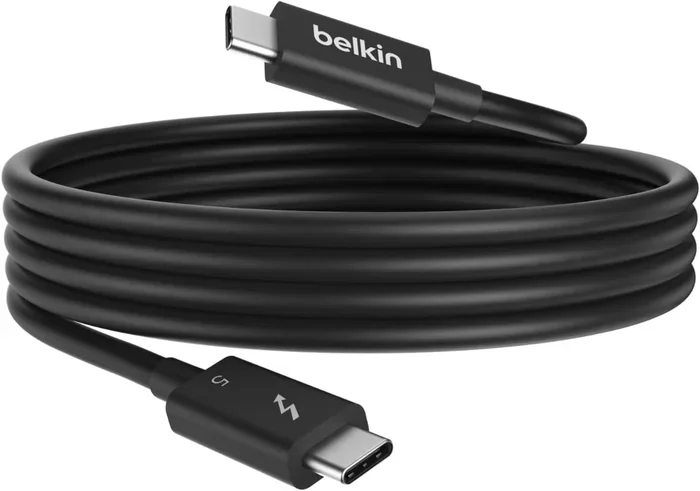
USB 3.2 Gen 2 Type C and Thunderbolt look almost identical, but they are not the same. Thunderbolt offers much faster speeds and more features than standard USB 3.2 Gen 2. Understanding the difference helps you avoid buying the wrong cable or adapter for your setup.
Have you ever picked up a cable and wondered if it was Thunderbolt or just a regular USB-C cord? You are not alone. The connectors look the same, and the naming can get confusing fast. Many people buy a cable thinking they are getting Thunderbolt speeds, only to find out they have a plain USB 3.2 Gen 2 Type C connection instead.
This guide breaks down everything you need to know. We will explain what each technology is, how they differ, and which one you actually need. By the end, you will never mix them up again.
Key Takeaways
- Different Protocols: USB 3.2 Gen 2 Type C and Thunderbolt use different protocols, even though they share the same connector shape.
- Speed Gap: Thunderbolt 3 delivers up to 40 Gbps, while USB 3.2 Gen 2 maxes out at 10 Gbps.
- Backward Compatibility: Thunderbolt ports work with USB devices, but USB ports do not support Thunderbolt devices.
- Cost Difference: Thunderbolt cables and devices cost more due to advanced technology and licensing fees.
- Power Delivery: Both support USB Power Delivery, but Thunderbolt offers more flexibility for daisy-chaining devices.
- Check Your Ports: Always look for the lightning bolt icon to confirm Thunderbolt support on your device.
📑 Table of Contents
What Is USB 3.2 Gen 2 Type C?
USB 3.2 Gen 2 Type C refers to a specific USB standard that uses the USB-C connector. The USB-C connector is the small, reversible plug that you can plug in either way. It has become the most common connector on modern laptops, phones, and tablets.
USB 3.2 Gen 2 offers a maximum data transfer speed of 10 Gbps. That is fast enough for most everyday tasks. You can transfer a full HD movie in about 30 seconds. It also supports USB Power Delivery, which means it can charge devices up to 100 watts.
Here are some key features of USB 3.2 Gen 2 Type C:
- Max Speed: 10 Gbps
- Connector Type: USB-C (reversible)
- Power Delivery: Up to 100W
- Video Output: Supports DisplayPort Alt Mode
- Backward Compatible: Works with older USB ports and cables
Most people use USB 3.2 Gen 2 Type C for charging their phones, backing up files to an external drive, or connecting a USB-C headphone set. It works great for general use. But it is not designed for heavy professional workloads like video editing or connecting multiple high-resolution displays.
How USB 3.2 Gen 2 Fits Into the USB Ecosystem
The USB naming system has changed a lot over the years. USB 3.0 became USB 3.1 Gen 1, and then USB 3.2 Gen 1. USB 3.1 Gen 2 became USB 3.2 Gen 2. This naming history is confusing, but the important thing to remember is that USB 3.2 Gen 2 delivers 10 Gbps. It is the second tier of the USB 3.2 family.
When you see a cable labeled USB 3.2 Gen 2 Type C, it means the cable uses the USB-C shape and supports 10 Gbps speeds. That is all it means. It does not mean Thunderbolt. It does not mean USB4. It is simply a fast USB connection.
What Is Thunderbolt?
Thunderbolt is a different technology altogether. It was developed by Intel in partnership with Apple. Thunderbolt combines PCIe and DisplayPort into one single connection. This gives it incredible versatility and speed.
Thunderbolt 3 was the first version to use the USB-C connector. This is where the confusion started. Thunderbolt 3 uses the same physical connector as USB-C, but it is much more powerful.
Here are the key specs of Thunderbolt 3:
- Max Speed: 40 Gbps
- Connector Type: USB-C (same shape as USB 3.2 Gen 2)
- Power Delivery: Up to 100W
- Video Output: Supports two 4K displays or one 5K display
- Daisy Chaining: Connect up to six devices in a chain
Thunderbolt 4 came next and maintained the 40 Gbps speed while adding stricter certification requirements. Thunderbolt 5 launched later with even higher speeds. But the core idea remains the same. Thunderbolt is a supercharged version of USB-C that does a lot more.
If you want to learn more about how Thunderbolt works with storage devices, check out our guide on M.2 NVMe to USB C SSD Enclosure options that support both Thunderbolt and USB connections.
Thunderbolt vs. USB-C: A Common Mix-Up
Many people use the terms Thunderbolt and USB-C interchangeably. That is a mistake. USB-C is just a connector shape. Thunderbolt is a protocol that can run through a USB-C connector. Think of it this way. USB-C is the physical plug. Thunderbolt is the language the plug speaks.
Not every USB-C port supports Thunderbolt. And not every Thunderbolt port looks different from a regular USB-C port. This is why you need to check for the lightning bolt symbol next to the port.
Key Differences Between USB 3.2 Gen 2 Type C and Thunderbolt
Now that you know what each technology is, let us look at the real differences. These differences matter a lot depending on what you are trying to do.
| Feature | USB 3.2 Gen 2 Type C | Thunderbolt 3 |
|---|---|---|
| Max Data Speed | 10 Gbps | 40 Gbps |
| Connector Shape | USB-C | USB-C |
| Video Output | One display (Alt Mode) | Two 4K or one 5K display |
| Daisy Chaining | No | Yes (up to 6 devices) |
| PCIe Support | No | Yes |
| Cost | Lower | Higher |
| Compatibility | USB devices only | USB and Thunderbolt devices |
The biggest difference is speed. Thunderbolt 3 is four times faster than USB 3.2 Gen 2. For someone who just wants to charge a phone or transfer some photos, USB 3.2 Gen 2 is plenty. For a video editor moving huge project files or a musician using an external audio interface, Thunderbolt makes a huge difference.
Another major difference is daisy chaining. With Thunderbolt, you can connect a monitor, an external hard drive, and a dock all in one chain from a single port on your laptop. USB 3.2 Gen 2 does not support this. Each device needs its own connection back to the computer.
Bandwidth and Real-World Performance
Theoretical speeds are one thing. Real-world speeds are another. USB 3.2 Gen 2 will rarely hit the full 10 Gbps in everyday use. You might see transfer speeds around 800 to 900 MB/s on a good external SSD. Thunderbolt 3 real-world speeds typically reach around 2,500 to 2,800 MB/s with a compatible NVMe enclosure.
That is a massive gap. If you are using an M.2 NVMe SSD with USB connectivity, Thunderbolt will give you dramatically faster backup and transfer times.
Can You Use a Thunderbolt Cable for USB 3.2 Gen 2 Devices?
Yes, you can. Thunderbolt 3 cables are fully backward compatible with USB 3.2 Gen 2 devices. If you plug a Thunderbolt cable into a USB 3.2 Gen 2 port, it will work. It will just run at USB 3.2 Gen 2 speeds, which is 10 Gbps.
The reverse is not true. If you plug a USB 3.2 Gen 2 cable into a Thunderbolt port, it will work but only at USB speeds. The Thunderbolt port will not magically give you 40 Gbps if the cable or device does not support it.
Here are some quick tips for cable selection:
- Always check the cable label. Look for Thunderbolt or USB 3.2 Gen 2 markings.
- Buy certified cables. Cheap uncertified cables can cause connectivity issues.
- Match the cable to your needs. If you need 40 Gbps speeds, you need a Thunderbolt cable.
- Length matters. Active Thunderbolt cables over 2 meters may cost more but maintain full speed.
Which One Should You Choose?
The right choice depends on what you are doing. Let us break it down by use case.
For everyday use: USB 3.2 Gen 2 Type C is perfectly fine. Charging your phone, transferring documents, connecting a mouse or keyboard, or plugging in a pair of headphones. You do not need Thunderbolt for any of these tasks.
For creative professionals: Thunderbolt is worth the investment. Video editors, photographers, and musicians benefit from the higher speeds and the ability to daisy chain multiple devices. If you are editing 4K video and need to connect an external monitor and a fast SSD at the same time, Thunderbolt saves you from swapping cables and hubs.
For gamers: It depends on your setup. If you are using an external GPU or a high-speed external SSD for game storage, Thunderbolt gives you the bandwidth you need. For casual gaming, USB 3.2 Gen 2 is more than enough.
For general office work: USB 3.2 Gen 2 Type C handles email, web browsing, and video calls with ease. You do not need to spend extra on Thunderbolt unless your company provides it.
Quick Tips for Getting the Most Out of Your Setup
- Check your device manual to see which ports support Thunderbolt.
- Look for the lightning bolt icon next to the port on your laptop or dock.
- Do not assume all USB-C ports are the same. Some are USB 3.2, some are Thunderbolt, and some are even USB 2.0.
- Buy adapters from reputable brands to avoid damage to your devices.
- If you are using an external SSD enclosure, make sure it matches your port type for the best speeds.
Common Myths About USB-C and Thunderbolt
Let us clear up some of the most common misunderstandings about these technologies.
Myth 1: All USB-C is Thunderbolt. This is false. USB-C is just a connector shape. Many devices have USB-C ports that only support USB 2.0 or USB 3.2. They do not support Thunderbolt at all.
Myth 2: Thunderbolt cables are thicker. Thunderbolt 3 and USB 3.2 Gen 2 cables can look identical. The only difference is the chip inside and the lightning bolt marking on the connector.
Myth 3: USB 3.2 Gen 2 is slow. 10 Gbps is actually very fast. Most people will never need more than that. Thunderbolt is only necessary for specialized workflows that demand maximum bandwidth.
Myth 4: You need a Thunderbolt monitor. You can connect any monitor with a USB-C or DisplayPort input to a Thunderbolt port. The monitor does not need to be Thunderbolt itself.
Myth 5: USB 3.2 Gen 2 Type C cannot charge laptops. It absolutely can. USB Power Delivery over USB 3.2 Gen 2 Type C can deliver up to 100 watts, which is enough for most laptops.
Final Thoughts
So, is USB 3.2 Gen 2 Type C the same as Thunderbolt? The short answer is no. They share the same connector shape, but they are fundamentally different technologies. USB 3.2 Gen 2 Type C is a solid, reliable standard for everyday connectivity. Thunderbolt is a powerhouse designed for professionals who need maximum speed and flexibility.
The most important thing you can do is check what your devices actually support. Look for the lightning bolt symbol. Read the specs. Do not assume based on the port shape alone. Once you know what you have, choosing the right cable and device becomes much easier.
Whether you are backing up files to an external drive, connecting a display, or just charging your laptop, understanding the difference between these two technologies saves you time, money, and frustration. Pick the right tool for the job, and everything just works.
Frequently Asked Questions
Can I use a USB 3.2 Gen 2 Type C cable with a Thunderbolt device?
Yes, you can. Thunderbolt 3 is backward compatible with USB 3.2 Gen 2 devices. The connection will work, but it will operate at USB 3.2 Gen 2 speeds of 10 Gbps, not Thunderbolt speeds of 40 Gbps.
How can I tell if my port is Thunderbolt or USB 3.2 Gen 2?
Look for the lightning bolt icon next to the port. If you see it, your port supports Thunderbolt. If there is no lightning bolt, it is likely a standard USB port. You can also check your device specifications in the manual or settings.
Is USB 3.2 Gen 2 Type C fast enough for external SSDs?
Yes, absolutely. USB 3.2 Gen 2 offers 10 Gbps speeds, which is more than enough for most external SSDs. You can expect real-world transfer speeds of around 800 to 1,000 MB/s, which is plenty for everyday file transfers.
Does Thunderbolt work with older USB devices?
Yes, Thunderbolt 3 and Thunderbolt 4 ports are fully backward compatible with USB devices. You can plug in any USB cable or device into a Thunderbolt port, and it will work normally at USB speeds.
Why are Thunderbolt cables more expensive than USB 3.2 Gen 2 cables?
Thunderbolt cables contain more advanced chips and circuitry to support the 40 Gbps speed, daisy chaining, and video output. The technology and licensing costs are higher, which is reflected in the price.
Can I connect multiple monitors using USB 3.2 Gen 2 Type C?
USB 3.2 Gen 2 Type C supports one display through DisplayPort Alt Mode. If you need multiple monitors, Thunderbolt is a better choice because it supports two 4K displays or one 5K display and allows daisy chaining.