Why Is My Hdmi Arc Not Working
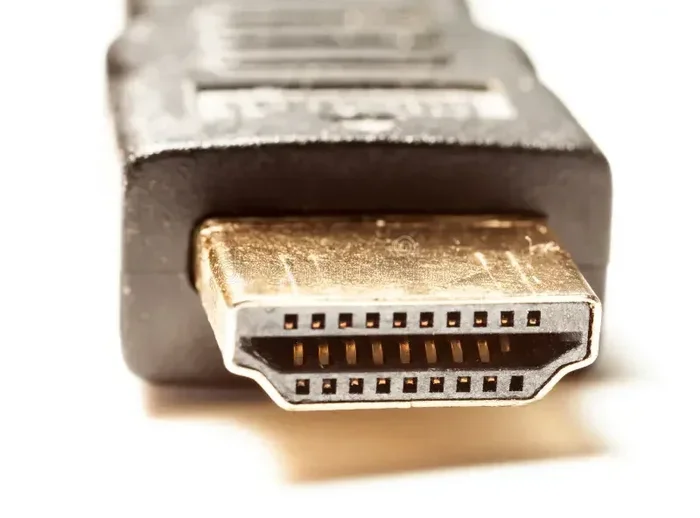
HDMI ARC not working is a common frustration that stops your TV from sending audio to your soundbar or home theater system. This guide walks you through the most common reasons and the simplest fixes you can try right now. You will learn how to check cables, settings, and device compatibility to get your HDMI ARC working again quickly.
HDMI ARC is a handy feature. It lets your TV send sound to your soundbar or home theater system through just one cable. But when it stops working, it can be really annoying. You sit down to watch a movie and there is no sound coming from your speakers.
If you are googling “why is my HDMI ARC not working,” you are not alone. This is one of the most common tech problems people face at home. The good news is that most fixes are simple and take just a few minutes. In this article, we will walk you through every possible cause and the best way to fix each one.
Let us start with the basics. HDMI ARC stands for Audio Return Channel. It is a special feature built into HDMI cables. It lets audio travel in both directions. Your TV sends sound to your soundbar, and your soundbar can send commands back to the TV. When this link breaks, you lose that connection.
Before you try anything else, make sure your HDMI cable is plugged in all the way. A loose connection is the number one cause of ARC problems. Pull the cable out and plug it back in firmly. You should hear a click when it seats properly.
Also, check the cable itself. If it is bent, damaged, or old, it may not carry the ARC signal. Try using a different HDMI cable if you have one available. A new high-speed HDMI cable costs very little and can solve the problem fast.
Key Takeaways
- Check Your Cable: A bad or loose HDMI cable is the most common reason HDMI ARC stops working.
- Verify TV Settings: Your TV needs the right settings turned on for ARC to function properly.
- Enable CEC: Consumer Electronics Control must be active on both devices for ARC to work.
- Update Firmware: Outdated software on your TV or soundbar can cause ARC connection failures.
- Try a Different Port: Not all HDMI ports support ARC, so using the wrong port is a common mistake.
- eARC Is Better: If your devices support it, eARC offers better audio quality and fewer issues than standard ARC.
📑 Table of Contents
Why HDMI ARC Stops Working
There are many reasons why HDMI ARC might stop working. Each reason has a clear fix. Let us look at the most common ones.
Wrong HDMI Port
Not every HDMI port on your TV supports ARC. If you plugged your cable into the wrong port, ARC will not work. Look at the back of your TV for a port labeled “ARC” or “eARC.” That is the one you need to use. Some TVs have more than one ARC port, but most have just one.
If you are unsure which port to use, check your TV manual. You can also look for the ARC label next to the port on the back of the TV. Using a non-ARC port is the easiest mistake to make and the easiest to fix.
CEC Settings Are Off
CEC stands for Consumer Electronics Control. This is a feature that lets devices talk to each other through HDMI. If CEC is turned off, HDMI ARC will not work.
The name for CEC is different on each TV brand. Samsung calls it Anynet+. LG calls it SimpLink. Sony calls it BRAVIA Sync. Toshiba calls it CE-Link. No matter what brand you have, you need to find this setting and turn it on.
Go to your TV settings, look for HDMI or device control, and enable CEC. Once it is on, your TV and soundbar should communicate again.
Audio Settings on Your TV
Your TV might be set to output audio in the wrong format. If the audio output is set to something your soundbar does not support, you will get no sound.
Go to your TV audio settings and look for the output option. Set it to PCM or Auto. Some TVs also have a setting specifically for HDMI ARC. Make sure that setting is turned on too.
Firmware Needs Updating
Both your TV and your soundbar run on software. If either device has old firmware, they might not communicate properly. Manufacturers release updates to fix bugs and improve compatibility.
Check for updates in your TV settings. Go to Support or System and look for Software Update. Do the same for your soundbar if it has a built-in update feature. Keeping your devices up to date is one of the best ways to prevent HDMI ARC problems.
How to Fix HDMI ARC Not Working
Now that you know the common causes, let us walk through the fixes step by step.
Step 1: Unplug Everything and Plug It Back In
This sounds too simple, but it works more often than you think. Unplug the HDMI cable from both the TV and the soundbar. Wait about 30 seconds. Then plug it back in firmly. This resets the connection and often fixes the problem right away.
Step 2: Turn Off and On Both Devices
Power off your TV and your soundbar completely. Wait a full minute. Then turn the TV on first and wait for it to fully start. After that, turn the soundbar on. This order matters because it lets the devices recognize each other properly.
Step 3: Check the ARC Setting on Your TV
Some TVs have a separate toggle just for HDMI ARC. Go to your TV settings and look for Sound or Audio Output. Find the HDMI ARC option and make sure it is turned on. If it was off, this alone could be the fix you need.
Step 4: Change the Audio Format
Go to your TV audio settings and change the output format. Try PCM first. If that does not work, try Bitstream or Auto. Different soundbars prefer different formats. You might need to try a few to find the one that works best with your setup.
Step 5: Reset the Soundbar
If nothing else works, try resetting your soundbar to factory settings. This clears any saved settings that might be causing the problem. Check your soundbar manual for the reset steps. Usually, you hold down a button on the remote or the device itself for a few seconds.
HDMI ARC vs eARC: What Is the Difference
You might have heard of eARC and wondered what it means. eARC stands for Enhanced Audio Return Channel. It is a newer and better version of HDMI ARC.
eARC supports higher quality audio formats like Dolby Atmos and DTS:X. Standard HDMI ARC does not support these formats. If you have a modern soundbar and want the best sound quality, eARC is the way to go.
eARC also works better because it has a stronger handshake process. The “handshake” is how your TV and soundbar confirm they are connected. A stronger handshake means fewer dropouts and fewer connection problems.
If your TV and soundbar both support eARC, use the eARC port instead. It will give you a more reliable connection and better sound.
Common HDMI ARC Problems and Quick Fixes
Here is a quick look at common problems and their solutions.
- No sound at all: Check the cable, make sure ARC is enabled, and verify CEC is on.
- Sound cuts out randomly: Try a different HDMI cable or a different HDMI port.
- Sound is out of sync with video: Change the audio format on your TV or update your soundbar firmware.
- ARC works sometimes but not always: This usually means a loose cable or a weak handshake. Try a shorter cable or an HDMI extender.
- TV remote does not control the soundbar: CEC is likely turned off. Enable it in your TV settings.
If you are also having trouble with other devices connected to your setup, such as your laptop peripherals, you may want to check out why your mouse might not be working on your laptop for related troubleshooting tips. Similarly, if your laptop mouse is giving you issues alongside your audio problems, these guides can help you sort through multiple device issues at once.
Do You Need a Special HDMI Cable for ARC
You do not need a fancy cable for HDMI ARC to work. Any standard HDMI cable should do the job. However, using a high-quality cable can reduce connection problems.
Look for an HDMI cable that supports HDMI 1.4 or higher. That is the version that introduced ARC support. Most HDMI cables sold today meet this requirement. You do not need to spend a lot of money on an expensive cable.
If you want the best experience, especially with eARC, look for an Ultra High Speed HDMI cable. These cables support the latest HDMI standards and can handle the highest quality audio formats. But for most people, a basic good-quality HDMI cable is all you need.
When to Get Professional Help
Most HDMI ARC problems can be fixed at home. But sometimes the issue is deeper. If you have tried all the steps above and ARC still does not work, there might be a hardware problem.
A damaged HDMI port on your TV or soundbar can cause persistent issues. In this case, you may need to get the device repaired or replaced. Contact the manufacturer if your device is still under warranty.
You should also consider professional help if you have a complex home theater setup with many devices. Sometimes the chain of connections causes problems that are hard to diagnose on your own. A technician can test each connection and find the exact point of failure.
Tips to Keep HDMI ARC Working Smoothly
Prevention is always better than fixing problems. Here are some tips to keep your HDMI ARC connection running well.
- Use good quality HDMI cables and replace them every few years.
- Keep your TV and soundbar firmware up to date.
- Do not unplug the HDMI cable too often. Frequent plugging and loosens the connection.
- Keep your devices in a well-ventilated area. Overheating can cause connection issues.
- Label your HDMI cables so you always know which port is the ARC port.
- Restart your devices once a month to clear any temporary glitches.
Final Thoughts
HDMI ARC not working is frustrating, but it is almost always fixable. Start with the basics. Check your cable, check your settings, and make sure CEC is turned on. Nine times out of ten, one of these simple steps will solve the problem.
If the issue persists, try updating your firmware or resetting your soundbar. And if you have newer devices, consider switching to eARC for a better and more reliable experience. With the right setup, your TV and soundbar will work together seamlessly.
Remember that technology can be tricky sometimes. Do not get discouraged if the first fix does not work. Work through the list one step at a time. You will get your sound back before you know it.
While you are troubleshooting your home setup, you might also run into issues with other connected devices. If your mouse stops working on your laptop, there are quick fixes available for that too. These small device issues can often share a common root cause, so checking related guides can save you time.
Frequently Asked Questions
What does HDMI ARC stand for?
HDMI ARC stands for High-Definition Multimedia Interface Audio Return Channel. It is a feature that lets your TV send audio to your soundbar or home theater system through a single HDMI cable. This means you only need one cable for both video and sound.
Why does my HDMI ARC work sometimes but not always?
This usually happens because of a loose cable connection or a weak handshake between devices. Try unplugging the HDMI cable and plugging it back in firmly. You can also try a shorter cable, as longer cables can sometimes cause signal loss that leads to intermittent ARC problems.
Can I use an HDMI splitter with ARC?
Most HDMI splitters do not support ARC. They split the signal in a way that breaks the ARC connection. If you need to connect multiple devices, look for an HDMI switch that specifically supports ARC. This will let you keep the audio return channel working properly.
How do I know if my TV supports HDMI ARC?
Check the back of your TV for an HDMI port labeled “ARC” or “eARC.” You can also look in your TV settings under Sound or Audio Output. If you see an HDMI ARC option, your TV supports it. Most TVs made after 2009 have at least one ARC port.
What is the difference between HDMI ARC and optical audio?
HDMI ARC sends both audio and video through one cable. Optical audio only sends audio and needs a separate cable for video. HDMI ARC is more convenient because it uses fewer cables. It also supports better audio formats than standard optical connections.
Do I need eARC for Dolby Atmos?
Yes, standard HDMI ARC does not support Dolby Atmos. You need eARC to pass through Dolby Atmos audio from your TV to your soundbar. If you want the full surround sound experience, make sure both your TV and soundbar support eARC and use the eARC HDMI port.
=== CONCLUSION ===
HDMI ARC not working is a problem most people can solve on their own. The fixes range from simple cable checks to adjusting TV settings. Start with the basics and work your way through the list. In most cases, the issue is a loose connection or a setting that got turned off by accident.
Keep your cables in good shape and update your device firmware regularly. These small habits will keep your HDMI ARC connection strong for years. If you follow the steps in this guide, you will be back to enjoying your movies and shows with great sound in no time.