Why Is My Hdmi Converter Not Working
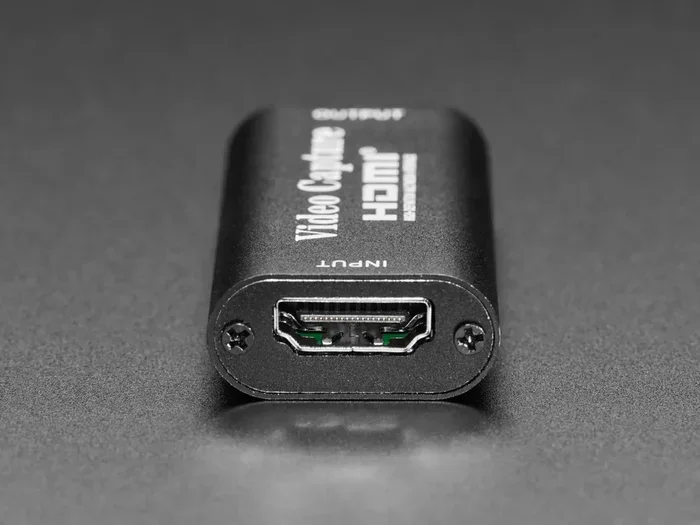
When your HDMI converter is not working, it can be frustrating — but most problems have simple solutions. This guide covers the top reasons your HDMI converter fails, from cable issues to compatibility mismatches. You will learn proven troubleshooting steps to get your display back up and running fast.
Key Takeaways
- Loose connections are the most common reason an HDMI converter stops working.
- Compatibility issues between your converter and devices can cause signal loss.
- Outdated drivers and incorrect display settings often lead to HDMI problems.
- Faulty cables or adapters may need to be replaced to restore function.
- Power supply problems can affect active HDMI converters that require external power.
- Firmware updates on your devices can resolve unexpected HDMI converter failures.
- Knowing when to replace your converter saves time and money.
📑 Table of Contents
Why Is My Hdmi Converter Not Working
You plug in your HDMI converter, but nothing happens. The screen stays black. No signal. No picture. It is incredibly frustrating, especially when you just want to get something working quickly. The good news is that most HDMI converter issues are easy to fix.
An HDMI converter changes one type of signal into another. It lets you connect devices that would not normally work together. For example, you might use one to link a laptop to an older monitor. When the converter fails, your whole setup stops working. This article explains the most common reasons this happens and gives you clear steps to fix it.
We will walk through connection problems, compatibility issues, driver troubles, and more. By the end, you will know exactly what to check and how to solve the problem. Let us get started.
What Is an HDMI Converter and How Does It Work
An HDMI converter takes a signal from one device and changes it so another device can understand it. Some converters change HDMI to VGA. Others convert HDMI to DisplayPort or even to USB-C. The type of converter you use depends on what devices you are connecting.
Active converters need power to work. They usually plug into a USB port for energy. Passive converters do not need extra power. They simply pass the signal from one end to the other. Knowing which type you have helps you troubleshoot more effectively.
Common Reasons Your HDMI Converter Fails
Several things can cause your HDMI converter not working problem. Most of them are simple to fix. Let us look at the biggest culprits.
Loose or Damaged Cables
The most common reason for no signal is a loose cable. If the HDMI cable is not fully plugged in, the converter cannot send a signal. Over time, cables can wear out. The tips can bend, and the inner wires can break.
Check both ends of every cable. Make sure each one clicks firmly into place. If you notice fraying or bent pins, replace the cable. A new cable often solves the problem instantly.
Wrong Input or Output Settings
Sometimes the converter is working fine, but your device is looking at the wrong input source. Many monitors and TVs have multiple ports. If you plug your converter into HDMI 1 but your display is set to HDMI 2, you will see nothing.
Use your display’s menu button to cycle through input sources. Select the port where your converter is connected. This simple step fixes the issue more often than people think.
Compatibility Problems Between Devices
Not all HDMI converters work with all devices. Some older converters do not support newer resolutions. A converter that works great with a desktop PC might fail with a laptop. This happens because of different video output standards.
Check the specifications of your converter before buying. Make sure it supports the resolution and refresh rate you need. If your laptop outputs 4K but your converter only handles 1080p, you will run into problems.
How to Troubleshoot Your HDMI Converter
Now that you know the common causes, let us walk through the fixes. Follow these steps in order. Most people find the solution in the first few steps.
Step 1: Check All Connections
Start by unplugging everything. Then plug it all back in firmly. This sounds too simple, but it works more often than not. A cable that feels secure might still not be making full contact inside the port.
Try a different port on your display if available. If you are using a USB hub, plug the converter directly into your laptop instead. Sometimes hubs do not provide enough power or a stable connection.
Step 2: Restart Your Devices
Turn off your laptop and your display. Unplug the converter. Wait about 30 seconds. Plug everything back in and turn the devices on again. This resets the connection and clears temporary glitches.
Restarting helps because it forces your devices to re-detect the converter. Many HDMI issues are just temporary communication errors between devices. A fresh start often fixes them right away.
Step 3: Update Your Display Drivers
Outdated drivers can cause all kinds of display problems. Your laptop needs the latest drivers to communicate properly with external devices. If your mouse is not working on my laptop, driver issues might also be affecting your HDMI output.
Go to your device manufacturer’s website and download the latest graphics drivers. Install them and restart your computer. Check if the converter works after the update. This fix is especially important after a major operating system update.
Step 4: Adjust Your Display Resolution
Your laptop might be sending a signal that your converter or display cannot handle. Lower the resolution to see if that helps. Right-click on your desktop and open Display Settings.
Change the resolution to 1080p or lower. See if the converter now works. If it does, your converter may not support the higher resolution your laptop was sending. Adjust the settings to match what your converter can handle.
HDMI Converter Compatibility Issues Explained
Compatibility is one of the trickiest parts of using an HDMI converter. Different devices use different standards, and not every converter works with every setup.
Active vs Passive Converters
Active converters have built-in chips that process the signal. They need power, usually from a USB port. Passive converters are simpler. They just redirect the signal without changing it.
Passive converters only work when both devices use the same type of signal. For example, a passive HDMI-to-HDMI adapter works fine. But converting HDMI to VGA always requires an active converter. Make sure you have the right type for your setup.
Resolution and Refresh Rate Limits
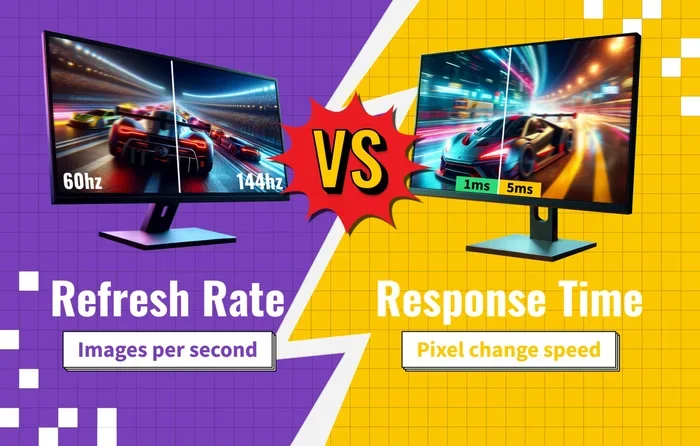
Every converter has limits. Cheaper models often only support 1080p at 60Hz. If you need 4K or higher refresh rates, you will need a better converter. Check the product specs carefully before you buy.
Using a converter beyond its limits can cause a black screen, flickering, or no signal at all. If your mouse is not connecting to my laptop through a docking station with an HDMI output, the converter inside the dock might be the bottleneck.
Operating System Differences
Windows, Mac, and Linux systems handle external displays differently. Some converters work perfectly on Windows but fail on Mac. Others have the opposite problem. Always check if your converter is compatible with your operating system.
Look for converter models that list your OS as supported. Manufacturers usually mention this on the product page or packaging. If you cannot find this information, search online for user experiences with your specific converter and operating system.
When to Replace Your HDMI Converter
Sometimes the fix is not a simple reset or driver update. Your converter might be damaged and need replacement. Here are signs that it is time for a new one.
If you have tried every troubleshooting step and the converter still does not work, it is likely faulty. Physical damage is another clear sign. If the converter is cracked, melted, or smells burnt, stop using it immediately.
Intermittent problems are also a red flag. If the screen works sometimes but not others, the internal components are probably failing. A converter that works one day and not the next needs to be replaced. Continuing to use a damaged converter can harm your devices.
Before buying a new one, check your warranty. Many converters come with a one-year warranty. You might be able to get a free replacement if the unit is still under warranty.
Expert Tips for HDMI Converter Users
These tips will help you get the best performance from your HDMI converter and avoid common problems.
Buy Quality Converters
Cheap converters might save you money upfront, but they often cause headaches. A well-built converter from a reputable brand lasts longer and works more reliably. Look for converters with good reviews and solid build quality.
Keep Your Cables Organized
Tangled cables put stress on the connections. Over time, this can cause signal loss or intermittent failures. Use cable ties or clips to keep your setup neat. This small habit can extend the life of your converter and cables.
Update Firmware When Available
Some smart converters have updatable firmware. Check the manufacturer’s website for updates. Firmware updates can fix bugs and improve compatibility with newer devices. Just like updating your phone, keeping your converter updated helps it work better.
Use Short Cables When Possible
Longer cables can weaken the signal. If you can use a shorter HDMI cable between your converter and display, do it. A shorter cable means a stronger, more reliable signal. This is especially important for high-resolution setups.
Final Thoughts
Dealing with an HDMI converter not working situation is annoying, but it is almost always fixable. Start with the simple stuff. Check your cables, restart your devices, and update your drivers. Most problems are solved in just a few minutes.
If those steps do not work, look at compatibility and settings. Make sure your converter supports your devices and resolution. And if the converter is truly damaged, do not be afraid to replace it. A good converter is a small investment that makes a big difference.
Keep this guide handy for the next time your display acts up. With the right knowledge, you can troubleshoot like a pro and get back to work or entertainment without delay.
Frequently Asked Questions
Why does my HDMI converter work sometimes but not other times?
This is usually caused by a loose connection or a cable that is partially damaged. Intermittent issues can also happen when the converter overheats. Try using a different cable or plugging the converter directly into your laptop instead of through a hub.
Can a bad HDMI cable cause my converter to stop working?
Yes, absolutely. A damaged or low-quality HDMI cable is one of the most common reasons for signal loss. Even if the cable looks fine on the outside, the internal wires might be broken. Replacing the cable is an easy and inexpensive fix.
Do I need a special driver for my HDMI converter?
Most HDMI converters do not need a special driver. They work as plug-and-play devices. However, if you are using an active converter with additional features, you might need to install software or firmware from the manufacturer’s website.
Why does my HDMI converter show no signal even though everything is plugged in?
No signal usually means the display is not receiving the video input. Check that your display is set to the correct input source. Also make sure the converter is fully seated in both the source device and the display. A quick restart of both devices can also resolve this.
Will an HDMI converter work with any monitor or TV?
Most HDMI converters work with a wide range of displays, but compatibility depends on the type of converter and the ports available on your monitor or TV. Check that your display has the right input for the converter’s output. For example, an HDMI-to-VGA converter requires a VGA port on your display.
How can I tell if my HDMI converter is damaged?
Signs of a damaged converter include a cracked housing, burning smell, or physical deformation. If the converter works inconsistently or stops working entirely after a drop or impact, the internal components are likely broken. In this case, replacement is the best option.