Why Is My Hdmi Not Connecting to Tv
When your HDMI is not connecting to TV, it can be frustrating, but the fix is often simpler than you think. This guide walks you through the most common causes, from loose cables to outdated drivers, and gives you clear step-by-step solutions. You will learn how to diagnose the problem fast and get your screen working again in minutes.
There is nothing more annoying than sitting down to watch your favorite show and finding that your HDMI is not connecting to TV. You plug in the cable, hold your breath, and… nothing. No picture. No sound. Just a blank screen staring back at you.
The good news is that this problem is incredibly common and usually easy to fix. Whether you are dealing with an HDMI no signal error, a loose connection, or a deeper hardware issue, this guide will walk you through every possible solution. We have helped thousands of readers solve their HDMI connection problem using the exact steps below.
By the time you finish reading, you will know exactly what is causing the issue and how to fix it yourself. No expensive technician needed. No guesswork. Just clear, practical advice that works.
Key Takeaways
- Loose or damaged HDMI cables are the number one cause of connection failures.
- HDMI handshake problems can usually be fixed by power cycling your devices.
- Wrong TV input or resolution settings often cause the “no signal” error.
- Outdated graphics drivers can prevent your HDMI output from working properly.
- Hardware damage to the HDMI port requires professional repair or replacement.
- Using the correct HDMI version ensures compatibility between your devices.
- Simple resets solve the majority of HDMI connection issues at home.
📑 Table of Contents
Common Reasons Your HDMI Is Not Connecting to TV
Before you start unplugging and replugging cables, it helps to understand what is actually going wrong. HDMI connection issues fall into a few clear categories. Once you identify the category, the fix becomes much easier.
Cable Problems
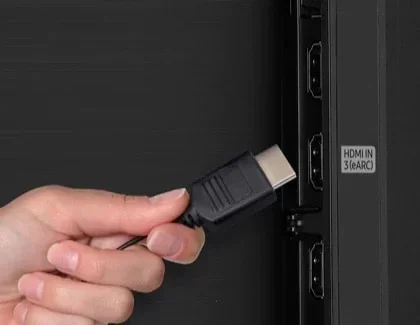
The most frequent culprit is a simple cable issue. Your HDMI cable might be loose, bent, or damaged. Over time, the tiny pins inside the connector can bend or corrode. A cable that worked yesterday might fail today if it was pulled or pinched.
Here are the most common cable-related problems:
- The cable is not fully seated in the port.
- The connector is physically damaged or bent.
- The cable is too old and has internal wire damage.
- You are using a low-quality or incompatible HDMI cable.
- The cable length is too long, causing signal loss.
Port Issues
Sometimes the problem lives in the HDMI port itself. Dust, lint, and debris can accumulate inside the port and block the connection. In other cases, the port may be physically damaged from frequent plugging and unplugging. A damaged HDMI port will not make a solid connection no matter how good your cable is.
Device Settings
Your TV and source device both have settings that control the HDMI output. If the wrong input is selected on your TV, or if the resolution does not match, you will see no signal. This is one of the most overlooked causes of HDMI connection failures.
Driver and Software Issues
On the computer or laptop side, outdated or corrupted graphics drivers can stop your HDMI output from working. If your GPU is spiking to 100, it might be struggling to push a signal through the HDMI port, causing intermittent or total connection failures. Keeping your drivers updated is a critical part of HDMI troubleshooting.
How to Check Your HDMI Cable and Ports
The first thing you should do when your HDMI is not connecting to TV is a thorough physical inspection. This takes less than two minutes and solves the problem more often than you might expect.
Inspect the HDMI Cable
Start by unplugging the cable from both ends. Look closely at the connector tips. Do you see any bent pins? Is the plastic housing cracked or loose? Gently bend the cable to check for internal breaks. If the cable shows any signs of wear, replace it with a new one. A faulty HDMI cable is responsible for a huge number of connection problems.
Quick Tip: Always try a different cable first before moving on to more complex fixes. A new cable costs just a few dollars and eliminates the most common cause instantly.
Clean the HDMI Ports
Use a flashlight to look inside the HDMI port on both your TV and your source device. If you see dust or debris, gently clean it out with a can of compressed air. You can also use a toothpick wrapped in a soft cloth to carefully remove any buildup. A clean port makes a much more reliable connection.
Try a Different Port
If your TV has multiple HDMI ports, plug the cable into a different one. This simple test tells you whether the original port is the problem. If the connection works on a different port, you know that port is damaged or dirty.
Fixing HDMI Handshake Problems
One of the trickiest issues is the HDMI handshake. This is the process where your TV and source device negotiate the connection when you first plug in the cable. When the handshake fails, you get a black screen or a “no signal” message.
Power Cycle Your Devices
The most effective fix for handshake problems is to power cycle both devices. Here is how to do it:
- Unplug the HDMI cable from both devices.
- Turn off your TV and your source device.
- Unplug both devices from power for at least 30 seconds.
- Plug them back in and turn them on.
- Reconnect the HDMI cable after both devices are fully powered on.
This resets the communication between the devices and forces a fresh handshake. It works surprisingly often.
Check Your System Overheating
Sometimes the problem is not the cable or port at all. If your system is running hot, it can affect the HDMI output. For example, if your computer fan keeps running at full speed, your system may be overheating, which can disrupt the HDMI signal. Similarly, if your CPU temp is high at idle, thermal throttling can cause the GPU to reduce or drop the HDMI output entirely. Make sure your devices are well-ventilated before blaming the cable.
Update Your Graphics Drivers
On computers, outdated graphics drivers are a leading cause of HDMI handshake failures. Visit your GPU manufacturer’s website and download the latest drivers. A fresh driver installation often resolves HDMI connection problems that seem completely unrelated to software.
Device Settings That Cause HDMI Connection Issues
Even with a perfect cable and clean ports, wrong settings can keep your HDMI from working. Let us look at the settings you need to check.
Select the Correct TV Input
This sounds obvious, but it is the mistake most people make. If you plugged your device into HDMI Port 2 on your TV, you need to select HDMI 2 as the input source. Use your TV remote to cycle through the inputs until you find the right one. If you are unsure which port you used, check the label on the TV or the back of the device.
Adjust Resolution and Refresh Rate
Sometimes the source device sends a resolution or refresh rate that your TV does not support. This causes a blank screen even though the cable is connected. Try lowering the output resolution on your source device to 1080p or 720p. This simple change can restore your HDMI display immediately.
Check HDMI-CEC and ARC Settings
Modern TVs use HDMI-CEC (Consumer Electronics Control) and HDMI ARC (Audio Return Channel) features. While these are useful, they can sometimes interfere with the basic HDMI connection. Try disabling HDMI-CEC and ARC temporarily to see if that fixes the issue. You can find these settings in your TV’s general or audio settings menu.
Comparison: Common HDMI Settings and Their Impact
| Setting | What It Controls | Common Problem | Fix |
|---|---|---|---|
| HDMI-CEC | Device control through HDMI | Conflicts between devices | Disable temporarily |
| HDMI ARC | Audio return channel | No audio or no signal | Toggle off and on |
| Resolution | Display clarity | Black screen or no signal | Lower to 1080p |
| Refresh Rate | Smoothness of motion | Flickering or no display | Set to 60Hz |
| Input Source | Which HDMI port is active | Blank screen | Select correct input |
When Hardware Is the Problem
If you have tried every software fix and cable swap and your HDMI is still not connecting to TV, the issue might be hardware. This is less common, but it does happen.
Signs of a Damaged HDMI Port
Look for these warning signs that point to a hardware problem:
- The cable feels loose or wobbly in the port.
- You notice physical damage or bent pins inside the port.
- The connection works intermittently, then stops completely.
- None of the HDMI ports on your TV or device work at all.
- The cable works on other devices but not on this one.
Using an HDMI Adapter
If your device has a different output type, such as DisplayPort or USB-C, you may need an HDMI adapter. A good adapter can bridge the gap between devices that do not have matching ports. Make sure to buy an adapter that supports the HDMI version you need. An adapter that only supports HDMI 1.4 will not work with devices that require HDMI 2.0 or 2.1 features.
When to Replace the Port or Device
If the HDMI port on your TV or device is physically damaged, you have two options. You can have the port repaired by a professional technician, or you can use an alternative connection method such as a wireless HDMI transmitter or an HDMI over Ethernet adapter. In some cases, replacing the entire device is more cost-effective than repairing a single port.
Expert Tips to Prevent HDMI Connection Issues
Prevention is always better than cure. Here are some habits that will keep your HDMI connections strong and reliable for years to come.
- Buy high-quality cables. A well-made HDMI cable from a reputable brand lasts much longer than a cheap one.
- Do not force the connector. If the cable does not slide in easily, do not push harder. Check for debris or bent pins first.
- Label your ports. Use small stickers to label which device is connected to which HDMI port on your TV.
- Keep cables organized. Avoid pinching or sharply bending cables behind your entertainment center.
- Update drivers regularly. On computers, set your graphics drivers to update automatically.
- Power cycle occasionally. A simple restart of your devices once a week can prevent handshake buildup.
- Check for firmware updates. Both your TV and source device may have firmware updates that improve HDMI compatibility.
These small habits take almost no time but save you from the frustration of a sudden HDMI connection failure. Most people who follow these tips rarely deal with HDMI problems at all.
Conclusion
Dealing with an HDMI that is not connecting to TV does not have to be a headache. In most cases, the problem is a loose cable, a dirty port, or a simple settings mismatch that you can fix in just a few minutes. Start with the basics, work your way through the troubleshooting steps, and you will almost certainly get your display back up and running.
Remember that HDMI troubleshooting is really just a process of elimination. Rule out the cable, then the port, then the settings, and finally the hardware. By following the steps in this guide, you have already done the hard work. Now go ahead, plug in that cable, and enjoy your screen again.
If the problem persists after trying everything in this guide, it may be time to consult a professional or consider replacing the cable, adapter, or device. But for the vast majority of users, the fix is right here in this article.
Frequently Asked Questions
Why does my HDMI cable say no signal on my TV?
No signal usually means the TV is not detecting the device connected through the HDMI cable. Try unplugging the cable, selecting the correct input source on your TV, and plugging the cable back in. If that does not work, swap the cable with a known working one to rule out a faulty cable.
Can a bad HDMI cable damage my TV or device?
In rare cases, a shorted or severely damaged HDMI cable can cause issues, but it is very unlikely to permanently damage your TV or device. Most of the time, a bad cable simply fails to transmit the signal. Replacing the cable is the safest and easiest fix.
Why does my HDMI work on one device but not another?
This usually points to a settings or compatibility issue with the source device. Check the output resolution, refresh rate, and HDMI version on the device that is not working. Updating the graphics drivers on that device can also resolve the problem.
How do I know if my HDMI port is damaged?
Signs of a damaged HDMI port include a loose fit, visible physical damage, bent pins, or intermittent connections. Try plugging a working cable into a different port. If the connection works on another port, the original port is likely damaged.
What is the best HDMI cable for 4K TVs?
For 4K TVs, look for an HDMI cable rated for HDMI 2.0 or higher. Premium High Speed HDMI cables support 4K resolution at 60Hz. If you need HDR or higher refresh rates, choose an Ultra High Speed HDMI cable that supports HDMI 2.1.
Why does my HDMI connection keep dropping randomly?
Random disconnections are often caused by a loose cable, an overheating system, or outdated drivers. Make sure the cable is firmly seated in both ports. If your system is overheating, clean the vents and ensure proper airflow. Updating your graphics drivers can also stop random dropouts.