Which Hdmi Port Is Best for Roku
Choosing the right HDMI port for your Roku device matters more than most people think. The best HDMI port for Roku depends on your TV model, the Roku device you own, and whether you want 4K, HDR, or audio return features. This guide breaks down each HDMI port option so you can set up your Roku for the best picture and sound quality without any guesswork.
Key Takeaways
- HDMI 1 or HDMI 2 on your TV: These standard ports work great for most Roku devices and deliver solid 4K performance.
- HDMI ARC is ideal: It lets audio travel back to your soundbar or home theater system, saving you an extra cable.
- HDMI 2.0 or 2.1 matters for 4K Roku: These ports offer higher bandwidth for smoother 4K HDR streaming.
- Avoid using HDMI splitters unnecessarily: They can reduce signal quality and cause headaches.
- Label your ports: A simple tape label helps you remember which port your Roku is plugged into.
- Check your Roku model: Different Roku devices need different HDMI port features for the best experience.
[FEATURED_IMAGE_PLACEHOLDER]
📑 Table of Contents
- Which HDMI Port Is Best for Roku
- Understanding HDMI Ports on Your TV
- Which HDMI Port Should You Use for Each Roku Model?
- Common HDMI Port Mistakes to Avoid
- How to Test Which HDMI Port Works Best
- HDMI Port Comparison for Roku: A Quick Reference
- Expert Tips to Get the Most Out of Your Roku HDMI Setup
- How to Choose the Right HDMI Cable for Roku
- Final Thoughts
Which HDMI Port Is Best for Roku
So you just got a Roku device and you are ready to start streaming. You plug it in, turn on the TV, and… nothing. Or maybe you get a blurry picture. Sound familiar? The problem might not be your Roku at all. It could be the HDMI port you chose on your TV.
Not all HDMI ports are created equal. Your TV likely has three or four of them, and each one can behave differently. Some support 4K. Some handle audio return. Some are just basic. Picking the wrong one can lead to a poor streaming experience. That is exactly why this guide exists.
In this article, we will walk you through every HDMI port type, explain which one works best for Roku, and give you practical tips to get the best picture and sound. Whether you own a Roku Express, a Roku Ultra, or a Roku Streaming Stick, this guide has you covered.
Understanding HDMI Ports on Your TV
Before we pick a port, let us understand what is actually on the back of your TV. HDMI ports come in different versions and types. The version number (like HDMI 1.4 or HDMI 2.0) tells you what features the port supports.
What Do the HDMI Version Numbers Mean?
The HDMI version number is printed on the port or in your TV manual. Here is a quick breakdown of what each version means for Roku users:
- HDMI 1.4: Supports 1080p and basic 3D. Fine for older Roku models like the Roku Express.
- HDMI 2.0: Supports 4K at 60Hz. This is the sweet spot for most modern Roku devices.
- HDMI 2.1: Supports 4K at 120Hz and eARC. Overkill for streaming but great if you also game.
Most modern TVs have at least one HDMI 2.0 port. That is the one you want for your Roku. If your TV has HDMI 2.1, even better. But HDMI 2.0 is more than enough for smooth 4K Roku streaming.
What Is HDMI ARC and Why Does It Matter?
HDMI ARC stands for Audio Return Channel. It is a special feature on certain HDMI ports that sends audio from your TV back to a soundbar or home theater system. This means you only need one cable for both video and audio.
For Roku users, this is a big deal. If you use a soundbar or external speakers, plugging your Roku into the HDMI ARC port gives you cleaner audio without extra cables. Look for a port labeled “ARC” on the back of your TV.
Not all Roku devices need ARC. If you watch TV through built-in speakers, any HDMI port will work. But if you want better sound, the ARC port is your best friend.
Which HDMI Port Should You Use for Each Roku Model?
Different Roku devices have different needs. A basic Roku Express does not need the same port as a Roku Ultra. Let us break it down by model.
Roku Express and Roku Express 4K
The Roku Express is an affordable entry-level streaming device. It supports up to 1080p on the standard model and 4K on the 4K version. For these devices, any standard HDMI port on your TV will work fine. You do not need HDMI 2.0 or ARC.
That said, if your TV has an HDMI 2.0 port, use it anyway. It future-proofs your setup. If you ever upgrade your Roku device, you will already be on a port that supports 4K.
Roku Streaming Stick and Roku Streaming Stick Plus
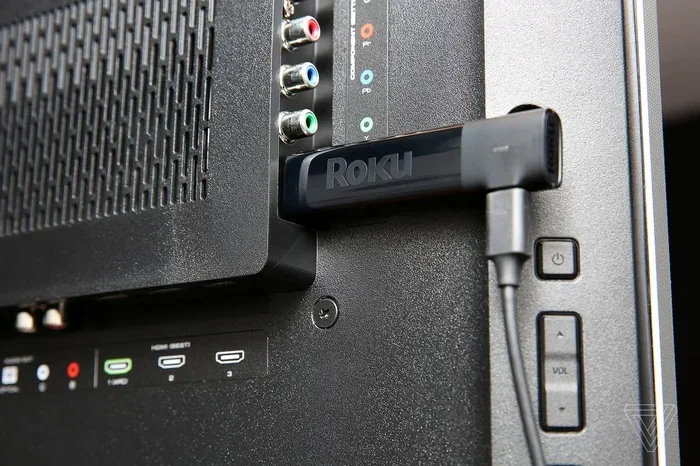
The Roku Streaming Stick plugs directly into the HDMI port on the back of your TV. Because it is so compact, it stays hidden behind the TV. For these devices, any available HDMI port works. But here is a tip: use the port that is easiest to reach.
The Streaming Stick Plus supports 4K HDR. So if you have one, plug it into an HDMI 2.0 port for the best results. Avoid ports that only support 1080p if you want to take advantage of the 4K resolution.
Roku Ultra and Roku Premiere
The Roku Ultra is the premium streaming device. It supports 4K HDR, Dolby Vision, and high-end audio formats. For this device, you absolutely want an HDMI 2.0 port. The Roku Ultra also comes with a voice remote and private listening jack, but the HDMI connection is where the magic happens.
If your TV has HDMI ARC, use that port if you also have a soundbar. The Roku Ultra supports Dolby Atmos, and the ARC connection ensures your audio formats travel properly to your audio system.
Common HDMI Port Mistakes to Avoid
People make simple mistakes with HDMI ports all the time. Here are the most common ones and how to avoid them.
Using the Wrong Port for 4K Content
This is the number one mistake. Many people plug their Roku into any open HDMI port and wonder why they do not get 4K. If your TV has a mix of HDMI 1.4 and HDMI 2.0 ports, the 1.4 port will cap your resolution at 1080p or 4K at 30Hz. That is not ideal for smooth streaming.
Always check which port supports 4K at 60Hz. Look for the HDMI 2.0 label. If your TV manual does not list the port versions, try each port and check the picture quality in your Roku settings.
Ignoring the HDMI-CEC Feature
HDMI-CEC (Consumer Electronics Control) lets you control your Roku with your TV remote. This feature works through any HDMI port, but some TV brands call it by different names. Samsung calls it Anynet+, LG calls it Simplink, and Sony calls it BRAVIA Sync.
Make sure HDMI-CEC is turned on in your TV settings. This small step makes your Roku much easier to use. You can power on the Roku, adjust volume, and switch inputs all with your TV remote.
Using a Cheap or Damaged HDMI Cable
Even the best HDMI port will not deliver good results with a bad cable. A low-quality cable can cause signal drops, no sound, or blurry video. For 4K Roku streaming, use a Premium High Speed HDMI cable.
You do not need to spend a fortune. A good 6-foot Premium High Speed cable costs around ten to fifteen dollars. Avoid ultra-thin cables longer than six feet. They often cannot carry a strong 4K signal.
Plugging Into a Port Shared With Other Devices
Some people plug their Roku into the same HDMI port as a cable box or gaming console. This forces you to switch inputs every time you want to stream. It is annoying and easy to forget.
Dedicate one HDMI port to your Roku. Use a simple piece of tape to label it “Roku.” This small habit saves a lot of frustration. If you have limited ports, consider a quality HDMI splitter to manage multiple devices.
How to Test Which HDMI Port Works Best
Not sure which port is giving you the best results? Testing is easy and takes just a few minutes.
Step-by-Step Testing Process
- Plug your Roku into one HDMI port on your TV.
- Turn on the TV and switch to that input.
- Go to Settings on your Roku home screen.
- Select Display Type and check the resolution.
- If it shows 4K UHD or 2160p, that port supports 4K.
- If it shows 1080p, try a different HDMI port.
- Repeat with each port until you find the best one.
Quick Tips for the Best Results
- Restart your Roku after switching ports. This helps the device re-negotiate the connection.
- Check your TV firmware. Update your TV software to ensure all HDMI ports work properly.
- Use the TV remote to switch inputs. Some Roku remotes cannot switch TV inputs directly.
- Test audio on each port. Plug in your soundbar and check if audio plays through it on each port.
These small steps make a big difference. Taking five minutes to test your ports can save hours of frustration later.
HDMI Port Comparison for Roku: A Quick Reference
Here is a simple comparison to help you decide quickly. Each row represents a common HDMI port type found on modern TVs.
- Standard HDMI (1.4): Good for 1080p Roku Express. Not ideal for 4K devices.
- HDMI 2.0: Best for 4K Roku Streaming Stick Plus and Roku Ultra. Supports HDR.
- HDMI ARC: Best if you use a soundbar or home theater. Sends audio back to your speakers.
- HDMI 2.1: Supports 4K at 120Hz. Great for future-proofing. Overkill for streaming alone.
- USB-C HDMI Alt Mode: Rare on TVs but found on some monitors. Works with Roku if the port supports it.
For most people, the answer is simple. Use the HDMI 2.0 port. If you have a soundbar, use the HDMI ARC port. If you only have standard HDMI 1.4 ports, your Roku will still work, but you may be limited to 1080p on older models.
Expert Tips to Get the Most Out of Your Roku HDMI Setup
Here are some pro tips that go beyond just picking the right port. These small adjustments can improve your Roku experience significantly.
Enable HDR on Your Roku
If your TV and Roku both support HDR, make sure it is turned on. Go to Settings, then Display Type, and look for HDR options. This gives you richer colors and better contrast. But HDR only works on HDMI 2.0 ports or higher. So your port choice directly affects whether you get this feature.
Use HDMI-CEC to Simplify Your Setup
HDMI-CEC lets your TV remote control your Roku. You can power it on, adjust volume, and switch inputs. This feature is enabled by default on most TVs, but it is worth double-checking. Look for the setting under your TV name in the Roku settings menu.
Keep Your Roku Firmware Updated
Roku regularly releases updates that improve HDMI compatibility and fix bugs. Go to Settings, then System, and select System Update. Keeping your device updated ensures the best performance on any HDMI port.
Consider Your TV Placement
Where your TV sits in your entertainment setup matters. If your TV is wall-mounted, some HDMI ports may be hard to reach. If your TV sits on a stand, the ports are easier to access. Choose a port that makes it easy to plug in and unplug your Roku when needed.
Also consider ventilation. If your TV is in a closed cabinet, the heat can affect HDMI signal quality. Make sure there is enough airflow around the ports. A well-ventilated setup keeps your signal strong and your devices running cool.
How to Choose the Right HDMI Cable for Roku
The HDMI port matters, but so does the cable. A poor cable can ruin the best port setup. Here is what to look for.
- Premium High Speed HDMI: This is the minimum for 4K Roku devices. It supports 4K at 60Hz and HDR.
- Ultra High Speed HDMI: This supports 4K at 120Hz and HDMI 2.1 features. You only need this if you have a Roku device or TV that supports it.
- Cable length: Keep it under six feet for best signal quality. Longer cables can lose signal strength.
- Branded cables: Stick with trusted brands like Belkin, Cable Matters, or AmazonBasics. They offer consistent quality.
You do not need to buy the most expensive cable. A twenty-dollar Premium High Speed HDMI cable will handle any Roku device perfectly. Save your money for the Roku device itself or a good soundbar.
Final Thoughts
So which HDMI port is best for Roku? The answer depends on your TV and your Roku model, but the general rule is simple. Use an HDMI 2.0 port for 4K Roku devices. Use the HDMI ARC port if you have a soundbar or external speakers. Avoid using shared ports when possible, and always use a quality HDMI cable.
These small decisions make a real difference in your streaming experience. You get sharper pictures, better sound, and fewer headaches. Taking five minutes to set up your Roku on the right HDMI port pays off every time you sit down to watch something.
Your TV is an investment in your home entertainment setup. Treating it right starts with the right port choice. Follow the tips in this guide, and your Roku will run at its best for years to come.
Frequently Asked Questions
Can I use any HDMI port for my Roku device?
Yes, any HDMI port will work for basic functionality. However, for the best 4K picture quality and HDR support, you should use an HDMI 2.0 port. Using an older HDMI 1.4 port may limit your resolution to 1080p.
What is the difference between HDMI 2.0 and HDMI 2.1 for Roku?
HDMI 2.0 supports 4K at 60Hz, which is perfect for Roku streaming. HDMI 2.1 supports 4K at 120Hz and eARC. For Roku devices, HDMI 2.0 is more than enough. HDMI 2.1 is only necessary if you also game on your TV at high refresh rates.
Why is my Roku not showing 4K even though I have a 4K TV?
This usually happens when your Roku is plugged into the wrong HDMI port. Check that you are using an HDMI 2.0 port. Also make sure your Roku Display Type is set to 4K UHD in the settings menu. A bad cable can also cause this issue.
Do I need HDMI ARC for Roku?
You do not need HDMI ARC if you are happy with your TV built-in speakers. HDMI ARC becomes important when you use an external soundbar or home theater system. It sends audio back through the same cable, so you only need one connection instead of two.
Can I plug my Roku into a USB port instead of HDMI?
No. Roku devices require an HDMI connection to display video on your TV. USB ports on TVs are designed for storage or firmware updates, not for video output. You will need an available HDMI port on your TV to use a Roku.
How can I improve my Roku streaming quality?
Start by using the right HDMI port (HDMI 2.0 or higher), a quality HDMI cable, and make sure your internet connection is strong. Also keep your Roku firmware updated and enable HDR if your TV supports it. These steps together give you the best possible streaming experience.
=== CONCLUSION ===
Choosing the right HDMI port for Roku is one of the simplest ways to improve your streaming setup. Whether you go with a standard HDMI 2.0 port or an HDMI ARC port depends on your specific needs. The key is to match your port to your Roku model and your audio setup. With the right port and a good cable, your Roku will deliver crisp 4K video and rich audio every time you hit play.
Take a few minutes today to check your HDMI ports and test your setup. Your future self will thank you every time you stream your favorite shows. Happy watching.