Is a Displayport the Same as Hdmi
Many people wonder if a DisplayPort is the same as HDMI, but they are not. DisplayPort and HDMI are both display connectors used to send video and audio from a device to a screen. They differ in bandwidth, refresh rates, and compatibility with different devices. This guide breaks down every key difference so you can choose the right cable with confidence.
Is a DisplayPort the same as HDMI? This is one of the most common questions people ask when setting up a monitor, a gaming display, or a home theater system. The short answer is no, they are not the same. They are two different types of display connectors that serve a similar purpose but work in distinct ways.
If you have ever stood in front of a cable shelf and felt confused by all the options, you are not alone. People buy the wrong cable all the time. They plug it in, and nothing works as expected. Understanding the difference between these two ports can save you time, money, and frustration. Let us walk through everything you need to know about DisplayPort vs HDMI.
Both cables carry audio and video signals from your computer or laptop to a display. But the way they do it, the speeds they support, and the devices they work best with can be very different. Whether you are a gamer, a designer, or just someone who wants a better screen setup, this guide will help you make the right choice.
Key Takeaways
- DisplayPort and HDMI are different connectors designed for transmitting video and audio signals.
- DisplayPort offers higher bandwidth and is often better for high refresh rate monitors.
- HDMI is more widely compatible with TVs, gaming consoles, and home theater systems.
- Both support 4K and even 8K resolution, but performance varies by version.
- Choosing the right cable depends on your device, monitor, and what you plan to do.
- Adapters can bridge the gap between DisplayPort and HDMI when needed.
📑 Table of Contents
What Is DisplayPort?
DisplayPort is a digital display interface developed by the Video Electronics Standards Association, or VESA. It was first introduced in 2006 and has gone through several updates over the years. The main goal of DisplayPort is to deliver high-quality video and audio from a source device to a display.
How DisplayPort Works
DisplayPort sends data using a packet-based protocol. This means it breaks the video signal into small packets and transmits them over the cable. This method allows for very high bandwidth, which is the amount of data that can travel through the cable at once. More bandwidth means you can push higher resolutions and faster refresh rates.
The connector comes in two main sizes. The standard DisplayPort is about 20 millimeters wide. There is also a smaller version called Mini DisplayPort, which was popularized by Apple for their laptops. Both carry the same signal and offer the same performance.
Versions of DisplayPort
DisplayPort has evolved over time. Each new version brought better speed and more features. Here is a quick look at the major versions:
- DisplayPort 1.2: Supports 4K at 60Hz. This was a big step forward when it came out.
- DisplayPort 1.4: Added support for HDR and higher color depth. It also introduced DSC, or Display Stream Compression.
- DisplayPort 2.0 and 2.1: These latest versions offer massive bandwidth boosts. They can handle 8K and even 16K resolution with ease.
Each new version is backward compatible. This means a DisplayPort 2.0 cable works with older ports. You just get the speed of the older version if one side is older.
What Is HDMI?
HDMI stands for High-Definition Multimedia Interface. It was developed by a group of electronics companies and first appeared in consumer devices around 2003. Unlike DisplayPort, which was designed mainly for computer monitors, HDMI was built with TVs and home entertainment in mind.
How HDMI Works
HDMI also carries both audio and video through a single cable. It uses a different signaling method than DisplayPort, but the result is the same. You plug one end into your device and the other into your screen, and you get sound and picture.
HDMI cables come in several sizes. The standard HDMI is the one most people know from their TVs. There is also Mini HDMI, which you find on some cameras and tablets. Then there is Micro HDMI, which is even smaller and used on some phones and portable devices.
Versions of HDMI
HDMI has also gone through several revisions. Here are the key versions you should know about:
- HDMI 1.4: Introduced 4K support at 30Hz. It also added the ARC feature, which lets audio travel back to a soundbar or receiver.
- HDMI 2.0: Brought 4K at 60Hz. This was a game changer for home theater setups.
- HDMI 2.1: The current top-tier version. It supports 4K at 120Hz, 8K at 60Hz, and features like VRR and ALLM for gaming.
Just like DisplayPort, newer HDMI versions are backward compatible. You can plug an HDMI 2.1 cable into an older port, and it will still work. You just get the performance level of the older port.
Key Differences Between DisplayPort and HDMI
Now that you know what each connector is, let us look at how they differ. These differences matter depending on what you are trying to do.
Bandwidth and Speed
Bandwidth is one of the biggest differences between the two. DisplayPort generally offers more raw bandwidth than HDMI at the same version level. This extra bandwidth translates directly into higher refresh rates and support for ultrawide monitors.
For example, DisplayPort 1.4 provides about 32.4 gigabits per second of bandwidth. HDMI 2.0 offers about 18 gigabits per second. That is a huge gap. Even though HDMI 2.1 closed the gap with 48 gigabits per second, DisplayPort 2.0 and 2.1 push well beyond that.
Connector Design
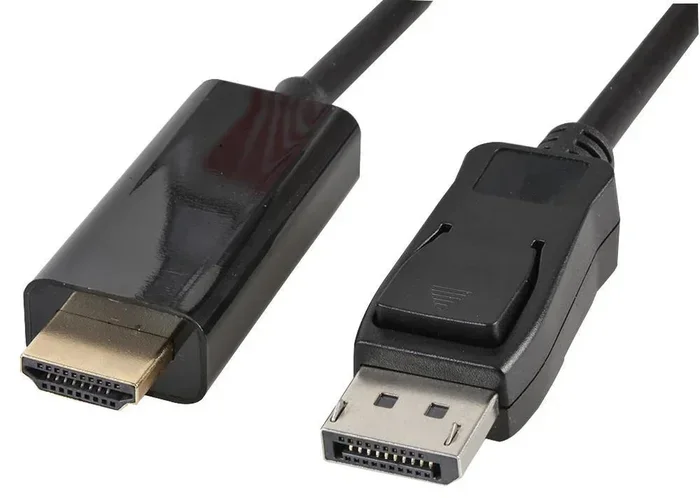
The physical shape of the connectors is different too. DisplayPort has a rectangular shape with a small notch on one side. HDMI has a smaller, trapezoidal shape. You cannot plug one into the other without an adapter. This is something many people learn the hard way.
If your laptop has a DisplayPort output and your monitor only takes HDMI, you will need a DisplayPort to HDMI adapter or cable. These adapters are widely available and affordable. They do a great job of converting the signal without losing quality.
Audio and Video Capabilities
Both connectors handle audio and video. But there are some nuances. HDMI was designed from the start to be the go-to cable for home entertainment. It includes features like CEC, which lets you control multiple devices with one remote. DisplayPort, on the other hand, was built with computer displays in mind.
DisplayPort also supports daisy-chaining. This means you can connect multiple monitors to a single DisplayPort output using a technique called MST, or Multi-Stream Transport. HDMI does not support this natively. If you have several monitors at your desk, DisplayPort makes the setup much cleaner.
Gaming Performance
For gamers, the choice between DisplayPort and HDMI can affect the experience. Higher refresh rates like 144Hz or 240Hz are easier to achieve over DisplayPort, especially at 1440p and 4K resolutions. Many gaming monitors come with DisplayPort inputs for this reason.
HDMI 2.1 has changed the game for console gaming. The PS5 and Xbox Series X both use HDMI 2.1 to deliver 4K at 120Hz. So if you are gaming on a console, HDMI is the way to go. But if you are on a PC, DisplayPort often gives you the edge.
Compatibility with Devices
HDMI is everywhere. Your TV has it. Your Blu-ray player has it. Your game console has it. DisplayPort is more common on desktop computers and professional monitors. Many laptops use HDMI or USB-C with DisplayPort Alt Mode.
If you are connecting a PC to a monitor, either cable can work. But if you want the best performance from a high-end gaming monitor, DisplayPort is usually the better pick. If you are hooking up a laptop to a TV for movie night, HDMI is the natural choice.
Which One Should You Choose?
Choosing between DisplayPort and HDMI depends on what you are doing. Here are some simple guidelines to help you decide.
Choose DisplayPort If
- You are using a PC or a high-end gaming monitor.
- You need high refresh rates above 120Hz.
- You want to daisy-chain multiple monitors together.
- You are running ultrawide resolutions like 3440×1440.
- You want the highest possible bandwidth for 4K or 8K content.
Choose HDMI If
- You are connecting a device to a TV or home theater system.
- You are gaming on a console like PS5 or Xbox.
- You need a cable that works with most entertainment devices.
- You want to use features like ARC or CEC for smart home control.
- You are setting up a simple, all-in-one home entertainment setup.
If you are buying a new laptop and want the best display output options, consider checking when the best time to purchase a laptop so you can find models with the ports you need. Similarly, if you are looking at laptops and want to understand what other hardware matters for display performance, learning about what the RAM on a laptop does can help you make smarter buying decisions.
Common Mistakes People Make
Even with all this information, people still make mistakes when choosing between DisplayPort and HDMI. Here are a few to watch out for.
Assuming All HDMI Cables Are the Same
Not all HDMI cables are created equal. An HDMI 1.4 cable cannot carry the same signal as an HDMI 2.1 cable. If you buy a cheap cable and try to run 4K at 120Hz, it may not work or you may get a blurry image. Always check the version of the cable you are buying.
Using the Wrong Adapter
Adapters are not always plug and play. Some cheap adapters can cause signal loss, flickering, or no signal at all. If you need to convert DisplayPort to HDMI, buy a quality adapter from a reputable brand. A $5 adapter from an unknown seller is not worth the headache.
Ignoring Your Monitor’s Capabilities
Just because you have an HDMI 2.1 cable does not mean your monitor supports 4K at 120Hz. Check your monitor’s specs before you buy cables or adapters. The weakest link in the chain determines the quality of your experience.
Overlooking USB-C and Thunderbolt
Many modern laptops use USB-C or Thunderbolt ports that support DisplayPort Alt Mode. This means you can use a USB-C to HDMI or USB-C to DisplayPort adapter. Do not overlook these options, especially if your laptop does not have dedicated DisplayPort or HDMI ports.
If your laptop mouse is also giving you trouble while setting up your display, check out our guide on what the mouse on a laptop is called and troubleshooting tips for common pointing device issues.
Expert Insights
DisplayPort and HDMI are both excellent standards. They each have strengths and weaknesses. The best choice depends on your specific setup and needs.
For professional creators who work with color-accurate displays, DisplayPort often wins because of its higher bandwidth and support for Display Stream Compression. This allows for 10-bit and 12-bit color depths at high resolutions without visible compression artifacts.
For home theater enthusiasts, HDMI is the clear winner. It supports the latest audio formats like eARC, which delivers uncompressed surround sound. It also integrates seamlessly with smart home ecosystems through CEC.
If you are still unsure, here is a quick tip. Look at what your devices support. Check the back of your monitor or TV. See what ports are available. Then buy the cable that matches. If both ports are available, start with DisplayPort for PC use and HDMI for TV use.
Final Thoughts
So is a DisplayPort the same as HDMI? No, they are two different standards with different strengths. DisplayPort shines in the PC world with high bandwidth, ultrawide support, and monitor daisy-chaining. HDMI dominates the living room with its universal compatibility and smart home features.
Understanding the difference empowers you to make better buying decisions. You will no longer guess which cable to grab. You will know exactly what works best for your setup. And that means less frustration and a better viewing experience every time.
Take a moment to check your current cables and adapters. Make sure they match the version your devices support. If you are planning a new setup, choose the connector that fits your needs. Whether it is DisplayPort or HDMI, the right cable makes all the difference.
When you are ready to upgrade your setup or buy a new laptop with the right ports, remember to check when the best time to buy a laptop computer for the best deals and models with the connectivity you need.
Frequently Asked Questions
Can I plug a DisplayPort cable into an HDMI port directly?
No, you cannot plug a DisplayPort cable directly into an HDMI port. The connectors have different shapes and pin configurations. You will need an active adapter or a DisplayPort to HDMI cable to make the connection work properly.
Is DisplayPort better than HDMI for gaming?
For PC gaming, DisplayPort is generally better because it offers higher bandwidth and supports higher refresh rates at 1440p and 4K. However, if you are gaming on a console, HDMI 2.1 is the standard and the best choice for your setup.
Does HDMI carry better audio than DisplayPort?
HDMI is designed with home audio in mind and supports features like eARC and CEC. DisplayPort can carry audio too, but it does not support some of the advanced audio features that HDMI does. For a home theater setup, HDMI is the stronger choice.
Can I use a 4K monitor with both DisplayPort and HDMI?
Yes, both connectors can support 4K resolution. The version of the port or cable matters most. DisplayPort 1.2 and HDMI 2.0 both support 4K at 60Hz. For 4K at higher refresh rates, you need DisplayPort 1.4 or HDMI 2.1.
Do I need a special cable for 144Hz monitors?
It depends on the resolution and the version of the connector. For 1080p at 144Hz, most DisplayPort and HDMI cables will work. For 1440p at 144Hz, you need DisplayPort 1.2 or higher, or HDMI 2.0 or higher. Always check your monitor and GPU specs before buying a cable.
Are USB-C and Thunderbolt the same as DisplayPort or HDMI?
USB-C and Thunderbolt are not the same as DisplayPort or HDMI, but they can carry those signals. Many USB-C ports support DisplayPort Alt Mode, which means they can output video to a DisplayPort or HDMI monitor using the right adapter or cable.
=== CONCLUSION ===
DisplayPort and HDMI each have their place in the world of displays. They are not the same, but they both get the job done. By understanding their differences, you can pick the right cable for the right job and enjoy a better experience every time you turn on your screen.