What Is the Ram on a Laptop
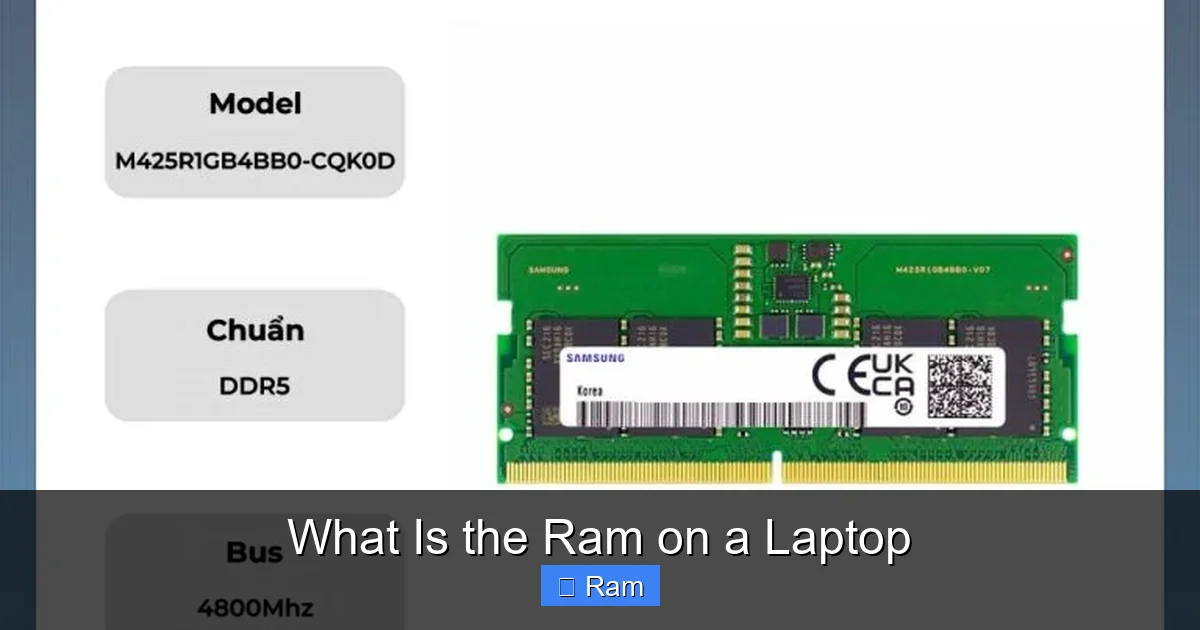
RAM is the short‑term memory that lets your laptop run programs quickly and juggle many tasks at once. Understanding what is the RAM on a laptop, its types, capacity, and speed helps you pick a machine that feels snappy and lasts longer.
Key Takeaways
- RAM definition: It is volatile memory that stores data your laptop needs right now.
- Capacity matters: More gigabytes mean smoother multitasking and better performance in demanding apps.
- Speed counts: Higher MHz and lower latency make data move faster between RAM and the CPU.
- Types differ: DDR4 is common today, while DDR5 is the new high‑performance standard.
- Upgradeability: Not all laptops let you add or replace RAM; check the model before buying.
- Real‑world impact: Gaming, video editing, and heavy browsers benefit most from extra RAM.
- Buying tip: Pair RAM size with CPU and storage type for balanced overall speed.
📑 Table of Contents
- Introduction: Why RAM Matters on a Laptop
- 1. What Is RAM? The Basic Concept
- 2. Types of RAM Used in Modern Laptops
- 3. How Much RAM Do You Really Need?
- 4. Understanding RAM Speed and Latency
- 5. Upgrading or Expanding Laptop RAM
- 6. How RAM Interacts with Other Components
- Conclusion: Making the Right Choice
Introduction: Why RAM Matters on a Laptop
When you open a web browser, launch a game, or edit a photo, your laptop needs a place to keep the information it’s using right now. That place is called RAM – short for Random Access Memory. Think of RAM as a desk where you spread out the papers you’re working on. The bigger the desk, the more papers you can have open without constantly shuffling them back into a filing cabinet.
In the world of laptops, the question “what is the ram on a laptop?” is more than a technical definition. It’s the key to understanding why some laptops feel lightning‑fast while others lag behind after a few tabs. This article breaks down RAM in plain language, shows how it affects everyday use, and gives you clear steps to pick the right amount for your needs.
1. What Is RAM? The Basic Concept
1.1 Definition and Function
RAM is a type of volatile memory that stores data temporarily while the computer is powered on. Unlike a hard drive or SSD, which keep files forever, RAM wipes clean when you shut down. Its job is to give the CPU (the brain of the laptop) instant access to the data it needs right now.
1.2 How RAM Works with the CPU
The CPU can only process data that is already in RAM. When you open an app, the operating system copies the necessary files from storage into RAM. The CPU then reads and writes to that RAM millions of times per second. Faster RAM means the CPU spends less time waiting for information, which translates to smoother performance.
2. Types of RAM Used in Modern Laptops
2.1 DDR4 – The Current Standard
DDR4 (Double Data Rate 4) is the most common RAM type in laptops released over the past few years. It offers a good balance of speed (usually 2400–3200 MHz) and power efficiency, which helps keep battery life respectable.
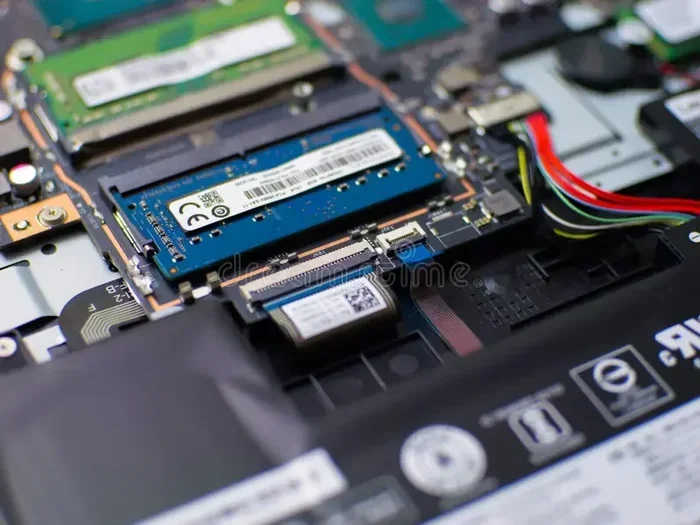
Visual guide about What Is the Ram on a Laptop
Image source: laptopworld.co.in
2.2 DDR5 – The Next‑Gen Upgrade
DDR5 started appearing in high‑end laptops in 2022‑2023. It doubles the bandwidth of DDR4, with speeds often exceeding 4800 MHz. DDR5 also improves power management, but it is currently more expensive and not supported by all CPUs.
2.3 LPDDR – Low Power Variants
LPDDR (Low Power DDR) is designed for ultra‑thin notebooks and tablets. LPDDR4X and the newer LPDDR5 consume less energy, extending battery life, but they may have slightly lower peak speeds than their desktop‑grade DDR counterparts.
3. How Much RAM Do You Really Need?
3.1 Everyday Tasks (Web Browsing, Office Apps)
For basic activities like email, document editing, and streaming, 8 GB of RAM is usually enough. It allows you to keep several browser tabs open and run Office or Google Workspace without noticeable slowdowns.
3.2 Power Users (Programming, Photo Editing)
If you work with Adobe Photoshop, run virtual machines, or compile code, 16 GB becomes a comfortable sweet spot. The extra memory lets large files stay in RAM, reducing the time spent loading from SSD.
3.3 Gamers and Creators (Video Editing, 3D Rendering)
Modern games and 4K video editing software can easily chew through 16 GB. Professionals who edit 8K footage or render 3D scenes often benefit from 32 GB or more, ensuring the system never has to swap data to slower storage.
3.4 Future‑Proofing
Software continues to demand more memory. If you plan to keep your laptop for 4–5 years, opting for 16 GB (or a model with an empty slot for upgrade) can protect you from feeling outdated.
4. Understanding RAM Speed and Latency
4.1 Frequency (MHz)
RAM speed is measured in megahertz (MHz). Higher numbers mean more data can be transferred each second. For DDR4, 2666 MHz is the baseline; 3200 MHz is common in performance laptops.
4.2 Latency (CL)
Latency is the delay before RAM starts delivering data, expressed as CL (CAS Latency). A lower CL is better. For example, DDR4‑3200 CL‑16 is faster in practice than DDR4‑3200 CL‑18.
4.3 Real‑World Impact
In everyday use, the difference between 2400 MHz and 3200 MHz is subtle. However, in memory‑intensive tasks like large spreadsheet calculations or high‑frame‑rate gaming, the speed boost becomes noticeable.
5. Upgrading or Expanding Laptop RAM
5.1 Check Compatibility
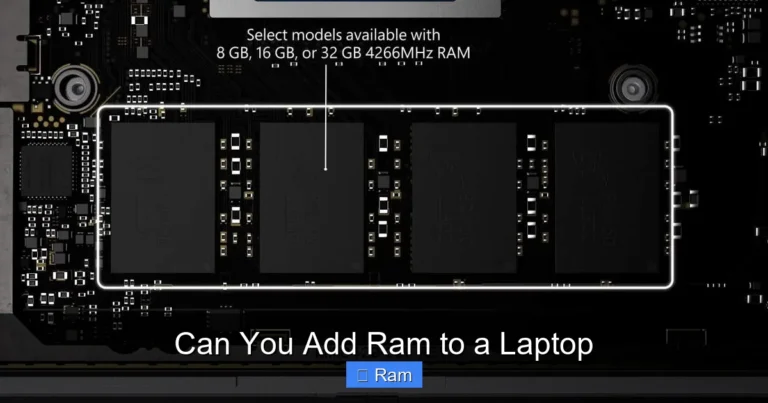
Not all laptops let you add or replace RAM. Ultrabooks and many 2‑in‑1s use soldered RAM that cannot be removed. Before buying, look up the model’s service manual or use a tool like Crucial’s Advisor to see if the RAM is upgradable.
5.2 Dual‑Channel vs. Single‑Channel
Most laptops have two RAM slots. Installing matching sticks (e.g., two 8 GB modules) enables dual‑channel mode, which doubles the data path and improves performance. If you can only add one stick, choose the highest capacity your laptop supports.
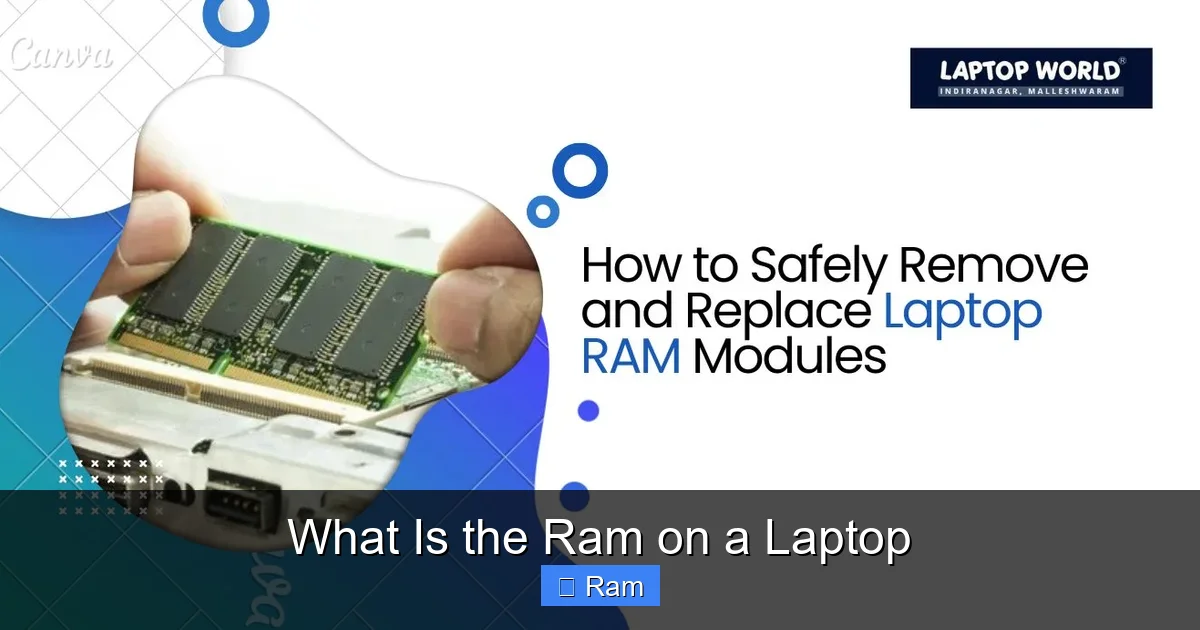
5.3 Installation Steps (Simplified)
- Power down the laptop and unplug it.
- Remove the bottom panel—usually a few Phillips screws.
- Locate the RAM slots; gently push the side clips outward.
- Insert the new module at a 30‑degree angle, then press down until it clicks.
- Replace the panel, screw it back, and power on.
Always ground yourself to avoid static discharge.
6. How RAM Interacts with Other Components
6.1 CPU and RAM Compatibility
The CPU’s memory controller determines the maximum RAM speed and capacity it can handle. Pairing a high‑speed DDR5 module with a CPU that only supports DDR4 will force the system to run at the slower standard.
6.2 Storage Type (SSD vs. HDD)
Fast SSDs reduce the need to swap data to disk, but they don’t replace RAM. Think of SSDs as a quick filing cabinet; RAM is the desk. Both are needed for a snappy experience.
6.3 Graphics – Integrated vs. Dedicated
Integrated graphics (like Intel Iris Xe) share system RAM. In such cases, you may want a larger pool (e.g., 16 GB) so the GPU has enough memory for video tasks. Dedicated GPUs have their own VRAM, so system RAM can stay focused on the CPU’s workload.
Conclusion: Making the Right Choice
Now you know exactly what is the ram on a laptop, how it works, and why the right amount and speed matter. If you’re a casual user, 8 GB will keep things smooth. Power users should aim for 16 GB, while gamers and creators can benefit from 32 GB or more. Always check if the laptop allows upgrades, choose matching sticks for dual‑channel performance, and pair your RAM with a CPU and storage that can keep up.
Remember, RAM is just one piece of the performance puzzle, but it’s the piece that often feels the most immediate. Choose wisely, and your laptop will stay responsive for years to come.
Frequently Asked Questions
What does RAM stand for and why is it called “random access”?
RAM stands for Random Access Memory. It’s called “random access” because the CPU can read or write data at any location instantly, without having to go through other data first.
Is more RAM always better?
More RAM improves multitasking and handles larger files, but after a certain point (usually 16‑32 GB for most users) the benefit diminishes unless you run very demanding software.
Can I mix different sizes or speeds of RAM in a laptop?
You can mix sizes (e.g., 8 GB + 4 GB), but the system will run in single‑channel mode for the mismatched pair, which may reduce performance. Mixing speeds forces all modules to run at the speed of the slowest stick.
How do I know if my laptop’s RAM is upgradable?
Check the manufacturer’s specifications or open the bottom panel to see if there are empty slots. Online tools like Crucial’s System Scanner can also tell you if upgrades are possible.
Does DDR5 make a noticeable difference for everyday tasks?
For web browsing and office work, the difference is minimal. DDR5 shines in heavy workloads like 4K video editing, high‑frame‑rate gaming, and large data processing.
Why does my laptop slow down when I have many browser tabs open?
Each tab consumes RAM. When the total exceeds the available memory, the system starts using the slower SSD as virtual memory, which causes the lag you notice.