Does Displayport to Hdmi Work
Yes, DisplayPort to HDMI works reliably with the right adapter or cable. You can connect laptops, desktops, and monitors using active or passive adapters. This guide covers compatibility, resolution limits, audio transfer, and common troubleshooting tips to make your setup hassle-free.
Have you ever plugged a DisplayPort cable into an HDMI monitor and wondered if it would actually work? You are not alone. Many people run into this situation when setting up a new monitor, connecting a laptop to a TV, or building a desktop PC. The good news is that DisplayPort to HDMI does work — but there are a few things you need to know to make it happen smoothly.
Whether you are a gamer, a remote worker, or someone just trying to get a second screen going, understanding how these two ports communicate makes a big difference. In this guide, we will walk through everything you need to know about DisplayPort to HDMI connectivity. From adapter types to resolution limits, we have you covered.
Key Takeaways
- DisplayPort to HDMI adapters work: They convert the digital signal so you can connect DisplayPort outputs to HDMI displays.
- Active vs passive matters: Active adapters handle signal conversion, while passive ones only reroute the signal in specific cases.
- Resolution and refresh rate depend on your adapter: Not all adapters support 4K or high refresh rates.
- Audio can travel through HDMI: You get both video and sound from a single cable connection.
- Common issues are fixable: Driver updates, cable quality, and adapter type solve most problems.
📑 Table of Contents
- What Is DisplayPort and Why Do People Use It?
- What Is HDMI and How Does It Compare?
- Does Displayport to Hdmi Work? Yes, Here Is How
- Resolution and Refresh Rate Support
- Does Audio Work Through Displayport to Hdmi?
- Common Problems and How to Fix Them
- Quick Tips for a Smooth Setup
- When Should You Consider Alternatives?
- Final Thoughts
What Is DisplayPort and Why Do People Use It?
DisplayPort is a digital display interface developed by VESA. It is found on many modern GPUs, laptops, and monitors. People love it because it supports high resolutions, fast refresh rates, and can carry both video and audio signals.
Here are some key facts about DisplayPort:
- DisplayPort 1.2 supports up to 4K at 60Hz.
- DisplayPort 1.4 supports up to 4K at 120Hz and even 8K at 60Hz.
- DisplayPort 2.0/2.1 pushes bandwidth even further for ultra-high-resolution displays.
- It uses a locking connector that stays snug in the port.
- It can daisy-chain multiple monitors from a single output.
Despite all these advantages, not every display has a DisplayPort input. That is where HDMI comes in — and where adapters become essential.
What Is HDMI and How Does It Compare?
HDMI (High-Definition Multimedia Interface) is the most common display connector in the world. You find it on TVs, monitors, projectors, and game consoles. It carries both video and audio over a single cable, which makes it very convenient.
Here is a quick comparison of the two ports:
DisplayPort vs HDMI: Key Differences
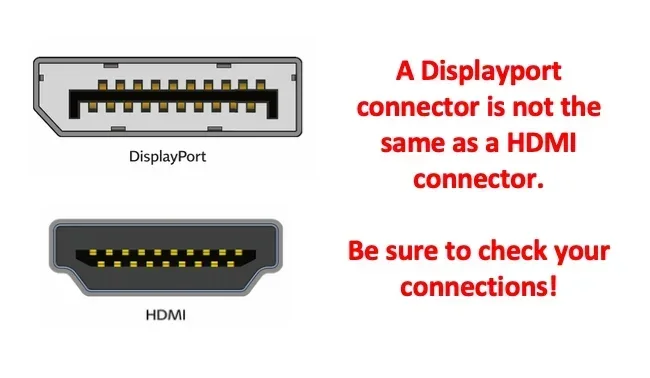
- Connector type: DisplayPort has a rectangular plug with two latches. HDMI has a smaller, trapezoid-shaped plug.
- Availability: HDMI is on almost every TV and many monitors. DisplayPort is more common on PC GPUs and high-end monitors.
- Audio support: Both carry audio, but HDMI is more standard for home entertainment setups.
- Daisy-chaining: DisplayPort supports multi-stream transport. HDMI does not.
- Consumer vs. PC use: HDMI dominates living rooms. DisplayPort dominates offices and gaming desks.
Because these two ports are so different, you often need an adapter or a DisplayPort to HDMI cable to bridge the gap.
Does Displayport to Hdmi Work? Yes, Here Is How
The short answer is yes. DisplayPort to HDMI works in most setups. But the experience depends on a few important factors. Let us break them down.
Active vs Passive Adapters
This is the most important thing to understand. There are two main types of DisplayPort to HDMI adapters:
- Active adapters contain a chip that converts the DisplayPort signal to HDMI. These work with almost any DisplayPort output. They are the safest choice for most users.
- Passive adapters simply reroute the pins without converting the signal. They only work when the GPU supports Dual-Mode DisplayPort (DP++). Not all GPUs do.
If you are unsure which type you need, go with an active adapter. It costs a little more but works reliably with virtually every setup. This is especially true if your GPU output is strictly DisplayPort and your monitor only has HDMI inputs.
Do You Need a Special Cable?
You can buy a DisplayPort to HDMI cable that has the DisplayPort plug on one end and the HDMI plug on the other. These cables contain the conversion electronics inside the cable itself. They work just as well as a separate adapter plus standard HDMI cable.
Make sure the cable supports the resolution and refresh rate you need. A cheap cable might only handle 1080p, while a quality one handles 4K. Always check the product specs before buying.
Can You Go the Other Way? HDMI to DisplayPort
A common follow-up question is whether you can go from HDMI to DisplayPort. The answer is yes, but it usually requires an active adapter. HDMI outputs are more common on devices like laptops and consoles, so people often need to convert HDMI to DisplayPort too. The same rules apply — check for signal conversion support and resolution compatibility.
Resolution and Refresh Rate Support
Not all DisplayPort to HDMI setups are created equal. The resolution and refresh rate you get depends on several factors working together.
What Resolutions Can You Expect?
Here is a general breakdown:
- 1080p (Full HD): Supported by virtually every adapter and cable. This is the easiest and most common setup.
- 1440p (QHD): Works well with most active adapters and decent cables. You may need DisplayPort 1.2 or higher on the source side.
- 4K (Ultra HD): Requires a quality active adapter and a good HDMI cable. DisplayPort 1.2 or newer is recommended. At 60Hz, you need at least HDMI 2.0 on the display side.
- 4K at 120Hz or 8K: Only possible with the latest DisplayPort 2.0/2.1 and HDMI 2.1 connections. These setups need premium adapters and cables.
Refresh Rate Considerations
If you are a gamer, refresh rate matters a lot. A DisplayPort to HDMI adapter that supports 4K at 60Hz is a solid baseline. For 1440p at 144Hz or 1080p at 240Hz, make sure your adapter and cable are rated for those speeds. Cheaper adapters may cap you at lower refresh rates even if your GPU and monitor support more.
Also, keep in mind that your GPU output matters. If your GPU has a DisplayPort 1.4 output but your adapter only supports DisplayPort 1.2, you will be limited by the adapter, not the GPU.
Does Audio Work Through Displayport to Hdmi?
One of the most common concerns is whether audio transfers through the adapter. The answer is yes — in most cases.
When you use an active DisplayPort to HDMI adapter, the audio signal is carried along with the video signal through the HDMI cable to your display or TV. This means you get both picture and sound from a single connection. You do not need a separate audio cable in most setups.
However, there are a few things to keep in mind:
- Make sure your adapter supports audio passthrough. Most modern active adapters do.
- Check your operating system audio settings. Sometimes the system defaults to the wrong output device.
- Some adapters may introduce a slight audio delay. This is rare but worth noting for video editing or gaming.
If you are connecting a laptop to a TV using a DisplayPort to HDMI adapter, you should see the TV as an audio output option in your sound settings. Select it, and your audio will play through the TV speakers or connected sound system.
Common Problems and How to Fix Them
Even though DisplayPort to HDMI works in most cases, sometimes things go wrong. Here are the most common issues and how to solve them.
No Signal or Black Screen
This is the most common problem. Try these steps:
- Unplug the adapter and plug it back in firmly.
- Check that your monitor is set to the correct HDMI input.
- Try a different HDMI port on your display.
- Update your GPU drivers. Outdated drivers can cause detection issues.
- Test with a different cable or adapter to rule out hardware failure.
Low Resolution or Flickering
If your display looks blurry or flickers, the adapter or cable might not support your target resolution. Try lowering the resolution in your display settings first. If that works, upgrade to a higher-quality adapter that supports your desired output.
No Sound
If video works but audio does not, check your OS sound settings. Make sure HDMI is selected as the output device. Also confirm that your adapter supports audio transmission — some very basic adapters only pass video.
Adapter Overheating
Active adapters have chips inside that can get warm during heavy use. This is normal, but if the adapter gets too hot to touch, give it some space for airflow. Avoid placing it under a monitor or in a closed cabinet.
Quick Tips for a Smooth Setup
Follow these tips to get the best experience with your DisplayPort to HDMI connection:
- Buy an active adapter unless you are 100% sure your GPU supports DP++.
- Check the specs on both the adapter and your display. Match the resolution and refresh rate ratings.
- Use a high-speed HDMI cable. A cheap cable can limit your resolution and refresh rate.
- Update your GPU drivers before setting up the connection. This avoids many detection issues.
- Test with a known working setup first. If possible, try the adapter on a different system to isolate the problem.
- Avoid cheap no-name adapters. They often have poor signal conversion and may not support higher resolutions.
Taking a few minutes to verify your gear before committing to a setup saves a lot of frustration later. A good adapter is a small investment that pays off in reliability.
When Should You Consider Alternatives?
While DisplayPort to HDMI adapters work great for most people, there are situations where you might want a different approach:
- HDMI-only GPU: If your GPU only has HDMI outputs and your monitor has DisplayPort, you need an HDMI to DisplayPort adapter instead.
- USB-C or Thunderbolt: Many modern laptops use USB-C or Thunderbolt for display output. These can often connect directly to HDMI monitors with the right cable, no adapter needed.
- Wireless display options: If running cables is not practical, wireless display technologies like Miracast or Chromecast can stream your screen to a compatible TV.
Sometimes the best solution is not an adapter at all but choosing the right cable or connection type for your specific hardware. Understanding your ports and outputs helps you make the right call.
Final Thoughts
DisplayPort to HDMI works and works well when you use the right adapter. Whether you are connecting a desktop PC to a TV, hooking up a second monitor, or setting up a home office, a quality active adapter solves the compatibility problem almost every time.
Pay attention to resolution support, audio passthrough, and cable quality. These small details make a big difference in your daily experience. And if you run into issues, the troubleshooting steps above will help you get back on track quickly.
The bottom line is simple. You do not need to stress about DisplayPort and HDMI not working together. With the right gear and a little know-how, your displays will connect without a hitch.
If you have ever dealt with GPU-related display issues, you might also find our article on why does my GPU spike to 100 helpful for understanding GPU behavior during heavy display tasks. And for broader laptop connectivity questions, check out our guide on how to work a laptop without a mouse for tips on managing your setup when peripherals are not cooperating.
Frequently Asked Questions
Can I use a DisplayPort to HDMI adapter for gaming?
Yes, you can. Make sure you buy an active adapter that supports your target resolution and refresh rate. For competitive gaming at high refresh rates, check that the adapter and HDMI cable are rated for 144Hz or higher at your desired resolution.
Will a cheap DisplayPort to HDMI adapter damage my equipment?
A cheap adapter is unlikely to damage your GPU or monitor. However, it may not support the resolution or refresh rate you need, and it could introduce signal issues. Investing in a reputable brand saves you from frustration and potential signal loss.
Does a DisplayPort to HDMI adapter support audio?
Most active adapters do support audio passthrough. The audio travels along with the video signal through the HDMI cable to your display or TV. Check the adapter specifications to confirm audio support before purchasing.
Why does my DisplayPort to HDMI connection show no signal?
This usually happens because of a loose connection, wrong input source on the monitor, or an incompatible adapter. Try reseating the adapter, switching the monitor to the correct HDMI input, and updating your GPU drivers. If none of that works, test with a different adapter.
Can I connect multiple monitors using a DisplayPort to HDMI adapter?
Yes, you can connect multiple monitors as long as your GPU has enough DisplayPort outputs and each monitor has its own adapter. Keep in mind that passive adapters may not work in all multi-monitor setups. Active adapters are the safer choice for multi-display configurations.
What is the difference between DisplayPort 1.2 and DisplayPort 1.4 adapters?
The main difference is bandwidth. DisplayPort 1.4 supports higher resolutions and refresh rates than DisplayPort 1.2. An adapter rated for DisplayPort 1.4 can handle 4K at higher refresh rates, while a 1.2 adapter may be limited to 4K at 60Hz or lower resolutions at higher refresh rates.