Why Is My Usb Not Showing Up on Screen
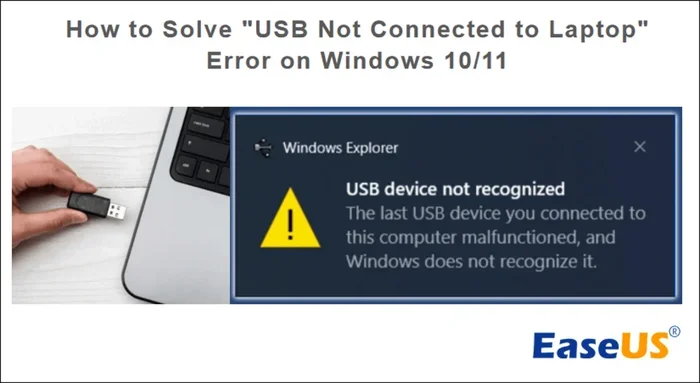
When your USB is not showing up on screen, it can be frustrating, but the cause is usually simple to fix. Common reasons include loose connections, outdated drivers, or incorrect settings on your computer. This guide walks you through every proven solution to bring your USB device back to life.
You plug in your USB drive, mouse, or external hard drive, and nothing happens. The screen stays quiet. No notification pops up. No new drive appears. This is one of the most common tech headaches people face, and the good news is that it is almost always fixable. When your USB is not showing up on screen, it does not mean your device is dead or your computer is broken. It just means something in the chain between the USB port and your display needs a little attention.
Whether you are trying to access files on a flash drive, connect a mouse, or use an external hard drive, a non-responsive USB can bring your work to a halt. The reasons range from something as simple as a loose cable to a driver issue that needs a quick update. This article covers every major cause and every practical fix you need to try. You will learn how to diagnose the problem step by step and get your USB device back up and running in no time.
Key Takeaways
- Check Physical Connections First: A loose or damaged cable is the most common reason your USB is not showing up on screen.
- Update or Reinstall USB Drivers: Outdated or corrupted drivers frequently cause USB devices to disappear from your display.
- Try a Different Port or Computer: This quick test helps you determine if the problem is with the port or the device itself.
- Use Device Manager to Diagnose Issues: Windows Device Manager is a powerful tool for spotting USB detection problems.
- Assign a New Drive Letter: Sometimes a missing drive letter is all that stands between you and a working USB.
- Restart Your Computer: A simple reboot can resolve temporary glitches that prevent USB devices from appearing.
📑 Table of Contents
Why Is My USB Not Showing Up on Screen?
Before you start trying fixes, it helps to understand what is happening. When you plug in a USB device, your computer should detect it automatically and display it on screen. This could show up as a new drive in File Explorer, a connected mouse cursor, or a notification in your system tray. When this does not happen, the USB device is not being recognized by your operating system.
Several factors can cause this. A damaged cable, a faulty port, outdated drivers, or even a simple settings mismatch can all lead to the same result. Sometimes the issue is with the USB device itself, and sometimes it is with the computer. The sections below break down each possible cause so you can pinpoint the problem fast.
Physical Connection Problems
The first thing to check is the most obvious one. Is your USB device fully plugged in? It sounds simple, but a loose connection is the number one reason a USB device not showing up on your laptop or desktop. The port might feel secure, but even a slight shift can break the connection.
Try these steps to rule out physical issues:
- Unplug the USB device and plug it back in firmly.
- Try a different USB cable if you are using one that has a cable attached.
- Check the USB port for dust, debris, or physical damage.
- Plug the device into another port on the same computer.
- Test the device on a different computer to see if it works there.
If the device works on another computer, the problem is likely with your original port or settings. If it does not work anywhere, the USB device itself may be faulty.
Driver and Software Issues
Drivers are the software that tell your computer how to communicate with connected devices. When a driver becomes outdated or corrupted, your computer might not recognize the USB device at all. This is a very common reason for USB not detected on laptop problems.
Windows handles most drivers automatically, but things can go wrong after updates or system changes. You might see a yellow warning icon in Device Manager, or the device might simply not appear anywhere on your screen. Updating or reinstalling the driver often solves this completely.
To check your drivers, open Device Manager by right-clicking the Start button and selecting Device Manager. Look for the Universal Serial Bus controllers section. If you see any devices with a yellow triangle, right-click them and choose Update Driver. If that does not work, try uninstalling the device and then reconnecting it to trigger a fresh driver install.
Drive Letter Conflicts
Sometimes your USB device is connected and working, but it just does not show up on screen. This often happens when the drive letter assigned to the USB is already in use by another device or partition. Windows will not display a drive if it has no available letter.
To fix this, open Disk Management by right-clicking the Start button and selecting Disk Management. Find your USB device in the list. Right-click on it and choose Change Drive Letter and Paths. Assign a new letter that is not already in use. Once you do this, the drive should appear in File Explorer immediately.
How to Fix a USB That Is Not Showing Up
Now that you know the main causes, let us walk through the actual fixes. These steps are listed in order from the simplest to the more advanced. Start at the top and work your way down until the problem is resolved.
Step 1: Restart Your Computer
A quick restart can clear temporary glitches that prevent USB devices from being recognized. Before you try anything else, save your work and reboot. This simple step fixes the problem more often than people realize. It resets the USB controller and refreshes all system connections.
Step 2: Try a Different USB Port
Not all USB ports are created equal. Some may be damaged, while others might be connected to different internal controllers. If one port is not working, move your device to another port. If you are using a laptop, try ports on both sides if available. This is one of the fastest ways to figure out if the port itself is the issue.
If you have a USB hub connected, try plugging the device directly into the computer. Hubs can sometimes cause power or recognition issues, especially with devices that need more power to operate.
Step 3: Check Device Manager for Errors
Device Manager is your best friend when troubleshooting USB connection issues. It gives you a clear view of everything your computer is trying to communicate with. If a USB device has a problem, Device Manager will usually flag it.
Here is what to look for:
- Devices with a yellow exclamation mark indicate a driver problem.
- Devices listed under “Unknown Devices” were not recognized properly.
- Missing entries in the USB controllers list suggest a deeper system issue.
Right-click any problematic device and select Update Driver or Uninstall Device. After uninstalling, disconnect and reconnect the USB to let Windows reinstall the driver automatically.
Step 4: Update Windows or Your Operating System
Operating system updates often include fixes for USB compatibility issues. If your system is out of date, it might not properly support newer USB devices or protocols. Go to your system settings and check for available updates. Install any pending updates and restart your computer afterward.
This is especially important if you recently upgraded to a new version of Windows. Some users report that external USB device problems started after a major system update. The good news is that Microsoft typically releases follow-up patches to address these issues quickly.
Step 5: Disable USB Selective Suspend
Windows has a power-saving feature called USB Selective Suspend that turns off USB ports when they are not in active use. While this is great for battery life on laptops, it can sometimes interfere with USB detection. Disabling this setting can resolve the issue.
To turn it off, go to Control Panel, then Power Options, and click Change Plan Settings. Select Change Advanced Power Settings, expand USB Settings, and set USB Selective Suspend to Disabled. Click OK and check if your USB device now appears on screen.
Common Mistakes That Cause USB Display Problems
Many people make small mistakes that prevent their USB devices from showing up. Avoiding these common errors can save you a lot of troubleshooting time.
Forcing the USB connector in at an angle. This can damage the pins inside the port or the connector on the device. Always plug in USB cables straight and gently. If the fit feels loose or tight, stop and check for debris or damage.
Ignoring the USB port type. Not all ports are the same. USB-A, USB-B, USB-C, and Micro-USB are all different. Plugging a USB-C device into a USB-A port without an adapter will not work. Make sure you are using the right port and the right cable for your device.
Using a damaged or low-quality cable. Cables wear out over time. Frayed ends, bent connectors, and thin cheap cables can all cause connection failures. If your USB is not showing up on screen, swap the cable first. It costs nothing and takes seconds.
Assuming the device is dead too quickly. Before you give up on a USB device, test it on another computer. A device that does not work on one machine might work perfectly on another. This one simple test can save you from replacing a perfectly good device.
When to Seek Professional Help
Most USB issues can be fixed at home with the steps above. However, there are times when professional help is the right call. If you have tried every fix and the device still does not appear, the problem might be hardware-related.
A damaged motherboard USB controller, a short circuit in the port, or a failing device can all require professional diagnosis. If you are dealing with an expensive external hard drive or a work-critical device, it is worth taking it to a repair shop rather than risking further damage by trying advanced fixes on your own.
Also, if you notice a burning smell, visible damage to the port, or the device gets very hot when plugged in, stop using it immediately. These are signs of a serious hardware problem that could damage your computer if left unchecked.
Tips to Prevent USB Display Issues in the Future
Prevention is always better than cure. Here are some simple habits that can keep your USB devices working smoothly:
- Always eject USB devices properly before unplugging them.
- Keep your operating system and drivers up to date.
- Use quality cables and avoid cheap knockoff brands.
- Do not plug in USB devices with wet or dirty hands.
- Keep dust covers on unused USB ports when possible.
- Avoid using USB extensions for power-hungry devices like external hard drives.
These small habits add up over time and can save you from the frustration of a USB not showing up on screen situation in the future.
Frequently Asked Questions
Why does my USB device show up in Device Manager but not on screen?
This usually means the device is connected but has a drive letter conflict or a file system error. Open Disk Management to check if the drive has a letter assigned. If it does but still does not show in File Explorer, the file system might be corrupted and needs repair using the chkdsk command in Command Prompt.
Can a faulty USB cable cause the device to not appear on screen?
Absolutely. A damaged or low-quality cable is one of the top reasons for USB detection failures. Even if the cable charges a phone, it might not transfer data properly. Always try a different cable when troubleshooting USB issues.
Is it safe to update USB drivers manually?
Yes, it is generally safe. Windows will usually prompt you before making any changes. You can also download the latest drivers directly from your computer manufacturer’s website. Avoid downloading drivers from third-party sites, as they can sometimes include unwanted software.
What should I do if my USB flash drive is not showing up on screen?
Start by trying a different USB port and a different computer. If the drive works on another machine, the issue is with your original computer. Check Device Manager for driver issues, and use Disk Management to see if the drive is detected but missing a drive letter.
Why did my USB stop working after a Windows update?
Windows updates can sometimes reset or change USB drivers, causing compatibility issues. Go to Device Manager, find the USB device, and roll back the driver to a previous version. If that does not work, uninstall the driver and restart your computer to let Windows reinstall it fresh.
How do I know if my USB port is physically damaged?
Look for visible signs like bent pins, discoloration, or loose connections. If the port feels wobbly or the USB connector does not fit snugly, the port may be damaged. Try plugging in a different USB device to the same port. If nothing works in that port but works everywhere else, the port is likely the problem.
Conclusion
A USB not showing up on screen is a common problem with a wide range of simple solutions. Start with the basics, like checking your cable and connections, and work your way through the more advanced steps like driver updates and Disk Management. Most of the time, the fix is quick and easy. By following the steps in this guide, you should be able to identify the root cause and get your USB device back on screen in minutes.
Remember to take preventive steps to avoid running into this issue again. Keep your drivers updated, use good cables, and always eject your devices properly. If the problem persists despite trying everything, do not hesitate to reach out to a professional technician for help. Your data and your devices are worth protecting.