
How to Clean Thermal Paste Off Your Cpu
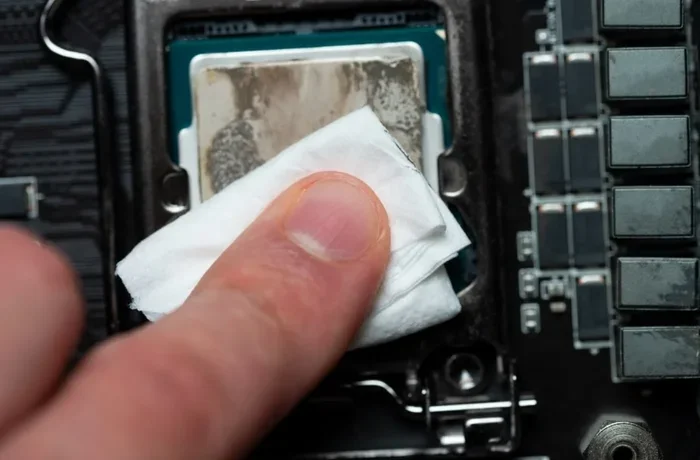
Cleaning thermal paste off your CPU is a simple but essential maintenance task that keeps your processor running cool and efficient. Whether you are upgrading your cooler or troubleshooting overheating, removing old thermal paste properly ensures maximum thermal conductivity. This guide walks you through every step with easy-to-follow instructions and practical tips.
Your CPU works hard every day. It processes millions of instructions and generates a lot of heat in the process. That is where thermal paste comes in. This small but mighty compound sits between your processor and the cooler, helping transfer heat away efficiently. Over time, though, thermal paste dries out and loses its effectiveness. When that happens, your CPU temperatures climb, and performance can suffer.
Cleaning old thermal paste off your CPU is not hard, but it does require care and patience. Many people skip this step when they upgrade their cooler or reseat their CPU cooler. That is a mistake. Leftover residue creates an uneven surface, which traps air pockets and hurts cooling performance. In this guide, we will show you exactly how to do it right, every single time.
Whether you are a beginner or someone who has done this before, you will find practical tips here. We cover everything from the tools you need to the best application techniques for fresh paste. Let us get started.
Key Takeaways
- Gather the right tools: isopropyl alcohol, microfiber cloth, and a plastic scraper are all you need.
- Never use household cleaners: they can damage your CPU and motherboard components.
- Clean both surfaces: the CPU heat spreader and the cooler base need thorough cleaning.
- Let everything dry completely: applying new paste on a wet surface reduces thermal performance.
- Apply fresh paste correctly: a pea-sized dot or cross pattern works best for most CPUs.
- Clean your PC regularly: routine maintenance prevents dust buildup and thermal paste degradation.
📑 Table of Contents
Why Cleaning Thermal Paste Matters
Thermal paste fills microscopic gaps between your CPU and the cooler. It creates a tight seal that allows heat to flow smoothly. But paste does not last forever. It degrades over months and years of use. Here is why cleaning it off matters.
Dried Paste Reduces Cooling Efficiency
As thermal paste ages, it thickens and becomes less pliable. Dried paste cannot fill gaps the way fresh paste can. This means tiny air pockets form between the CPU and the cooler. Air is a poor conductor of heat, so your processor runs hotter than it should. Cleaning off the old paste and applying fresh thermal compound restores that tight, efficient contact.
Overheating Can Damage Your CPU
High temperatures are the enemy of your processor. When your CPU runs too hot, it throttles its speed to protect itself. This causes slowdowns, stutters, and even crashes in demanding tasks. In extreme cases, prolonged overheating can shorten the lifespan of your chip. Regularly cleaning and replacing paste is one of the easiest ways to prevent this.
Residue Affects New Paste Performance
If you simply slap new paste on top of old paste, you are setting yourself up for poor results. The old residue mixes with the new compound and creates an uneven layer. This is why proper cleaning is so important. A clean surface ensures the new paste spreads evenly and performs at its best.
Want to learn more about why thermal paste is essential in the first place? Check out our guide on do you need thermal paste for CPU for a deeper dive.
Tools You Will Need
Before you start, gather everything you need. Having the right tools makes the job faster and safer. Here is a simple checklist.
- Isopropyl alcohol (90% or higher): This is the best cleaning agent for thermal paste. It evaporates quickly and leaves no residue. Check our guide on the right percentage for safe and effective cleaning.
- Microfiber cloth: A soft, lint-free cloth prevents scratches on your CPU surface.
- Plastic scraper or old credit card: Use this to gently scrape off stubborn paste. Never use metal tools.
- Cotton swabs: These help clean tight corners and edges around the CPU socket.
- Fresh thermal paste: Have your new compound ready before you remove the old one.
- Small bowl or container: For soaking the microfiber cloth if needed.
Avoid using paper towels or rough cloths. They can leave tiny fibers behind, and some even scratch the CPU surface. Stick with microfiber for the cleanest results.
Step-by-Step Guide to Cleaning Thermal Paste
Now that you have your tools ready, let us walk through the process. Follow these steps carefully for a clean, professional result.
Step 1: Power Down and Unplug Your PC
Safety first. Shut down your computer completely and unplug it from the wall. Do not just put it to sleep. You want zero power running through the system. If you are working on a laptop, remove the battery if possible. This protects both you and your components from electrical damage.
Step 2: Remove the CPU Cooler
Carefully detach your CPU cooler from the processor. Most coolers are held in place by screws or retention clips. Unscrew or release them slowly and evenly. Do not pull the cooler off at an angle, as this can bend the CPU pins. If the cooler feels stuck, gently wiggle it side to side until it releases.
Once removed, set the cooler aside on a clean surface. You will notice the old thermal paste on both the cooler base and the CPU surface.
Step 3: Scrape Off the Bulk of the Old Paste
Take your plastic scraper or old credit card and gently scrape away the large chunks of dried thermal paste. Work slowly and use light pressure. You do not want to scratch the CPU heat spreader or the cooler base. The goal is to remove the thick layer, not to polish the surface bare.
For stubborn spots, apply a small amount of isopropyl alcohol to soften the paste. Let it sit for a few seconds, then scrape again. Be patient. This step sets the foundation for a thorough clean.
Step 4: Wipe Down with Isopropyl Alcohol
Dampen a microfiber cloth with isopropyl alcohol and wipe the CPU surface in gentle, circular motions. You will see the remaining paste dissolve and come off on the cloth. Repeat this process with a clean section of the cloth until the surface looks completely clean and smooth.
Do the same for the cooler base. Both surfaces need to be free of any paste residue. Use cotton swabs dipped in alcohol for the edges and corners around the CPU socket. These tight spots are easy to miss but just as important.
Step 5: Let Everything Dry Completely
This step is often overlooked, but it is critical. Wait at least one to two minutes for the isopropyl alcohol to fully evaporate. The surface should feel completely dry to the touch. Applying new paste on a damp surface can cause the compound to bead up and spread unevenly, which reduces cooling performance.
If you are in a hurry, use a dry microfiber cloth to gently pat the surface. But make sure no moisture remains before you move on.
Step 6: Apply Fresh Thermal Paste
Now the fun part. Place a small dot of fresh thermal paste in the center of the CPU. A pea-sized amount is usually perfect for most processors. When you mount the cooler, the pressure will spread the paste evenly across the surface.
Some people prefer a cross or X pattern instead of a single dot. Both methods work well. The key is to use just enough paste to cover the surface without overflowing onto the motherboard. Too much paste can cause electrical shorts if it seeps into nearby components.
Once the paste is applied, carefully remount the CPU cooler. Secure it evenly, tightening screws in a diagonal pattern. This ensures uniform pressure and optimal contact.
Common Mistakes to Avoid
Even experienced builders make mistakes when cleaning thermal paste. Here are some common errors to watch out for.
- Using too much thermal paste: A little goes a long way. Excess paste squeezes out when the cooler is mounted and can cause messy cleanup or even short circuits.
- Skipping the cleaning step: Do not apply new paste over old paste. Always start with a clean surface for the best thermal transfer.
- Using harsh chemicals: Avoid household cleaners, nail polish remover, or acetone. These can corrode or damage your CPU and motherboard. Stick with 90% or higher isopropyl alcohol.
- Using metal scrapers: Metal tools can scratch the CPU heat spreader, which damages the surface and reduces cooling efficiency.
- Not letting the surface dry: Wet surfaces prevent the paste from spreading correctly, leading to hot spots and poor cooling.
For more tips on keeping your system in top shape, read our article on how often you should clean your PC. Regular maintenance goes a long way in keeping temperatures low and performance high.
How Often Should You Replace Thermal Paste?
Thermal paste does not need to be replaced every month. In most cases, a single application can last three to five years. However, certain situations call for more frequent replacement.
If you notice your CPU temperatures creeping up over time, it might be time to repaste. High ambient room temperatures, heavy overclocking, and dust buildup can all accelerate paste degradation. If you are removing your cooler for any reason, it is always a good idea to clean off the old paste and apply fresh compound.
For water cooling setups, the same principles apply. If you are wondering whether you need thermal paste for a water cooling loop, we have covered that in detail. Visit our article on do you need thermal paste for water cooling to learn more.
Expert Tips for the Best Results
Here are some pro tips that will help you get the most out of your thermal paste cleaning and application process.
- Work in a clean, well-lit area: Dust and debris can fall into your open PC and cause problems. A clean workspace makes a big difference.
- Use a magnifying glass if needed: Small residue spots are hard to see with the naked eye. A quick inspection under good light ensures nothing is left behind.
- Keep a spare tube of paste on hand: Thermal paste has a shelf life. If your tube has been sitting open for a long time, it may have dried out. Fresh paste performs better.
- Take photos during disassembly: This helps you remember how everything was connected and positioned before you start cleaning.
- Monitor temperatures after reassembly: Use software like HWMonitor or Core Temp to check your CPU temps after applying fresh paste. You should see a noticeable improvement.
Final Thoughts
Cleaning thermal paste off your CPU is one of the simplest and most rewarding maintenance tasks you can do. It takes just a few minutes and a few basic supplies, but the impact on your system’s cooling performance is significant. Fresh thermal paste restores the thermal connection between your CPU and cooler, keeping temperatures low and performance stable.
Remember to take your time, use the right tools, and never rush the drying step. Whether you are cleaning your CPU for a cooler upgrade or simply doing routine maintenance, following the steps in this guide will give you professional-quality results every time.
Keep your system clean, keep it cool, and enjoy the peace of mind that comes with knowing your CPU is running at its best. Happy cleaning!
Frequently Asked Questions
Can I use rubbing alcohol to clean thermal paste off my CPU?
Yes, but only if it is isopropyl alcohol with a concentration of 90% or higher. Lower concentrations contain water, which can leave moisture behind and potentially damage your components. Pure isopropyl alcohol evaporates quickly and leaves no residue, making it the safest choice for cleaning your CPU.
Do I need to clean thermal paste if I am just reseating my cooler?
Absolutely. Even when you are just reseating your cooler, old paste should be cleaned off. The pressure of remounting can spread old paste unevenly, creating air pockets that reduce cooling performance. A quick clean and fresh paste application will ensure optimal thermal contact every time.
What happens if I do not clean old thermal paste before applying new paste?
If you skip cleaning, the old and new paste mix together, creating an uneven layer. This reduces thermal conductivity and can lead to higher CPU temperatures. Over time, the degraded mixture becomes even less effective, which can cause overheating and performance throttling.
How long does it take for isopropyl alcohol to evaporate after cleaning?
In most cases, isopropyl alcohol evaporates within one to two minutes. However, it is always best to wait until the surface feels completely dry to the touch before applying new thermal paste. Rushing this step can trap moisture and affect how the new paste spreads.
Can I reuse thermal paste that I scraped off my CPU?
No, you should not reuse old thermal paste. Once it has been applied and removed, it has absorbed air and lost its thermal properties. Always apply fresh paste for the best results. Old paste is also contaminated with dust and debris from your system.
Is there a difference between thermal paste and thermal adhesive?
Yes, there is a big difference. Thermal paste is a non-adhesive compound that fills gaps and transfers heat. Thermal adhesive, on the other hand, is used to permanently bond components like heatsinks to substrates. You should never use thermal adhesive as a replacement for thermal paste on your CPU.


