How Often Should You Clean Your Pc
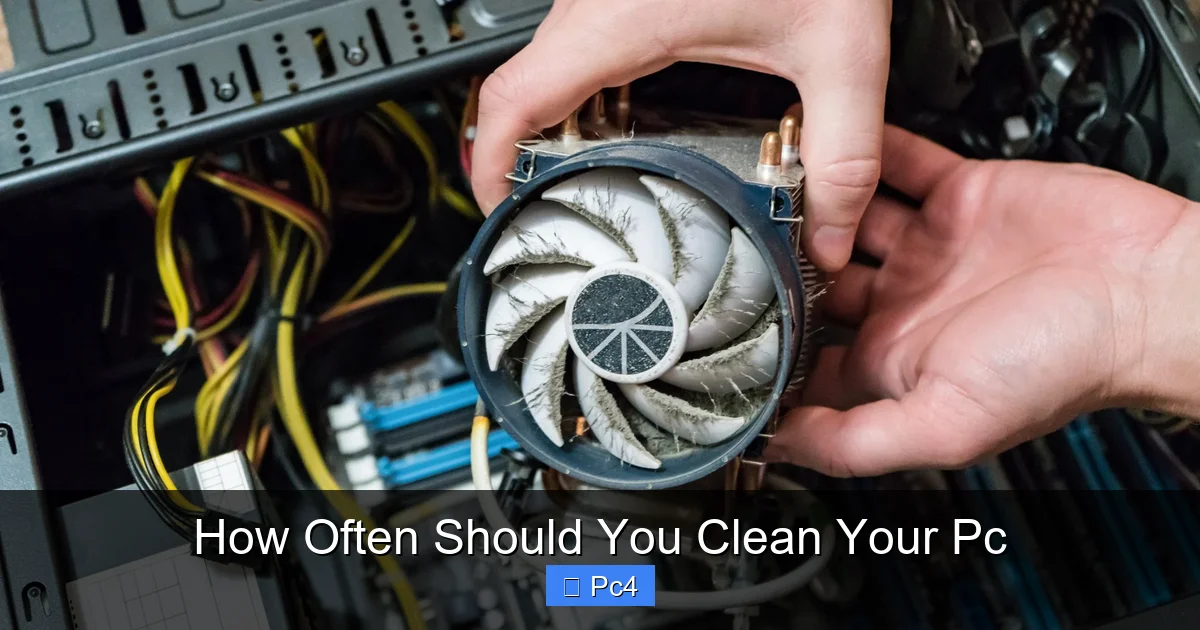
Cleaning your PC isn’t on a fixed calendar—it’s about your specific situation. Dust buildup is the primary enemy, leading to overheating, throttled performance, and component failure. The ideal cleaning frequency depends entirely on your environment (pet dander, carpet, smoking) and how intensively you use your machine (gaming, rendering). As a rule, most users should inspect and lightly clean every 3-6 months, with a deep clean annually. Neglecting this simple maintenance is the #1 preventable cause of PC instability and premature hardware death.
Let’s be honest: opening up your PC case to a thick layer of dust bunnies is a moment of dread for any enthusiast. We’ve all been there. You power on your trusty machine, and it sounds like a jet engine taking off, or games start to stutter for no apparent reason. The culprit is almost always the same invisible, relentless invader: dust. But the big question, the one we all Google in a panic, is how often should you clean your PC? The answer isn’t as simple as “once a year.” It’s a nuanced answer that depends entirely on your world, your PC, and your usage. This guide will cut through the guesswork, giving you a clear, actionable maintenance plan tailored to your specific setup. Think of it as a personalized health regimen for your computer.
Key Takeaways
- There is no universal “every X months” rule: Your cleaning schedule is personal, dictated by your PC’s environment and workload.
- Dust is the silent killer: It acts as an insulator, causing components to overheat, which leads to performance drops (thermal throttling) and long-term damage.
- Environment is the #1 factor: Homes with pets, carpet floors, or smokers need cleaning 2-3x more often than a clean, dust-free office.
- Usage intensity matters: A high-end gaming PC or workhorse rendering machine generates more heat and attracts more dust than a basic office desktop.
- Inspection is free and critical: Open your case every 2-3 months for a quick visual check; if you see dust bunnies, it’s time.
- Deep vs. light cleaning: Light dusting (blower) can be done more frequently; a full disassembly and component cleaning is usually an annual task.
- Proper tools prevent damage: Never use a household vacuum on components (static risk!). Use compressed air, soft brushes, and anti-static cloths.
📑 Table of Contents
- Why Dust is the Silent PC Killer: More Than Just an Eyesore
- Environmental Factors: Your PC’s Biggest Influence
- Usage-Based Cleaning Schedules: Tailoring to Your Needs
- Component-by-Component: What to Clean and How Often
- The Right Tools for the Job: A Practical Guide
- The High Cost of Neglect: What Happens When You Skip Cleaning
- Conclusion: Your Personalized PC Cleaning Checklist
Why Dust is the Silent PC Killer: More Than Just an Eyesore
Before we dive into schedules, we must understand why cleaning is non-negotiable. Dust isn’t just ugly; it’s a highly effective thermal insulator. PC components, especially the CPU and GPU, generate immense heat. They rely on heatsinks and fans to dissipate that heat into the surrounding air. When dust coats the fine fins of a heatsink or clogs fan blades, it creates a barrier. Heat gets trapped.
The Domino Effect of Overheating
The immediate consequence is thermal throttling. Modern chips are smart. When they detect dangerous temperatures, they automatically reduce their clock speed to cool down. You experience this as sudden frame rate drops in games, longer render times, and general system sluggishness. It’s your PC trying to save itself. If the heat persists, the long-term effects are worse: solder joint fatigue, capacitor degradation, and ultimately, catastrophic component failure. A dusty power supply is a fire hazard. A clogged GPU can die prematurely. Regular cleaning is the single most effective, cost-free way to extend your PC’s lifespan and maintain peak performance. It directly answers the question of how often should you clean your pc by making the “why” undeniable.
Environmental Factors: Your PC’s Biggest Influence
If you ask how often should you clean your pc, the first answer should always be: “Look at the room it’s in.” Your PC is a vacuum cleaner for the air in its immediate vicinity. It pulls in air to cool itself, and that air carries everything in it.
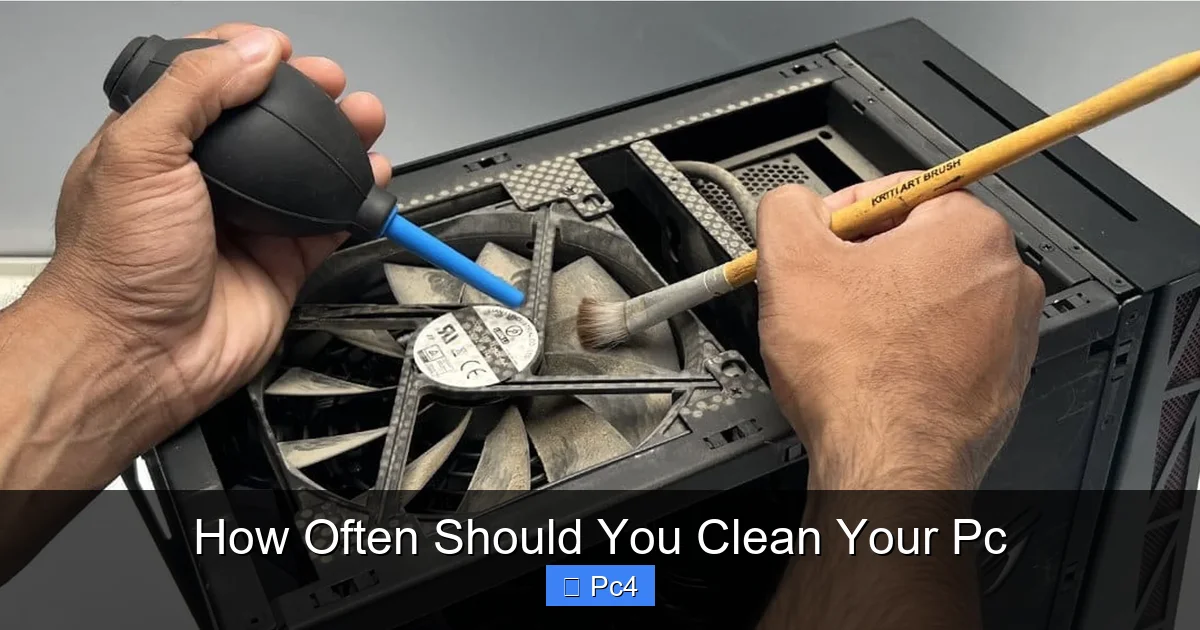
Visual guide about How Often Should You Clean Your Pc
Image source: robots.net
The Dusty Room Spectrum
At the “clean” end of the spectrum, you have a dedicated, carpet-free office with HEPA filtration, minimal foot traffic, and no pets. A PC in this environment might only need a thorough inspection and light cleaning every 6-8 months.
Now, add variables. Do you have dogs or cats? Pet dander and hair are prolific PC-cloggers. This can halve your cleaning interval. Is the PC on the floor? Floor-level intake fans (common on many modern cases) will suck up dust, carpet fibers, and debris directly from the ground. This is the worst possible position. Is your home a smoking environment? Tar and nicotine particles are sticky and will quickly coat every surface, making cleaning harder and more urgent. Do you live in a high-pollen area or a city with poor air quality? Seasonal dust storms or pollution mean more frequent cleaning during those periods. Your environment dictates the baseline for how often should you clean your pc.
Pet Owners and Smokers: High-Risk Environments
For these users, the answer shifts dramatically. If you have multiple pets that shed, you should be visually inspecting your case filters and internal components every 1-2 months. A full clean every 3-4 months is a wise investment. For smokers, the sticky residue requires more careful cleaning with appropriate solutions (isopropyl alcohol on contacts) and should be addressed every 2-3 months to prevent grimy buildup that hampers cooling.
Usage-Based Cleaning Schedules: Tailoring to Your Needs
Your PC’s job defines how hard it works and, counter-intuitively, how much dust it attracts. A system under heavy load runs its fans faster and more often, pulling in more air—and more dust—than an idle machine.
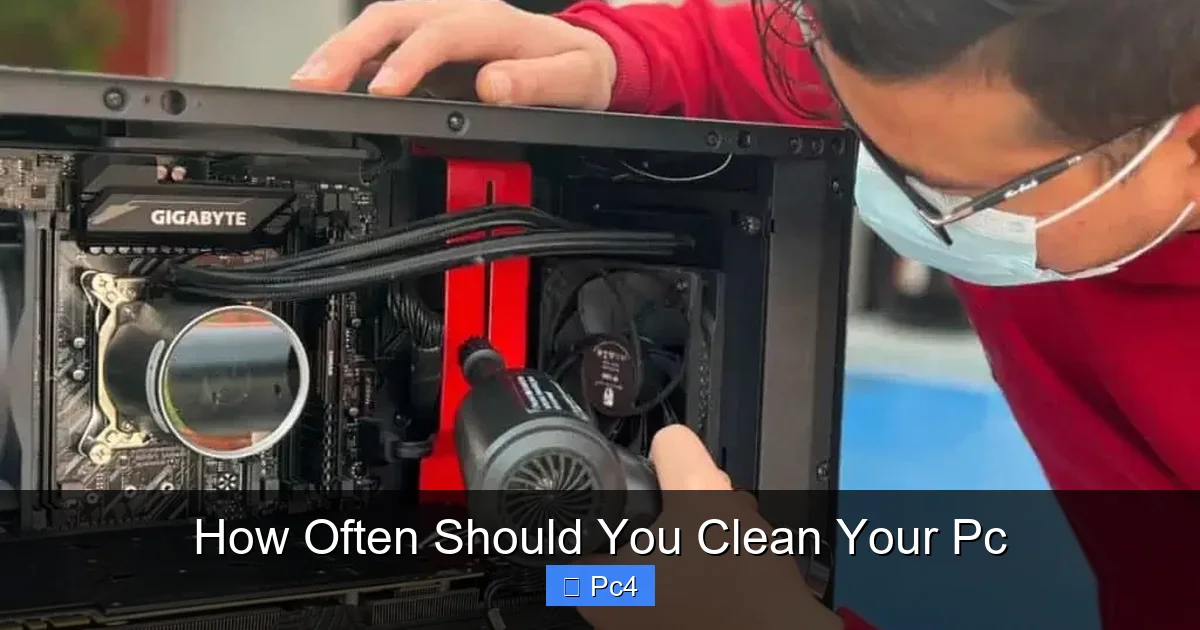
Visual guide about How Often Should You Clean Your Pc
Image source: technewstoday.com
Casual Users & Office Workers
For the person who uses their PC for web browsing, email, documents, and light media, the thermal demands are low. Fans rarely spin up. The primary concern is ambient room dust. For this user, a thorough inspection and light cleaning (blowing out filters and visible dust) every 6 months is perfectly adequate. A full disassembly and deep clean can be stretched to once every 12-18 months, provided the environment is clean.
Gamers, Content Creators, & Enthusiasts
This is the high-stress group. A gaming rig pushing 100% GPU and CPU utilization for hours, or a video editor rendering 4K footage, generates tremendous heat. The cooling system—fans, pumps, radiators—is working overtime. This means a much higher volume of air is being cycled through the case. For these users, a light cleaning of filters and internal dust buildup should happen every 2-3 months. A full, component-level deep clean should be performed at least once a year, if not every 6 months for extreme setups. Neglecting this is a direct path to thermal throttling and ruined overclocking potential.
Component-by-Component: What to Clean and How Often
A holistic how often should you clean your pc plan breaks down by component, as they have different vulnerabilities and cleaning needs.

Visual guide about How Often Should You Clean Your Pc
Image source: goodbeginnings.net.au
Case Fans & Intake Filters (The First Line of Defense)
These are your most frequently cleaned items. Filters (if your case has them) should be removed and cleaned with water or a vacuum every 1-2 months in average environments, more often if dusty. Fan blades accumulate dust on their leading edges, disrupting airflow. A quick blast of compressed air during your filter cleaning is sufficient. Don’t disassemble fans unless you hear bearing noise; it’s rarely necessary.
CPU & GPU Heatsinks (The Critical Core)
These are the most important and delicate. The fine aluminum or copper fins are easily bent. A light annual cleaning with compressed air (holding the can upright to avoid liquid spray) is essential. For a deep clean, you’ll need to remove the cooler (CPU) or disassemble the GPU shroud (advanced) to physically brush out caked-on dust from between the fins. This is part of your annual deep clean. If your CPU temperatures have crept up 5-10°C over a year for no other reason, this is the culprit.
Power Supply (PSU)
Most modern PSUs have a bottom or top filter. Clean that filter regularly. The internal fan and grill can get dusty, but the PSU is a sealed unit in most cases. A light cleaning of the intake vent with compressed air is safe. Never, under any circumstances, open a PSU to clean it. The capacitors inside can retain a lethal charge. The external air intake is all you should ever touch.
Radiators (For AIO & Custom Water Cooling)
Radiator fins are even more susceptible to clogging than CPU heatsinks. Dust packed between the fins severely restricts airflow. For an AIO cooler, you should carefully blow compressed air through the radiator fins (from both sides) during your annual deep clean. For custom loops, this is a more involved process, but the principle is the same: radiator cleanliness is paramount for cooling performance.
The Right Tools for the Job: A Practical Guide
Using the wrong tools is worse than not cleaning at all. You can bend pins, short circuits, or grind dust deeper into components.
Essential & Safe Tool Kit
Your core toolkit is simple: Compressed Air (Duster) – The undisputed king. Use short, controlled bursts. Hold the can upright. Anti-static Wrist Strap – A cheap peace-of-mind investment to prevent ESD damage when touching internal components. Soft, Lint-free Microfiber Cloths – For wiping down case panels and non-electronic surfaces. Soft-bristled Paintbrush or Makeup Brush – Gently dislodge dust from fan blades or heatsink fins before using air. Isopropyl Alcohol (90%+) & Cotton Swabs – For the rare, stubborn grime on heatsink bases or thermal pad residue. Vacuum Cleaner (External Use Only) – Use it only on the floor around your PC or to suck up dust after you’ve blown it out of the case. Never point a vacuum nozzle inside the case—it generates static electricity that can fry your motherboard.
What NEVER To Use
Forget using your home vacuum inside the case. Avoid “air compressor” pumps from hardware stores unless they have a moisture filter; they can spray oil and water. Don’t use paper towels (they can leave fibers and generate static). Never use a brush with stiff bristles. And absolutely do not use any household cleaners or solvents inside the case.
The High Cost of Neglect: What Happens When You Skip Cleaning
Ignoring the question of how often should you clean your pc has a clear, progressive cost. It starts subtly. You might notice your PC is a bit louder during gaming sessions. Then, your favorite game starts to drop frames in areas that used to run smoothly. Your CPU, which once boosted to 4.5GHz, now sticks at 4.0GHz. You might get random shutdowns under load because the thermal safety cut-off is being triggered. Eventually, a component—often the GPU or motherboard VRMs—succumbs to years of cumulative heat stress and fails. The “cost” is then measured in dollars for a new part, hours of troubleshooting and reinstalling, and lost productivity or gaming time. A $10 can of compressed air and 30 minutes of your time once a quarter is the ultimate insurance policy against this preventable cascade of failure.
Conclusion: Your Personalized PC Cleaning Checklist
So, how often should you clean your pc? The final answer lives in a checklist based on your profile.
For the Average User (Clean Room, Basic Use): Inspect/light clean every 6 months. Deep clean every 12-18 months.
For the Pet Owner / Carpet Dweller: Inspect/light clean every 2-3 months. Deep clean every 6-12 months.
For the Gamer / Creator (High Heat Output): Inspect/light clean every 2-3 months. Deep clean every 6-12 months (minimum).
For the Neglectful (It’s Been Years): Do it now. Start with a full deep clean. Then, adopt the schedule for your environment.
Your PC is a significant investment. Treating it to a regular, simple cleaning routine is the easiest, cheapest, and most effective way to keep it running fast, cool, and quiet for years to come. Don’t wait for a problem to arise. Open the case, take a look, and make a date on your calendar for your next tune-up. Your future self—and your GPU—will thank you.
Frequently Asked Questions
Can I use a regular household vacuum to clean my PC internals?
No. Household vacuums generate significant static electricity, which can instantly destroy sensitive motherboard and component circuitry. Use compressed air for internal dust removal. You can use a vacuum externally to clean up dust after you’ve blown it out of the case.
Should I clean my laptop the same way as my desktop PC?
The principles are the same, but the execution is different. Laptops have far more compact, integrated cooling systems (heatsink pipes, small fans). Cleaning requires more disassembly (often removing the bottom panel) and extreme care not to damage fragile ribbon cables. Use compressed air very gently. For most users, a professional cleaning is recommended every 1-2 years for laptops, as they are more prone to dust clogging due to their small intakes.
Is it possible to clean my PC too often?
In terms of physical cleaning, yes, if you are overly aggressive. Frequent, rough handling with tools can bend fan blades, damage heatsink fins, or jostle cards out of their slots. However, the act of gently blowing out dust with compressed air every month or two is perfectly safe and beneficial for high-dust environments. The risk lies in the *method*, not the *frequency* of gentle maintenance.
My PC is in a clean room. Can I really wait a full year between deep cleans?
Even in a controlled environment, a PC pulls in air. A yearly deep clean is still a good baseline for any desktop. You might extend it to 18 months, but do a visual inspection every 6 months. If you see little to no dust on filters and inside, you can likely stretch the interval. But never skip the annual check.
What’s the first thing I should check to know if my PC needs cleaning?
Start with the case’s dust filters. Pop them off and hold them up to the light. If they look dingy or clogged, it’s time for a full cleaning. Next, do a quick visual inspection inside with a flashlight. Look for dust bunnies on fan blades, between heatsink fins, and caked on the bottom of the case. If you see any significant accumulation, clean it.
My PC seems clean inside but temperatures are still high. What gives?
Dust isn’t the only cause of poor cooling. First, ensure your fans are actually spinning and set to a proper curve in BIOS/software. Next, check that your heatsink is still properly mounted with fresh, correctly applied thermal paste. Paste degrades over 3-5 years. Also, verify your case has good airflow (intake/exhaust balance). A clean system with poor airflow design will still overheat.