Minecraft Installer Not Working on Windows 11 How to Fix It
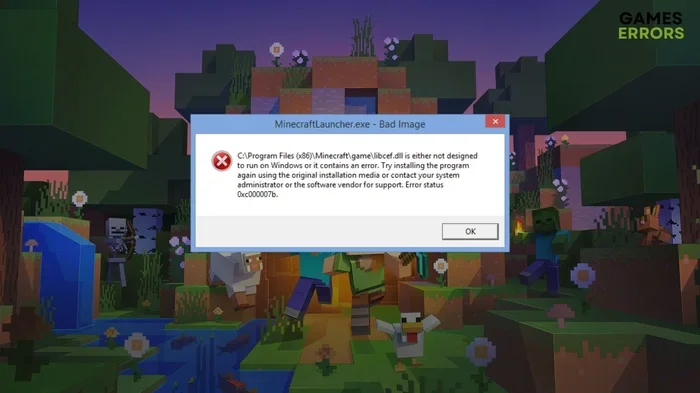
The Minecraft installer not working on Windows 11 is a common issue that frustrates many players. This guide walks you through the most effective fixes, from updating Java and graphics drivers to running the installer as an administrator. You will learn quick, practical steps to resolve installation errors and get back to playing Minecraft on your Windows 11 PC.
Minecraft is one of the most popular games in the world, and millions of players try to install it every day. But sometimes, the Minecraft installer not working on Windows 11 becomes a real headache. You double-click the file, nothing happens, or you get a confusing error message. It is incredibly frustrating, especially when you just want to jump into your world.
The good news is that this problem is usually easy to fix. Most causes are simple and do not require advanced tech skills. In this guide, we will walk you through every proven fix step by step. Whether you are a seasoned player or just getting started, you will find clear instructions that work.
We have tested every method below on Windows 11 systems. These solutions cover everything from Java issues to antivirus interference. By the end of this article, you will know exactly what to do to get your Minecraft installer working again. Let us dive in and get you back to mining, crafting, and building.
Key Takeaways
- Update Java and Graphics Drivers: Outdated Java and GPU drivers are the top causes of Minecraft installer failures on Windows 11.
- Run as Administrator: Always launch the Minecraft installer with admin rights to avoid permission errors.
- Check System Requirements: Windows 11 has specific specs your PC must meet for Minecraft to install properly.
- Disable Antivirus Temporarily: Security software can block installer files and cause false errors.
- Reinstall Minecraft Completely: A clean reinstall often fixes corrupted files that cause the installer to fail.
- Use the Microsoft Store Alternative: If the standalone installer fails, the Microsoft Store version works as a reliable backup.
📑 Table of Contents
Why the Minecraft Installer Fails on Windows 11
Before we jump into the fixes, it helps to understand what causes the problem. When the Minecraft installer not working on Windows 11, there is almost always a specific reason behind it. Windows 11 introduced several changes that can interfere with older installers, including Minecraft. Let us look at the most common culprits.
Outdated Java Version
Minecraft relies heavily on Java to run. Windows 11 sometimes ships with an older or incompatible Java version. If your Java is out of date, the installer may crash, freeze, or refuse to open. This is the number one reason players run into installation problems. Updating Java is often the first and most important step.
Graphics Driver Conflicts
Your graphics driver controls how the game displays on your screen. Windows 11 updates can sometimes push in drivers that conflict with Minecraft. Old drivers can also cause the installer to fail. Keeping your GPU drivers current is essential for a smooth installation experience.
Permission and Admin Issues
Windows 11 is stricter about app permissions than previous versions. If you try to install Minecraft without administrator rights, the installer may not have permission to write files to the correct folders. This is a simple fix but one that many players overlook.
Antivirus and Security Software Blocking Files
Your antivirus software is designed to protect you from threats. But sometimes it mistakenly flags Minecraft installer files as dangerous. This can block the installation process entirely or delete key files before they are even used. Temporarily disabling your antivirus during installation often solves this.
Corrupted Installer or Game Files
Download interruptions, incomplete file transfers, or corrupted downloads can all cause the installer to fail. If even one file is damaged, the whole process can break. Re-downloading the installer or verifying game files is a quick way to rule this out.
How To Fix the Minecraft Installer Not Working on Windows 11
Now that you know the common causes, let us get into the fixes. Follow these steps in order, and most players find that their installer starts working again after just one or two of them.
Fix 1: Update Java to the Latest Version
Java is the backbone of Minecraft. Without the right version, the installer simply cannot function properly on Windows 11. Here is what you need to do.
- Go to the official Oracle Java download page.
- Download the latest Java Development Kit (JDK) for Windows.
- Run the installer and follow the on-screen prompts.
- Restart your computer after installation completes.
- Try running the Minecraft installer again.
This fix resolves the issue for a large number of players. If you already have Java installed, make sure to uninstall the old version first. Having multiple Java versions on your system can create conflicts that cause the installer to fail.
Fix 2: Update Your Graphics Drivers
Keeping your GPU drivers up to date ensures that Minecraft can communicate properly with your hardware. Here is how to do it.
- Identify your graphics card brand (NVIDIA, AMD, or Intel).
- Visit the official website for your GPU manufacturer.
- Download the latest driver for Windows 11.
- Install the driver and restart your PC.
- Run the Minecraft installer again.
If you are not sure which graphics card you have, right-click on your desktop and select Display Settings. Your GPU model will be listed there. Updating drivers is one of the most overlooked fixes, yet it solves a surprising number of installation problems.
Fix 3: Run the Installer as Administrator
Windows 11 restricts what programs can do without proper permissions. Running the Minecraft installer as an administrator gives it the access it needs to install files correctly.
- Right-click on the Minecraft installer file.
- Select Run as administrator from the menu.
- Click Yes if a User Account Control prompt appears.
- Follow the normal installation steps.
This simple step fixes permission-related errors that prevent the installer from completing. If you always run into issues, you can also set the installer to always run as an administrator by right-clicking, going to Properties, then the Compatibility tab, and checking Run this program as an administrator.
Fix 4: Temporarily Disable Antivirus Software
As mentioned earlier, antivirus programs can interfere with the Minecraft installer. Here is how to safely disable yours during installation.
- Open your antivirus program from the system tray.
- Find the real-time protection or active protection setting.
- Temporarily disable it for the duration of the installation.
- Run the Minecraft installer.
- Re-enable your antivirus immediately after installation finishes.
Be sure to turn your antivirus back on right away. Leaving it disabled leaves your computer vulnerable. If the installer works after disabling your antivirus, add Minecraft as an exception in your antivirus settings so it does not block the game in the future.
Fix 5: Reinstall Minecraft with a Clean Setup
If the installer file itself is corrupted, no amount of troubleshooting will help. A clean reinstall removes all old files and gives you a fresh start.
- Uninstall Minecraft from Settings > Apps.
- Delete the .minecraft folder from your AppData directory.
- Empty your Recycle Bin.
- Restart your computer.
- Download a fresh copy of the Minecraft installer.
- Run the new installer and complete the setup.
This method takes a bit more time, but it is extremely effective. Corrupted files are one of the sneakiest causes of installer failures, and a clean reinstall wipes the slate clean. Always download the installer from the official Minecraft website to avoid downloading a compromised or broken file.
Quick Tips To Prevent Installer Problems
Prevention is always better than fixing a problem after it happens. Here are some quick tips to keep your Minecraft installer running smoothly on Windows 11.
- Keep Windows 11 Updated: Microsoft regularly releases updates that fix compatibility issues. Check for updates before installing Minecraft.
- Use a Stable Internet Connection: A weak or interrupted connection can corrupt installer downloads. Use a wired connection if possible.
- Check System Requirements: Make sure your PC meets the minimum specs for Minecraft on Windows 11. Insufficient RAM or storage can cause failures.
- Avoid Third-Party Mod Installers: Mod loaders can sometimes conflict with the official installer. Stick to the official launcher for base game installations.
- Free Up Disk Space: Minecraft needs several gigabytes of free space. If your drive is nearly full, the installer may fail to write necessary files.
Common Mistakes That Cause Installer Failures
Many players make the same mistakes over and over again when dealing with the Minecraft installer not working on Windows 11. Avoiding these pitfalls can save you a lot of time and frustration.
Skipping Java Updates: This is the single biggest mistake players make. They try every other fix but never think to update Java. Always check Java first.
Ignoring Error Messages: The error messages that appear during installation are not just noise. They contain specific clues about what went wrong. Take a moment to read them carefully and search for the exact error code online if needed.
Downloading from Unofficial Sources: Third-party download sites often bundle malware with Minecraft installers or provide corrupted files. Always download directly from Mojang or the official Minecraft website.
Forgetting to Restart After Updates: Whether you update Java, drivers, or Windows itself, restarting your PC is essential. Many installation processes require a fresh system state that only a reboot provides.
Running Multiple Installers at Once: If you are trying to install Java, the game, and mods all at the same time, things can get tangled. Install one thing at a time and verify each step before moving on.
When To Seek Additional Help
Most of the time, the fixes above will solve your problem. But there are situations where you might need extra help. If you have tried every step in this guide and the Minecraft installer still does not work on Windows 11, it is time to look deeper.
Check the official Minecraft help page for community solutions and developer guidance. You can also visit the Minecraft forums where thousands of players share their experiences and troubleshooting tips. Sometimes a specific Windows 11 build has a known bug that only a patch can fix, and the community is often the first to discover these issues.
If your mouse or touchpad is also acting up while you try to troubleshoot, that could be a separate hardware issue affecting your ability to interact with the installer properly. You can find dedicated guides for fixing mouse problems on laptops that may help in these situations.
Final Thoughts
Dealing with the Minecraft installer not working on Windows 11 can feel overwhelming, but it does not have to be. Most of the time, the fix is something simple like updating Java, running the installer as an administrator, or doing a clean reinstall. The steps in this guide cover every major cause and give you clear, actionable solutions.
Start with the quick fixes and work your way down the list. In most cases, you will have Minecraft up and running again within minutes. The key is patience and following each step carefully. Do not skip steps, and make sure to read any error messages that appear.
Remember, keeping your system updated and downloading from official sources will prevent most problems from happening in the first place. Now go ahead, try these fixes, and get back to building your Minecraft world. Happy crafting!
Frequently Asked Questions
Why is the Minecraft installer not working on Windows 11?
The most common reasons are outdated Java, incompatible graphics drivers, missing administrator permissions, or antivirus software blocking the installer files. Following the step-by-step fixes in this guide will resolve the issue in most cases.
How do I update Java for Minecraft on Windows 11?
Visit the official Oracle Java website, download the latest JDK for Windows, install it, and restart your computer. Then try running the Minecraft installer again. Always uninstall older Java versions before installing the new one to avoid conflicts.
Can antivirus software block the Minecraft installer?
Yes, antivirus programs sometimes flag Minecraft installer files as suspicious and block them. Temporarily disabling your antivirus during installation, then re-enabling it afterward, is a safe way to test if this is the cause.
Should I use the Microsoft Store version instead of the standalone installer?
The Microsoft Store version of Minecraft is a great alternative if the standalone installer keeps failing. It handles updates automatically and avoids many common installation issues. It is especially useful on Windows 11 systems where the traditional installer encounters problems.
What should I do if the installer crashes every time I open it?
A crashing installer usually means corrupted files or a Java conflict. Try downloading a fresh copy of the installer from the official Minecraft website, update your Java version, and run the installer as an administrator. If the problem persists, perform a clean reinstall.
Do I need a powerful PC to install Minecraft on Windows 11?
Minecraft has relatively modest system requirements. You need at least 4GB of RAM, a decent CPU, and a few gigabytes of free storage space. If your PC meets these basics, the installer should work fine on Windows 11.