Does Type C 2 0 Support Hdmi
Does Type C 2 0 Support Hdmi? The short answer is no, USB Type-C 2.0 ports do not natively support HDMI video output. USB 2.0 lacks the bandwidth and protocol needed to carry a display signal. However, you can still connect an external monitor using the right adapter and a compatible video output mode.
You plug in a cable, expecting your screen to extend or mirror. But nothing happens. This is a frustrating moment that many people face when they try to connect a USB Type-C 2.0 port to an HDMI display. The question is simple: does Type C 2 0 support HDMI? The answer is more nuanced than a simple yes or no.
USB Type-C is a connector shape, not a speed or feature standard. USB 2.0 is a data transfer protocol that was introduced way back in 2000. Over the years, the Type-C connector became popular because of its small size and reversible design. But the connector type does not automatically mean the port supports video output. Many people assume that any USB-C port can send a signal to a monitor. That assumption can lead to wasted money on adapters that simply will not work.
In this article, we break down everything you need to know about USB Type-C 2.0 and HDMI support. We will cover what the port can and cannot do, why video output matters, and what you can do if your device only has USB 2.0 ports. By the end, you will know exactly what to look for and how to avoid common pitfalls.
Key Takeaways
- USB Type-C 2.0 cannot output HDMI signals because it does not support DisplayPort Alt Mode or video protocols.
- USB 2.0 bandwidth is too low for streaming video, even with an adapter cable.
- You need a USB-C port with video support (USB 3.0, Thunderbolt, or DisplayPort Alt Mode) to connect an external display.
- A USB-C to HDMI adapter will not work on a USB 2.0 port if the port lacks video output capability.
- Check your port specs before buying any adapter or cable for your laptop or device.
- Thunderbolt and USB 3.1+ ports can carry HDMI signals with the right adapter or dock.
📑 Table of Contents
What Is USB Type-C 2.0?
To understand whether Type-C 2.0 supports HDMI, you first need to know what each part of that label means. USB Type-C refers to the physical shape of the connector. It is a small, oval-shaped plug that fits in either orientation. USB 2.0 refers to the data transfer speed standard. USB 2.0 can transfer data at up to 480 Mbps, which is very slow by today’s standards.
Here is the key point. The Type-C connector is just a shape. A USB 2.0 port can use a Type-C connector. A USB 3.0 port can also use a Type-C connector. A Thunderbolt 3 port uses the same Type-C shape. So when someone says “USB-C 2.0,” they are talking about a port that has a Type-C connector but uses the older USB 2.0 protocol. This matters a lot when it comes to video output.
Why the Connector Shape Does Not Guarantee Features
Many people confuse the connector with the capability. A USB-C plug looks the same whether it is inside a USB 2.0 port or a Thunderbolt 4 port. The difference is what the port can do behind the scenes. A USB 2.0 Type-C port was never designed to carry video signals. It was designed for basic data transfer and charging. If you want to connect an external monitor, the port needs to support a video protocol, and USB 2.0 does not include one.
Can USB Type-C 2.0 Output HDMI?
The direct answer to does Type C 2 0 support HDMI is no. A USB 2.0 Type-C port cannot output an HDMI video signal. Here is why. HDMI video requires a certain amount of bandwidth to transmit pixels, colors, and refresh rates. USB 2.0 simply does not have enough bandwidth to handle that. Even with an adapter cable, the port cannot generate or send a video signal because it lacks the necessary hardware support.
Think of it like a road. USB 2.0 is a narrow country road. HDMI video needs a highway. You can put a fancy sign on the country road, but it still cannot handle heavy traffic. The same idea applies here. The connector shape might look like it can handle a big job, but the underlying protocol cannot deliver.
What Happens When You Try to Use an Adapter?
If you plug a USB-C to HDMI adapter into a USB 2.0 port, you will likely see no display at all. Some adapters might show a brief flash or an error message. In rare cases, the adapter may work for very basic low-resolution output, but this is not reliable or supported. The port simply does not have the capability to process or transmit a video signal through the HDMI protocol.
Do not waste your money on a USB-C to HDMI adapter if your port is only USB 2.0. Check the port specifications first. Look for labels like “SS” (SuperSpeed) for USB 3.0 or “Thunderbolt” on the port or in your device manual. If you see neither, your port likely runs at USB 2.0 speeds and will not support video output.
How USB-C Ports Support Video Output
Not all USB-C ports are the same. Some can absolutely output HDMI signals. The ones that can do this rely on specific technologies built into the port. The two main technologies are DisplayPort Alt Mode and Thunderbolt.
DisplayPort Alt Mode
DisplayPort Alt Mode allows a USB-C port to carry a video signal directly. This mode is built into many USB 3.0 and USB 3.1 ports. When a port supports DisplayPort Alt Mode, it can connect to a monitor using a USB-C to HDMI adapter or a direct USB-C to HDMI cable. The video signal travels through the USB-C cable to the display. This works because the port has enough bandwidth and the right hardware to handle video data.
Thunderbolt
Thunderbolt is Intel’s technology that combines data, video, and power into one cable. Thunderbolt 3 and Thunderbolt 4 both use the USB-C connector. These ports can easily output HDMI signals with the right adapter. Thunderbolt 3 supports up to 40 Gbps of bandwidth, which is more than enough for high-resolution displays. Thunderbolt 4 raises the bar even higher with stricter certification requirements for video and data support.
USB 3.0 and USB 3.1 for Video
USB 3.0 and USB 3.1 ports with a Type-C connector can also support video output through DisplayPort Alt Mode. These ports offer much more bandwidth than USB 2.0. USB 3.0 runs at 5 Gbps, and USB 3.1 runs at 10 Gbps. This is enough to handle 1080p and even 4K video output to an external monitor. So if your device has a USB 3.0 Type-C port, you can likely connect it to an HDMI display with the right adapter.
| Port Type | Supports HDMI Output? | Bandwidth | Video Protocol |
|---|---|---|---|
| USB 2.0 Type-C | No | 480 Mbps | None |
| USB 3.0 Type-C | Yes (with adapter) | 5 Gbps | DisplayPort Alt Mode |
| USB 3.1 Type-C | Yes (with adapter) | 10 Gbps | DisplayPort Alt Mode |
| Thunderbolt 3 Type-C | Yes (with adapter) | 40 Gbps | DisplayPort Alt Mode |
| Thunderbolt 4 Type-C | Yes (with adapter) | 40 Gbps | DisplayPort Alt Mode |
USB Type-C 2.0 vs. Newer USB Standards for HDMI
The gap between USB 2.0 and newer standards is huge when it comes to video support. USB 2.0 was designed in an era when people did not expect to send video through a data cable. Today, USB 3.0 and Thunderbolt were built with video output in mind. If your laptop or device only has USB 2.0 Type-C ports, you will not be able to connect an external monitor directly.
Here is a quick comparison. USB 2.0 Type-C is great for charging your device and transferring files slowly. It is not designed for anything related to video. USB 3.0 Type-C can handle charging, fast data transfer, and video output to an external display. Thunderbolt Type-C can do all of that plus support multiple high-resolution monitors at once. The difference comes down to the protocol inside the port, not the shape of the connector.
Quick Tip: How to Check Your Port Version
Not sure what kind of USB-C port you have? Here are a few ways to find out. First, check your device manual or the manufacturer’s website. Look for the port specifications. Second, check the port itself. USB 3.0 ports often have a “SS” logo next to them. Thunderbolt ports usually have a lightning bolt icon. Third, check your operating system settings. Windows and macOS both show detailed port information in their system settings or device manager.
How to Connect HDMI to a USB-C Port
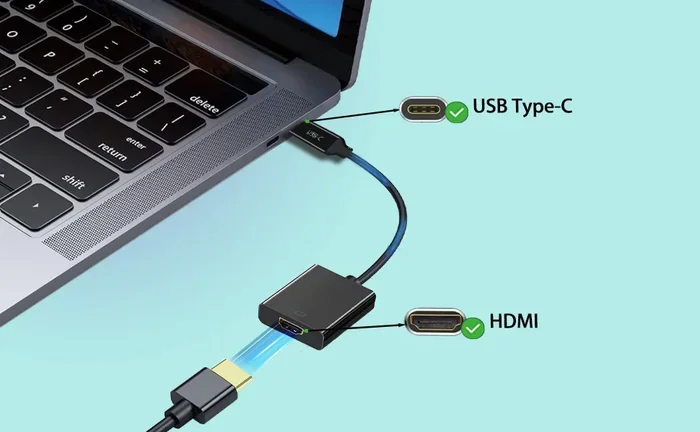
If your port supports video output, connecting to an HDMI display is straightforward. You will need either a USB-C to HDMI adapter or a USB-C to HDMI cable. Both options work well. An adapter plugs into your USB-C port and provides an HDMI output jack. A cable has a USB-C connector on one end and an HDMI connector on the other.
Before you buy any adapter or cable, make sure your port supports video output. If you have a USB 2.0 Type-C port, no adapter will make it output HDMI. If you have a USB 3.0 or Thunderbolt Type-C port, you should be able to connect a monitor without any issues. Always buy adapters from reputable brands. Cheap, unverified adapters can cause display problems or even damage your device.
Using a Docking Station
Another great option is a USB-C docking station. A dock connects to your USB-C port and provides multiple output options, including HDMI, DisplayPort, and VGA. Docks are especially useful if you need to connect several peripherals at once, such as a monitor, keyboard, mouse, and external hard drive. Just make sure the dock is compatible with your port’s capabilities. A dock designed for Thunderbolt will work on Thunderbolt ports. A dock designed for USB 3.0 may not work properly on a USB 2.0 port.
What If You Only Have USB 2.0 Type-C?
If your device only has USB 2.0 Type-C ports, you still have options. You can use a USB-C to HDMI adapter with its own chip, but this is rare and often unreliable. A better solution is to upgrade your device or use a different connection method. For example, you could use a wireless display adapter that connects via Wi-Fi. You could also look into whether your device has another video output option, such as a mini DisplayPort or a standard HDMI port. Many older laptops still include these alternatives alongside USB-C ports.
Common Mistakes to Avoid
There are several common mistakes people make when trying to connect HDMI to a USB-C port. Avoiding these can save you time, money, and frustration.
- Assuming all USB-C ports support HDMI. This is the biggest mistake. The connector shape does not tell you what the port can do. Always check the specs.
- Buying an expensive adapter for a USB 2.0 port. No adapter can add video output capability to a port that does not support it. Save your money.
- Ignoring the port icon. Look for the lightning bolt (Thunderbolt) or “SS” (SuperSpeed) logo. These tell you the port has more capabilities than a plain USB 2.0 port.
- Using a cheap, uncertified cable. Poor quality cables can cause flickering, low resolution, or no signal at all. Stick with certified products from trusted brands.
- Confusing USB 2.0 with USB-C. USB 2.0 is a speed standard. USB-C is a connector shape. They are not the same thing and should not be used interchangeably.
These mistakes are easy to make because the world of USB connectors and standards can be confusing. The key is to take a moment and check your port specifications before making any purchase.
Expert Insights
Industry experts consistently advise users to look beyond the connector shape when evaluating port capabilities. A USB Type-C 2.0 port is perfectly fine for charging and basic data transfer. But it was never designed to be a video output port. If you need to connect an external monitor regularly, consider investing in a device with Thunderbolt or USB 3.0 Type-C ports. These ports offer future-proof capabilities that go well beyond what USB 2.0 can provide.
Another expert recommendation is to always keep a USB-C to HDMI adapter in your bag if your device supports video output. It is a small accessory that can save you in a pinch when you need to present on a big screen or extend your workspace. Just make sure your device actually supports the feature before you rely on it.
Final Thoughts
So, does Type C 2 0 support HDMI? The answer remains clear. USB Type-C 2.0 ports do not support HDMI video output. The USB 2.0 protocol lacks the bandwidth and video protocols needed to carry a display signal. If you need to connect an external monitor, you will need a port that supports DisplayPort Alt Mode or Thunderbolt. Check your device specifications, invest in the right adapter or cable, and you will be up and running in no time.
Understanding the difference between a connector shape and a protocol standard is the first step to making the right connection choices. Do not let the small, reversible Type-C plug fool you into thinking it can do everything. Take a moment to verify your port capabilities, and you will avoid the frustration of a non-working display connection every single time.
Frequently Asked Questions
Can I use a USB-C to HDMI adapter with a USB 2.0 port?
No, a USB-C to HDMI adapter will not work with a USB 2.0 port. The adapter needs the port to support a video protocol like DisplayPort Alt Mode or Thunderbolt. USB 2.0 does not include any video output capability, so no adapter can add that feature to it.
How do I know if my USB-C port supports HDMI output?
Check your device manual or the manufacturer’s website for port specifications. Look for labels like “DisplayPort Alt Mode,” “Thunderbolt,” or “SuperSpeed” on the port itself. A plain USB 2.0 port will not have any of these labels.
What is the difference between USB Type-C and USB 2.0?
USB Type-C is the shape of the connector. USB 2.0 is the data transfer speed standard. A port can have a Type-C connector but still use the USB 2.0 protocol. Type-C tells you what the plug looks like. USB 2.0 tells you how fast data moves through it.
Can I connect an external monitor to a laptop with only USB 2.0 Type-C ports?
Not directly through the USB-C port. You would need to use an alternative connection method, such as a wireless display adapter or a different video output port if your laptop has one, like mini DisplayPort or standard HDMI.
Will a USB 3.0 Type-C port support HDMI output?
Yes, most USB 3.0 Type-C ports support HDMI output through DisplayPort Alt Mode. You will need a USB-C to HDMI adapter or cable. The port has enough bandwidth and the right protocol to carry a video signal to an external display.
Is Thunderbolt the same as USB Type-C?
No, Thunderbolt is a technology that uses the USB-C connector shape. Thunderbolt 3 and Thunderbolt 4 ports use USB-C connectors but offer much more capability, including video output and high-speed data transfer. A Thunderbolt port can do everything a standard USB-C port can do, plus much more.