How to Know If a Graphics Card Fits Your Case
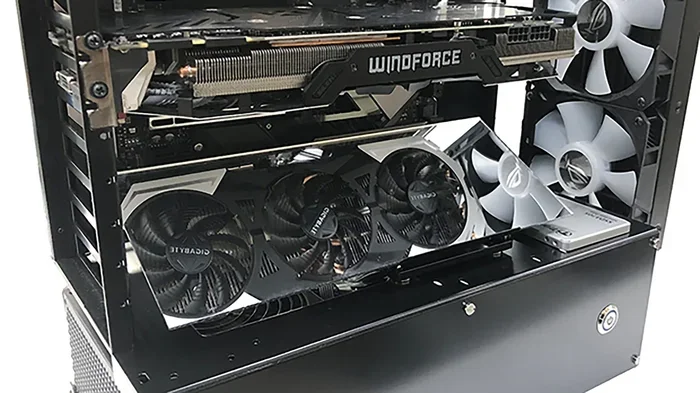
Buying a graphics card without checking your case is a costly mistake. This guide shows you exactly how to measure your PC case and confirm GPU compatibility. You will learn about GPU length, height, width, and clearance issues so you can avoid buying the wrong card and save time and money.
Building or upgrading a PC is exciting. But one step trips up many builders: fitting a graphics card into a case that is too small. A beautiful graphics card looks great on paper. But if it does not physically fit inside your PC case, it is useless. This guide walks you through everything you need to know about graphics card compatibility with your computer case. You will learn how to measure your case, what specs to check, and how to avoid the most common mistakes.
Whether you are a first-time builder or upgrading an existing setup, this article has you covered. We will break down GPU size, case clearance, power needs, and airflow concerns. By the end, you will feel confident picking the right GPU size for your setup. No guesswork. No returns. Just clear, practical advice you can use right away.
Key Takeaways
- Measure your case first: Always check GPU length, height, and width before purchasing any graphics card.
- Check PCIe slot space: Your motherboard needs a free PCIe x16 slot that matches the card’s physical size.
- Consider cooling and airflow: A large GPU can block airflow and cause overheating inside your case.
- Watch the power supply: Your PSU must have enough wattage and the right connectors for the card you choose.
- Use manufacturer specs: GPU dimensions are listed on the box and the manufacturer’s website for easy comparison.
- Think about future upgrades: Leave some room in your case so you can swap cards later without rebuilding.
📑 Table of Contents
Why Graphics Card Size Matters
Graphics cards come in all shapes and sizes. A compact card might be just 7 inches long. A high-end full-size GPU can stretch past 13 inches. If you drop a long card into a small case, it simply will not fit. You might not even be able to close the side panel. That is why checking size before you buy is so important.
There are three main dimensions you need to track:
- GPU length — measured from the back of the bracket to the front of the card.
- GPU height — how tall the card is, which affects clearance with other components.
- GPU width — the thickness of the card, usually 2 or 3 slots wide.
These numbers are listed on the manufacturer’s website and on the product box. Always write them down before you shop. Comparing these numbers against your case specs takes just a few minutes. It can save you from a very frustrating experience.
Understanding GPU Length
Graphics card length is the number most people check first. It tells you how far back the card extends from the rear of the case. Most mid-tower cases support cards up to about 12 inches. Full towers can handle even longer cards. But small form factor cases, like mini ITX builds, may only fit cards under 8 inches.
Here is a quick way to think about it. Imagine placing a ruler inside your case from the back panel to the front drive bay. That is your maximum GPU length. If your chosen card is longer, it will not fit. Simple as that.
Why GPU Height and Width Are Also Important
Length is not the only factor. GPU height clearance matters because tall cards can bump into your CPU cooler or RAM modules. A thick card also covers nearby slots on your motherboard. If you have a secondary PCIe device installed, a bulky GPU might block it completely.
GPU width determines how many expansion slots the card occupies. A dual-slot card uses two slots. A triple-slot card uses three. This reduces the number of slots available for other expansion cards. Keep this in mind if you plan to add sound cards, capture cards, or network cards later.
How to Measure Your PC Case
Measuring your case is straightforward. You do not need fancy tools. A simple ruler or tape measure works perfectly. Follow these steps to get accurate numbers every time.
Step 1: Find Your Case Maximum GPU Length
Look up your case model online. Most manufacturers list the maximum GPU length in the specifications section. This number is usually found on the product page or in the user manual. Write it down. This is your hard limit for GPU length.
If you cannot find the spec, you can measure it yourself. Remove the side panel and place a ruler inside the case from the rear I/O shield to the front drive bay. Note the distance. Subtract about half an inch for cable clearance. That gives you a safe working number.
Step 2: Check Vertical Clearance
Next, check how much vertical space you have. CPU coolers, especially tall air coolers, can eat into your GPU height budget. Measure the space between your motherboard and the top of your case. Then subtract the height of your CPU cooler if it sits above the motherboard.
Some cases have special GPU support brackets that hold heavy cards in place. These brackets also affect how much vertical room you have. Check if your case includes one before you assume you have full clearance.
Step 3: Measure Available PCIe Slots
Your graphics card plugs into a PCIe x16 slot on the motherboard. Make sure that slot is free and accessible. Some cases have drive cages or cables that block certain slots. Remove any obstructions if possible to give your card room to breathe.
Graphics Card Compatibility Checklist
Before you pull out your wallet, run through this simple checklist. It covers the key compatibility points that many builders overlook.
- Does the GPU length fit inside your case? Compare the card length to your case maximum.
- Will the card height clear your CPU cooler? A tall GPU next to a tall cooler is a common problem.
- Do you have enough PCIe slots? A triple-slot card blocks adjacent slots.
- Is your power supply strong enough? Check the recommended PSU wattage on the card’s spec sheet.
- Do you have the right power connectors? Some cards need 6-pin, 8-pin, or dual 8-pin connectors.
- Will the card block your drive bays? A long GPU can make it hard to access front-panel ports.
- Does your case have good airflow for the card? A crowded case leads to heat buildup and throttling.
Run through this list every time you consider a new card. It takes less than five minutes. It saves hours of hassle later. Think of it as your personal PC build compatibility safety net.
Airflow and Cooling Considerations
A graphics card that fits physically but ruins your airflow is still a bad fit. Your case needs good case airflow to keep everything cool. A massive GPU with three fans can act like a wall, blocking air from reaching other components.
Here are a few things to keep in mind:
- Front-to-back airflow: Most cases pull cool air from the front and push hot air out the back. A large GPU in the middle can disrupt this flow.
- Fan orientation: Some GPUs blow air toward the CPU. Others blow air out the back of the case. Know which direction your card fans push.
- Blower-style vs. open-air coolers: Blower cards exhaust hot air out the back. They work well in compact cases but are louder. Open-air cards rely on case airflow and run cooler in well-ventilated builds.
If you are building a compact PC, consider a compact graphics card designed for small form factors. These cards are shorter and thinner, making them ideal for tight spaces. They still deliver solid performance for most tasks and games.
Also, think about future upgrades. A well-ventilated case today means you can swap in a bigger GPU later. If you pack your case too tightly now, you may not have room to upgrade when the next generation of GPUs arrives. Planning ahead is always smart.
Power Supply and Connectivity
Size is not the only thing that matters. Your power supply unit, or PSU, plays a big role in whether a graphics card works properly. A card that fits in your case but does not get enough power will not perform well. It might even fail to start.
Check these power-related details before buying:
- PSU wattage: The GPU manufacturer lists a recommended PSU wattage. Always meet or exceed this number.
- Available connectors: Count the 6-pin and 8-pin PCIe connectors on your PSU. Make sure you have enough for the card.
- PCIe power cables: Some PSUs include adapters. Others do not. Check what comes in the box.
- Cable length: In tight cases, PSU cables need to be long enough to reach the GPU power ports. Short cables can be a real problem.
Upgrading your power supply unit is an extra cost, but it is worth it for a stable and safe build. A weak PSU can also damage your new graphics card over time. Do not skip this step.
Common Mistakes When Choosing a Graphics Card
Even experienced builders make mistakes. Here are the most common ones to avoid when picking a GPU for your case.
Mistake 1: Ignoring Case Specifications
Many people buy a card based on performance alone. They forget to check if it fits. Always cross-reference GPU dimensions with your case specs. A quick check on the manufacturer website takes two minutes and saves a lot of headaches.
Mistake 2: Forgetting About RAM and Motherboard Compatibility
A big GPU can block access to RAM slots on your motherboard. If you need to upgrade your memory later, a bulky card can make that difficult. If you want to learn more about upgrading your system memory, check out our guide on how to know what RAM is compatible with your laptop for tips on matching components.
Mistake 3: Overlooking the Need for a Monitor
Once you install a new graphics card, you need a monitor to see the results. If you are setting up a secondary display, our guide on how to buy a secondary monitor can help you pick the right display for your upgraded setup.
Mistake 4: Not Leaving Room for Cable Management
Tight spaces make cable management harder. Messy cables block airflow and make future upgrades painful. Leave a little extra room in your case for clean routing. It pays off in the long run.
Mistake 5: Skipping the Support Bracket
Heavy graphics cards can sag over time. A support bracket holds the card steady and prevents damage to the PCIe slot. Many modern cases include one, but not all do. Check before you install your card.
Quick Tips for a Perfect Fit
Here are some fast tips to make sure your graphics card fits perfectly every time:
- Always measure your case before shopping for a GPU.
- Keep a list of your case dimensions saved on your phone.
- Read the GPU spec sheet carefully before purchasing.
- Remove unnecessary drive cages or panels to create more room.
- Use a support bracket for heavy cards to prevent sagging.
- Test-fit the card before screwing it in permanently.
- Check that your PSU has enough wattage and the right connectors.
These small steps make a big difference. They turn a stressful build into a smooth and enjoyable experience. You will feel much more confident when you know everything fits before you start.
Final Thoughts
Knowing whether your graphics card fits your case comes down to a few simple measurements and checks. Start with GPU length, then check height, width, and PCIe slot availability. Do not forget about power supply compatibility and airflow. A well-planned build is a happy build.
Take your time. Do not rush the process. A little preparation goes a long way toward avoiding returns, refunds, and frustration. When you follow the steps in this guide, you can pick the perfect graphics card for your case with confidence. Your new GPU will install smoothly, run cool, and deliver the performance you paid for.
Now that you know what to look for, you are ready to shop with confidence. Measure your case. Check your PSU. Plan your airflow. And enjoy the build. A great PC starts with great preparation.
Frequently Asked Questions
What happens if a graphics card is too long for my case?
The card will not fit inside the case. You may not be able to close the side panel, and the card could be improperly seated. Always check the maximum GPU length your case supports before buying.
Can I install a graphics card that is too tall for my case?
A tall GPU can clash with your CPU cooler or other components. It may not seat properly in the PCIe slot. Check both GPU height and CPU cooler clearance before making a purchase.
Do I need a special bracket for my graphics card?
Heavy graphics cards can sag over time and damage the PCIe slot. A support bracket holds the card in place and prevents this. Many modern cases include one, but you can also buy aftermarket brackets.
How do I know if my power supply is strong enough for my GPU?
Check the recommended PSU wattage on the graphics card manufacturer’s website. Your PSU should meet or exceed that number. Also make sure you have the right power connectors, such as 6-pin or 8-pin PCIe cables.
Can I use a compact graphics card in a full-tower case?
Yes, compact cards fit in full-tower cases easily. The reverse is not always true. Full-size GPUs may not fit in smaller cases. Always match the card dimensions to your case specifications.
Will a graphics card block my other expansion slots?
A triple-slot GPU will cover three PCIe slots on your motherboard. This can block adjacent sound cards, capture cards, or network cards. Check your card slot width and plan your motherboard layout accordingly.