How to Know If Your Power Supply Can Handle a Gpu
Knowing whether your power supply can handle a GPU saves you from crashes, shutdowns, and hardware damage. This guide walks you through wattage requirements, connector types, and warning signs in plain language. You will learn exactly what to check before installing or upgrading your graphics card.
Your graphics card is the star of your setup. It renders every frame, every texture, and every glow effect you see on screen. But here is the thing most people overlook: your power supply can make or break your entire system. If your PSU cannot deliver enough juice, your GPU simply will not run properly. Sometimes it will not run at all.
So how do you know if your power supply can handle a GPU? The answer involves a few simple checks. You need to look at wattage, connectors, and warning signs. This guide breaks it all down in easy steps. Whether you are building a new PC or upgrading an existing one, you will walk away knowing exactly what to look for.
Let us start with the basics. Every GPU has a recommended power supply wattage listed by the manufacturer. This number tells you the minimum PSU size you need. For example, an RTX 4060 might need a 550-watt PSU, while an RTX 4090 could demand 850 watts or more. Always check the GPU manufacturer’s specifications first. That single step prevents most power-related headaches.
Key Takeaways
- Check your PSU wattage: Your power supply must meet or exceed your GPU’s recommended wattage for stable performance.
- Verify power connectors: Modern GPUs need 6-pin, 8-pin, or dual 8-pin PCIe connectors that your PSU must provide.
- Watch for warning signs: Random shutdowns, screen flickering, and burning smells signal an overloaded power supply.
- Use a PSU calculator: Online tools help you estimate total system power draw before buying a new supply.
- Leave headroom: Always choose a PSU with 20-30% extra capacity for safety and future upgrades.
- Check efficiency ratings: 80 Plus certification ensures your PSU delivers power efficiently and safely.
📑 Table of Contents
Understand Your GPU Power Requirements
Every graphics card comes with a power specification. This number represents the maximum power the GPU draws under full load. You can find this information on the box, the manufacturer website, or the product manual. Let us look at the key details you need to know.
Check the Recommended PSU Wattage
GPU manufacturers always list a recommended PSU wattage. This is not a suggestion. It is a hard requirement. Here are some common examples:
- NVIDIA RTX 4060: 550W PSU recommended
- NVIDIA RTX 4070: 650W PSU recommended
- NVIDIA RTX 4080: 750W PSU recommended
- NVIDIA RTX 4090: 850W PSU recommended
- AMD RX 7600: 550W PSU recommended
- AMD RX 7900 XTX: 750W PSU recommended
These numbers represent the total system power, not just the GPU. Your CPU, RAM, storage drives, and fans all draw power too. A good rule of thumb is to add 100-150 watts for the rest of your components on top of the GPU requirement.
Know the TDP and Total Board Power
You will also see terms like TDP and Total Board Power. TDP stands for Thermal Design Power. It measures how much heat the GPU generates. Total Board Power measures actual electricity consumption. Both numbers help you understand how much power your GPU needs. The higher the number, the more your PSU has to deliver.
Verify Your Power Supply Connectors
Wattage is only half the battle. Your PSU also needs the right connectors. Modern GPUs use PCIe power connectors that plug directly into the card. If your PSU lacks these connectors, you cannot power the GPU. Period.
6-Pin and 8-Pin Connectors
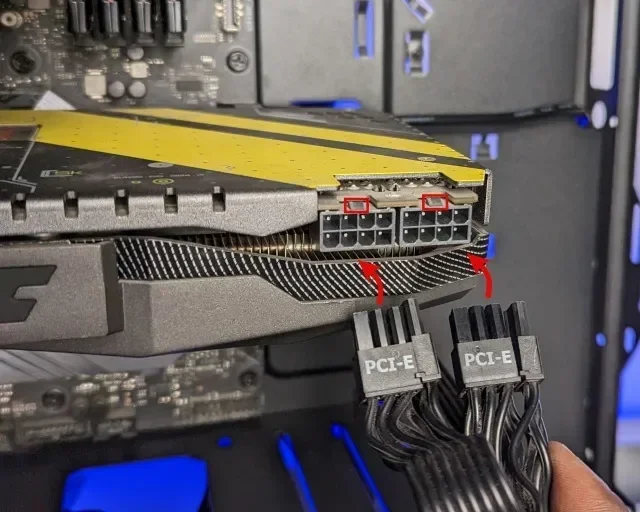
Most mid-range GPUs use a 6-pin or 8-pin PCIe connector. High-end cards often need two 8-pin connectors, sometimes called a 12VHPWR connector on newer models. Here is what to look for on your PSU:
- 6-pin connector: Provides about 75 watts
- 8-pin connector: Provides about 150 watts
- Dual 8-pin: Provides about 300 watts
- 12VHPWR (16-pin): Used on RTX 40-series cards
Check your GPU manual to see which connectors it needs. Then open your PSU and count what you have. If you are short, you need a new PSU or an adapter cable. But be careful with adapter cables. They can introduce resistance and heat. A direct connection is always safer.
Can You Use Molex to PCIe Adapters?
Some people use Molex-to-PCIe adapter cables. These plug into older SATA power connectors and convert them to PCIe power. While they work in a pinch, they are not ideal. Molex connectors were not designed for the high current GPUs demand. They can overheat and melt. If you must use one, keep it as a temporary solution and upgrade your PSU soon.
Calculate Your Total System Power Draw
Your GPU is not the only component that uses electricity. Your CPU, motherboard, drives, fans, and RGB lighting all pull power. You need to calculate the total system draw to pick the right PSU. This is where many people make mistakes.
Use a PSU Calculator
Online PSU calculators make this easy. You enter your CPU, GPU, RAM, storage, and peripherals. The tool estimates your total power draw. Popular options include the OuterVision PSU Calculator and the Cooler Master PSU Calculator. These tools give you a recommended PSU wattage based on your exact parts.
Here is a quick breakdown of typical component power draws:
- Mid-range CPU: 65-125 watts
- High-end CPU: 125-250 watts
- Mid-range GPU: 150-250 watts
- High-end GPU: 300-450 watts
- Each RAM stick: 3-5 watts
- Each storage drive: 5-10 watts
- Fans and RGB: 5-20 watts total
Add all these up and you get your total system power draw. Then add a 20-30% safety buffer. This buffer gives your PSU room to breathe and prevents it from running at maximum capacity all the time.
Recognize Signs of an Overloaded Power Supply
Sometimes your PSU fails before you even realize the problem. Knowing the warning signs helps you act fast and protect your components. If you notice any of these symptoms, your power supply might not be handling your GPU properly.
Random System Shutdowns
If your PC shuts off randomly under heavy load, the PSU could be the culprit. When your GPU demands more power than the PSU can deliver, the system protects itself by shutting down. This is a safety feature. It prevents damage to other components. If this happens, check your PSU wattage immediately.
Screen Flickering or Artifacts
Visual glitches like screen flickering or colorful artifacts can signal insufficient power. Your GPU may not receive stable power when it needs it most. This often happens during gaming or heavy rendering tasks. Before you blame the GPU, check the power supply first.
Burning Smell or Strange Noises
A burning smell or buzzing sounds from your PSU are serious red flags. These indicate the power supply is overheating or failing. Unplug your PC immediately and do not turn it back on. A failing PSU can damage other components if left connected. This is one situation where you should not wait and see.
If you have ever wondered how to know if your speakers are blown, you already understand the concept of diagnosing hardware issues early. The same principle applies here. Catching PSU problems early saves your entire system.
PC Won’t Turn On at All
Sometimes the signs are obvious. You press the power button and nothing happens. This could mean your PSU cannot handle the combined load of your GPU and other components. Try removing the GPU and booting with integrated graphics. If the system turns on, your PSU likely cannot handle the discrete GPU.
Choose the Right Power Supply for Your GPU
Once you know your power requirements, it is time to pick the right PSU. Not all power supplies are created equal. Some deliver clean, stable power. Others cut corners and risk your hardware.
Look for 80 Plus Certification
The 80 Plus certification tells you how efficient a PSU is. Higher efficiency means less wasted energy and less heat. Here are the 80 Plus tiers:
- 80 Plus White: Basic efficiency, 80% at typical load
- 80 Plus Bronze: Better efficiency, good for most builds
- 80 Plus Gold: Excellent efficiency, recommended for GPU-heavy setups
- 80 Plus Platinum: Top-tier efficiency, ideal for high-end systems
- 80 Plus Titanium: Maximum efficiency, premium builds only
For most GPU setups, an 80 Plus Gold PSU offers the best balance of efficiency, reliability, and price. It delivers clean power and runs cooler than lower-rated units.
Consider Future Upgrades
When buying a PSU, think ahead. Will you upgrade your GPU in the next year or two? If so, buy a PSU with extra headroom. A 750-watt PSU today might not be enough when you swap in a more powerful GPU tomorrow. Planning ahead saves you money and hassle down the road.
Just as you would check how to tell if a security camera is on before relying on it for surveillance, you should verify your PSU’s capacity before trusting it with your expensive GPU. Prevention always beats repair.
Modular vs. Non-Modular PSUs
Modular PSUs let you attach only the cables you need. This improves airflow and reduces cable clutter inside your case. Non-modular PSUs come with all cables permanently attached. Both types work fine. Modular PSUs are easier to manage and often look cleaner in a build.
Quick Tips and Common Mistakes
Quick Tips
- Always check your GPU’s recommended PSU wattage on the manufacturer website.
- Use a PSU calculator to estimate your total system power draw.
- Choose a PSU with 20-30% more wattage than you currently need.
- Verify your PSU has the right PCIe power connectors for your GPU.
- Buy from reputable brands with good warranty coverage.
Common Mistakes to Avoid
- Underestimating power needs: Many people buy a PSU based on GPU wattage alone and forget the rest of the system.
- Using cheap adapter cables: Molex-to-PCIe adapters can overheat and cause fires.
- Ignoring efficiency ratings: A low-efficiency PSU wastes electricity and generates more heat.
- Skipping the safety buffer: Running your PSU at 100% capacity shortens its lifespan.
- Buying used PSUs: Old PSUs degrade over time and may not deliver stable power anymore.
These mistakes are easy to avoid with a little research. Taking the time to choose the right PSU protects your entire investment.
Expert Insights on PSU and GPU Compatibility
Professional PC builders and hardware experts agree on one thing: the power supply is the foundation of a stable system. A powerful GPU paired with a weak PSU leads to instability, crashes, and even permanent damage. Here is what the experts recommend.
First, always buy a PSU from a trusted brand. Brands like Corsair, Seasonic, EVGA, and Thermaltake have strong reputations for quality and reliability. Second, do not stretch your PSU to its limit. A 600-watt PSU running at 580 watts constantly will degrade faster than one running at 400 watts. Third, replace your PSU every 5-7 years. Capacitors age and lose efficiency over time.
Think of your PSU like the electrical wiring in your house. If the wiring cannot handle the appliances you plug in, you trip the breaker or risk a fire. The same logic applies to your PC. A properly sized PSU keeps everything running smoothly and safely.
Conclusion
Now you know how to know if your power supply can handle a GPU. You understand wattage requirements, connector types, total system power draw, and warning signs of an overloaded PSU. You also know how to choose the right power supply for your build and future upgrades.
The most important takeaway is simple: do not skip this step. Checking your PSU before installing a GPU saves you from crashes, hardware damage, and wasted money. Take five minutes to verify your power supply. Your GPU and the rest of your system will thank you.
Whether you are a casual gamer or a serious builder, the right PSU makes all the difference. Follow the steps in this guide and you will have confidence in every power connection in your PC.
Frequently Asked Questions
What happens if my power supply cannot handle my GPU?
Your system may randomly shut down, crash under load, or fail to turn on at all. In some cases, an insufficient PSU can damage your GPU or other components. Always match your PSU wattage to your GPU’s recommended requirements.
Can I use a 500W PSU for an RTX 4070?
The RTX 4070 recommends a 650W PSU. A 500W PSU is likely insufficient and may cause instability. Always follow the manufacturer’s recommended wattage and add extra headroom for safety.
Do I need a modular PSU for my GPU?
No, modular PSUs are not required for GPU performance. However, they make cable management easier and improve airflow inside your case. Both modular and non-modular PSUs can deliver stable power if they meet your wattage and connector needs.
How do I check my current PSU wattage?
Look at the label on the side of your PSU unit. It lists the total wattage and the voltage rails. You can also check your PC model specifications if you bought a pre-built system. If the label is missing or unclear, search for your PSU model number online.
Is it okay to run my PSU at maximum capacity?
No. Running a PSU at or near maximum capacity constantly reduces its lifespan and increases heat output. Always aim for a PSU that operates at 60-80% of its maximum capacity under normal load for the best performance and longevity.
Can a bad PSU damage my GPU?
Yes. An unstable or insufficient power supply can deliver inconsistent voltage to your GPU. This can cause immediate damage or gradual degradation over time. Always use a quality PSU that meets or exceeds your system’s power requirements.