Which M2 Slot Should You Use for a Gaming Ssd
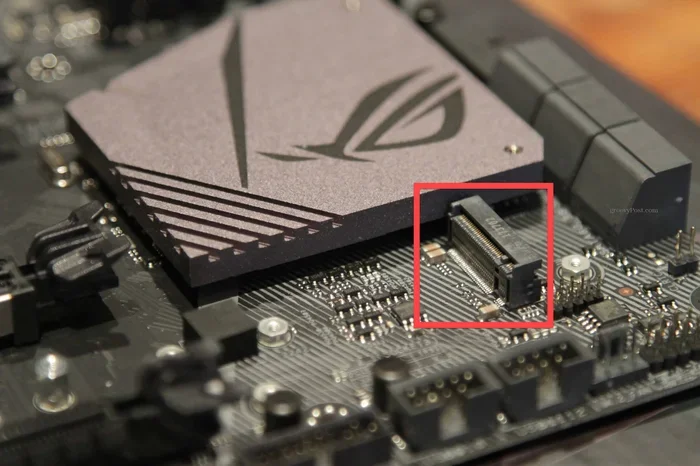
Choosing the right M2 slot for your gaming SSD can boost load times and overall performance. This guide shows you which M2 slot to use for a gaming SSD, how to identify motherboard slots, and simple installation tips. You’ll learn about NVMe speeds, PCIe generations, and thermal considerations to get the most from your drive.
Key Takeaways
- Use the primary M.2 slot: The first M.2 slot (usually Slot 0) offers the best bandwidth and lowest latency for your gaming SSD.
- Check the key type: M Key slots support NVMe PCIe SSDs, while B Key slots are for SATA M.2 drives. B+M Key slots work with both but may limit speeds.
- Match PCIe generations: A PCIe Gen4 NVMe SSD will run at Gen3 speeds if plugged into a Gen3 slot, so always verify your motherboard’s generation.
- Consider thermal management: Gaming SSDs can get hot; use a heatsink or ensure proper airflow to maintain peak performance.
- Consult your motherboard manual: It lists which M.2 slots share bandwidth with SATA ports or PCIe lanes, preventing bottlenecks.
- Install correctly: Use the right M.2 screw, seat the drive at a 30-degree angle, and press down firmly to secure it.
📑 Table of Contents
Understanding M.2 Slot Types and Keys
Not all M.2 slots are the same. Your motherboard may have multiple slots, but they support different protocols and key types. Using the wrong slot can limit your gaming SSD to slower speeds or even prevent it from working. This section breaks down the basics so you can choose confidently.
What Are M.2 Key Types?
M.2 drives use different key notches to fit into slots. The most common are the B Key, M Key, and B+M Key. A B Key slot has a notch on the left side and typically supports SATA M.2 drives. An M Key slot has a notch on the right and supports NVMe PCIe SSDs. A B+M Key slot has both notches and can accept either type, but it may run at PCIe x2 speeds instead of x4, which limits bandwidth. For a gaming SSD, you want an M Key slot to get full NVMe performance. If your laptop only has a B+M slot, check if it supports PCIe x4 mode. Many modern laptops use B+M slots that still support NVMe at full speed, but you should verify this in the specs. If you are upgrading a laptop with an M.2 NVMe SSD, the slot type matters even more because space and cooling are limited.
SATA vs NVMe M.2 Slots
A SATA M.2 slot uses the older SATA III protocol. It maxes out at about 550 MB/s. An NVMe M.2 slot uses the PCIe interface and can reach speeds of 3,500 MB/s or more on Gen3, and over 7,000 MB/s on Gen4. For gaming, the difference is huge. Games installed on an NVMe SSD load faster, and open-world games benefit from the reduced stuttering. If you see a slot labeled “M.2 Key M” on your board, it is likely an NVMe slot. If it says “M.2 Key B,” it is probably a SATA slot. Some motherboards list both next to each other, so you can pick the right one.
How to Identify Your Motherboard M.2 Slots
Before you plug in your drive, you need to know which slots your system has. This is especially important for laptop upgrades where space is limited.
Check Your Motherboard Manual
The easiest way is to read the manual that came with your PC or laptop. Look for the M.2 slot section. It will list each slot by number (like M.2_1, M.2_2) and show which PCIe lanes and SATA ports they share. For example, M.2_1 might share bandwidth with SATA3_0, meaning you cannot use both at the same time. This detail matters when you have multiple drives. If you lost the manual, search the manufacturer’s website for the model number and download the PDF.
Look at the Slot Labels
On a desktop motherboard, the slots are usually labeled right next to them. You might see “M.2_1 (PCIe 4.0 x4)” or “M.2_2 (SATA & PCIe 3.0 x2)”. On a laptop, the slots are hidden under a heat sink or a removable panel. You can often see the slot type by removing the bottom cover. Look for the key notch shape. An M-shaped notch indicates an NVMe slot. If you are unsure, you can also check the laptop’s service manual online. Many manufacturers provide these PDFs for free.
Which M2 Slot Should You Use For A Gaming Ssd
This is the core question. The answer depends on your motherboard, the SSD’s protocol, and the PCIe generation.
The Primary M.2 Slot (Usually Slot 0)
Most motherboards designate the first M.2 slot as the primary slot. It is often connected directly to the CPU’s PCIe lanes, which means the lowest latency and highest bandwidth. For a gaming SSD, this is the slot you want. On many boards, it is labeled M.2_0 or M.2_1. Using the primary slot ensures your NVMe SSD runs at its full advertised speed. If your board has a heatsink over the first slot, that is a good sign it is meant for the primary drive. I always recommend installing your boot drive here. This includes your operating system and the most-played games.
Secondary M.2 Slots and Their Uses
Secondary M.2 slots are still useful. They can host a second gaming SSD for extra storage. However, they might share bandwidth with SATA ports or run at a lower PCIe generation. For example, a secondary slot might be wired to PCIe Gen3 lanes even if your primary slot is Gen4. If you are adding a secondary storage drive for games you play less often, this is fine. Just do not expect the same burst speeds as the primary slot. You can also use a secondary slot for a SATA M.2 drive if you need extra storage and already have an NVMe boot drive. If you want to install a second drive, see our guide on how to install a second NVMe M.2 SSD for detailed steps.
PCIe Generations and Their Impact on Gaming SSD Speeds
The PCIe generation determines the maximum data transfer rate. Newer generations offer more bandwidth, which helps large game files load faster.
PCIe Gen3 vs Gen4 vs Gen5
PCIe Gen3 provides up to 3.5 GB/s of bandwidth per lane in x4 configuration. Most gaming SSDs today are Gen3 or Gen4. PCIe Gen4 doubles that to about 7 GB/s per x4 link. The difference is noticeable in open-world games with massive texture streaming. PCIe Gen5 is just arriving and offers 14 GB/s, but it is still expensive and not yet mainstream for gaming. For most gamers, a Gen4 NVMe SSD is the sweet spot. A 1TB NVMe SSD on Gen4 can cut load times dramatically compared to a Gen3 drive. For example, a 512GB PCIe NVMe M.2 SSD for laptop can deliver incredible speeds when paired with the right slot.
How to Check Your PCIe Generation
You can check your PCIe generation in the motherboard manual or by using software like CPU-Z. In the BIOS, look for the M.2 slot configuration. It will list the PCIe version supported by each slot. If you have an older laptop, it might only support Gen3. Putting a Gen4 SSD in a Gen3 slot will work, but it will run at Gen3 speeds. This is called “downward compatibility.” I always suggest matching the SSD generation to the slot generation for the best gaming performance.
Thermal Considerations and Heatsinks
Gaming SSDs can generate heat, especially during long gaming sessions. High temperatures can cause throttling, which slows down your drive.
Do You Need a Heatsink for Your Gaming SSD?
Many modern NVMe SSDs come with a small aluminum heatsink. If your M.2 slot is near a hot CPU or GPU, a heatsink helps. Laptops often have limited airflow, so thermal management is critical. Some motherboards and laptops include built-in M.2 heatsinks. If yours does not, you can buy a standalone M.2 heatsink for a few dollars. I recommend one if you are running a high-end gaming SSD like a Gen4 drive. Simple copper or aluminum pads can drop temperatures by 10-15 degrees Celsius. This keeps your sequential read and sequential write speeds stable during intense gaming sessions.
Step-by-Step Installation Tips
Installing an M.2 SSD is straightforward, but a few details matter.
Preparing Your Laptop or PC
First, power down your system completely. Unplug the power cable if you are using a desktop. For a laptop, remove the battery if possible. Ground yourself by touching a metal part of the case to avoid static electricity. Gather your tools: a small Phillips-head screwdriver and the M.2 screw that came with your motherboard or laptop. If you do not have a screw, check the manual for the part number. Using the wrong screw can damage the drive or the slot.
Installing the SSD Correctly
Locate the M.2 slot. If there is a protective cover, remove it. Hold the NVMe SSD at a 30-degree angle and align the notch with the key in the slot. Gently push the drive down into the slot. It should slide in smoothly. Now press the drive flat and secure it with the M.2 screw. Do not overtighten. A gentle snug is enough. If you are adding a second drive, make sure you do not block the primary slot’s airflow. After installation, enter the BIOS and verify the drive is detected. You may need to enable the M.2 slot in the BIOS settings. Save and exit, then boot into your operating system. If you need more guidance, our article on M.2 NVMe SSD for laptop covers common setup steps.
Conclusion
In short, choosing the correct M2 slot for your gaming SSD ensures you get the fastest possible load times and smooth gameplay. Always use the primary M.2 slot when available, match the key type (M Key for NVMe), and verify the PCIe generation. Pay attention to thermal management and use the right screw during installation. With these steps, your gaming performance will improve noticeably. Take a few minutes to check your motherboard, and you will enjoy a faster, more responsive system.
Frequently Asked Questions
Can I use a B Key slot for a gaming SSD?
No, a B Key slot is designed for SATA M.2 drives. For a gaming NVMe SSD, you need an M Key slot or a B+M Key slot that supports PCIe x4 speeds. Check your motherboard manual to confirm the slot type before buying a drive.
What happens if I put a Gen4 SSD in a Gen3 slot?
The SSD will work, but it will run at Gen3 speeds. This means you will not get the full bandwidth benefits of PCIe Gen4. It is best to match the SSD generation to the slot generation for the best gaming performance.
Do I need a heatsink for my M.2 gaming SSD?
It depends on your system’s airflow. If your M.2 slot is near a hot CPU or GPU, a heatsink helps prevent throttling. Many modern motherboards and laptops include built-in heatsinks, but you can also buy aftermarket ones for a few dollars.
Can I use an M.2 slot that shares bandwidth with a SATA port?
Yes, but you cannot use both simultaneously. If a slot shares bandwidth with a SATA port, disabling the SATA port will free up the M.2 slot. Always check your motherboard manual to understand these shared configurations.
How do I know if my laptop has an M.2 slot for an NVMe SSD?
Check the laptop’s service manual or look for an M Key notch on the existing slot. Many modern laptops support NVMe M.2 SSDs, but older models may only have SATA M.2 slots or no M.2 slot at all.
Is it better to install the SSD on the primary or secondary slot?
For your boot drive and most-played games, use the primary M.2 slot (Slot 0). It offers the lowest latency and highest bandwidth. Use secondary slots for extra storage or less demanding games to keep your main setup fast.