Why Cant I Boot from Usb on Pc
Why can’t I boot from USB on PC? This frustrating problem usually comes down to BIOS settings, incorrect boot order, or a drive that wasn’t properly formatted. Whether your PC ignores the USB drive entirely or gets stuck on an error screen, the fix is often simpler than you think. This guide walks you through every common cause and solution step by step.
You plug in your USB drive, restart your computer, and… nothing happens. Your PC just boots straight into Windows like the USB drive doesn’t even exist. If you’ve ever asked yourself “Why can’t I boot from USB on PC?”, you’re definitely not alone. This is one of the most common tech headaches people face, and it can happen for a surprising number of reasons.
The good news is that most of these issues have straightforward fixes. Whether you’re trying to install a new operating system, run a system recovery tool, or test a Linux distribution, getting your PC to boot from a USB drive is a skill worth mastering. In this guide, we’ll break down every major reason your PC might refuse to boot from USB and give you clear, actionable steps to solve each one.
Key Takeaways
- Wrong Boot Order: Your PC may not prioritize the USB drive during startup, which is the most common reason it won’t boot from USB.
- Secure Boot and Legacy Mode: Settings like Secure Boot or incorrect BIOS mode can block USB booting completely.
- Drive Not Properly Created: If the USB drive wasn’t formatted or flashed correctly, your PC simply won’t recognize it as bootable.
- Faulty USB Port or Drive: A damaged port or a failing USB drive can cause the same boot failure symptoms.
- Fast Startup Interference: Windows Fast Startup can prevent your PC from detecting the USB drive at boot time.
📑 Table of Contents
Why Your PC Won’t Boot from USB
Before you start troubleshooting, it helps to understand what’s actually happening when you try to boot from a USB drive. When you turn on your PC, the firmware (BIOS or UEFI) looks for a bootable device based on a priority list called the boot order. If the USB drive isn’t on that list or isn’t set as the first option, your PC will skip right past it.
Several things can go wrong in this process. The boot order might be misconfigured, a security setting might block USB booting, or the USB drive itself might not be set up correctly. Let’s dig into each of these causes and how to fix them.
1. Incorrect Boot Order in BIOS
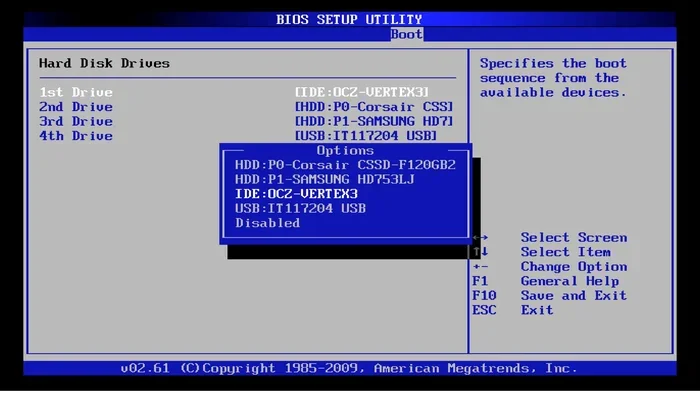
The most common reason your PC won’t boot from USB is simply that the USB drive isn’t listed as the first boot device. Every computer has a boot sequence that determines which drive it checks first when you power on. If your hard drive or SSD is set above the USB drive, your PC will always boot into Windows before even looking at the USB stick.
Here’s how to fix it:
- Restart your PC and press the BIOS key repeatedly during startup. This is usually F2, F12, Del, or Esc, depending on your manufacturer.
- Look for a section called Boot, Boot Order, or Boot Priority.
- Move your USB drive to the top of the list using the arrow keys.
- Save the changes and exit. Your PC should now try the USB drive first.
If you’re not sure which key to press, check your PC manufacturer’s website or look for a quick message on screen during startup. Some modern PCs also let you access a one-time boot menu by pressing F12 or F8 right after you hit the power button. This is a quick way to select the USB drive without changing the permanent boot order.
2. Secure Boot Is Blocking USB Booting
Secure Boot is a security feature in UEFI systems that helps prevent unauthorized software from loading during startup. While it’s great for security, it can sometimes block USB boot drives, especially those running Linux or older recovery tools. If you see a message about Secure Boot blocking the boot process, this is likely your culprit.
To disable Secure Boot:
- Enter your BIOS settings the same way you did above.
- Find the Security or Authentication tab.
- Locate Secure Boot and set it to Disabled.
- Save and restart your PC.
Don’t worry about security risks for a moment. You’re just trying to get your USB drive to boot. You can always re-enable Secure Boot once you’re done. If you need help with other USB-related issues on your system, check out this guide on why your USB mouse might not be working on your laptop, which covers USB connectivity problems in detail.
3. Legacy Boot vs. UEFI Mode Mismatch
This is a tricky one. Modern PCs use something called UEFI firmware, while older USB drives or operating systems might be designed for Legacy BIOS mode. If there’s a mismatch between what your PC expects and what the USB drive provides, booting will fail silently or throw an error.
Here’s what to check:
- In your BIOS settings, look for a section called Boot Mode or CSM (Compatibility Support Module).
- If you’re trying to boot a newer operating system, try setting the mode to UEFI.
- If you’re using an older USB drive or tool, try switching to Legacy or CSM Enabled.
- Some USB drives work in both modes, but many are optimized for one or the other.
This mismatch is especially common when people try to create bootable USB drives for older Linux distributions or Windows installation media made on an older system. Switching the BIOS mode usually solves the problem right away.
How to Create a Properly Bootable USB Drive
Sometimes the problem isn’t your PC at all. It’s the USB drive itself. If you didn’t set up the drive correctly, your PC won’t recognize it as bootable, no matter what you do in the BIOS. Creating a bootable USB drive requires more than just copying files onto it. The drive needs to be formatted in a specific way and have a proper boot loader installed.
Use the Right Tool for the Job
There are several reliable tools you can use to create a bootable USB drive:
- Rufus: A free, lightweight tool that works great for Windows and Linux ISO files.
- Windows Media Creation Tool: Microsoft’s official tool for creating Windows installation USB drives.
- BalenaEtcher: A simple, cross-platform tool that works with many operating systems.
- UNetbootin: Another solid option for Linux distributions.
Whichever tool you choose, make sure you select the correct drive letter for your USB drive. Picking the wrong drive can erase data on another storage device. Also, use a USB drive that’s at least 8 GB for most modern operating systems.
Common Mistakes When Creating Bootable USB Drives
People make several mistakes repeatedly when setting up USB boot drives. Here are the ones that cause the most problems:
- Using a USB drive that’s too small or has bad sectors.
- Selecting the wrong USB drive in your tool, which wipes the wrong device.
- Not downloading the complete ISO file before starting the creation process.
- Skipping the format step and trying to use a drive that already has data on it.
Taking a few extra minutes to verify each step can save you hours of frustration later. If you’ve ever had a situation where a USB device stopped being recognized by your computer, you know how annoying these issues can be. For related troubleshooting, you might find this article on why your mouse might not be showing up on your laptop helpful, since it covers USB device detection problems that apply broadly.
Hardware Issues That Prevent USB Booting
Software settings get most of the blame when a PC won’t boot from USB, but hardware problems are surprisingly common too. A faulty USB port, a damaged cable, or a failing USB drive can all produce the same symptoms as a BIOS misconfiguration.
Try a Different USB Port
Not all USB ports are created equal. Many modern PCs have a mix of USB 2.0 and USB 3.0 ports, and some ports on the front of the computer case are less reliable than those on the back panel connected directly to the motherboard. If your PC won’t recognize the USB drive at all, try plugging it into a different port.
As a general rule, use the back USB ports on a desktop PC. They have a more direct connection to the motherboard and tend to be more stable. If you’re using a laptop, try all available ports before assuming the drive is the problem.
Test the USB Drive on Another Computer
This is the simplest and most effective hardware test. Plug your USB drive into another computer and see if it boots there. If it works on the other PC, the problem is with your original computer’s settings or ports. If it doesn’t work anywhere, the USB drive itself might be corrupted or defective.
Also, try a different USB cable if you’re using one that connects to an external drive enclosure. Cables fail more often than people realize, and a bad cable can prevent data transfer entirely.
Check for USB Drive Corruption
USB drives can become corrupted, especially if they were removed improperly or used extensively. A corrupted bootable drive won’t work no matter what settings you adjust. If you suspect corruption, try recreating the bootable USB from scratch using a fresh drive.
If you’ve ever experienced a situation where your USB mouse stopped working on your laptop after a port change, you know how frustrating USB connectivity issues can be. Sometimes the simplest solution is just trying a different port or cable.
Windows Settings That Interfere with USB Booting
Even with the right BIOS settings and a perfectly created bootable USB drive, certain Windows features can interfere with the boot process. These settings are designed to speed up your normal boot experience, but they can get in the way when you’re trying to boot from an external device.
Disable Fast Startup
Windows Fast Startup is a hybrid shutdown feature that saves your system state to a file so your PC boots faster next time. The problem is that this can prevent your PC from properly detecting USB devices during the boot sequence. Here’s how to turn it off:
- Open Control Panel and go to Power Options.
- Click on “Choose what the power buttons do” on the left side.
- Click “Change settings that are currently unavailable.”
- Uncheck “Turn on fast startup.”
- Save changes and restart your PC.
After disabling Fast Startup, try booting from your USB drive again. This simple change fixes the problem for many users who have been stuck wondering why their PC won’t cooperate.
Disable BitLocker and Encryption
If your PC has BitLocker drive encryption enabled, it can sometimes interfere with USB booting, particularly during system recovery or installation. Temporarily suspending BitLocker before attempting to boot from USB can resolve this issue. You can do this from the Control Panel under BitLocker Drive Encryption settings.
Quick Tips for Successful USB Booting
Here are some quick tips that can save you time and frustration:
- Always create your bootable USB on the same PC model you plan to use it on when possible. Compatibility is much higher.
- Disable any antivirus software temporarily while creating the bootable drive. Some antivirus programs interfere with the flashing process.
- Check your BIOS for USB legacy support if you’re using an older USB drive. Some newer systems don’t support older USB standards during the boot phase.
- Keep your USB drive plugged in throughout the entire process. Removing it even briefly during boot can cause a crash.
- Update your BIOS if needed. An outdated BIOS can have bugs that prevent USB booting. Check your motherboard manufacturer’s website for updates.
For additional help with USB device issues on your system, check out this resource on why your mouse might stop working on your laptop, which covers broader USB troubleshooting that applies to boot scenarios too.
When to Seek Professional Help
Most USB booting issues can be fixed at home with the steps outlined above. However, there are times when it’s worth seeking professional help. If you’ve tried every solution and your PC still won’t boot from USB, the problem might be a failing motherboard, a corrupted BIOS chip, or a deeper hardware issue that requires specialized tools to diagnose.
Also, if you’re working on an important system like a work computer or a server, be cautious about making BIOS changes. A wrong setting can sometimes cause bigger problems. In these cases, consulting with a professional technician is a smart move.
Remember that USB booting is a fundamental skill for any PC user. Whether you’re installing a fresh operating system, recovering a corrupted system, or testing a new Linux distribution, knowing how to troubleshoot boot issues puts you in control of your computer. Once you understand the common causes and fixes, you’ll never be stuck wondering “Why can’t I boot from USB on PC?” again.
Conclusion
Getting your PC to boot from a USB drive doesn’t have to be complicated. The most common causes are incorrect boot order, Secure Boot interference, and improperly created bootable drives. By working through the BIOS settings, checking your hardware, and making sure your USB drive is set up correctly, you can solve this problem in most cases. Start with the boot order in your BIOS, then work through the other potential causes one by one. With patience and the right approach, your USB boot drive will be up and running in no time.
Frequently Asked Questions
Why won’t my PC recognize my USB drive during boot?
Your PC might not recognize the USB drive during boot if the boot order is set incorrectly or if the USB port isn’t providing enough power. Try plugging the drive into a different port, especially a rear port on a desktop, and check the boot priority in your BIOS settings. Sometimes Fast Startup in Windows also prevents proper USB detection at boot.
Can a corrupted USB drive prevent booting?
Yes, absolutely. A corrupted or improperly formatted USB drive won’t be recognized as bootable by your PC. If the drive has bad sectors or the boot files were not written correctly, you’ll need to recreate the bootable USB using a fresh drive and a reliable tool like Rufus or the Windows Media Creation Tool.
What is the difference between UEFI and Legacy boot mode?
UEFI is the modern firmware standard that replaces the older BIOS. Legacy boot mode mimics the old BIOS behavior for compatibility with older operating systems and tools. If your USB drive was created for Legacy mode but your PC is set to UEFI, or vice versa, the boot will fail. You can usually switch between these modes in your BIOS settings under the Boot or Advanced section.
Do I need to change BIOS settings every time I boot from USB?
No, you don’t need to change settings permanently. Most PCs offer a one-time boot menu that lets you select the USB drive for a single boot session without changing the default boot order. This is usually accessed by pressing F12, F8, or Esc right after powering on. Check your PC or motherboard manual for the exact key.
Why does my USB boot drive work on one PC but not another?
Different PCs have different BIOS versions, Secure Boot settings, and USB firmware support. A drive that boots on one PC might fail on another due to UEFI vs. Legacy mode differences, Secure Boot blocking, or USB port compatibility issues. Always check the target PC’s BIOS settings first when troubleshooting USB boot failures.
Is it safe to disable Secure Boot to boot from USB?
Yes, it’s generally safe to disable Secure Boot temporarily. Secure Boot is a security feature, and disabling it just means your PC will allow any operating system or boot loader to load. You should re-enable it once you’re done with your USB boot task to maintain your system’s security posture.