How to Clean a Mechanical Keyboard Complete Step by Step Guide 2026

Learning how to clean a mechanical keyboard properly is essential for keeping your setup performing at its best. This complete step-by-step guide for 2026 covers everything from the tools you need to advanced deep-cleaning techniques. You will discover simple methods to remove grime, fix sticky keys, and extend the life of your keyboard. Whether you are a gamer, programmer, or casual typist, this guide gives you everything you need for a thorough clean.
A mechanical keyboard feels different from a standard membrane keyboard. The switches give you satisfying feedback, and the keycaps feel more durable. But that tactile experience comes with a downside: mechanical keyboards collect dirt and grime faster than you might think. Food crumbs, dust, and skin oils work their way into the gaps between switches, and over time, they can cause keys to stick or feel mushy.
The good news is that cleaning a mechanical keyboard does not have to be hard. With the right tools and a little patience, you can keep your keyboard in great shape for years. In this guide, we break down the entire process into simple steps that anyone can follow. We also share tips on how often to clean and common mistakes to avoid. Whether you are new to mechanical keyboards or a seasoned user, this guide will help you get the best results.
Key Takeaways
- Regular cleaning prevents sticky keys and improves typing performance by removing dust, crumbs, and oils that accumulate over time.
- You only need a few affordable tools like a keycap puller, compressed air, and isopropyl alcohol to do a thorough job.
- Deep cleaning every 3 to 6 months keeps your keyboard hygienic and extends the lifespan of your switches and keycaps.
- Avoid common mistakes like using too much liquid or skipping the keycap removal step, which can cause damage or leave dirt behind.
- Proper reassembly and testing ensure everything works smoothly after your cleaning session.
- Daily habits like washing your hands and avoiding food near your desk reduce the need for frequent deep cleans.
📑 Table of Contents
- Why Cleaning Your Mechanical Keyboard Matters
- What You Will Need: Cleaning Supplies and Tools
- Step-by-Step Guide to Cleaning Your Mechanical Keyboard
- How Often Should You Clean Your Mechanical Keyboard?
- Common Mistakes to Avoid When Cleaning a Mechanical Keyboard
- Expert Tips for Keeping Your Keyboard in Top Shape
- Conclusion
Why Cleaning Your Mechanical Keyboard Matters
Many people overlook keyboard maintenance until something goes wrong. A dirty keyboard does not just look bad. It can actually affect how well you type and how long your gear lasts. Here is why keeping your keyboard clean should be a regular habit.
The Impact of Dirt on Performance
Dust and debris build up under and around your switches every single day. When particles get trapped inside the switch housing, they can slow down the key press or cause the key to register multiple times. This is especially frustrating for gamers who need quick and precise inputs. For typists, sticky keys make the experience unpleasant and slow you down.
Regular keyboard dust removal keeps every switch responding the way it should. A clean keyboard also feels smoother under your fingers, which makes long typing sessions much more comfortable. If you have been noticing that your keys feel a bit off, dirt and grime might be the culprit.
Health and Hygiene Benefits
Think about everything that touches your keyboard throughout the day. Your fingers carry oils, food particles, and bacteria. Over time, this buildup creates a breeding ground for germs. Keyboard sanitization is especially important if you eat at your desk or share your keyboard with others.
A clean keyboard supports better keyboard hygiene and reduces the risk of spreading germs. This is particularly important during cold and flu season. A quick wipe-down of surfaces combined with a deeper clean every few months goes a long way toward keeping your workspace healthy.
What You Will Need: Cleaning Supplies and Tools
Before you start, gather everything you need. Having the right cleaning supplies for your keyboard makes the process faster and more effective. You do not need anything expensive, but a few key items will make a big difference.
Essential Cleaning Tools
- Keycap puller (wire or plastic) to safely remove keycaps without damaging them.
- Compressed air canister or electric air blower for blowing out dust from between switches.
- Isopropyl alcohol (90% or higher) for disinfecting and dissolving grime on keycaps and surfaces.
- Microfiber cloths for wiping down surfaces without leaving lint behind.
- Soft-bristle brush (a small paintbrush works great) for scrubbing stubborn dirt from tight spaces.
- Small bowl or container for soaking keycaps during the cleaning process.
- Lint-free cloth or cotton swabs for reaching into tight corners and around switches.
Optional but Helpful Extras
- Mild dish soap for a deeper clean on removable keycaps.
- Tweezers for picking out large debris from between switches.
- Keyboard mat or tray to keep your workspace organized during disassembly.
- Desiccant packets to place near your keyboard after cleaning to absorb any remaining moisture.
Once you have your supplies ready, you are all set to begin the mechanical keyboard cleaning process. Having everything at hand means you will not need to stop mid-clean to find a missing tool.
Step-by-Step Guide to Cleaning Your Mechanical Keyboard
Now let us walk through the entire process. Follow these steps in order for the best results. Each step builds on the previous one, so do not skip ahead.
Step 1: Prepare Your Workspace
Start by finding a clean, flat surface with good lighting. Lay down a towel or old cloth to catch any small parts or debris. Unplug your keyboard or turn off your wireless connection. This prevents any accidental key presses while you work.
Take a photo of your keyboard layout before removing any keycaps. This sounds like a small thing, but it saves a lot of confusion when you are putting everything back. The photo helps you remember the exact position of every key, especially for irregular layouts or custom keycap sets.
Step 2: Remove the Keycaps
Using your keycap removal tool, gently pull each keycap straight up. Do not wiggle side to side, as this can bend the switch stem or damage the keycap clip. Start with the larger keys like the spacebar and shift keys, since these are the most awkward to remove.
Place all removed keycaps in a single container or on a clean tray. Keeping them organized helps during reassembly. If you have a small tray with compartments, even better. This prevents keycaps from rolling around or getting mixed up.
Step 3: Clean the Keycaps
This is the most satisfying part of the process. Fill a small bowl with warm water and add a drop of mild dish soap. Drop your keycaps into the solution and let them soak for 15 to 20 minutes. The warm water loosens oils and grime that have built up over weeks or months.
After soaking, use a soft brush to gently scrub each keycap. Pay extra attention to the underside, where dirt tends to accumulate the most. Rinse them thoroughly under clean water and pat them dry with a microfiber cloth. Let them air dry completely on a clean towel before moving to the next step. Do not skip this drying step, because putting damp keycaps back on a wet keyboard can cause damage.
Step 4: Clean the Switches and Base
While the keycaps are drying, turn your attention to the keyboard base. Use your compressed air to blow out loose dust and debris from between the switches. Hold the can upright and use short bursts to avoid moisture buildup.
Next, use a soft-bristle brush to gently sweep away any remaining particles. For stubborn grime around the switches, dip a cotton swab in isopropyl alcohol and carefully clean around each switch stem. The alcohol evaporates quickly, so it is safe to use directly on the keyboard base.
If you want to go deeper, you can carefully lift each switch and clean underneath. However, this step is optional and only recommended for experienced users. For most people, surface cleaning with compressed air and alcohol is more than enough. This approach also applies to palm rest cleaning, which is often overlooked but equally important for overall keyboard hygiene.
Wipe down the entire exterior of the keyboard with a microfiber cloth dampened with isopropyl alcohol. This gives the plastic case a fresh look and eliminates any surface bacteria. Do not use household cleaning sprays, as they can leave residue that may affect the texture of your keyboard.
Step 5: Reassemble and Test
Once everything is completely dry, you can start putting your keyboard back together. Refer to the photo you took earlier to place each keycap in the correct position. Press each keycap down firmly until it clicks into place. The keycap removal tool can also help you press keycaps down evenly if needed.
After reassembly, plug your keyboard back in or reconnect it wirelessly. Test every single key by pressing it and listening for a consistent feel and sound. If any key feels different or does not register, remove it and check for remaining debris or improper seating. This keyboard troubleshooting step ensures that your hard work pays off and your typing experience improvement is immediate.
For a final touch, wipe down your desk area around the keyboard. This keeps your whole workspace fresh and complements your newly cleaned keyboard.
How Often Should You Clean Your Mechanical Keyboard?
The frequency of cleaning depends on your usage and environment. If you eat at your desk or have pets, you will need to clean more often. Here is a general guideline to follow:
- Daily: Wipe down surfaces with a dry or slightly damp microfiber cloth. This takes less than a minute and prevents buildup from becoming a problem.
- Weekly: Use compressed air to blow out loose debris from between the keys. This quick maintenance session takes about five minutes.
- Monthly: Do a light deep clean by removing the keycaps and wiping down the base with isopropyl alcohol.
- Every 3 to 6 months: Perform a full deep clean keyboard session, including soaking keycaps and thorough switch cleaning. This is the gold standard for keyboard maintenance and ensures long-term keyboard longevity.
Sticking to this schedule keeps your keyboard in top condition without requiring too much time. Think of it like brushing your teeth. Small, regular efforts prevent bigger problems down the road.
Common Mistakes to Avoid When Cleaning a Mechanical Keyboard
Even with good intentions, people make mistakes that can damage their keyboards. Here are the most common errors and how to avoid them.
- Using too much liquid: Never soak your keyboard in water or spray cleaning solutions directly onto the base. Moisture can seep into the switches and cause short circuits. Always use isopropyl alcohol sparingly and let everything dry completely before reconnecting.
- Skipping the keycap removal step: Cleaning only the surface leaves dirt trapped underneath. Removing keycaps is the single most effective thing you can do for a thorough deep clean.
- Using abrasive materials: Avoid paper towels, rough sponges, or harsh chemicals. These can scratch the keycap legends or damage the plastic finish on your keyboard.
- Forgetting to document your layout: Placing keycaps back in the wrong position leads to frustration and confusion. Always take a photo before you start removing keys.
- Rushing the drying process: Do not use a hairdryer or place wet keycaps back on the board. Let everything air dry naturally to prevent moisture damage.
Avoiding these mistakes ensures that your cleaning a mechanical keyboard experience is safe and effective. Taking a little extra care goes a long way toward preserving your investment.
Expert Tips for Keeping Your Keyboard in Top Shape
Beyond the basic cleaning routine, a few extra habits can keep your keyboard performing beautifully for years. Here are some keyboard care tips from experienced users and technicians.
- Wash your hands before typing: This simple habit reduces the amount of oil and dirt that transfers to your keycaps every day. It is one of the easiest forms of keyboard maintenance.
- Use a keyboard cover when not in use: If your keyboard sits on your desk for long periods, a cover protects it from dust accumulation. This is especially helpful in dusty environments or workshops.
- Keep food and drinks away from your desk: Crumbs and spills are the biggest enemies of mechanical keyboards. Designate a separate area for snacks to protect your gear.
- Consider keycap replacement: Over time, even well-maintained keycaps can fade or wear down. Swapping in a new set of keycaps gives your keyboard a fresh look and feel. This is a popular upgrade among enthusiasts who want to personalize their setup.
- Store your keyboard properly: If you need to transport your keyboard, use a carrying case. This prevents physical damage and keeps dust out during travel.
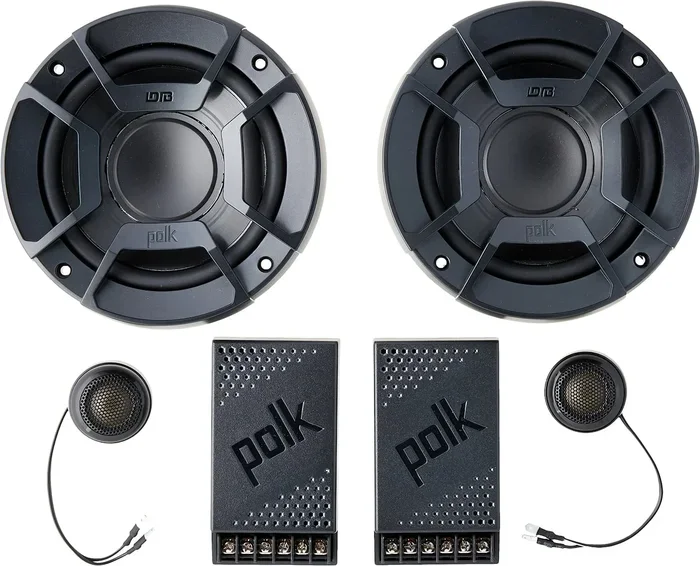
- Pair your cleaning routine with other tech maintenance: Just as you clean your keyboard regularly, it is also worth learning how to clean other peripherals. For instance, maintaining your how to clean speakers in car follows similar principles of using compressed air and isopropyl alcohol to remove dust and grime from sensitive electronic components.
These small habits add up over time. Your keyboard will look better, feel better, and last longer. The best part is that none of these tips require a lot of time or money.
For readers who want even more guidance on maintaining their tech gear, you might also find value in our article on the Best Way To Clean A Keyboard. It covers additional methods and product recommendations that complement the steps outlined in this guide.
Conclusion
Cleaning a mechanical keyboard is a simple but powerful way to protect your investment and improve your daily typing experience. By following the steps in this guide, you remove built-up grime, restore switch responsiveness, and keep your keyboard looking great. Regular maintenance also saves you money by extending the lifespan of your gear, so you do not need to replace it as often.
Remember to gather your supplies before you start, work through each step carefully, and avoid the common mistakes we highlighted. A full cleaning session takes about 30 to 45 minutes, and the results are immediately noticeable. Your fingers will thank you for the smoother key presses, and your workspace will look and feel refreshed.
Make keyboard cleaning a regular part of your routine, and your mechanical keyboard will continue to deliver the satisfying performance you love for many years to come.
Frequently Asked Questions
Can I use water instead of isopropyl alcohol to clean my mechanical keyboard?
Water works for soaking keycaps, but it is not ideal for cleaning the keyboard base. Isopropyl alcohol evaporates quickly and does not leave moisture behind, which makes it much safer for electronic components. Stick with alcohol for the base and switches, and use water only for soaking removable keycaps.
Do I need to remove every single keycap to clean my keyboard properly?
Removing all keycaps is the best way to achieve a thorough clean, especially for the spaces between switches where dust and grime accumulate. However, if you are short on time, you can clean the surface and between keys with compressed air and a brush. For a truly deep clean, full keycap removal is highly recommended.
How long should I let my keycaps dry before reassembling the keyboard?
Let your keycaps air dry for at least 1 to 2 hours, or until they are completely dry to the touch. Placing them on a clean towel in a well-ventilated area speeds up the process. Never reassemble a keyboard with damp keycaps, as trapped moisture can damage the switches and create a breeding ground for mold.
Can I use a vacuum cleaner to remove dust from my mechanical keyboard?
It is not recommended. Vacuum cleaners generate static electricity, which can damage sensitive electronic components on your keyboard. Compressed air or an electric air blower is a much safer option for removing loose dust and debris from between the switches and keycaps.
Will cleaning my mechanical keyboard improve my typing speed and accuracy?
Yes, it can. When keys are free from dust and grime, they register more consistently and feel smoother under your fingers. Many users report an immediate improvement in typing feel after a thorough cleaning. Clean switches also reduce the chance of accidental double-keystrokes, which boosts both speed and accuracy.
What is the best way to clean stubborn grime stuck on keycaps?
Soak the keycaps in warm soapy water for 15 to 20 minutes, then use a soft-bristle brush to gently scrub away remaining grime. For tough stains, dip a cotton swab in isopropyl alcohol and work it into the affected area. Avoid using abrasive pads or harsh chemicals, as these can damage the keycap legends and surface finish.