How to Update Gpu Drivers the Comprehensive Easy Guide Updated for 2026 with 20 Faqs
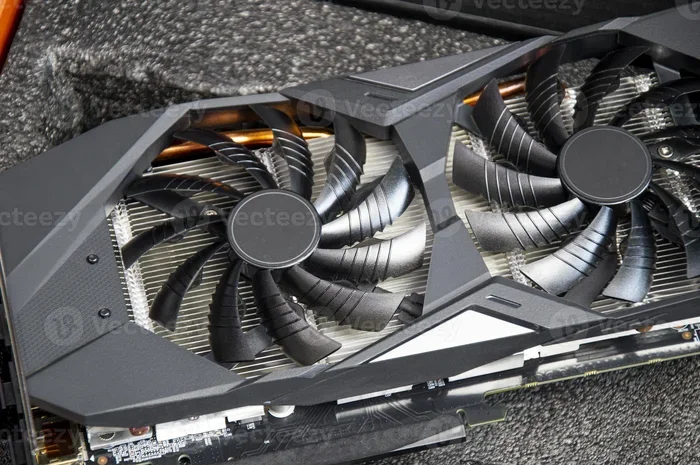
Updating your GPU drivers is one of the fastest ways to improve graphics performance, fix display bugs, and keep your PC running smoothly in 2026. This guide walks you through every method, from Device Manager to manufacturer tools, with simple steps anyone can follow. You will also find 20 FAQs that answer the most common questions about GPU driver updates.
Your graphics card is the heart of your PC’s visual performance. Whether you game, edit videos, or simply browse the web, your GPU handles the heavy lifting. But like any piece of hardware, it needs regular care. One of the simplest yet most impactful things you can do is update your GPU drivers. In this guide, we will show you exactly how to update GPU drivers the easy way, tailored for 2026.
If you have ever experienced screen glitches, low frame rates, or crashes while playing a game, outdated drivers might be the culprit. Updating them takes just a few minutes and can make a world of difference. We will cover every method, from built-in Windows tools to manufacturer-specific software. By the end of this guide, you will feel confident updating your graphics drivers like a pro.
We also included 20 FAQs at the bottom to answer the most common questions people ask about GPU driver updates. So whether you are a complete beginner or someone who just wants a refresher, this guide has something for everyone. Let us dive in and get your graphics card running at its best.
Key Takeaways
- Why Updates Matter: Updated GPU drivers improve gaming performance, fix crashes, and add support for new games and software.
- Multiple Methods Available: You can update drivers through Device Manager, manufacturer websites, or automatic update tools like GeForce Experience and AMD Radeon Software.
- Know Your GPU First: Identifying your graphics card model is the essential first step before downloading any driver.
- Troubleshooting Is Simple: Rolling back drivers or performing a clean install can solve most common problems after an update.
- Regular Updates Keep You Safe: New driver releases often include security patches and performance optimizations for the latest titles.
- System Compatibility Matters: Before updating GPU drivers, make sure your system meets requirements, including sufficient RAM and a compatible RAM type for smooth operation.
- 20 FAQs Cover Everything: From basic questions to advanced troubleshooting, the FAQ section has you covered.
📑 Table of Contents
Why Updating GPU Drivers Matters
You might wonder why driver updates even matter. After all, your PC seems to work fine right now. But GPU manufacturers release updates for several important reasons. These updates fix bugs, improve performance, and add support for newly released games and applications.
Here are the key reasons you should update your GPU drivers regularly:
- Performance Boosts: New drivers often optimize how your GPU handles the latest games and software. This can lead to higher frame rates and smoother gameplay.
- Bug Fixes: Display glitches, freezing, and crashing issues are frequently resolved through driver updates.
- Security Patches: Just like any software, drivers can have vulnerabilities. Updates patch these security holes to keep your system safe.
- New Features: Manufacturers sometimes add new features or settings through driver updates, giving you more control over your graphics experience.
- Game Compatibility: When a new game launches, it often requires the latest driver to run properly. Without an update, you might face errors or poor performance.
Think of GPU drivers like the instruction manual your PC uses to communicate with your graphics card. When that manual is outdated, things can go wrong. Keeping it current ensures everything runs as smoothly as possible.
How to Check Your Current GPU Driver Version
Before you update, you need to know what you currently have. Checking your existing driver version is quick and easy. Here is how to do it on Windows 10 and 11.
Method 1: Using Device Manager
Device Manager is a built-in Windows tool that lets you view all your hardware and drivers. Follow these steps:
- Right-click the Start button on your taskbar.
- Select Device Manager from the menu.
- Expand the Display adapters category by clicking the arrow next to it.
- Right-click your GPU and select Properties.
- Click the Driver tab to see the driver version, date, and signer information.
This method works for all GPUs, whether you have an NVIDIA, AMD, or Intel graphics card. Write down your current driver version before updating so you can compare it later.
Method 2: Using the GPU Control Panel
If you use NVIDIA or AMD software, you can also check your driver through their control panels. For NVIDIA, open the NVIDIA Control Panel and look at the bottom-left corner. For AMD, open the AMD Radeon Software and navigate to the System tab. Both will display your current driver version clearly.
How to Update GPU Drivers Using Different Methods
Now that you know your current driver version, let us look at the different ways to update GPU drivers. There are three main methods, and each has its own advantages.
Method 1: Windows Update
Windows Update can automatically download and install driver updates for your system. This is the easiest method, though it does not always provide the very latest version.
- Go to Settings by pressing Windows + I.
- Click Windows Update in the left sidebar.
- Click Advanced Options.
- Select Optional Updates.
- Expand the Driver Updates section.
- Select your GPU driver and click Download and Install.
This method is great for people who want a hands-off approach. However, it may not always have the newest drivers available. For the latest version, use the manufacturer’s website instead.
Method 2: Manufacturer Websites
Downloading drivers directly from the manufacturer ensures you get the latest version. Here is how to do it for each major brand:
NVIDIA: Visit the NVIDIA Driver Downloads page. Enter your GPU model and download the latest Game Ready or Studio driver. Run the installer and follow the on-screen prompts.
AMD: Go to the AMD Drivers and Support page. Select your product family and model. Download the latest Adrenalin Edition driver and install it.
Intel: Visit the Intel Driver & Support Assistant page. Download the tool, which will automatically detect your Intel GPU and find the right driver for you.
Method 3: Using GPU Software
Both NVIDIA and AMD offer dedicated software that can automatically check for and install driver updates. NVIDIA GeForce Experience and AMD Radeon Software make this process effortless. Simply open the app, go to the Drivers or Updates section, and click Check for Updates. The software handles everything else.
If you are running a system like the Ryzen 7 5700G with integrated graphics, these tools work just as well for APUs as they do for discrete GPUs.
How to Perform a Clean GPU Driver Installation
Sometimes a standard update is not enough. If you are experiencing persistent issues, a clean installation can help. This method removes all old driver files before installing the new ones, giving you a fresh start.
Using DDU (Display Driver Uninstaller)
DDU is a free, trusted tool that completely removes your existing GPU drivers. Here is how to use it:
- Download DDU from the official website.
- Boot your PC into Safe Mode.
- Open DDU and select your GPU brand from the dropdown menu.
- Click Clean and Restart.
- Once your PC reboots, download the latest driver from the manufacturer’s website.
- Run the installer and follow the prompts.
A clean install is especially helpful when switching between AMD and NVIDIA cards or when you are dealing with stubborn bugs that normal updates cannot fix.
Common Problems After Updating GPU Drivers and How to Fix Them
While driver updates are generally smooth, sometimes things go wrong. Here are the most common issues and how to solve them.
Black Screen After Update
A black screen after updating your driver can be scary, but it is usually fixable. Boot your PC into Safe Mode, open Device Manager, and roll back the driver to the previous version. If that does not work, use DDU to perform a clean reinstall.
Performance Drops
If your frame rates drop after an update, the new driver might not be optimized for your setup yet. Check the manufacturer’s support forums for known issues. You can also roll back to the previous driver version through Device Manager.
Mouse or Display Issues
Occasionally, a driver update can cause mouse cursor problems or display scaling issues. If your mouse is acting up after an update, you may need to troubleshoot your mouse or reinstall the display driver. Make sure your monitor cable is secure and your display settings are correct before assuming the driver is at fault.
When Should You Update Your GPU Drivers?
You do not need to update your GPU drivers every single day. Here is a simple guide on when to update:
- Before a New Game Launch: New games often require the latest drivers for optimal performance. Check for updates the day before you plan to play a new release.
- When You Experience Bugs: If your screen flickers, crashes, or shows artifacts, a driver update might fix the problem.
- Monthly Maintenance: A quick check once a month is a good habit. You do not need to update every time a new version drops unless you are experiencing issues.
- After a Major Windows Update: Sometimes Windows updates can interfere with your GPU drivers. Check for GPU driver updates after a major Windows update to ensure everything works correctly.
For most users, a monthly check is more than enough. Power users and gamers might want to check more frequently, especially around game releases.
Final Thoughts
Updating your GPU drivers does not have to be complicated. With the methods covered in this guide, you can keep your graphics card running at its best with just a few clicks. Whether you use Windows Update, the manufacturer’s website, or dedicated software like GeForce Experience, the process is straightforward and fast.
Remember, your GPU is responsible for everything you see on screen. Taking care of its drivers is one of the easiest ways to protect your investment and ensure a smooth computing experience. Make it a habit to check for updates regularly, and you will notice the difference in performance and stability.
If you run into any issues, refer back to the troubleshooting tips in this guide. And do not forget to check out the FAQs below for answers to the most common questions about GPU driver updates. Happy computing!
Frequently Asked Questions
How do I know if my GPU driver needs updating?
You can check your current driver version through Device Manager or your GPU control panel. If you are experiencing low frame rates, screen glitches, or crashes, an update might help. Comparing your current version to the latest available on the manufacturer’s website will also tell you if you are behind.
Is it safe to update GPU drivers?
Yes, updating GPU drivers is completely safe. Manufacturers release these updates specifically to improve performance and fix bugs. Always download drivers from the official website or use trusted software to avoid malware or corrupted files.
Can updating GPU drivers improve gaming performance?
Absolutely. New drivers often include optimizations for the latest games, which can lead to higher frame rates and smoother gameplay. The improvement varies depending on the game and your hardware setup.
What should I do if my screen goes black after a driver update?
Boot into Safe Mode, open Device Manager, and roll back the driver to the previous version. If that does not work, use DDU to cleanly uninstall the driver and reinstall the previous version. This usually resolves black screen issues quickly.
How often should I update my GPU drivers?
For most users, checking once a month is sufficient. If you are a gamer, consider updating before major game releases. You do not need to update every time a new driver version drops unless you are experiencing specific issues.
Can I use a driver update tool instead of doing it manually?
Yes, tools like NVIDIA GeForce Experience, AMD Radeon Software, and Intel Driver & Support Assistant can automatically detect and install the latest drivers. These tools are safe and convenient, though manually downloading from the manufacturer’s site ensures you get the exact version you need.