How to Optimize Gaming Pc for Ray Tracing
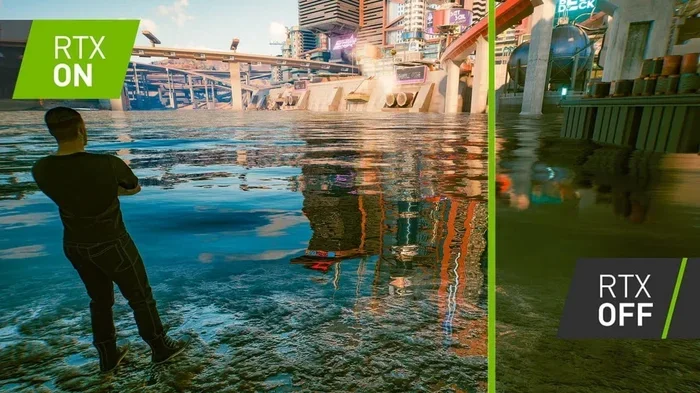
Optimizing your gaming pc for ray tracing means balancing stunning visuals with smooth performance. You will learn how to update drivers, adjust in-game settings, upgrade key hardware, and keep your system cool. This guide covers everything from GPU tweaks to power management so you can enjoy ray tracing without sacrificing frame rates.
Ray tracing has changed the way we experience games. It brings realistic lighting, sharp reflections, and deep shadows to life in ways that traditional rendering simply cannot match. But running ray tracing on your gaming pc can be demanding. Without the right setup, you might end up with stuttering frames and melted frame rates.
If you want to get the most out of this technology, you need to optimize every part of your system. This guide walks you through the steps to make your gaming pc ray tracing ready. From driver updates to hardware upgrades, you will find practical tips that actually work. Let us dive in and make your games look incredible.
Key Takeaways
- Update your GPU drivers regularly: The latest drivers from NVIDIA or AMD include ray tracing optimizations that can boost performance significantly.
- Enable DLSS or FSR for better frame rates: These upscaling technologies let you run ray tracing at higher resolutions without tanking your FPS.
- Adjust in-game ray tracing settings carefully: Start with lower preset levels and gradually increase to find the sweet spot between quality and performance.
- Upgrade your VRAM and GPU for demanding titles: Ray tracing is very VRAM intensive, and having at least 8GB ensures smoother gameplay.
- Keep your system cool and well-ventilated: Thermal throttling kills ray tracing performance, so proper cooling and airflow are essential.
- Use the right power supply and motherboard: A stable power delivery and compatible motherboard prevent bottlenecks during intensive ray tracing sessions.
📑 Table of Contents
What Is Ray Tracing and Why Does It Matter?
Ray tracing is a rendering technique that simulates how light behaves in the real world. Instead of faking light with pre-baked maps, the game engine calculates each light ray as it bounces off surfaces. The result is realistic reflections, accurate shadows, and natural ambient occlusion that makes scenes feel alive.
Games like Cyberpunk 2077, Alan Wake 2, and Metro Exodus use ray tracing to create breathtaking visuals. But this realism comes at a cost. Your GPU has to work much harder to calculate all those light paths in real time. That is why optimization matters so much. Without it, even a powerful graphics card will struggle to maintain smooth frame rates.
Hardware Requirements for Ray Tracing
Not every gaming pc can handle ray tracing well. You need the right components to deliver both visual quality and performance. Here is what matters most.
Graphics Card and VRAM
Your GPU is the heart of ray tracing performance. Cards like the NVIDIA RTX 30-series and 40-series, as well as AMD Radeon RX 6000 and 7000 series, have dedicated ray tracing cores. These cores handle light calculations much faster than standard shader processors.
VRAM also plays a huge role. Ray tracing uses a lot of memory to store lighting data and scene information. You want at least 8GB of VRAM for a smooth experience. If your card has less, you will likely see stuttering or low frame rates in ray tracing enabled titles.
RAM and Motherboard
System RAM supports your GPU by handling game assets and background tasks. For ray tracing, having enough memory prevents bottlenecks. If you want to upgrade, check out our guide on best RAM for gaming PC to find the right fit for your setup.
Your motherboard also matters. It needs to support the latest PCIe standards so your graphics card can communicate with the rest of the system without delays. A compatible motherboard ensures stable power delivery and data transfer during heavy ray tracing workloads. Learn more in our best PC motherboard for gaming article.
Power Supply and Cooling
Ray tracing pushes your GPU to its limits, which means it draws more power and generates more heat. A reliable power supply with enough wattage keeps your system stable under load. Cooling is equally important because thermal throttling can tank your performance when temperatures climb too high.
For help keeping temperatures in check, see our best liquid cooler for gaming PC guide. A good cooler keeps your CPU and GPU running at safe speeds so you can sustain high frame rates during long gaming sessions.
Software and Driver Optimization
Before you tweak any in-game settings, make sure your software and drivers are up to date. Outdated drivers are one of the biggest reasons ray tracing performance suffers.
Update Your GPU Drivers
Both NVIDIA and AMD release regular driver updates that include ray tracing optimizations. These updates often fix bugs, improve compatibility, and boost frame rates for newly released games. Use NVIDIA GeForce Experience or AMD Adrenalin to check for the latest versions.
After updating, restart your gaming pc and launch a ray tracing enabled title. You should notice smoother gameplay and better visual quality right away. This simple step alone can make a big difference.
Keep Your System Clean and Updated
A clean system runs better. Remove junk files, clear temporary data, and make sure your operating system is current. Background programs can eat up resources that your GPU needs for ray tracing. Use trusted tools to free up space and keep your gaming pc running smoothly.
You should also check for Windows updates and game engine patches. Developers often release updates that improve ray tracing performance. Staying current ensures you get the best experience possible.
In-Game Settings for Ray Tracing
Getting the best ray tracing experience means finding the right balance between visual quality and frame rate. You do not need to max out every setting to enjoy great visuals.
Start with Ray Tracing Presets
Most modern games offer ray tracing presets like Low, Medium, High, and Ultra. Start with Medium or High and see how your gaming pc handles it. If your frame rate drops below 60 FPS, lower the setting. If it stays above 60 and looks great, you can try Ultra.
Here is a simple approach:
- Set ray tracing to Medium first.
- Play for 10 to 15 minutes and check FPS stability.
- Increase to High if performance is good.
- Drop to Low if you notice stuttering or slowdowns.
Use Upscaling Technologies Like DLSS and FSR
DLSS (Deep Learning Super Sampling) from NVIDIA and FSR (FidelityFX Super Resolution) from AMD are game changers for ray tracing. These technologies render the game at a lower resolution and then upscale it to your monitor’s resolution. The result is much higher frame rates with minimal loss in visual quality.
When you combine ray tracing with DLSS or FSR, you get the best of both worlds. Your games look stunning and run smoothly. Make sure to enable these features in the game settings alongside ray tracing for the best results.
Adjust Individual Ray Tracing Settings
Beyond the overall preset, many games let you control specific ray tracing features individually. You can adjust reflections, shadows, ambient occlusion, and global illumination separately. This gives you fine-tuned control over performance and visuals.
If you want the best frame rates, start by lowering reflections and global illumination. These are the most demanding ray tracing features. Shadows and ambient occlusion can usually stay at higher settings without hurting performance as much.
Cooling and Power Optimization
Ray tracing pushes your hardware harder than most tasks. Keeping your system cool and powered properly is essential for sustained performance.
Monitor Temperatures During Gameplay
Use tools like MSI Afterburner or HWMonitor to check your GPU and CPU temperatures while gaming. If your GPU exceeds 85 degrees Celsius, you may be experiencing thermal throttling. This causes your card to slow down to prevent damage, which kills ray tracing performance.
Make sure your fans are working properly and that airflow inside your case is unobstructed. Dust buildup can block vents and reduce cooling efficiency. Clean your gaming pc regularly to keep temperatures in check.
Optimize Power Settings
Your power plan affects how much energy your GPU can use. In Windows, set your power plan to “High Performance” or “Ultimate Performance” for the best ray tracing results. This allows your hardware to draw maximum power when needed.
Also, make sure your power supply has enough wattage for your setup. A GPU running ray tracing at full load can draw significantly more power than during normal gameplay. An underpowered supply leads to instability and crashes.
Common Mistakes That Hurt Ray Tracing Performance
Even experienced gamers make mistakes that drag down their ray tracing experience. Avoid these common pitfalls to get the best results.
Running Ray Tracing on Older Hardware
Not every gaming pc supports ray tracing well. Older GPUs without dedicated ray tracing cores will struggle badly. If your card is more than five years old, you may need an upgrade to enjoy ray tracing properly. Check the best specs for a gaming PC to see what hardware you should be targeting.
Ignoring Background Processes
Background apps like browsers, streaming software, and antivirus scans steal resources from your GPU. Close unnecessary programs before launching a ray tracing game. This frees up RAM and CPU power for your game engine.
Also, make sure your antivirus software is not interfering with game performance. Some programs can flag game files or consume system resources during gameplay. Use trusted antivirus software for gaming PC that runs quietly in the background.
Overlooking Game Updates and Patches
Game developers constantly optimize ray tracing performance through patches. Running an outdated version of a game can mean missing performance improvements. Always keep your games updated and check for ray tracing specific patches.
Final Thoughts
Optimizing your gaming pc for ray tracing is all about balance. You need the right hardware, updated drivers, smart in-game settings, and proper cooling. Follow the steps in this guide and you will see a noticeable improvement in both visuals and frame rates.
Start with the basics, like updating your GPU drivers and enabling DLSS or FSR. Then fine-tune your in-game ray tracing settings to match your hardware capabilities. Keep your system cool and clean, and always stay current with software updates.
Ray tracing is the future of gaming graphics, and with the right optimization, your gaming pc can deliver an amazing experience. Take action today and transform the way your games look and feel.
Frequently Asked Questions
What is ray tracing and why is it important for gaming?
Ray tracing is a rendering technique that simulates real-world light behavior in games. It creates realistic reflections, shadows, and lighting that make scenes look much more lifelike. This technology is important because it dramatically improves visual quality in modern games.
Do I need a special GPU for ray tracing?
Yes, you need a GPU with dedicated ray tracing cores for the best performance. Cards from the NVIDIA RTX 30-series and 40-series or AMD Radeon RX 6000 and 7000 series are ideal. Older GPUs without these cores can still run ray tracing but with much lower performance.
How much VRAM do I need for ray tracing?
You should have at least 8GB of VRAM for a smooth ray tracing experience. Games with ray tracing enabled use a lot of memory to store lighting and scene data. Having less than 8GB can lead to stuttering, low frame rates, and poor visual quality.
Does DLSS help with ray tracing performance?
Yes, DLSS and AMD FSR are upscaling technologies that significantly boost frame rates when ray tracing is enabled. They render the game at a lower resolution and upscale it, giving you much better performance with minimal visual loss. This is one of the best ways to optimize ray tracing on any gaming pc.
Can I run ray tracing on a budget gaming PC?
It is possible but challenging. Budget gaming PCs may not have the GPU power or VRAM needed for smooth ray tracing. You can still enable it at lower settings, but you will likely see reduced frame rates. Consider upgrading your GPU or using upscaling tech to make it more manageable.
Why does my frame rate drop when I enable ray tracing?
Ray tracing is very demanding on your GPU because it calculates real-time lighting for every object in the scene. This uses more processing power and VRAM than traditional rendering. Lowering ray tracing settings or enabling DLSS can help restore smooth frame rates.