Is It Possible to Boot Linux from Usb
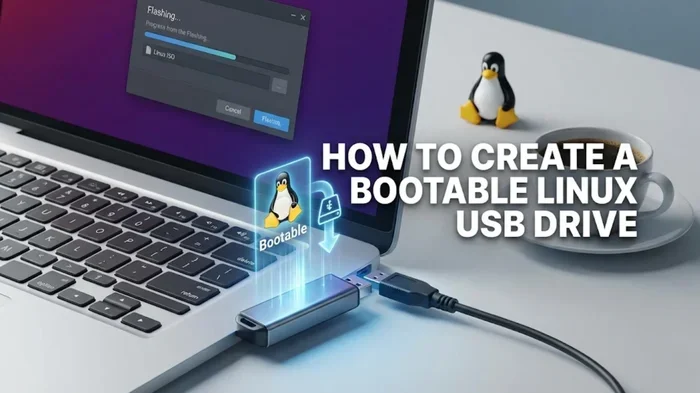
Yes, it is absolutely possible to boot Linux from a USB drive. This simple method lets you run a full Linux operating system directly from a flash drive without installing anything on your hard drive. Whether you want to test a new Linux distribution or carry your workspace with you, a bootable USB makes it easy and portable.
Have you ever wanted to try a new operating system without installing it on your computer? Booting Linux from USB is one of the easiest and most convenient ways to explore a new Linux distribution. You can run it on any compatible computer, test your hardware, or even use it as your main system. The process is simpler than most people think.
A bootable USB drive acts like a portable computer. You plug it in, restart your machine, and Linux starts right up. No need to install anything on your hard drive. This makes it perfect for trying out new software, fixing a broken system, or just learning about open-source technology. Whether you are a student, a developer, or just curious, this guide has you covered.
In this article, we will walk you through everything you need to know. You will learn about the requirements, how to create a bootable drive, and how to start Linux from your USB. We will also cover common issues and share tips to make the process smooth. Let us dive right in.
Key Takeaways
- Booting Linux from USB is straightforward: You only need a USB flash drive, an ISO file, and a creation tool.
- No installation is required: You can run Linux directly from the USB in a live environment.
- Most computers support USB booting: You may just need to change a few BIOS settings.
- USB speed matters: A fast drive gives you much better performance when running Linux from USB.
- Persistence is possible: You can save files and settings on the USB drive for later use.
- External SSDs work great too: They offer faster speeds than regular USB flash drives.
📑 Table of Contents
What Does It Mean to Boot Linux from USB?
Booting Linux from USB means starting your computer using a USB flash drive instead of your hard drive. When you turn on your PC, the boot menu looks for a device to load the operating system from. By default, most computers look at the hard drive first. But you can change this order in your BIOS settings.
A bootable USB drive contains a complete Linux operating system. It includes the kernel, system files, and a user interface. When your computer reads the USB, it loads Linux into memory and starts running. This is called a live USB or live environment. You get a fully working Linux system without installing a single file on your computer.
Why Would You Want to Boot Linux from USB?
There are many great reasons to use a bootable USB with Linux. Here are some of the most common ones:
- Testing without commitment: You can try a Linux distribution before installing it on your hard drive. This lets you see if it works with your hardware and if you like the interface.
- System recovery: If your main operating system is broken, a Linux USB can help you recover files, fix boot issues, or repair your system.
- Portability: You can carry your entire operating system in your pocket. Plug it into any computer and you have your personal workspace ready.
- Privacy and security: A live USB leaves no trace on the host computer. This is great for using public or shared machines safely.
- Learning and experimentation: Students and hobbyists can explore Linux without risking their main system.
What You Need to Boot Linux from USB
Getting started is easy. You do not need expensive equipment or advanced technical skills. Here is what you will need:
USB Flash Drive
You need a USB flash drive with at least 8 GB of storage. A 16 GB drive is even better if you plan to use the persistence feature. This lets you save files and settings across reboots. Look for a drive with good read and write speeds. A slower USB 2.0 drive will make Linux feel sluggish. A USB 3.0 or higher drive gives you much better performance.
If you want even faster speeds, you can use an NVMe SSD to USB adapter to connect a solid-state drive as your boot device. This gives you near-internal-drive speeds, which is excellent for a smooth Linux experience.
Linux ISO File
An ISO file is a complete copy of a Linux installation disc. You download it from the website of your chosen Linux distribution. Popular options include Ubuntu, Fedora, Linux Mint, and Debian. Each distribution offers a different experience. Ubuntu is great for beginners. Fedora is known for cutting-edge software. Linux Mint is user-friendly and stable.
Make sure you download the ISO from the official website. This ensures you get a clean, safe file without any unwanted extras.
USB Creation Tool
You need a tool to write the ISO file to your USB drive. This tool formats the drive and makes it bootable. Here are some popular options:
- Rufus: A free Windows tool that is simple and fast. It works with most ISO files and supports many Linux distributions.
- Etcher: Available for Windows, Mac, and Linux. It has a clean interface and is very beginner-friendly.
- UNetbootin: Another cross-platform option that has been around for many years.
- dd command: A built-in Linux tool for advanced users. It is powerful but requires some command-line knowledge.
Step-by-Step Guide to Boot Linux from USB
Now that you have everything ready, let us create your bootable USB drive. Follow these steps carefully.
Step 1: Download the Linux ISO
Go to the website of your chosen Linux distribution. Find the download page and select the version you want. Most distributions offer a 64-bit version that works on modern computers. Click the download link and wait for the file to finish downloading. The ISO file is usually 1 to 4 GB in size.
Step 2: Prepare Your USB Drive
Plug your USB flash drive into your computer. Make sure it has at least 8 GB of free space. Note that this process will erase everything on the drive. Back up any important files first.
Open your USB creation tool. Select your USB drive from the list of available devices. Choose the ISO file you downloaded. Click the button to start creating the bootable drive. The tool will format the drive and copy all the necessary files. This usually takes 5 to 15 minutes depending on your drive speed.
Step 3: Change BIOS Boot Order
Once the bootable USB is ready, restart your computer. As it starts up, press the key to enter BIOS or boot menu. This key varies by manufacturer. Common keys include F2, F12, Del, or Esc. Look for a message on your screen during startup that tells you which key to press.
In the BIOS or boot menu, find the boot order settings. Move your USB drive to the top of the list. Save your changes and exit. Your computer will restart and look for the operating system on your USB drive first.
Step 4: Start Linux from USB
After your computer restarts, it should detect the bootable USB. You will see a Linux welcome screen. Most distributions give you two options:
- Try Linux: This runs Linux entirely from the USB without making any changes to your computer. It is perfect for testing.
- Install Linux: This starts the installation process. You can install Linux alongside your current operating system or replace it entirely.
Select “Try Linux” to test the system first. You will see the full desktop environment, applications, and settings. Everything runs from your USB drive. Try browsing the web, opening files, and testing hardware support.
Can You Use an External SSD for Booting Linux?
Yes, you can use an external SSD instead of a regular USB flash drive. An external solid-state drive gives you much better performance. Linux will feel faster and more responsive. This is especially helpful if you plan to use Linux as your daily driver from the USB.
To use an external SSD, you can place the NVMe or SATA drive inside a protective enclosure. A M.2 NVMe to USB C SSD enclosure is a great option for this. It turns your internal NVMe drive into a portable boot device with fast USB C connectivity.
The process for making an external SSD bootable is the same as with a USB flash drive. You use the same creation tool and follow the same steps. The only difference is the storage device you are writing to. Just make sure your computer recognizes the external SSD as a bootable device.
Keep in mind that external SSDs are more expensive than USB flash drives. But if you use Linux regularly from USB, the investment is worth it. You will get faster boot times, smoother performance, and better durability.
Troubleshooting Common Issues
Sometimes things do not go as planned. Here are some common problems and how to fix them.
Computer Does Not Recognize the USB Drive
If your computer does not see the bootable USB, try these fixes. First, make sure the USB drive is properly plugged in. Try a different USB port, preferably a USB port on the back of your computer. USB ports on the front of a desktop case sometimes provide less power.
Check your BIOS settings to make sure USB booting is enabled. Some computers have a setting called “Legacy Boot” or “UEFI Boot” that you may need to adjust. If you are unsure, look up your computer model online for specific instructions.
Linux Runs Very Slowly from USB
Slow performance is a common issue with bootable USB drives. The main cause is using a slow USB flash drive. USB 2.0 drives are especially problematic. Switch to a USB 3.0 or USB 3.1 drive for much better speed.
Another cause is running Linux in a live environment without persistence. The system uses your computer’s RAM for temporary storage, which can slow things down. If your system has limited RAM, consider installing Linux directly on the USB drive with persistence enabled.
Boot Menu Does Not Appear
If your computer boots straight into your normal operating system, the boot order may not have changed. Restart your computer and enter BIOS again. Double-check that the USB drive is listed first in the boot order. Some computers have a quick boot menu that you can access by pressing F12 or F8 during startup. This lets you choose the boot device without changing BIOS settings.
Tips for the Best Linux USB Experience
Here are some practical tips to get the most out of your bootable Linux USB:
- Use a fast USB drive: USB 3.0 or higher makes a big difference. Your Linux experience will feel much smoother.
- Enable persistence: This lets you save files, bookmarks, and settings. Without it, everything resets when you reboot.
- Keep your ISO file safe: Store your downloaded ISO in a safe place. You will need it if you want to recreate the bootable drive.
- Test on multiple computers: Different computers may behave differently. Testing on more than one machine helps you understand compatibility.
- Keep your Linux USB updated: If you use the same USB drive often, keep the Linux installation updated for security and performance.
- Use a dedicated USB port: Avoid USB hubs or extensions. Plug the drive directly into the computer for the best connection.
After you finish using Linux from your USB, you may want to clean up your computer. You can remove junk files from your PC to free up space and keep your system running smoothly. This is especially helpful if you tested multiple Linux distributions and accumulated temporary files along the way.
Final Thoughts
Booting Linux from USB is one of the most useful skills you can learn. It opens up a world of possibilities without any risk to your main system. Whether you want to explore a new Linux distribution, recover data from a broken computer, or carry your workspace with you, a bootable USB makes it all possible.
The process is simpler than it looks. You need a USB flash drive, an ISO file, and a creation tool. Change a few BIOS settings, and you are ready to go. With a fast USB drive or an external SSD, you can enjoy a smooth and responsive Linux experience anywhere you go.
Give it a try today. Pick a Linux distribution, create your bootable USB, and see what the open-source world has to offer. You might be surprised at how easy and rewarding it can be. Booting Linux from USB is a skill that will serve you well for years to come.
Frequently Asked Questions
Can I boot Linux from USB on any computer?
Most modern computers support booting from USB. However, some older systems or certain branded computers may have restrictions. Check your BIOS settings to ensure USB booting is enabled. If your computer is less than 10 years old, it should work without any issues.
Do I lose data on my USB drive when making it bootable?
Yes, the process erases all data on the USB drive. Always back up any important files before creating a bootable Linux USB. The creation tool formats the drive completely as part of the process.
Can I use the same USB drive for both Linux and Windows files?
Once you make a USB drive bootable, it is formatted for Linux. You cannot easily use it for regular Windows files afterward. It is best to use a dedicated USB drive for your bootable Linux setup.
How long does it take to boot Linux from USB?
Boot time depends on your USB drive speed and computer hardware. A USB 3.0 drive on a modern computer typically boots in 10 to 30 seconds. Slower USB 2.0 drives may take a minute or longer to start up.
Can I install Linux permanently from a USB drive?
Yes, you can. When you boot from the Linux USB, choose the “Install Linux” option. The installer will guide you through the process. You can install Linux on your hard drive alongside your existing operating system or replace it entirely.
Is it legal to boot Linux from USB?
Absolutely. Linux is open-source software, and booting it from a USB drive is completely legal. You are free to download, use, and distribute most Linux distributions without any restrictions. Just make sure you follow the license terms of the specific distribution you choose.
=== CONCLUSION ===
Booting Linux from a USB drive is not only possible but also incredibly easy. With just a USB flash drive, an ISO file, and a creation tool, you can run a full Linux operating system on any compatible computer. It is a powerful way to explore open-source software, recover data, or carry your workspace with you wherever you go.
Start with a simple distribution like Ubuntu. Follow the steps in this guide. You will be running Linux from your USB drive in no time. The experience is rewarding, and you will discover why millions of people around the world trust Linux for their computing needs. Give it a try and see how simple and fun it can be.