What Is an Input Method Editor
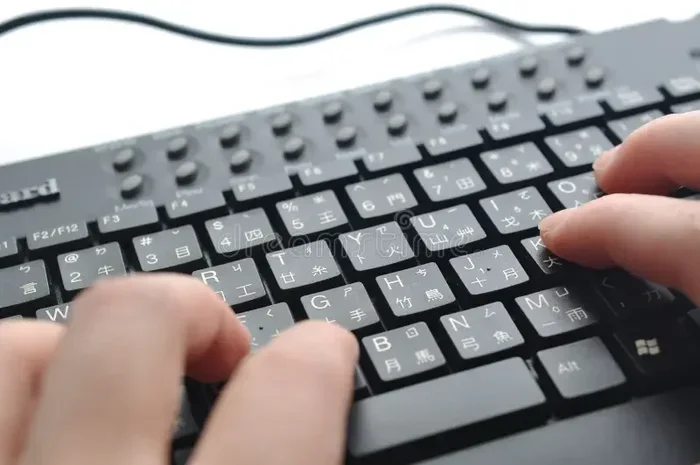
An input method editor, or IME, is a software tool that lets you type characters and symbols not found on a standard keyboard. It is especially useful for typing Asian languages like Chinese, Japanese, and Korean on a laptop. This guide covers everything you need to know about how an IME works, why you need one, and how to set it up.
Key Takeaways
- What it is: An input method editor is software that converts keystrokes into characters for languages that need more symbols than a standard keyboard offers.
- Who needs it: Anyone typing Chinese, Japanese, Korean, or other non-Latin scripts on a laptop benefits from an IME.
- How it works: It uses phonetic or stroke-based input to match keystrokes to the correct characters.
- Built-in support: Most modern operating systems come with IME tools already included, so you may not need to install anything.
- System requirements: Having enough RAM on your laptop ensures smooth IME performance, especially when switching between input languages.
- Customization: You can personalize your IME with custom dictionaries, shortcut keys, and preferred input styles.
📑 Table of Contents
What Is an Input Method Editor?
If you have ever tried to type Chinese, Japanese, or Korean on a laptop, you may have noticed that the keys on your keyboard do not match the characters you need. This is where an input method editor comes in. An input method editor, often shortened to IME, is a software component that lets you type characters and symbols that are not directly available on a standard keyboard layout.
Think of an IME as a translator between your keystrokes and the text you want to see on screen. When you press a key or a combination of keys, the IME takes those inputs and converts them into the right character input. This text conversion process happens in real time, making it possible to write in dozens of languages using a standard QWERTY keyboard.
The input method framework is the underlying system that supports IME tools. It acts as a bridge between your operating system and the input method itself. Without this framework, your laptop would not know how to route your keystrokes through the IME engine. Most modern operating systems like Windows, macOS, and Linux include built-in support for multiple input methods.
The concept of text entry has evolved a lot over the years. Early computers only supported English letters and basic symbols. Today, language support on laptops is incredibly advanced. You can switch between languages with a few clicks or keystrokes. The input platform has become a vital part of the laptop experience for millions of users around the world.
Why Do You Need an Input Method Editor?
You might wonder why an IME is so important. The answer is simple. Not all languages use the same keyboard layout that English does. Many languages have thousands of characters, while a standard keyboard only has about 100 keys. An IME bridges this gap.
Here are some key reasons you might need an input method editor:
- Typing Asian languages: Chinese, Japanese, and Korean all use large character sets. An IME makes it possible to type these languages efficiently.
- Accessing special symbols: Even for English speakers, an IME can help you type mathematical symbols, accented characters, and other special text that is not on your keyboard.
- Switching between languages: If you work in a multilingual environment, an IME lets you switch between languages quickly without changing your keyboard hardware.
- Improving productivity: A good IME speeds up your text input so you can type as fast as you would in your native language.
Who Uses Input Method Editors?
Input method editors are not just for native speakers of Asian languages. They are used by students, professionals, travelers, and anyone who needs to communicate in a language that uses a different script. If you are learning a new language or working with international clients, an IME is a valuable tool on your laptop.
How Does an Input Method Editor Work?
Understanding how an input method editor works is easier than you might think. The process generally follows a few simple steps. Each step plays a role in turning your keystrokes into the correct character input on screen.
Step 1: Keystroke Entry
You start by pressing keys on your keyboard layout. For example, in a Chinese IME, you might type the phonetic spelling of a character using roman letters. The IME listens to each keystroke you make and begins the text conversion process.
Step 2: Phonetic or Stroke Matching
Next, the IME matches your input to possible characters. There are two common approaches:
- Phonetic input: You type the sound of a character using roman letters. The IME then suggests matching characters based on pronunciation. This is common for Chinese Pinyin input.
- Stroke-based input: You draw or type the strokes that make up a character. The IME matches your strokes to the correct character. This is common for Japanese Kanji and Chinese handwriting input.
Step 3: Candidate Selection
The IME then presents you with a list of possible characters or words. This list is called the candidate window. You can use the arrow keys or your laptop mouse to scroll through the options and pick the one you want.
Step 4: Text Output
Once you select a character or word, it appears in your text field. The IME has completed its job of converting your keyboard input into the correct output. The whole process happens in milliseconds.
Advanced IME Features
Modern input method editors come with many advanced features. Some support handwriting recognition, where you can draw characters with a stylus or your finger on a touchpad. Others support voice input, where you speak and the IME converts your speech to text. These features make language input even more accessible and convenient.
Popular Input Method Editors for Laptops
There are many input method editors available for laptops. Some are built into your operating system, while others are third-party tools you can download. Here are some of the most popular ones:
| IME Name | Platform | Best For |
|---|---|---|
| Microsoft IME | Windows | Chinese, Japanese, Korean |
| Google Pinyin IME | Windows | Chinese Pinyin input |
| Kotoeri | macOS | Japanese and Chinese |
| SCIM | Linux | Multiple Asian languages |
| Google Input Tools | All platforms | Over 90 languages |
Each IME has its own strengths. Microsoft IME is a solid choice for Windows users because it comes pre-installed and works well out of the box. Google Pinyin IME is popular among Chinese speakers who prefer phonetic input. Google Input Tools is great if you need support for many different languages on one laptop.
How to Set Up an Input Method Editor on Your Laptop
Setting up an input method editor on your laptop is usually straightforward. Most modern laptops make it easy to add and switch between input methods. Here is a simple guide to get you started.
On Windows
First, go to Settings and select Time and Language. Then click on Language. Add the language you want to type in. Windows will often offer to install the matching IME automatically. Once added, you can switch between input methods using the Windows key and Space bar. Make sure your laptop has a good amount of RAM for a laptop to keep everything running smoothly.
On macOS
On a Mac, go to System Preferences and select Keyboard. Click on the Input Sources tab. Add the language or input method you need. You can switch between input methods using the flag icon in the menu bar or by pressing Control and Space. macOS also includes built-in handwriting recognition for Chinese and Japanese characters.
On Linux
Linux users can set up an IME through the input method framework. Common options include IBus and SCIM. Install the framework, add your preferred input method, and configure it in your system settings. The process may vary depending on your Linux distribution.
Tips for Getting Started
- Start with one language: Do not try to set up too many IMEs at once. Pick one language and practice before adding more.
- Use the built-in tools first: Built-in IMEs are reliable and do not require extra downloads.
- Check your RAM: The RAM on a laptop affects how well your IME performs, especially when running multiple input methods at once.
- Customize your dictionary: Many IMEs let you add words to a custom dictionary. This improves accuracy over time.
Common Problems and How to Fix Them
While input method editors are generally reliable, you may run into some issues. Here are common problems and simple fixes.
IME Not Showing Up
If your IME does not appear in the language settings, make sure it is properly installed. Try restarting your laptop. On Windows, you can also run the IME troubleshooter found in the Settings app. Check that your operating system is up to date, as updates often fix IME bugs.
Slow Performance
If your IME is slow or laggy, your laptop may not have enough memory. Having enough RAM helps your input method editor run without delays. Close unnecessary programs and check your system resources. The RAM on a laptop plays a big role in how smoothly your IME operates.
Wrong Character Suggestions
If the IME suggests the wrong characters, try clearing your dictionary or retraining the model. Most IMEs have a learning feature that improves over time. The more you use it, the better it gets at predicting what you want to type.
Keyboard Shortcuts Not Working
Sometimes the shortcuts for switching IMEs stop working. Check your keyboard settings to make sure the shortcuts are correctly assigned. You can also reset your input method settings to default and set them up again.
Final Thoughts
An input method editor is one of the most important tools on a laptop for anyone who types in languages other than English. It opens the door to CJK languages and hundreds of other scripts. Whether you are a student, a professional, or a language learner, a good IME makes text entry fast and easy.
Setting up an IME takes just a few minutes, and the payoff is huge. You can communicate in more languages, access special characters, and work more efficiently. Most laptops come with built-in IME support, so you do not even need to install extra software. Just explore your language settings and start typing.
Remember that the input platform on your laptop is only as good as the hardware supporting it. Make sure your laptop has enough memory and processing power to handle multiple input methods. With the right setup, your input method editor will serve you well for years to come.
Take some time today to explore the IME options on your laptop. You might be surprised at how many languages you can type with just a standard keyboard. The world of language input is at your fingertips.
Frequently Asked Questions
Do I need an input method editor to type in English?
No, you do not need an IME for English. A standard QWERTY keyboard handles English text input just fine. An input method editor is only needed for languages that require more characters than a standard keyboard provides.
Can I use more than one input method editor at the same time?
Yes, most operating systems let you install and switch between multiple IMEs. You can have a Chinese IME, a Japanese IME, and an English keyboard all active at the same time. Just make sure your laptop has enough RAM to handle multiple input methods smoothly.
Is an input method editor the same as a keyboard layout?
No, they are different. A keyboard layout defines which characters appear when you press a key. An input method editor converts your keystrokes into different characters or scripts. The IME works on top of your keyboard layout to enable typing in languages that need more characters.
Are input method editors free to use?
Most built-in IMEs that come with your operating system are completely free. Third-party IMEs may also be free or offer free versions with premium features. Google Input Tools and Google Pinyin IME are popular free options.
Can I use an input method editor on a tablet or phone?
Yes, IMEs are available on tablets and smartphones too. Both Android and iOS devices include built-in input method editors for many languages. The experience is similar to using an IME on a laptop.
What is the difference between an IME and a translator?
An input method editor helps you type characters in a different script, but it does not translate words. A translator converts text from one language to another. An IME is a typing tool, not a translation tool. It helps you enter text, not understand its meaning.
=== CONCLUSION ===
An input method editor is a powerful and essential tool for anyone who types in languages beyond English. It turns your standard laptop keyboard into a gateway for writing in Chinese, Japanese, Korean, and many other languages. From phonetic input to handwriting recognition, modern IMEs offer a wide range of features that make text entry simple and efficient.
Setting up an IME is easy, and most laptops come with built-in support. Just make sure your system has the right resources, including enough memory, to keep things running smoothly. With the right input method editor, you can connect with people around the world and express yourself in any language you choose.