What Is Geforce Experience

NVIDIA GeForce Experience is a free companion application that automatically optimizes your game settings, keeps your drivers up to date, and captures your best gaming moments with just a few clicks. It uses AI-driven optimization to tailor graphics settings to your specific hardware, ensuring smooth performance and stunning visuals every time you play.
What Is Geforce Experience
Have you ever wondered what Geforce Experience actually does on your laptop? If you own an NVIDIA graphics card, chances are you have seen this app sitting in your system tray. Geforce Experience is NVIDIA’s free companion application designed to help gamers and laptop users get the most out of their hardware. It handles driver updates, game optimization, screen recording, and performance monitoring all in one place.
Whether you are a casual gamer or a serious enthusiast, understanding what Geforce Experience offers can save you time and boost your laptop’s gaming performance. In this guide, we will break down every major feature, explain how it works, and share practical tips for getting the best results.
The tool has evolved significantly over the years. What started as a simple driver updater now includes game streaming, instant replay, and battery optimization for laptop users. Let us dive into everything you need to know about Geforce Experience and why it matters for your setup.
Key Takeaways
- GeForce Experience is NVIDIA’s free hub for driver updates, game optimization, and screen recording.
- It automatically scans your system and recommends the latest Game Ready Drivers for peak performance.
- The Instant Replay feature lets you capture the last 30 seconds of gameplay with a single hotkey.
- Use ShadowPlay to record high-quality video without impacting your frame rates during gaming.
- Optimizer settings tweak in-game visuals to boost FPS while maintaining visual quality.
- The Shield integration streams PC games to your TV or mobile device effortlessly.
- Regular driver updates fix bugs and add new features to keep your GPU running smoothly.
📑 Table of Contents
What Exactly Is Geforce Experience?
Geforce Experience is a free software application developed by NVIDIA. It works alongside your NVIDIA graphics card to manage drivers, optimize game settings, and enhance your overall gaming experience on a laptop or desktop. The application automatically scans your system and recommends updates to keep your GPU running smoothly.
At its core, Geforce Experience serves as a central hub for everything related to your NVIDIA graphics hardware. It replaces the older NVIDIA Control Panel for many day-to-day tasks and offers a much more user-friendly interface. You do not need to be a tech expert to use it effectively.
Who Should Use Geforce Experience?
Anyone with an NVIDIA GPU benefits from using Geforce Experience. This includes laptop gamers, content creators who need screen recording tools, and even professionals who rely on GPU acceleration for creative work. If your laptop has an NVIDIA graphics card, installing this application is one of the first steps you should take.
Key Features of Geforce Experience
Geforce Experience comes packed with features that go far beyond simple driver updates. Here is a closer look at what makes this tool so valuable for laptop users and gamers alike.
Driver Updates Made Easy
One of the standout features of Geforce Experience is its automatic driver update system. Instead of visiting NVIDIA’s website manually, the app checks for the latest GPU drivers and installs them with a single click. This ensures your graphics card always runs on the most current and stable firmware.
The driver update process is straightforward. Geforce Experience notifies you when a new driver is available, shows you what has changed, and lets you install it instantly. This saves hours of searching and downloading.
Game Optimization with NVIDIA Ready
The game optimization feature in Geforce Experience is incredibly useful. When you launch a supported game, the app automatically adjusts graphics settings to match your laptop’s hardware. It targets a smooth frame rate without sacrificing visual quality.
This means you do not have to spend time tweaking every setting yourself. Geforce Experience analyzes your GPU, RAM, and processor, then applies the best configuration. The result is better performance with minimal effort.
ShadowPlay and Screen Recording
NVIDIA ShadowPlay is built right into Geforce Experience. This powerful tool lets you record your gameplay, capture screenshots, and even create short video clips without leaving your game. It uses hardware acceleration to record footage with minimal impact on performance.
For laptop users who want to share clips on social media or save memorable gaming moments, ShadowPlay is a game-changer. You can set it to record the last few minutes of gameplay automatically, so you never miss a highlight moment.
Instant Replay
The instant replay feature in Geforce Experience continuously buffers your gameplay in the background. If something amazing happens, you can rewind and save the moment instantly. This is perfect for capturing unexpected kills, funny glitches, or impressive plays.
You can customize how much footage to buffer, typically ranging from 30 seconds to several minutes. This small feature adds tremendous value for anyone who enjoys sharing their gaming experiences.
Battery and Performance Management
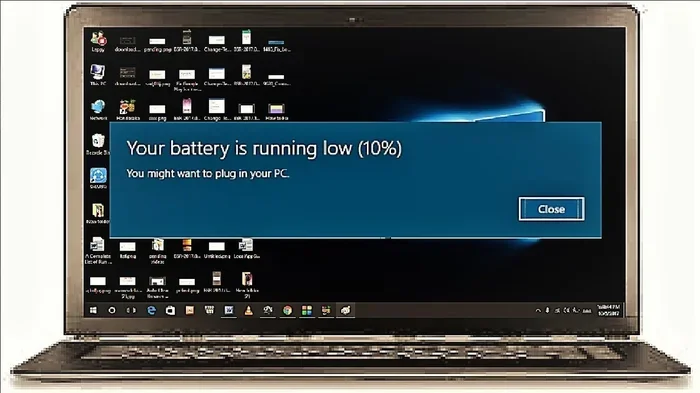
Laptop users especially benefit from the battery optimization tools in Geforce Experience. The app can detect whether you are running on battery power and automatically adjust GPU performance to extend your battery life. This helps you game longer without constantly searching for a charger.
You can also set custom profiles for different scenarios. For example, you might want maximum performance when plugged in and power-saving mode when on battery. Geforce Experience makes switching between these modes seamless.
How Geforce Experience Works on Laptops
Running Geforce Experience on a laptop is slightly different from using it on a desktop. Laptops have unique constraints like limited cooling, battery life, and thermal throttling. The app accounts for these factors with specialized features designed specifically for mobile hardware.
When you first install Geforce Experience on a laptop, it scans your entire system. It checks your GPU model, processor speed, RAM capacity, and storage space. Based on this analysis, it provides personalized recommendations to improve your gaming experience.
The app also monitors your GPU temperature in real time. If your laptop starts to overheat during a gaming session, Geforce Experience can alert you and suggest adjustments. This thermal management feature helps protect your hardware and extends its lifespan.
System Requirements for Geforce Experience
To run Geforce Experience smoothly on your laptop, you need a few basics. An NVIDIA GeForce GPU is obviously required, but you also need sufficient RAM and storage space. Most modern laptops meet these requirements easily, but it is worth checking before installation.
Here is a quick look at the typical system requirements:
- Operating System: Windows 10 or later (64-bit)
- GPU: Any NVIDIA GeForce card or later
- RAM: At least 4 GB (8 GB recommended)
- Storage: 500 MB of free disk space
- Internet: Required for driver downloads and updates
For the best experience, make sure your laptop has enough RAM for gaming. If your system is low on memory, consider upgrading before installing Geforce Experience. This ensures the app runs without competing for resources with your games.
Benefits of Using Geforce Experience
There are many reasons to keep Geforce Experience installed on your laptop. Here are the most important benefits that users consistently report.
- Simplified driver management — No more manual downloads or outdated drivers.
- Automatic game optimization — Best settings applied instantly for every game.
- Built-in screen recording — Capture and share clips without extra software.
- Performance monitoring — Real-time insights into your GPU and system health.
- Battery optimization — Extend laptop gaming sessions on the go.
- Easy game streaming — Stream your gameplay to platforms like Twitch directly.
Each of these features adds real value. For laptop gamers who juggle work and play, having all these tools in one application is incredibly convenient. Geforce Experience eliminates the need for multiple separate programs.
Common Issues and How to Fix Them
While Geforce Experience is generally reliable, users occasionally run into issues. Here are some common problems and their solutions.
Geforce Experience Won’t Open
If the app fails to launch, try restarting your laptop first. Sometimes a simple reboot clears the glitch. If that does not work, try updating your graphics drivers manually through the NVIDIA website. Corrupted driver installations are a common cause of this issue.
High CPU or Memory Usage
Some users report that Geforce Experience uses more system resources than expected. This often happens when the app is scanning for game updates in the background. You can reduce this by adjusting the app’s notification settings and disabling automatic game detection for titles you do not play.
Game Optimization Not Working
If the optimization feature fails to apply settings, make sure your game is listed as supported in Geforce Experience. Not every game is compatible with the auto-optimization tool. For unsupported titles, you can still manually adjust settings through the in-game menu.
Geforce Experience vs. Manual Management
Some users prefer to manage their GPU drivers and settings manually. While this approach gives you more control, it also requires significantly more time and technical knowledge. Geforce Experience automates most of the tedious tasks, making it the better choice for the majority of laptop users.
Manual management means visiting NVIDIA’s website regularly, downloading the correct driver for your specific model, and installing it without errors. Geforce Experience handles all of this automatically. For gamers who want to spend more time playing and less time tinkering, the app is the clear winner.
That said, advanced users who need granular control over every GPU setting may still prefer the traditional NVIDIA Control Panel for certain tasks. Geforce Experience and the Control Panel work together, so you can use both without conflict.
Final Thoughts on Geforce Experience
Geforce Experience is an essential tool for anyone using an NVIDIA graphics card on a laptop. It simplifies driver management, optimizes games automatically, and provides powerful features like screen recording and performance monitoring. The app is free, easy to use, and regularly updated by NVIDIA.
If you have not yet installed Geforce Experience on your laptop, now is the perfect time. The combination of automatic updates, game optimization, and built-in recording tools makes it one of the most valuable free applications for PC gamers. It keeps your system running smoothly and helps you get the best possible performance from your NVIDIA GPU.
Take a few minutes to explore the settings and customize Geforce Experience to match your needs. Adjust your notification preferences, set up battery profiles, and configure ShadowPlay for recording. Once you have it set up, you will wonder how you ever managed without it.
Frequently Asked Questions
What Is GeForce Experience?
GeForce Experience is a free application developed by NVIDIA that helps you optimize your PC gaming experience. It automatically updates your GPU drivers, optimizes game settings for the best performance, and lets you capture and share screenshots and videos. The app also provides game-specific recommendations to get the most out of your graphics card.
Do I Need GeForce Experience to Use My NVIDIA Graphics Card?
No, you do not need GeForce Experience to use your NVIDIA GPU. Your graphics card will still work perfectly fine without it. However, the app adds a lot of convenience by handling driver updates and game optimization automatically, which saves you time and effort.
Is GeForce Experience Free to Use?
Yes, GeForce Experience is completely free for all NVIDIA GPU owners. There are no hidden fees or premium tiers that lock essential features behind a paywall. You can download it directly from the NVIDIA website and start using it right away.
What Does GeForce Experience Do for Gamers?
GeForce Experience serves several key functions for PC gamers. It scans your system, recommends optimal in-game settings based on your hardware, and keeps your graphics drivers up to date with the latest performance improvements. It also includes a built-in game overlay for recording clips, taking screenshots, and streaming directly to platforms like Twitch.
Can I Uninstall GeForce Experience If I Don’t Want It?
Yes, you can uninstall GeForce Experience at any time through your system’s control panel or settings menu. Removing it will not affect your NVIDIA graphics card or its performance. Your existing drivers will continue to work, though you will lose access to the app’s automatic optimization and update features.
Is GeForce Experience Safe and Secure to Install?
Yes, GeForce Experience is a legitimate and safe application created by NVIDIA, a trusted name in graphics technology. It does not contain malware or harmful software. As with any application, it is best to download it only from the official NVIDIA website to ensure you get the genuine and most up-to-date version.