Laptop Port Guide
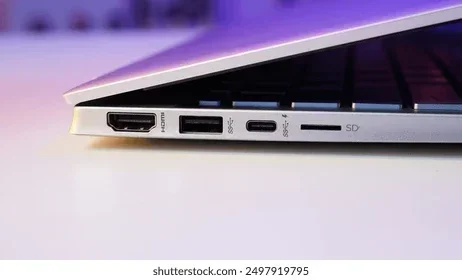
A laptop port guide helps you understand every connection on your computer, from USB-C and HDMI to Thunderbolt and Ethernet. Knowing your ports means you can pick the right laptop for work, study, or entertainment without guessing what fits. This guide breaks down each port type, common uses, and how to expand your connectivity options.
Have you ever looked at the sides of your laptop and wondered what each port does? Maybe you bought a new laptop and found that your favorite cable does not fit. Or perhaps you need to connect multiple devices but your laptop only has a few slots. A laptop port guide solves all of these problems.
Every laptop comes with a set of ports that handle data transfer, video output, charging, and audio. Understanding these connections helps you choose the right laptop, use it better, and avoid buying unnecessary adapters. In this guide, we walk through every common port type, explain what it does, and share practical tips for making the most of your laptop connectivity.
Whether you use your laptop for study, work, gaming, or creative projects, knowing your ports matters. A student who needs to plug in a projector for class has very different needs than a video editor who moves large files between drives. This guide covers it all in simple terms anyone can follow.
Key Takeaways
- USB-C and Thunderbolt ports are the most versatile connections on modern laptops.
- HDMI and DisplayPort let you connect your laptop to external monitors and projectors easily.
- USB-A ports still matter for older accessories like keyboards and flash drives.
- SD card slots and headphone jacks serve specific but important roles for creators and audio users.
- Docking stations can multiply your laptop connectivity options in seconds.
- Choosing the right laptop with the ports you need saves money and avoids adapters.
📑 Table of Contents
- Why Your Laptop Ports Matter
- USB Ports: The Backbone of Laptop Connectivity
- Thunderbolt and HDMI Ports Explained
- Audio, Ethernet, and SD Card Ports
- Expanding Your Laptop Ports with Docking Stations
- How to Choose the Right Laptop Based on Ports
- Common Mistakes People Make with Laptop Ports
- Final Thoughts
Why Your Laptop Ports Matter
The ports on your laptop shape how you use it every day. Without the right connections, you cannot plug in your favorite devices, charge your battery, or share your screen. A laptop port guide helps you understand these limitations and plan ahead.
Connectivity Shapes Your Daily Workflow
Think about everything you plug into your laptop. You might connect a mouse, a keyboard, an external hard drive, a monitor, or a charging cable. Each device needs a specific port type to work. If your laptop lacks a certain port, you need an adapter or a docking station.
For example, many modern laptops now only have USB-C ports. This is great for speed and versatility, but it means you cannot plug in older USB devices directly. You will need a small adapter or a hub. Knowing this before you buy a laptop saves frustration.
How Many Ports Should a Laptop Have?
There is no single answer. A basic laptop for web browsing might need only two or three ports. A laptop for creative work or gaming often needs more. Here are some common setups:
- Basic use: 2 USB ports, 1 charging port, 1 headphone jack
- Business use: 2 USB ports, 1 USB-C, 1 HDMI, 1 headphone jack, 1 Ethernet port
- Creative use: 2 USB-C ports, 1 USB-A, 1 HDMI, 1 SD card slot, 1 headphone jack
- Gaming use: 3 USB ports, 1 USB-C, 1 HDMI, 1 Ethernet port, 1 headphone jack
When choosing a laptop, always check the port list. Compare it to the devices you use most often. This simple step prevents headaches later.
USB Ports: The Backbone of Laptop Connectivity
USB ports are the most common connections on any laptop. They handle everything from charging phones to transferring files from cameras. Over the years, USB technology has evolved, and understanding the differences helps you use your ports better.
USB-A: The Classic Port
The USB-A port is the rectangular shape most people recognize. It has been around for decades and still appears on many laptops. You use USB-A for flash drives, mice, keyboards, and printers. It supports data transfer and charging, though it is slower than newer options.
USB-A comes in different versions. USB 3.0 and USB 3.1 offer faster speeds than older USB 2.0 ports. The good news is that USB-A devices work in USB-A ports of any version, but you get the slower speed if one side uses USB 2.0.
USB-C: The Modern Standard
USB-C is the small, oval-shaped port found on most modern laptops. It is reversible, meaning you can plug it in either way. This alone makes it more convenient than USB-A. USB-C supports fast data transfer, video output, and charging through a single cable.
Many people now use a single USB-C cable to charge their laptop, connect a monitor, and transfer files to an external drive. This one-cable approach simplifies life, especially for people who travel often.
USB-C also supports Thunderbolt technology, which we cover next. Not all USB-C ports support Thunderbolt, so check your laptop specifications to be sure.
Quick Tip: Check Your USB Version
Not all USB-C ports are the same. Some support USB 3.2 Gen 2, while others only support USB 2.0. The faster versions handle large file transfers much better. If you edit videos or move big folders often, look for a laptop with USB 3.2 or Thunderbolt 4 USB-C ports.
Thunderbolt and HDMI Ports Explained
Two port types stand out for their speed and versatility: Thunderbolt and HDMI. Both play important roles in laptop connectivity, but they serve different purposes.
Thunderbolt: Speed and Flexibility
Thunderbolt is Intel’s high-speed connection technology. It uses the USB-C shape but offers much faster speeds and more capabilities. Thunderbolt 3 supports up to 40 Gbps data transfer, while Thunderbolt 4 raises the bar even higher with stricter performance standards.
Thunderbolt ports can connect to external GPUs, high-speed storage drives, and large monitors. They also support daisy-chaining, which means you can connect multiple devices through a single port. This makes Thunderbolt perfect for professionals who need lots of peripheral connections.
If you buy a laptop with Thunderbolt ports, you get future-proof connectivity. These ports work with current devices and will support faster accessories as technology improves.
HDMI: Your Gateway to External Displays
HDMI is the standard port for connecting laptops to TVs, projectors, and external monitors. Most laptops include at least one HDMI port, though some ultra-thin models skip it to save space.
HDMI carries both video and audio through a single cable. You can plug your laptop into a classroom projector, a home theater TV, or a second monitor for extra screen space. HDMI also supports different versions, with HDMI 2.1 offering the highest resolutions and refresh rates.
If your laptop lacks an HDMI port, you can use a USB-C to HDMI adapter. This is an affordable solution that adds laptop expansion without much effort.
Audio, Ethernet, and SD Card Ports
While USB and video ports get most of the attention, other port types serve essential roles too. Let us look at the ones you use every day but might not think about much.
The Headphone and Audio Jack
The 3.5mm audio jack is the standard port for headphones and earbuds. Almost every laptop still includes one, though a few premium models have removed it. If your laptop lacks a headphone jack, you can use USB-C headphones or a small adapter.
The audio jack also supports microphones, making it handy for video calls and online classes. For the best audio quality, consider using a USB audio interface or a USB-C headset instead of the analog jack.
Ethernet Port for Wired Internet
An Ethernet port gives you a wired internet connection. Wired connections are faster and more stable than Wi-Fi, which matters for online gaming, video calls, and large downloads. Not all laptops include an Ethernet port, especially thin and light models.
If you need a wired connection, a USB-C to Ethernet adapter works well. Some docking stations also include an Ethernet port built in, which adds another reason to consider one for your setup.
SD Card Slots for Creators
An SD card slot is a must-have for photographers, videographers, and anyone who works with camera files. You can insert an SD card directly into your laptop and transfer photos or videos without any cables or adapters.
Many creative laptops include full-size SD card readers. Some business models use smaller microSD slots instead. Check which type your laptop has before buying memory cards for your camera gear.
Expanding Your Laptop Ports with Docking Stations
One of the best ways to solve a port shortage is a docking station. A docking station connects to your laptop through a single USB-C or Thunderbolt cable and adds multiple ports back to your setup.
Most docking stations include extra USB-A ports, HDMI or DisplayPort outputs, Ethernet jacks, and SD card readers. Some even support charging your laptop through the same cable, which is called pass-through charging.
Docking stations are perfect for people who work at a desk most of the day. You plug in one cable when you sit down and unplug it when you leave. This simple habit keeps your workspace clean and your laptop connectivity seamless.
When choosing a docking station, make sure it matches your laptop’s ports. A Thunderbolt docking station works best with Thunderbolt-enabled laptops. A standard USB-C dock works with most modern machines but may offer slower speeds.
How to Choose the Right Laptop Based on Ports
Now that you know what each port does, let us talk about how to choose a laptop based on the ports you actually need. This is where a laptop port guide becomes truly useful in real life.
Match Ports to Your Use Case
Think about what you do with your laptop every day. A student who takes notes and browses the web needs fewer ports than a video editor who connects cameras and external drives. Here is a simple way to decide:
- Students: Prioritize USB-A, USB-C, HDMI, and a headphone jack. You will plug in projectors, flash drives, and headphones often.
- Professionals: Look for Thunderbolt, HDMI, Ethernet, and USB-A. These ports support monitors, wired internet, and office peripherals.
- Creators: Prioritize USB-C, Thunderbolt, SD card slots, and HDMI. Fast data transfer and external display support are critical.
- Gamers: Focus on USB-C, HDMI, Ethernet, and USB-A. Wired internet and external GPU support matter most.
Future-Proofing Your Purchase
Technology changes fast. A laptop with Thunderbolt 4 and multiple USB-C ports will stay relevant longer than one with only older port types. When you buy a laptop, think about the next three to five years, not just today.
If you are unsure which laptop to pick, consider models that offer a good balance of ports. A machine like a laptop with SSD and 16GB RAM often comes with a solid set of modern ports. You can always explore options on sites that compare laptops with different configurations to find the right fit for your port needs.
Common Mistakes People Make with Laptop Ports
Even tech-savvy users make mistakes when it comes to laptop ports. Here are the most common ones and how to avoid them.
Assuming All USB-C Ports Are the Same
Not all USB-C ports support the same features. Some only handle charging and basic data transfer, while others support video output and Thunderbolt. Always check what your specific USB-C port can do before you rely on it for a specific task.
Buying the Wrong Docking Station
A docking station must match your laptop’s connection type. A Thunderbolt dock will not work at full speed with a regular USB-C port, and vice versa. Check your laptop specifications before purchasing any expansion accessory.
Ignoring Port Placement
Some laptops place ports on the back, while others put them on the sides or front. Port placement matters for desk setups. If your laptop sits on a desk with the back against the wall, back-facing ports may be hard to reach. Think about your workspace layout before you buy.
Final Thoughts
A laptop port guide is one of the most useful resources for anyone buying or using a laptop. The right ports make your life easier, whether you are a student, a professional, or a casual user. Now that you understand USB-A, USB-C, Thunderbolt, HDMI, Ethernet, and other connections, you can make smarter choices.
Take a moment to review your current laptop ports. Write down what works well and what you are missing. Use this information the next time you shop for a new machine or a docking station. Small planning today saves big headaches tomorrow.
Your laptop connectivity shapes your daily experience. Treat it with the attention it deserves, and you will enjoy a smoother, more productive workflow every single day.
Frequently Asked Questions
What are the most common laptop ports?
The most common laptop ports include USB-A, USB-C, HDMI, a headphone jack, and a charging port. Many modern laptops also include Thunderbolt ports, which use the USB-C shape but offer faster speeds and more features. The exact port layout depends on your laptop model and what it is designed for.
Can I add more ports to my laptop?
Yes, you can add more ports using a docking station or a USB hub. A docking station connects through a single USB-C or Thunderbolt cable and adds multiple ports like USB-A, HDMI, Ethernet, and SD card readers. This is the easiest way to expand your laptop connectivity without opening the device.
What is the difference between USB-C and Thunderbolt?
USB-C is a port shape, while Thunderbolt is a technology that can run through a USB-C port. Thunderbolt ports are faster and support more devices, including external GPUs and high-speed storage. Not all USB-C ports support Thunderbolt, so check your laptop specs to confirm.
Do all laptops have HDMI ports?
No, not all laptops have HDMI ports. Many thin and light models have dropped HDMI to save space. If your laptop lacks HDMI, you can use a USB-C to HDMI adapter or a docking station to connect to external displays.
How do I know which USB port version my laptop has?
You can check your laptop specifications on the manufacturer’s website or in your system settings. USB 3.0 and newer ports usually have a blue insert inside the port. USB-C ports are oval-shaped and may support different speeds depending on whether they are USB 3.2 or Thunderbolt.
Is an Ethernet port still necessary on a laptop?
An Ethernet port is not strictly necessary for everyone, but it is very helpful for people who need a stable, fast wired internet connection. Gamers, remote workers, and anyone in areas with weak Wi-Fi benefit from having Ethernet available. You can always use a USB-C to Ethernet adapter if your laptop lacks a built-in port.