What Is Windows Client Utility
Windows Client Utility is a built-in Windows management tool that helps users configure, monitor, and optimize their systems. It simplifies system administration tasks like device setup, software deployment, and performance tracking. Whether you are a home user or an IT professional, this utility makes managing your Windows desktop easier and more efficient.
Have you ever wondered what Windows Client Utility actually is? Maybe you have seen the name pop up in your system settings or heard a tech friend mention it. Either way, you are in the right place. This tool plays a big role in how your Windows computer runs. It handles everything from device setup to system monitoring. In this guide, we will break it all down in simple terms. You will learn what it does, why it matters, and how to use it like a pro.
Many people overlook built-in Windows tools. They think these tools are only for experts. But that is not true at all. Windows Client Utility is designed for everyone. It helps you manage your PC without needing advanced technical skills. So let us dive in and explore everything you need to know about this powerful system administration tool.
Key Takeaways
- What It Does: Windows Client Utility is a system management tool built into Windows that handles device configuration and monitoring.
- Who Uses It: Both everyday users and IT administrators rely on it for system setup and maintenance.
- Key Features: It offers remote management, software deployment, system monitoring, and configuration tools.
- Easy to Access: You can find it through Windows settings or the command line with minimal technical knowledge.
- Boosts Performance: Regular use helps keep your system running smoothly and efficiently.
- Works with Other Tools: It integrates well with other Windows utilities and management platforms.
📑 Table of Contents
- What Is Windows Client Utility?
- Key Features of Windows Client Utility
- How Windows Client Utility Works
- Benefits of Using Windows Client Utility
- Common Uses and Real-World Applications
- How to Get Started with Windows Client Utility
- Common Mistakes to Avoid
- Expert Insights on Windows Client Utility
- Final Thoughts
What Is Windows Client Utility?
Windows Client Utility is a set of tools built into the Windows operating system. It helps users manage and configure their computers. Think of it as a control panel for your entire system. It lets you adjust settings, monitor performance, and deploy software across devices. The utility works behind the scenes to keep your PC running smoothly.
This tool is especially useful for people who manage multiple computers. IT teams use it to set up new workstations and push updates. But regular users can also benefit from its features. For example, you can use it to check your system health or adjust device settings. It is one of those tools that quietly does a lot of heavy lifting. If you have ever tweaked settings in Windows, there is a good chance Windows Client Utility played a role.
The utility is part of a broader family of Windows management tools. It works alongside other programs like Device Manager and Task Manager. Together, these tools give you full control over your system. Understanding what Windows Client Utility offers can help you get more out of your PC every day.
Key Features of Windows Client Utility
So what can you actually do with this tool? The features are more extensive than you might think. Let us walk through the main capabilities.
Device Configuration
One of the core functions is device configuration. You can adjust settings for hardware and software components. This includes network adapters, display settings, and peripheral devices. The utility makes it easy to change how your devices interact with the system.
System Monitoring
Windows Client Utility also helps you monitor your system. You can track performance metrics like CPU usage and memory consumption. This is great for spotting issues before they become big problems. If your PC feels slow, the monitoring tools can help you find the cause.
Software Deployment
For those managing multiple machines, software deployment is a game changer. You can install and update programs across several devices at once. This saves a ton of time compared to doing it manually on each computer.
Remote Management
The remote management feature lets you control PCs from a distance. IT professionals use this to troubleshoot and fix issues without being physically present. It is especially helpful for teams that work across different locations.
User Profile Management
You can also manage user profiles through the utility. This includes setting permissions, controlling access levels, and customizing desktop environments for different users. It keeps things organized in shared or family computers.
How Windows Client Utility Works
Understanding how Windows Client Utility works is simpler than it sounds. The tool operates through a combination of graphical interfaces and command-line inputs. Most users interact with it through the Windows Settings app or the Control Panel. Advanced users may prefer using command prompts or PowerShell scripts.
The utility communicates directly with the Windows kernel. This gives it deep access to system functions. When you change a setting through the utility, it sends a signal to the operating system. The OS then applies that change across the relevant components. This seamless integration is what makes the tool so effective.
For those who want more control, the command-line interface offers powerful options. You can run specific commands to configure settings or retrieve system information. This is especially useful for automation and scripting. Even if you are not a programmer, learning a few basic commands can go a long way.
Integration with Other Windows Tools
Windows Client Utility does not work in isolation. It integrates with other built-in Windows tools. For instance, it works alongside Device Manager for hardware management. It also connects with Task Manager for real-time performance data. This interconnected ecosystem makes your overall system management much smoother.
If you want to keep your laptop running well, pairing this utility with a solid best CPU cooler can make a big difference in long-term performance. Similarly, ensuring you have enough memory is key. Having the right amount of good RAM for a laptop ensures your system can handle the utility’s tasks without slowing down.
Benefits of Using Windows Client Utility
Why should you care about Windows Client Utility? There are many practical benefits that make it worth your attention.
- Saves Time: Automating routine tasks means less time spent on manual setup and maintenance.
- Improves Stability: Regular monitoring helps catch issues early before they cause crashes.
- Boosts Security: The utility helps manage security settings and user permissions effectively.
- Centralized Control: Instead of digging through multiple menus, you have one place for system management.
- Cost Effective: It is a free, built-in tool. You do not need to buy third-party software.
- Scales Well: Whether you manage one PC or hundreds, the utility adapts to your needs.
One of the best things about this tool is that it is always updated with your Windows version. Microsoft continuously improves its capabilities. This means you get new features and better performance without extra cost. Investing time in learning the utility is one of the best investments for lifespan of PC you can make.
Common Uses and Real-World Applications
Let us look at how real people use Windows Client Utility in everyday scenarios. These examples will help you see its practical value.
Home Users
At home, you might use the utility to manage connected devices. For example, you can configure a new printer or set up a home network. You can also monitor your system to keep it running fast. If you have kids sharing the computer, user profile management helps keep things organized and safe.
Small Business Owners
Small business owners benefit from the software deployment feature. Instead of installing programs on each computer one by one, you can push updates remotely. This is a huge time saver. Remote management also means you can help employees fix issues without visiting their desks.
IT Professionals
For IT teams, Windows Client Utility is an essential part of daily workflows. They use it to configure new machines, enforce security policies, and monitor fleet health. The command-line tools allow for scripting and automation, which boosts productivity across large networks.
Students and Educators
Even students can benefit. Managing group projects on shared laptops becomes easier with user profile controls. Monitoring system performance helps when running demanding applications like video editing or programming tools.
To get the most out of any laptop, it is important to balance software and hardware. Pairing Windows Client Utility with proper maintenance habits will keep your machine in top shape. Checking your RAM on your laptop regularly ensures your system has the memory it needs to run smoothly.
How to Get Started with Windows Client Utility
Getting started is straightforward. You do not need to be a tech expert. Here is a simple step-by-step guide.
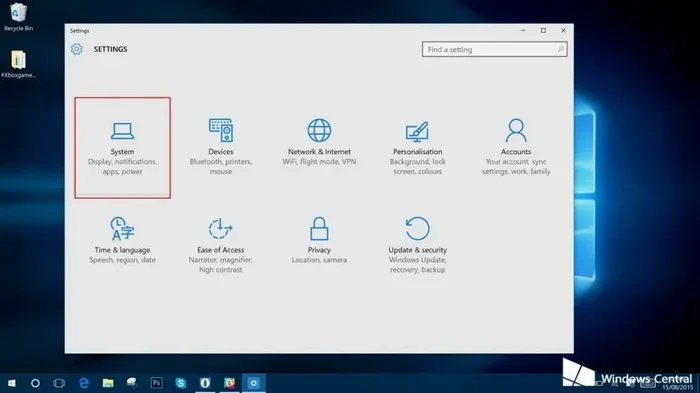
- Open Settings: Click the Start menu and select Settings. This is your gateway to most Windows management tools.
- Navigate to System: Look for the System section. Here you will find options related to device configuration and system management.
- Explore the Utility: Browse through the available tools. Take note of the sections for device management, user profiles, and system performance.
- Try Command-Line Options: For advanced users, open Command Prompt or PowerShell. Type relevant commands to access deeper settings.
- Monitor Regularly: Make it a habit to check system health periodically. This keeps your PC running at its best.
Start small. Do not try to change everything at once. Focus on one area at a time. As you grow more comfortable, you can explore more advanced features. The beauty of Windows Client Utility is that it grows with your skills.
Quick Tips for Beginners
- Always create a system restore point before making major changes.
- Use the help documentation built into Windows for guidance.
- Join online forums or communities to learn from other users.
- Keep your Windows version updated for the latest utility features.
Common Mistakes to Avoid
Even with a user-friendly tool, mistakes can happen. Here are some common pitfalls to watch out for.
- Changing Settings Without Understanding Them: Always read the description of a setting before modifying it. Random changes can cause instability.
- Ignoring System Updates: Microsoft releases updates that improve the utility. Skipping updates means missing out on new features and security patches.
- Overlooking Backups: Before making significant configuration changes, back up your important files. This protects you from unexpected issues.
- Using Outdated Methods: Windows evolves constantly. Stay current with the latest tools and practices. Old methods may not work in newer versions.
Avoiding these mistakes will help you get the most from Windows Client Utility without any headaches. When in doubt, stick to the default settings and only change what you fully understand.
Expert Insights on Windows Client Utility
Industry professionals often highlight the importance of built-in Windows tools. Many IT experts recommend mastering Windows Client Utility before investing in third-party software. The reason is simple. The built-in tools are free, reliable, and deeply integrated into the operating system.
Experts also emphasize the value of automation. By using scripts and scheduled tasks within the utility, you can automate repetitive maintenance. This frees up time for more important work. Whether you are managing a single laptop or a network of machines, automation is a skill worth developing.
Another expert tip is to combine Windows Client Utility with regular hardware maintenance. Software management and physical care go hand in hand. Keep your laptop clean, ensure proper ventilation, and use quality components. Together, these practices extend the life of your machine significantly.
Final Thoughts
Windows Client Utility is one of those tools that quietly powers your Windows experience. It handles device configuration, system monitoring, software deployment, and much more. Whether you are a casual user or an IT professional, understanding this utility gives you greater control over your PC. The best part is that it comes built into Windows at no extra cost. Take some time to explore its features today. You will be surprised at how much smoother your system can run with just a little management. Invest a few minutes in learning the tool, and your future self will thank you every time you boot up your computer.
Frequently Asked Questions
Is Windows Client Utility available on all Windows versions?
Yes, Windows Client Utility is available on most modern Windows versions. It has been part of the Windows ecosystem for many years. However, the specific features may vary slightly between Windows 10 and Windows 11. Always keep your system updated to access the latest tools and improvements.
Do I need technical skills to use Windows Client Utility?
Not at all. The utility is designed to be accessible for all users. Basic features are easy to navigate through the Settings app. Advanced users can take advantage of command-line tools for more control. You can start simple and gradually explore more complex features as you become comfortable.
Can Windows Client Utility improve my PC’s performance?
Yes, it can help improve performance indirectly. By monitoring system health and managing configurations, you can identify and fix issues that slow down your PC. The utility does not magically speed up your hardware, but it helps you optimize what you have. Keeping your system well-configured makes a noticeable difference in day-to-day use.
Is Windows Client Utility the same as antivirus software?
No, it is not antivirus software. Windows Client Utility is a management and configuration tool. It helps you set up and monitor your system. For security protection, you should still use dedicated antivirus software. The utility can help manage security settings, but it does not detect or remove malware on its own.
Can I use Windows Client Utility on a laptop with limited RAM?
Absolutely. The utility is lightweight and does not require a lot of system resources to run. However, if your laptop has very limited memory, you may want to check your current setup. Having at least a good amount of RAM for a laptop ensures that management tools like this run without causing slowdowns.
What should I do if Windows Client Utility is not working properly?
First, make sure your Windows version is fully updated. Many issues are resolved through system updates. You can also run the built-in Windows troubleshooter to diagnose problems. If the issue persists, restarting your computer often fixes minor glitches. For persistent problems, checking online forums or contacting Microsoft support can provide additional solutions.