What Is a Usb Type a Port
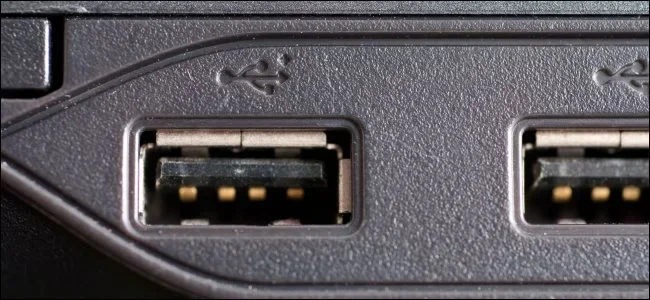
A USB Type A port is the classic rectangular connector found on almost every laptop and computer. It is one of the most common ways to plug in devices like keyboards, mice, flash drives, and chargers. Understanding this port helps you connect the right devices and troubleshoot issues quickly.
You use it every single day. You plug in a flash drive. You connect a mouse. You charge your phone. But have you ever stopped and asked yourself, what is a USB Type A port? It is one of the most familiar shapes in tech. Yet many people do not really know what goes on inside that simple rectangular slot.
The USB Type A port is the workhorse connector of the laptop world. It has been around for decades and shows no signs of disappearing. Whether you are a student, a professional, or just someone who uses a computer at home, this port plays a huge role in your daily routine. In this guide, we will break down everything you need to know about the USB Type A port in simple, easy-to-understand terms.
Key Takeaways
- Universal Connector: The USB Type A port is the standard rectangular plug used across millions of devices worldwide.
- Multiple Speeds: USB Type A supports USB 2.0, USB 3.0, and USB 3.1, each offering different data transfer rates.
- Not Just for Data: This port also delivers power for charging devices and running peripherals.
- Easy to Identify: Its flat, rectangular shape makes it instantly recognizable on any laptop.
- Backward Compatible: Older USB devices work with newer USB Type A ports without problems.
- Maintenance Matters: Keeping the port clean prevents connectivity issues and extends its lifespan.
📑 Table of Contents
What Is a USB Type A Port?
The USB Type A port is a standard connector used to link devices to a host system like a laptop or desktop computer. USB stands for Universal Serial Bus. That name tells you a lot. It is universal. It is a bus that carries data and power between devices. And the Type A connector is the classic flat, rectangular plug that most people picture when they think of a USB port.
The USB Type A port has a very specific shape. It is flat on the top and bottom. It has a slight bevel on the top edge. This design helps you plug it in the right way. You cannot insert it upside down by accident. Well, at least not easily. The port on your laptop is the female side. The plug on your cable or device is the male side. Together, they form a connection that transfers data and, in many cases, electrical power.
USB Type A ports come in different versions. Each version supports different speeds and power levels. Here is a quick look at what is available:
- USB 2.0 Type A: This is the older standard. It supports data transfer speeds up to 480 Mbps. It is still very common on older laptops and budget devices.
- USB 3.0 Type A: Also called USB 3.2 Gen 1, this version offers speeds up to 5 Gbps. The port is usually blue inside to help you tell it apart.
- USB 3.1 Type A: This version supports speeds up to 10 Gbps. It is faster but still uses the same rectangular shape.
Even though newer ports like USB Type C are becoming more popular, the USB Type A port remains widely used. Most laptops still include at least one or two of them. And many essential devices rely on this connector.
Why Is It Called Type A?
The USB Implementers Forum, or USB-IF, is the group that names and standardizes USB connectors. They use letters to classify different shapes. Type A is the flat, rectangular connector. Type B is the square-ish one you see on printers. Type C is the small, reversible connector that is gaining popularity. So when someone says USB Type A, they are referring to a very specific physical shape and design.
How Does a USB Type A Port Work?
Understanding how the USB Type A port works is simpler than you might think. At its core, this port creates a bridge between your laptop and another device. That bridge carries two things: data and power. Both travel through the pins inside the port.
A standard USB Type A port has four pins. Each pin has a specific job:
- Pin 1 (VBUS): This pin carries power. It delivers 5 volts of electricity to connected devices.
- Pin 2 (D-): This pin handles data transmission. It sends and receives data signals.
- Pin 3 (D+): This pin also handles data. It works together with Pin 2 to send and receive information.
- Pin 4 (GND): This is the ground pin. It provides a reference point for the electrical signals and helps keep everything stable.
When you plug a device into a USB Type A port, the connection is made through these pins. Your laptop recognizes the device. It loads the right driver. And then data starts flowing. This process is called plug and play, and it is one of the best things about USB technology.
The Role of the USB Controller
Inside your laptop, there is a small chip called the USB controller. This chip manages all the USB ports. It handles data transfer, power delivery, and device recognition. When you plug something into a USB Type A port, the controller talks to the device. It figures out what the device is. Then it sets up the right communication channel. All of this happens in milliseconds.
The USB controller also manages power. If a device needs more power than the port can provide, your laptop will usually alert you. This is why some external hard drives need their own power source. The USB Type A port simply cannot supply enough electricity on its own.
USB Type A Port vs. Other USB Port Types
The USB world has evolved a lot over the years. There are now several different USB connector types. Each one has its own strengths. Let us compare the most common ones so you can see where USB Type A fits in.
| Feature | USB Type A | USB Type C |
|---|---|---|
| Shape | Rectangular, flat | Small, oval, reversible |
| Max Data Speed | 10 Gbps (USB 3.1) | 40 Gbps (USB4) |
| Power Delivery | Up to 5V, 0.5A or 0.9A | Up to 20V, 5A (100W) |
| Reversible? | No | Yes |
| Common On | Laptops, desktops, TVs, consoles | Modern laptops, phones, tablets |
| Backward Compatible? | Yes | Yes (with adapters) |
As you can see, the USB Type A port has some limitations compared to newer options like USB Type C. But it still has a big advantage: compatibility. Almost every device made in the last 20 years uses a USB Type A connection in some form. That is why it is still so important today.
While USB Type C is the future, the USB Type A port is still very much the present. Many laptops come with both types now. You get the best of both worlds. You can use the Type C port for fast charging and high-speed transfers. And you can use the USB Type A port for all your older devices and peripherals.
Common Uses for a USB Type A Port on a Laptop
The USB Type A port is incredibly versatile. Here are some of the most common ways people use it every day:
Data Transfer
This is the most common use. You plug in a USB flash drive and move files back and forth. Whether you are sharing photos, documents, or videos, the USB Type A port makes it easy. The speed depends on the USB version your port supports. A USB 3.0 port will transfer files much faster than a USB 2.0 port.
Connecting Peripherals
Keyboards, mice, webcams, printers, and scanners all commonly use USB Type A connections. These devices are essential for many laptop users. The port provides both the data connection and the power needed to run them. You do not need extra cables or power adapters for most of these devices.
Charging Devices
Many phone chargers and portable battery packs use a USB Type A output. You can charge your phone or tablet directly from your laptop. This is handy when you are on the go and do not have access to a wall outlet. Just keep in mind that the charging speed may be slower than using a wall charger.
Using External Storage
External hard drives and SSDs often connect via USB Type A. These are great for backing up files or expanding your storage. A USB 3.0 external drive will give you much faster read and write speeds than an older USB 2.0 drive.
Dongles and Adapters
Many people use USB Type A dongles to add features to their laptops. Need an HDMI output? There is a dongle for that. Need an Ethernet port? There is a dongle for that too. The USB Type A port serves as a hub for all kinds of adapters and accessories.
Tips for Keeping Your USB Type A Port in Good Shape
Your USB Type A port is built to last, but it still needs some care. Here are simple tips to keep it working well for years:
- Do not force the plug: If it does not go in easily, check the orientation. Forcing it can damage the pins inside.
- Keep it clean: Dust and lint can build up inside the port. Use a soft brush or compressed air to clean it gently.
- Avoid cheap cables: Poor quality cables can damage the port and your devices. Stick with reputable brands.
- Unplug gently: Pull the plug out by the housing, not by the cable. Yanking on the cable wears out the connection.
- Watch for loose connections: If your port feels wobbly or a device keeps disconnecting, it might be time for a repair.
Taking care of your USB Type A port is easy. A little attention goes a long way. And it saves you from frustrating connectivity problems down the road.
Frequently Asked Questions About USB Type A Ports
Is a USB Type A port the same as a USB-C port?
No, they are different. A USB Type A port is the large, rectangular connector. A USB-C port is smaller, oval shaped, and reversible. They use different cables and are not interchangeable without an adapter. However, both serve the same basic purpose of connecting devices and transferring data.
Can I plug a USB 3.0 device into a USB 2.0 port?
Yes, you can. The USB Type A port is backward compatible. A USB 3.0 device will work in a USB 2.0 port. However, the speed will be limited to USB 2.0 levels. You will also miss out on the extra power features that USB 3.0 offers. It is always better to use the matching port version when possible.
How many pins does a USB Type A port have?
A standard USB Type A port has four pins. These pins handle power delivery, data transmission, and grounding. Newer versions of USB may use additional pins for faster speeds. But the basic shape and size of the port remain the same across all versions.
Why is my USB Type A port not working?
There are several reasons this can happen. The port might be dirty or have debris inside. The cable could be damaged. A driver issue on your laptop can also cause problems. Try cleaning the port first. Then test with a different cable. If neither works, the port itself may need professional repair.
Can a USB Type A port deliver power to charge a laptop?
Typically, a USB Type A port provides up to 5 volts and 0.5 or 0.9 amps. This is enough to charge small devices like phones and tablets. However, most laptops need more power than a standard USB Type A port can provide. That is why laptops usually use a dedicated power barrel connector or USB-C with Power Delivery.
Will USB Type A ports eventually disappear?
USB Type C is definitely taking over in many devices. But USB Type A ports are still everywhere. They are on printers, TVs, game consoles, and older laptops. It will likely be many more years before they are completely phased out. For now, they remain an essential part of laptop hardware.
Final Thoughts
The USB Type A port might look simple, but it is one of the most important parts of your laptop. It connects you to the physical world of devices. It lets you transfer files, use peripherals, and charge your gadgets. Understanding how it works and how to care for it makes a big difference in your daily tech experience.
As technology keeps evolving, the USB Type A port will continue to adapt. Newer versions bring faster speeds and better power delivery. But the familiar shape stays the same. And that is a good thing. Familiarity and compatibility are huge advantages in the tech world.
So next time you plug something into your laptop, take a moment to appreciate that little rectangular port. It is doing a lot of work behind the scenes. And now you know exactly what is going on inside it. Keep your ports clean, use good cables, and your USB Type A port will serve you well for years to come.
Remember, your laptop is a system of many parts working together. While the USB Type A port handles external connections, components like what is the ram on a laptop play a different but equally important role in performance. Similarly, understanding what is ram for a laptop helps you make better decisions about your device. And if you ever need to upgrade your memory, knowing how to know what ram is compatible with my laptop ensures you choose the right components for your system.
Technology works best when you understand how all the pieces fit together. The USB Type A port is just one piece of that puzzle. But it is a piece you use every single day.