What Is Wi Fi 4

Wi-Fi 4 is the marketing name for the 802.11n wireless standard released in 2009. It brought faster speeds, better range, and MIMO technology to everyday laptops and routers. While newer standards exist today, Wi-Fi 4 still powers many older devices and networks.
Wi-Fi 4 might sound like a thing of the past, but it still matters. If you own an older laptop or deal with older routers, understanding this standard helps you get the most from your connection. Let us break down everything you need to know about Wi-Fi 4 in simple terms.
Wireless networking has come a long way over the years. Each new generation of Wi-Fi brings faster speeds, better range, and improved reliability. Wi-Fi 4 was a turning point because it introduced features that we now take for granted. Whether you are browsing the web, streaming videos, or working from home, knowing what your laptop supports makes a big difference.
Key Takeaways
- Wi-Fi 4 is the 802.11n standard: It was a big leap forward in wireless networking when it launched in 2009.
- It supports speeds up to 600 Mbps: Real-world speeds are usually lower but still usable for everyday tasks.
- MIMO technology is a key feature: Multiple antennas send and receive data at the same time for better performance.
- Wi-Fi 4 works on 2.4 GHz and 5 GHz bands: This dual-band capability gives users more flexibility.
- It is still found in older laptops: Many budget and older devices still rely on Wi-Fi 4 connectivity.
- Newer Wi-Fi versions are faster: Wi-Fi 5 and Wi-Fi 6 offer significant improvements over Wi-Fi 4.
- Checking your laptop’s specs is easy: You can find your wireless adapter details in your device settings.
📑 Table of Contents
- What Is Wi-Fi 4?
- How Wi-Fi 4 Works
- Wi-Fi 4 Speed and Performance
- Wi-Fi 4 vs Newer Wi-Fi Standards
- Is Wi-Fi 4 Still Relevant for Laptops?
- How to Check If Your Laptop Supports Wi-Fi 4
- Tips to Improve Your Wi-Fi 4 Connection
- Common Mistakes People Make with Wi-Fi 4
- The Future of Wi-Fi and What Comes After Wi-Fi 4
- Final Thoughts on Wi-Fi 4
What Is Wi-Fi 4?
Wi-Fi 4 is the consumer-friendly name for the IEEE 802.11n wireless standard. The Wi-Fi Alliance started using simple number names to help people understand which generation their devices support. Wi-Fi 4 was officially introduced in 2009 and quickly became the most widely used wireless standard for the next several years.
Before Wi-Fi 4, the previous standard was 802.11g, which topped out at 54 Mbps. That felt fast at the time, but as internet demands grew, people needed more. Wi-Fi 4 changed the game by offering speeds up to 600 Mbps under ideal conditions. It also introduced MIMO technology, which uses multiple antennas to send and receive more data at once.
If you have ever looked at your laptop settings and seen “802.11n” listed, that means your device supports Wi-Fi 4. Many laptops from the 2010 to 2018 era came with this wireless standard built in. It is still perfectly functional for everyday tasks like email, web browsing, and standard-definition streaming.
Why Does the Name Matter?
The Wi-Fi Alliance wanted to make things simpler for regular users. Instead of confusing numbers and letters like “802.11n,” they created easy-to-read names. Wi-Fi 4, Wi-Fi 5, and Wi-Fi 6 tell you exactly which generation you are dealing with. This naming system helps people buy the right equipment without needing a degree in engineering.
How Wi-Fi 4 Works
Understanding how Wi-Fi 4 works does not require a tech degree. The standard uses radio waves to transmit data between your router and your laptop. It operates on two frequency bands: 2.4 GHz and 5 GHz. Each band has its own strengths and trade-offs.
The 2.4 GHz Band
The 2.4 GHz band is the older of the two frequencies. It offers slower speeds but covers a wider area. Walls, furniture, and other obstacles do not block it as easily as the 5 GHz band. This makes 2.4 GHz great for connecting devices that are far from the router.
However, the 2.4 GHz band can get crowded. Bluetooth devices, microwaves, and neighboring Wi-Fi networks all share this frequency. When too many devices compete for space, your connection can slow down. This is one reason why Wi-Fi 4 speeds sometimes fall short of the advertised maximum.
The 5 GHz Band
The 5 GHz band is faster and less congested. It delivers better speeds for tasks like video streaming and large file downloads. The trade-off is a shorter range. Walls and doors block 5 GHz signals more easily, so your device needs to be closer to the router.
Wi-Fi 4 was one of the first consumer standards to offer dual-band support. This meant you could choose the best frequency for your needs. Today, almost all modern routers and laptops support both bands, but Wi-Fi 4 helped make this feature mainstream.
MIMO Technology Explained
MIMO stands for Multiple Input Multiple Output. This was a game-changer when Wi-Fi 4 launched. Instead of using a single antenna to send and receive data, MIMO uses multiple antennas. This allows more data to flow at the same time, which boosts both speed and reliability.
Early Wi-Fi 4 routers came with two or three antennas. Higher-end models used four antennas to reach the maximum 600 Mbps speed. Your laptop also needed a MIMO-compatible wireless adapter to take full advantage of this technology. You can check your laptop’s specs to see if it supports MIMO, or you can look up your wireless adapter model online.
Wi-Fi 4 Speed and Performance
The theoretical maximum speed of Wi-Fi 4 is 600 Mbps. But real-world speeds are almost always lower. Several factors affect how fast your connection actually is.
Real-World Speed Expectations
In a typical home setup, Wi-Fi 4 delivers between 100 and 300 Mbps. This is plenty for most everyday activities. Here is what you can expect:
- Web browsing: Wi-Fi 4 handles this easily. Pages load quickly, and multiple tabs work without issues.
- HD video streaming: Netflix and YouTube run smoothly on Wi-Fi 4. You may need at least 15 to 25 Mbps for 1080p content.
- Video calls: Zoom and Skype work well on Wi-Fi 4. A stable 5 to 10 Mbps connection is usually enough.
- Large file downloads: These take longer than on newer standards but still complete in reasonable time.
- Online gaming: Wi-Fi 4 works for casual gaming, but competitive gamers may notice higher latency.
Factors That Affect Wi-Fi 4 Speed
Several things can slow down your Wi-Fi 4 connection. Distance from the router is the biggest factor. Walls, floors, and other physical barriers weaken the signal over distance. Electronic interference from other devices also plays a role.
Your router’s age matters too. Older routers may have weaker antennas or outdated firmware. The number of connected devices also affects performance. If ten devices are sharing a Wi-Fi 4 connection, each device gets a smaller slice of the available bandwidth.
Your laptop’s wireless adapter quality makes a difference as well. Some laptops have better antennas and processors for handling wireless signals. If you want to improve your connection, consider upgrading your adapter or using a USB Wi-Fi dongle. You can also check what is good ram for a laptop to ensure your system handles network tasks smoothly.
Wi-Fi 4 vs Newer Wi-Fi Standards
Wi-Fi 4 was a major milestone, but technology does not stand still. Newer standards offer significant improvements. Here is how Wi-Fi 4 compares to the latest versions.
| Feature | Wi-Fi 4 (802.11n) | Wi-Fi 5 (802.11ac) | Wi-Fi 6 (802.11ax) |
|---|---|---|---|
| Release Year | 2009 | 2013 | 2019 |
| Max Theoretical Speed | 600 Mbps | 6.9 Gbps | 9.6 Gbps |
| Frequency Bands | 2.4 GHz and 5 GHz | 5 GHz | 2.4 GHz and 5 GHz |
| MIMO Support | Up to 4 spatial streams | Up to 8 spatial streams | Up to 12 spatial streams |
| Best For | Basic browsing and streaming | Heavy streaming and gaming | Smart homes and crowded areas |
As you can see, Wi-Fi 4 is the slowest of the three. However, it still handles basic tasks well. If your laptop only supports Wi-Fi 4, you are not completely stuck. Many everyday activities do not need the blazing speeds of Wi-Fi 5 or Wi-Fi 6.
That said, if you are buying a new laptop today, you should aim for Wi-Fi 5 or Wi-Fi 6 support. These standards offer better range, faster speeds, and improved battery life on wireless connections. You can also look into what is best investment for lifespan of pc to make sure your laptop stays relevant longer.
Is Wi-Fi 4 Still Relevant for Laptops?
The short answer is yes, Wi-Fi 4 is still relevant in certain situations. Many budget laptops, Chromebooks, and refurbished machines still ship with Wi-Fi 4 support. These devices work fine for users who mainly browse the web, check email, and watch standard-definition videos.
Wi-Fi 4 also has a role in legacy networks. Some older routers and access points only support the 802.11n standard. If you are using such a setup, your laptop needs Wi-Fi 4 to connect at all. Upgrading your router is one option, but it costs money. For users on a tight budget, sticking with Wi-Fi 4 makes sense.
Another reason Wi-Fi 4 remains relevant is backward compatibility. Newer Wi-Fi standards can still communicate with Wi-Fi 4 devices. This means your Wi-Fi 4 laptop can connect to a Wi-Fi 6 router. The connection will simply operate at Wi-Fi 4 speeds. It is not the fastest option, but it works.
If you are thinking about upgrading your laptop, consider the wireless standard along with other specs. Check what is the ram on a laptop before making a purchase. A well-rounded laptop with Wi-Fi 5 or Wi-Fi 6 and sufficient memory will serve you much better for years to come.
How to Check If Your Laptop Supports Wi-Fi 4
Checking your laptop’s wireless standard is simple. You do not need to be a tech expert to do it. Here are the steps for both Windows and macOS.
On Windows:
- Open the Start menu and type “Device Manager.”
- Click on “Device Manager” to open it.
- Expand the “Network adapters” section.
- Look for your wireless adapter. Right-click it and select “Properties.”
- Go to the “Advanced” tab and look for the wireless standard. You should see “802.11n” listed if your laptop supports Wi-Fi 4.
On macOS:
- Click the Apple menu in the top-left corner.
- Select “About This Mac.”
- Click “System Report.”
- Find “Wi-Fi” in the sidebar under “Hardware.”
- Look for the “Standard” field. It should mention “802.11n” for Wi-Fi 4 support.
If your laptop does not support Wi-Fi 4, you can still upgrade your wireless experience. A USB Wi-Fi adapter is an affordable option. Just make sure the adapter supports the standard you need. You can also check what is a good amount of ram for a laptop to ensure your system runs smoothly when using network-heavy applications.
Tips to Improve Your Wi-Fi 4 Connection
Even though Wi-Fi 4 is an older standard, you can still get the best performance from it. Here are some practical tips to improve your connection.
- Place your router in a central location: This reduces the distance between your router and laptop. Signals travel better when there are fewer obstacles.
- Keep your router’s firmware updated: Manufacturers release updates that improve performance and fix bugs. Check the router manufacturer’s website for the latest firmware.
- Use the 5 GHz band when possible: It is faster and less crowded than the 2.4 GHz band. Move closer to the router for the best results.
- Reduce interference: Keep your router away from microwaves, baby monitors, and other electronic devices that operate on the 2.4 GHz frequency.
- Restart your router regularly: A simple restart can clear temporary issues and improve connection stability.
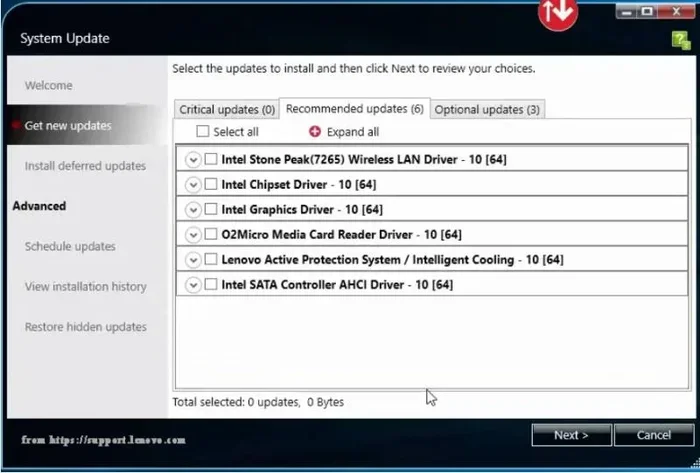
- Update your laptop’s wireless drivers: Go to your laptop manufacturer’s website and download the latest drivers for your wireless adapter.
These tips apply to any Wi-Fi standard, not just Wi-Fi 4. They can help you get better speeds and a more reliable connection regardless of your hardware. If you find that your connection is still poor after trying these steps, it might be time to upgrade your router or laptop.
For more information on laptop components and upgrades, you can explore articles like what is the best cpu cooler to keep your system running at peak performance. A well-maintained laptop with good cooling and proper wireless hardware gives you the best overall experience.
Common Mistakes People Make with Wi-Fi 4
There are a few common mistakes that can hurt your Wi-Fi 4 experience. Avoiding these pitfalls helps you get the most from your connection.
- Assuming all routers are the same: Not all routers support Wi-Fi 4. Some newer routers only support Wi-Fi 5 or Wi-Fi 6. Check compatibility before purchasing.
- Ignoring the 5 GHz band: Many users stick with the 2.4 GHz band out of habit. Switching to 5 GHz can significantly improve your speed.
- Overlooking driver updates: Outdated wireless drivers can cause slow speeds and connection drops. Keep your drivers up to date.
- Placing the router in a closet or behind furniture: Physical barriers weaken Wi-Fi signals. Keep your router in an open, elevated space.
- Thinking Wi-Fi 4 is completely obsolete: While it is older, Wi-Fi 4 still works well for basic tasks. Do not rush to replace a perfectly good laptop just because it uses Wi-Fi 4.
By avoiding these mistakes, you can extend the useful life of your Wi-Fi 4 laptop and enjoy a more reliable connection. Sometimes the simplest fixes make the biggest difference.
The Future of Wi-Fi and What Comes After Wi-Fi 4
Wi-Fi technology continues to evolve. Wi-Fi 5 and Wi-Fi 6 are now the standards for most new devices. Wi-Fi 6E and Wi-Fi 7 are already on the horizon, promising even faster speeds and lower latency. But what does this mean for Wi-Fi 4 users?
The good news is that Wi-Fi 4 devices will continue to work with newer routers. Backward compatibility is a core feature of all Wi-Fi standards. This means you do not need to replace your Wi-Fi 4 laptop immediately. However, if you want the fastest speeds and best performance, upgrading to a Wi-Fi 5 or Wi-Fi 6 device is the way to go.
When the time comes to upgrade, consider the full picture. Look at the wireless standard, the amount of memory, the processor, and the build quality. A balanced laptop with Wi-Fi 6, plenty of RAM, and a solid processor will serve you well for years. Check what is a good ram size for a laptop to make sure you get enough memory for your needs.
Wireless technology will keep improving. Each new generation brings better efficiency, faster speeds, and smarter handling of multiple devices. Wi-Fi 4 started this journey, and it laid the foundation for the wireless world we enjoy today.
Final Thoughts on Wi-Fi 4
Wi-Fi 4 may not be the newest standard, but it played a crucial role in shaping modern wireless networking. It brought MIMO technology, dual-band support, and much faster speeds to everyday users. Even today, many laptops and routers still rely on this standard for basic connectivity.
If you are using a Wi-Fi 4 laptop, you can still get plenty done. Web browsing, email, streaming, and light gaming all work well on this standard. Just be aware of its limitations, especially when it comes to speed and range compared to newer generations.
Understanding your wireless standard helps you make smart decisions about your tech. Whether you are keeping your current setup or planning an upgrade, knowing what Wi-Fi 4 offers gives you an edge. Stay informed, keep your devices maintained, and enjoy a smooth wireless experience.
Frequently Asked Questions
Is Wi-Fi 4 the same as 802.11n?
Yes, Wi-Fi 4 is the consumer name for the 802.11n wireless standard. They refer to the exact same technology. The Wi-Fi Alliance introduced the simpler naming system to help users identify their wireless generation easily.
Can Wi-Fi 4 connect to a Wi-Fi 6 router?
Yes, Wi-Fi 4 devices can connect to Wi-Fi 6 routers. This is because all Wi-Fi standards are backward compatible. However, the connection will operate at Wi-Fi 4 speeds, not Wi-Fi 6 speeds. You will need a Wi-Fi 6 laptop to take full advantage of a Wi-Fi 6 router.
How fast is Wi-Fi 4 compared to Wi-Fi 5?
Wi-Fi 4 has a maximum theoretical speed of 600 Mbps, while Wi-Fi 5 can reach up to 6.9 Gbps. In real-world use, Wi-Fi 5 is several times faster. If you do heavy streaming, gaming, or large file transfers, Wi-Fi 5 is a significant upgrade.
Should I upgrade my Wi-Fi 4 laptop?
It depends on your needs. If you only browse the web and check email, Wi-Fi 4 is still fine. But if you stream 4K video, game online, or work from home with video calls, upgrading to a Wi-Fi 5 or Wi-Fi 6 laptop will improve your experience noticeably.
What affects Wi-Fi 4 signal strength?
Distance from the router, physical barriers like walls, electronic interference, and the number of connected devices all affect signal strength. Using the 5 GHz band and placing your router in an open area can help improve your Wi-Fi 4 connection.
Can I add Wi-Fi 4 support to a laptop that doesn’t have it?
Yes, you can use a USB Wi-Fi adapter that supports the 802.11n standard. These adapters are affordable and easy to set up. Just plug it into a USB port, install the drivers, and your laptop will have Wi-Fi 4 connectivity.