What Is Lenovo Service Bridge
Lenovo Service Bridge is a free software tool from Lenovo that helps you manage your laptop or desktop. It checks for driver updates, monitors system health, and connects you to Lenovo support. Whether you own a ThinkPad or IdeaPad, this tool keeps your device running smoothly and lets you track warranty status with ease.
If you own a Lenovo laptop or desktop, you have probably seen a small icon in your system tray asking you to update something. That little notification often comes from a program called Lenovo Service Bridge. But what exactly is it, and do you really need it? In this guide, we will break everything down in simple terms.
Lenovo Service Bridge is a free application made by Lenovo. It runs in the background of your computer and helps you keep your device in top shape. Think of it as a personal assistant for your laptop. It checks for driver updates, monitors your system health, and connects you to Lenovo support whenever you need help.
Many people ignore this tool because they do not know what it does. That is a mistake. Keeping your drivers and software up to date is one of the best ways to extend the life of your PC. In this article, we will cover everything you need to know about Lenovo Service Bridge, from installation to daily use.
Key Takeaways
- What It Is: Lenovo Service Bridge is a lightweight app that manages updates and support for your Lenovo device.
- Driver Updates: It automatically finds and installs the latest drivers for your hardware.
- Warranty Tracking: You can check your warranty status and service history right from the app.
- System Health: The tool monitors your device and flags potential issues early.
- Free to Use: There is no cost to download or use Lenovo Service Bridge.
- Easy Setup: Installation takes just a few minutes and requires no technical skills.
- Support Access: It gives you direct access to Lenovo customer support and resources.
📑 Table of Contents
What Is Lenovo Service Bridge?
At its core, Lenovo Service Bridge is a device management software built by Lenovo. It is designed specifically for Lenovo laptops and desktops. The app sits quietly in your system tray and works behind the scenes to keep your machine running properly.
When you first install it, the tool scans your system. It identifies your exact model, current drivers, and BIOS version. From there, it creates a personalized profile for your device. This profile helps Lenovo Service Bridge know exactly which updates and patches you need.
The software is especially useful for people who are not tech-savvy. You do not need to manually search for drivers or worry about compatibility. Lenovo Service Bridge handles all of that for you. It is like having a dedicated tech support team living inside your computer.
Who Should Use Lenovo Service Bridge?
Anyone who owns a Lenovo device can benefit from this tool. It works with ThinkPad laptops, IdeaPad laptops, Legion gaming rigs, and Lenovo desktops. If you have a Lenovo product, installing Service Bridge is a smart move.
Even if your laptop is running fine right now, the tool can prevent future problems. It catches outdated drivers before they cause issues. This kind of proactive maintenance is what separates a well-kept PC from one that slows down over time.
Key Features of Lenovo Service Bridge
Lenovo Service Bridge comes packed with features that make laptop ownership easier. Let us walk through the most important ones.
Automatic Driver Updates
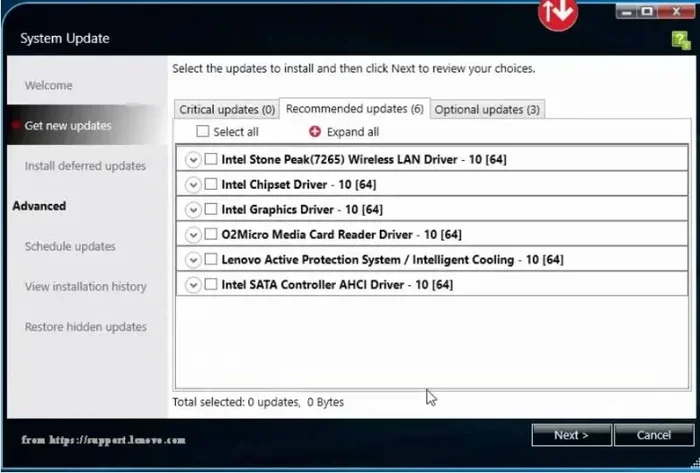
One of the biggest benefits of this tool is its ability to find and install driver updates automatically. Drivers are the software that lets your operating system talk to your hardware. When a driver is outdated, your device might not work as well as it should.
For example, an old graphics driver can cause screen flickering or poor performance. Lenovo Service Bridge checks for the latest versions and installs them with just a few clicks. This saves you a lot of time compared to searching for drivers manually on the Lenovo website.
Warranty and Service Tracking
Another great feature is warranty tracking. The tool pulls up your device’s warranty information directly. You can see when your warranty expires and what services are covered. This is incredibly helpful if you ever need to file a repair claim.
You can also view your service history. If you have sent your laptop in for repairs before, those records are stored in the app. This makes it easy to reference past service tickets when talking to support.
System Diagnostics and Health Monitoring
Lenovo Service Bridge includes basic diagnostic tools. It can run checks on your battery, storage, and memory. If something looks off, the tool will alert you before it becomes a bigger problem.
For instance, if your battery health is declining, the app will let you know. You can then decide whether to replace the battery or adjust your usage habits. This kind of early warning system is invaluable for keeping your laptop in good shape.
Direct Access to Lenovo Support
The app also gives you a direct line to Lenovo support. You can access FAQs, troubleshooting guides, and live chat support right from the interface. This is much faster than searching for answers on a separate website.
If you are wondering what is the best investment for lifespan of pc, tools like Lenovo Service Bridge are a big part of the answer. Regular updates and monitoring can add years to your device’s useful life.
How to Install Lenovo Service Bridge
Installing Lenovo Service Bridge is straightforward. Here is a step-by-step guide to get you started.
- Visit the Lenovo Support Website: Go to the official Lenovo support page and enter your product model number.
- Download the Software: Look for Lenovo Service Bridge in the list of available tools and downloads.
- Run the Installer: Double-click the downloaded file and follow the on-screen prompts.
- Allow Background Access: When prompted, grant the app permission to run in the background. This is how it checks for updates automatically.
- Complete the Setup: Once installed, the tool will scan your system and create your device profile.
The entire process takes about five minutes. You do not need any special technical knowledge. If you are unsure about your laptop’s RAM or specs, you can check what is the ram on a laptop to make sure your system meets the requirements.
Tips for a Smooth Installation
- Make sure your laptop is connected to a stable internet connection during installation.
- Close any unnecessary programs before running the installer.
- Restart your laptop after installation to ensure all components are properly registered.
- Keep the app updated. Lenovo releases periodic updates to improve functionality.
Lenovo Service Bridge vs. Lenovo Vantage
You might be wondering how Lenovo Service Bridge compares to another popular tool called Lenovo Vantage. Both are free, but they serve slightly different purposes.
Lenovo Service Bridge focuses on drivers, warranty tracking, and service management. It is more of a behind-the-scenes utility. Lenovo Vantage, on the other hand, is a broader management tool. It handles system optimization, display settings, and battery health in a more user-friendly interface.
Some users run both tools at the same time. There is no conflict between them. However, if you only want one tool, Lenovo Vantage covers more ground. Service Bridge is the better choice if your main concern is keeping drivers current and tracking your warranty.
Common Issues and How to Fix Them
Like any software, Lenovo Service Bridge can occasionally run into issues. Here are the most common problems and how to solve them.
The App Won’t Open
If the app fails to launch, try restarting your computer first. Sometimes a simple reboot fixes the issue. If that does not work, try reinstalling the software. Uninstall the current version, download the latest one from the Lenovo website, and install it fresh.
Updates Are Not Downloading
If updates are stuck or not downloading, check your internet connection. A slow or unstable connection can interrupt downloads. You can also try running the app as an administrator. Right-click the app icon and select “Run as administrator” to give it the permissions it needs.
False System Alerts
Occasionally, the tool may flag an issue that does not actually exist. This is rare but can happen. In most cases, simply refreshing the diagnostics or restarting the app clears up the false alert. If the problem persists, you can reach out to Lenovo support directly through the app.
Is Lenovo Service Bridge Safe?
Yes, Lenovo Service Bridge is completely safe. It is an official Lenovo product, not third-party software. It does not contain malware, adware, or any unwanted extras. The app only interacts with Lenovo services and your device’s hardware components.
That said, like any background app, it uses a small amount of system resources. On most modern laptops, this impact is negligible. If you have an older machine with limited RAM, you might notice a slight difference. In that case, you can check what is a good ram size for a laptop to see if an upgrade might help your overall performance.
Why Keeping Your Drivers Updated Matters
Drivers are the bridge between your operating system and your hardware. When they are outdated, your device can experience crashes, slowdowns, and compatibility issues. Keeping them updated is one of the simplest things you can do for your laptop.
Updated drivers often include performance improvements and security patches. For example, a new graphics driver might improve your battery life or fix a display bug. A network driver update might resolve Wi-Fi connectivity problems. These small fixes add up to a much better user experience.
Lenovo Service Bridge makes this process effortless. Instead of visiting multiple websites and guessing which driver you need, the app does all the work for you. It is especially helpful if you are not sure what is good ram for a laptop or what other upgrades your device might benefit from.
Final Thoughts
Lenovo Service Bridge is a simple but powerful tool for anyone who owns a Lenovo device. It handles driver updates, warranty tracking, and system diagnostics in one convenient package. The best part is that it is completely free and easy to use.
If you want to get the most out of your Lenovo laptop, installing Service Bridge is a no-brainer. It takes just a few minutes to set up and can save you hours of troubleshooting down the road. Combined with good habits like regular maintenance and timely upgrades, this tool can help your laptop perform at its best for years to come.
Think of it as a small investment that pays big dividends. Your laptop works hard for you every day. Lenovo Service Bridge is an easy way to give it the care and attention it deserves.
Frequently Asked Questions
What does Lenovo Service Bridge do?
Lenovo Service Bridge is a utility app that manages driver updates, tracks your warranty status, and monitors your system health. It runs in the background and alerts you when updates or maintenance are needed.
Is Lenovo Service Bridge free to download?
Yes, Lenovo Service Bridge is completely free. You can download it from the official Lenovo support website without paying anything. There are no hidden fees or premium tiers.
Do I need Lenovo Service Bridge if I already have antivirus software?
Yes, you do. Lenovo Service Bridge is not an antivirus tool. It focuses on drivers, system diagnostics, and warranty management. It works alongside your antivirus software and does not replace it.
Can I uninstall Lenovo Service Bridge if I no longer want it?
Absolutely. You can uninstall it like any other Windows program. Go to Settings, then Apps, find Lenovo Service Bridge, and click Uninstall. Your data and settings will be removed, but your laptop will continue to work normally.
Does Lenovo Service Bridge work with all Lenovo devices?
It works with most Lenovo laptops and desktops, including ThinkPad, IdeaPad, Legion, and ThinkCentre models. However, some older or niche models may have limited support. Check the Lenovo website for a full compatibility list.
How often does Lenovo Service Bridge check for updates?
By default, the app checks for updates automatically on a regular schedule. You can also manually check for updates at any time by opening the app and clicking the update button. It is best to let it run in the background so you never miss an important driver or system patch.