Beginners Guide to Playing Pc Games on a Laptop
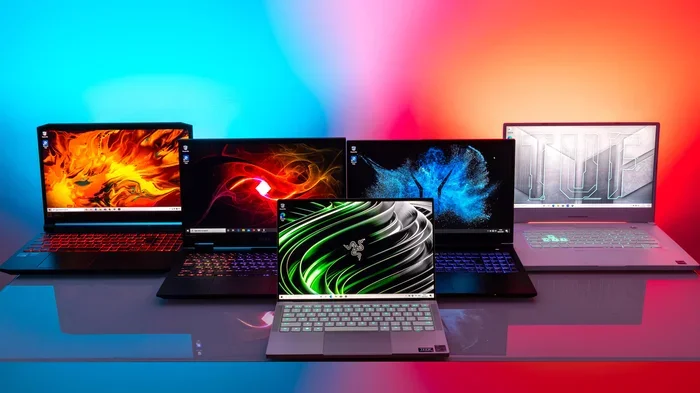
This beginners guide to playing PC games on a laptop covers everything new gamers need to know. You will learn how to check your laptop specs, set up your device for gaming, choose the right games, and boost performance. We also share practical tips on using a mouse, managing RAM, and avoiding common beginner mistakes.
Welcome to the beginners guide to playing PC games on a laptop. If you have always wanted to game on your laptop but did not know where to start, you are in the right place. This guide breaks everything down into simple, easy-to-follow steps. You do not need to be a tech expert to enjoy great games on your device.
Gaming on a laptop is more popular than ever. Whether you want to play casual puzzle games or dive into action-packed adventures, your laptop can handle more than you think. The key is knowing what your laptop can do and how to set it up the right way. This beginners guide to playing PC games on a laptop will walk you through the entire process. From checking your hardware to picking the perfect game, we cover it all.
Many people think they need an expensive desktop computer to enjoy PC gaming. That is simply not true. A modern laptop, even a budget one, can run a wide variety of games. You just need a little know-how. By the end of this guide, you will feel confident enough to install your first game and start playing. Let us get into it.
Key Takeaways
- Know Your Specs: Always check your laptop RAM, graphics card, and processor before buying or downloading a game.
- Setup Matters: A proper setup with the right mouse, cooling pad, and display settings makes a huge difference.
- Optimize Settings: Lowering in-game settings and updating drivers can greatly improve frame rates and reduce lag.
- Choose Wisely: Start with less demanding games and work your way up as your laptop handles them better.
- Avoid Common Mistakes: Overheating, ignoring updates, and running too many background apps are the top culprits of poor gaming.
- External Accessories Help: Using a mouse and external keyboard can make your laptop gaming feel much closer to a desktop experience.
📑 Table of Contents
Understanding Your Laptop’s Gaming Potential
Before you download any game, you need to understand what your laptop can handle. Every laptop is different. Some are built for heavy gaming, while others are designed for basic tasks. Knowing your laptop’s limits helps you choose games that run smoothly.
Check Your RAM First
RAM is one of the most important parts of gaming. It is your laptop’s short-term memory. The more RAM you have, the better your laptop can handle multiple tasks at once. Most modern games need at least 8GB of RAM to run well. You can check RAM on your laptop by going to your system settings. If your laptop has 4GB or less, you may struggle with newer titles.
Some laptops allow you to upgrade RAM on a laptop easily. This is a great option if your current setup feels slow. Adding more memory can breathe new life into an older device. It is one of the cheapest ways to improve your gaming experience. Just make sure your laptop supports RAM upgrades before you buy new memory.
Know Your Graphics Card
Your graphics card handles all the visuals in a game. It is what makes the game look good. Some laptops have integrated graphics, which means the graphics chip is built into the processor. Others have dedicated graphics cards, which are separate and much more powerful.
If your laptop has integrated graphics, you can still play many games. You just need to lower the graphics settings. Dedicated graphics cards, on the other hand, can run games at higher settings. You can find your graphics card details in your device manager or system information panel.
Check Your Processor and Storage
Your processor is the brain of your laptop. It processes all the game data. A faster processor means smoother gameplay. Most modern Intel and AMD processors can handle gaming just fine. Just make sure yours is not too old.
Storage also matters. Games take up a lot of space these days. A solid-state drive (SSD) loads games much faster than a traditional hard drive. If your laptop has an SSD, you are already ahead. If not, you might want to look into upgrading your storage later on.
Setting Up Your Laptop for Gaming
Once you know what your laptop can do, it is time to set things up. A proper setup makes a big difference in how your games feel and perform.
Get the Right Mouse
Using a mouse makes a huge difference when gaming on a laptop. The trackpad is fine for browsing, but it is not ideal for most games. If you want a better experience, consider using an external mouse. You can use a mouse on a laptop by simply plugging it into a USB port. Many gamers prefer wireless mice because they keep the setup clean and clutter-free.
Learning to use the mouse on a laptop for gaming takes a little practice. Adjust your mouse sensitivity in the game settings to find what feels comfortable. A good mouse with a high DPI rating gives you more precision, which is especially helpful in shooting and action games.
Connect to Power
Always plug your laptop into a power source when gaming. Running games on battery power can cause performance drops. Your laptop may also slow down to save battery. Keeping it plugged in ensures your processor and graphics card run at full speed. It also prevents unexpected shutdowns if the battery runs out mid-game.
Keep Your Laptop Cool
Laptops heat up when they work hard. Gaming puts a lot of strain on your device. If your laptop gets too hot, it will slow down to protect itself. This is called thermal throttling, and it kills your frame rate. To avoid this, use a cooling pad. These are affordable stands with built-in fans that keep your laptop cool. You can also elevate the back of your laptop with a book or stand to improve airflow.
Optimizing Your Laptop for Better Gaming Performance
Even with a good setup, your laptop might not run games perfectly right away. That is okay. There are many ways to optimize your device for better performance.
Update Your Drivers
Drivers are the software that helps your laptop communicate with its hardware. Outdated drivers can cause games to run poorly or crash. Make sure your graphics card drivers are always up to date. You can usually update them through your device manager or the manufacturer’s website. Regular driver updates also fix bugs and improve compatibility with new games.
Adjust In-Game Settings
Every game has settings you can adjust to improve performance. If your game runs slowly, try lowering the graphics quality. Reducing shadow quality, anti-aliasing, and resolution can make a big difference. You can always turn settings back up once your laptop gets used to the game.
Start with medium or low settings and gradually increase them until you find a balance between looks and speed. This approach works for almost every game, from simple indie titles to demanding AAA releases.
Close Background Apps
When you game, close any apps you are not using. Web browsers, music players, and other programs take up valuable resources. They eat into your RAM and processing power. By closing them, you free up your laptop to focus on the game. This simple step can noticeably improve your frame rate and reduce lag.
Enable Game Mode on Windows
Windows has a built-in feature called Game Mode. It prioritizes your game over other background tasks. To turn it on, go to Settings, then Gaming, and then Game Mode. This small change can help your laptop run games more smoothly. It is especially helpful for older laptops that struggle with newer titles.
Choosing the Right Games for Your Laptop
Not all games are created equal. Some need powerful hardware, while others run on almost anything. As a beginner, picking the right games is key to enjoying the experience without frustration.
Start with Less Demanding Games
If you are new to PC gaming, start with games that do not require a lot of power. Indie games, puzzle games, and older titles are great choices. Games like Minecraft, Stardew Valley, and Undertale run well on almost any laptop. They are fun, engaging, and do not push your hardware to the limit.
As you get more comfortable, you can try more demanding games. Just remember to adjust your settings if things feel slow. Patience and experimentation are the keys to finding what works for your setup.
Look for Games That Match Your Specs
Before downloading a game, check its system requirements. Every game lists the minimum and recommended specs needed to run it. Compare those specs to your laptop’s hardware. If your laptop meets or exceeds the minimum requirements, the game should run. If it only meets the minimum, expect to lower graphics settings for the best experience.
Try Games That Work Without a Mouse
Not everyone wants to use a mouse for gaming. Some laptop games are designed to be played with just a keyboard or touchscreen. If you prefer this approach, there are plenty of options. You can find good games to play on a laptop without a mouse across many genres. Strategy games, platformers, and RPGs often support keyboard-only controls. This is a great option if you are traveling or do not have an external mouse handy.
Improving Your Overall Gaming Experience
Once you have your games running, you can take steps to make the experience even better. Small changes can have a big impact on how much you enjoy your time gaming.
Invest in Basic Accessories
You do not need to spend a fortune on gaming gear. A simple mouse and keyboard can transform how you play. A headset with a microphone helps you communicate with friends in multiplayer games. Even a small desk fan can help keep your laptop cool during long gaming sessions.
These accessories do not need to be expensive. A basic USB mouse costs very little and makes a world of difference compared to a trackpad. Over time, you can upgrade to better gear as you get more serious about gaming.
Keep Your Laptop Clean
Dust buildup inside your laptop can block vents and cause overheating. Over time, this leads to poor performance and even hardware damage. Use compressed air to clean the vents every few months. Keeping your laptop clean helps it run cooler and faster. It also extends the overall lifespan of your device.
Stay Updated
Game developers regularly release updates that fix bugs and improve performance. Always keep your games updated to the latest version. The same goes for your laptop’s operating system. Updates often include performance improvements and security patches that help your system run better, including during gaming.
Common Mistakes Beginners Make When Gaming on a Laptop
Everyone makes mistakes when they start gaming on a laptop. Here are a few common ones to avoid.
Ignoring Overheating
Many beginners do not realize how quickly laptops can overheat. If your laptop feels hot to the touch or the fan is running loudly, take a break. Let it cool down. Continuing to game on an overheated laptop can cause permanent damage over time.
Running Too Many Background Programs
It is tempting to have Spotify, a web browser, and a chat app open while you game. But all of these programs compete for resources. Close what you do not need. Your game will run much smoother as a result.
Skipping Driver Updates
Outdated drivers are one of the biggest causes of poor gaming performance. Make it a habit to check for updates regularly. A simple update can fix crashes, glitches, and slow performance.
Buying Games Without Checking Requirements
It is easy to get excited about a new game and buy it without checking the system requirements. Always do a quick check first. Nothing is worse than downloading a 50GB game only to find out your laptop cannot run it.
Final Thoughts
The beginners guide to playing PC games on a laptop is all about getting started the right way. You do not need the most expensive laptop or the latest hardware to enjoy PC gaming. All you need is a willingness to learn and a bit of patience. Start by understanding your laptop’s specs, set up your device properly, and choose games that match your setup.
Optimize your settings, keep your drivers updated, and invest in a few basic accessories. These small steps go a long way in improving your gaming experience. Remember, every gamer started somewhere. The most important thing is to have fun and enjoy the journey. Now that you have the knowledge, it is time to pick your first game and start playing. Happy gaming!
Frequently Asked Questions
Can any laptop run PC games?
Most laptops can run some PC games, but the experience depends on your hardware. Budget laptops can handle casual and indie games easily. For demanding AAA titles, you need a laptop with a dedicated graphics card and at least 8GB of RAM. Always check the game’s system requirements before downloading.
Do I need a mouse to play PC games on a laptop?
A mouse is not required, but it is highly recommended. Trackpads work for some games, but a mouse gives you much better precision and control. You can use a mouse on a laptop easily by plugging it into a USB port. Many affordable options work great for gaming.
How can I make my laptop run games faster?
There are several ways to boost performance. Close background apps, update your drivers, enable Game Mode in Windows, and lower in-game graphics settings. You can also upgrade RAM on a laptop or add a cooling pad to prevent thermal throttling. These steps can make a noticeable difference.
What games are best for beginners on a laptop?
Start with less demanding games like indie titles, puzzle games, or older releases. Games such as Minecraft, Stardew Valley, and Fortnite (on lower settings) are great starting points. As your laptop gets used to gaming, you can gradually try more resource-intensive titles.
Is it okay to game on a laptop battery?
It is not recommended. Gaming uses a lot of power, and running on battery can cause performance drops. Your laptop may also slow down to conserve energy. Always plug in your laptop while gaming for the best performance and to avoid unexpected shutdowns.
How do I know if my laptop is overheating while gaming?
Signs of overheating include a very hot keyboard, loud fan noise, sudden slowdowns, or the laptop shutting down unexpectedly. To prevent this, use a cooling pad, keep your vents clean, and avoid gaming on soft surfaces like beds or couches that block airflow.