What Is an Lpc Controller Driver
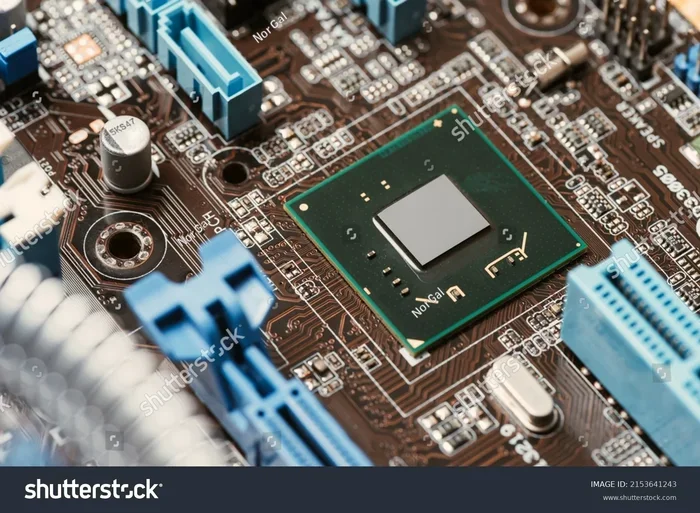
An LPC Controller Driver is a software component that helps your laptop communicate with low-speed hardware devices on the motherboard. It plays a vital role in connecting your system firmware, BIOS, and legacy peripherals. Understanding this driver can help you fix laptop errors, improve stability, and keep your system running smoothly.
Your laptop is full of tiny conversations happening behind the scenes. Every piece of hardware needs to talk to your operating system. But how does it all connect? One unsung hero in this process is the LPC Controller Driver. If you have ever seen a yellow warning triangle in Device Manager or dealt with a mysterious boot error, this little driver might be the culprit. Let us break down exactly what it is, why it matters, and how to keep it working properly.
The world of laptop hardware can feel overwhelming. There are drivers for your graphics card, your Wi-Fi adapter, your audio chip, and dozens more. But one driver that often flies under the radar is the LPC controller driver. It handles some of the most fundamental communication tasks on your motherboard. Without it, your laptop would struggle to start up and interact with key low-speed components. This guide will walk you through everything you need to know in plain, simple language.
Key Takeaways
- LPC stands for Low Pin Count: It is a communication bus used by motherboards to connect low-speed devices like BIOS chips and embedded controllers.
- The driver acts as a translator: It allows your operating system to talk to the LPC interface and manage connected hardware.
- Outdated or missing drivers cause errors: Common symptoms include boot failures, device manager warnings, and system instability.
- Updating is straightforward: You can update the driver through Device Manager, manufacturer websites, or Windows Update.
- LPC drivers are essential for legacy support: Even modern laptops rely on LPC for critical low-speed functions.
- Regular maintenance helps: Keeping all drivers updated, including the LPC controller driver, extends your laptop’s lifespan.
📑 Table of Contents
- What Is an LPC Controller Driver?
- Why the LPC Controller Driver Matters
- Common LPC Controller Driver Problems
- How to Update or Fix the LPC Controller Driver
- LPC Controller Driver vs. Other Laptop Drivers
- When Should You Worry About the LPC Controller Driver?
- Expert Tips for LPC Driver Maintenance
- Final Thoughts
What Is an LPC Controller Driver?
LPC stands for Low Pin Count. It is a type of bus interface found on your laptop’s motherboard. A bus is simply a pathway that lets different components share information. The LPC bus connects your chipset to slower, essential devices like the BIOS chip, the embedded controller, and Super I/O chips. The LPC controller driver is the software that tells your operating system how to use this pathway.
Think of the LPC bus like a small service road behind a highway. The main highway handles fast traffic like your graphics card and RAM. But the service road handles the quiet but important stuff. Things like power management, fan control, and firmware access all travel through this road. The LPC controller driver makes sure your system knows how to use that service road correctly.
How the LPC Bus Works in Laptops
Unlike the faster PCI Express bus, the LPC bus moves data at a much slower speed. But speed is not always the goal. Some components do not need fast data transfer. They just need reliable, steady communication. The LPC bus provides exactly that. It uses fewer pins, which is why it is called Low Pin Count. This makes it cost-effective and efficient for basic but critical tasks.
Here are some of the devices that commonly communicate through the LPC bus:
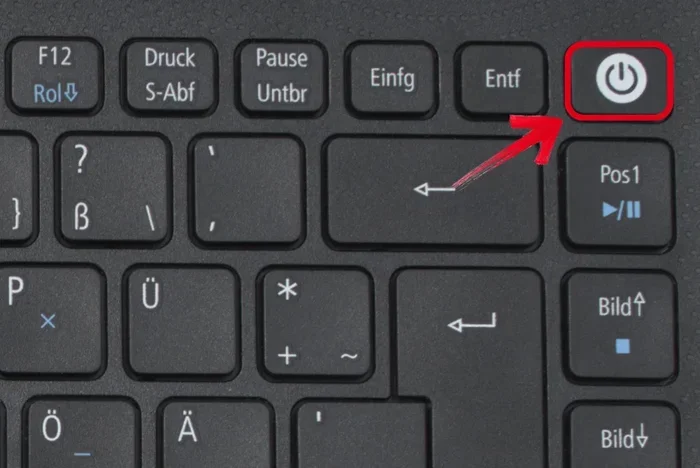
- BIOS or UEFI firmware chip: This is the software that starts your laptop when you press the power button.
- Embedded controller (EC): This chip manages power buttons, battery charging, and keyboard input at a low level.
- Super I/O chip: This handles older peripherals like serial ports, parallel ports, and basic fan sensors.
- Trusted Platform Module (TPM): This provides security features like hardware-based encryption.
Without a working LPC controller driver, your operating system cannot talk to any of these devices. That means your laptop might not boot properly or could lose access to important hardware functions.
Why the LPC Controller Driver Matters
You might wonder why you should care about a driver that most people never notice. The truth is, the LPC controller driver is foundational. It supports some of the most basic functions your laptop performs every single day. If this driver is missing, corrupted, or outdated, you can run into a range of frustrating problems.
Here is why keeping your LPC controller driver healthy matters:
- System boot reliability: Your laptop needs the LPC bus to access BIOS settings during startup. A broken driver can prevent your system from booting at all.
- Power management: The embedded controller relies on LPC communication to manage battery life, sleep mode, and wake events.
- Hardware compatibility: New operating system updates sometimes change how drivers communicate with hardware. An updated LPC driver ensures everything stays compatible.
- Stability and error prevention: A corrupted driver can cause random freezes, blue screens, or Device Manager errors that confuse users.
For anyone who wants their laptop to run reliably, understanding and maintaining the LPC controller driver is a smart move. It is one of those background components that you do not think about until something goes wrong.
Common LPC Controller Driver Problems
Like any software component, the LPC controller driver can run into issues. Most of these problems are easy to spot and fix. Here are the most common ones users encounter.
Device Manager Showing Unknown Device or Error
One of the clearest signs of an LPC driver issue is a yellow exclamation mark in Device Manager. You might see the LPC bus controller listed with a generic name or marked as “Unknown Device.” This usually means Windows does not have the correct driver installed or the existing driver is damaged.
Laptop Won’t Boot or Gets Stuck
If your laptop freezes during the boot process or shows a black screen, a faulty LPC driver could be the reason. Since the LPC bus connects directly to the BIOS firmware, any communication breakdown can halt the startup process entirely.
Random System Freezes or Blue Screens
Blue screen errors, especially those mentioning LPC or chipset issues, often point to driver problems. These crashes can happen randomly during use or when the system wakes from sleep mode. A driver update usually resolves this.
Battery and Power Issues
Because the embedded controller manages power through the LPC bus, a bad driver can lead to battery drain problems, incorrect battery readings, or issues with charging. If your laptop battery behaves strangely, the LPC driver is worth checking.
How to Update or Fix the LPC Controller Driver
Fixing an LPC controller driver problem is usually simpler than you might think. You do not need to be a tech expert. Here are the most effective methods, step by step.
Method 1: Use Device Manager
This is the easiest approach for most users. Open Device Manager by right-clicking the Start button and selecting Device Manager. Look for the LPC bus controller under the “System devices” section. Right-click it and choose “Update driver.” Windows will search for and install the latest compatible driver automatically.
Method 2: Download from Your Laptop Manufacturer
Sometimes Windows Update does not have the right driver. In that case, go to your laptop manufacturer’s support website. Enter your model number and look for the chipset or LPC driver. Download and install it manually. This method ensures you get the exact driver designed for your specific hardware.
Method 3: Use Windows Update
Windows Update often includes driver updates for system components like the LPC controller. Go to Settings, then Update & Security, and click Check for Updates. Install any available driver updates and restart your laptop.
Method 4: Reinstall the Driver
If updating does not work, try uninstalling the driver first. In Device Manager, right-click the LPC bus controller and select Uninstall device. Restart your laptop, and Windows will automatically reinstall a fresh copy of the driver.
For more tips on keeping your laptop hardware running at its best, check out our guide on what is the best investment for the lifespan of your PC. Regular driver maintenance is one of the simplest yet most overlooked ways to extend your device’s life.
LPC Controller Driver vs. Other Laptop Drivers
It helps to understand how the LPC controller driver compares to other drivers in your system. Each driver has a specific role, and they all work together to keep your laptop running.
| Driver Type | Function | Speed | Critical for Boot? |
|---|---|---|---|
| LPC Controller Driver | Connects chipset to low-speed devices like BIOS and EC | Low | Yes |
| Graphics Driver | Manages display and GPU performance | High | No |
| Wi-Fi Driver | Handles wireless network connections | Medium | No |
| Audio Driver | Controls sound output and input | Medium | No |
| Chipset Driver | Manages data flow between CPU, RAM, and peripherals | High | Yes |
As you can see, the LPC controller driver is unique because it handles low-speed but absolutely essential communication. While your graphics or Wi-Fi driver affects performance and convenience, the LPC driver affects basic system function. Without it, your laptop simply would not start.
Understanding this difference helps you prioritize troubleshooting. If your Wi-Fi stops working, you know to check the Wi-Fi driver. But if your laptop refuses to boot, the LPC controller driver and chipset driver should be at the top of your list. You can also learn more about how different laptop components work together by reading about what the RAM on a laptop does and how it interacts with other system hardware.
When Should You Worry About the LPC Controller Driver?
Most of the time, the LPC controller driver works silently in the background. You never need to think about it. But there are specific situations where paying attention to it makes sense.
You should be concerned if you notice any of these signs:
- Your laptop shows a Device Manager error code related to the LPC bus.
- You experience frequent blue screens after a Windows update.
- Your laptop fails to boot and you see a BIOS-related error message.
- Battery life drops suddenly without any obvious cause.
- Keyboard or touchpad stops working at a basic level.
In these cases, updating or reinstalling the LPC controller driver should be one of your first steps. It is a quick fix that can save you hours of frustration. For more on keeping your laptop components healthy, our article on what is the best CPU cooler offers useful insights into maintaining overall system performance.
Expert Tips for LPC Driver Maintenance
Keeping your LPC controller driver in good shape does not require advanced technical skills. A few simple habits can make a big difference. Here are some expert-backed tips.
1. Enable automatic driver updates. Windows can handle most driver updates for you. Just make sure automatic updates are turned on in your settings. This ensures your LPC and other system drivers stay current without any effort.
2. Avoid sketchy driver download sites. There are many websites that claim to offer driver updates. Many of them bundle unwanted software or provide outdated versions. Stick to your laptop manufacturer’s official website or trusted sources like Windows Update.
3. Create a system restore point before updating. Sometimes a new driver causes unexpected issues. A restore point lets you roll back to a working state quickly. It is a simple safety net that takes just a minute to set up.
4. Check your BIOS version too. The LPC controller driver works hand-in-hand with your BIOS. If you are experiencing persistent LPC-related issues, updating your BIOS alongside the driver can resolve the problem. Just be careful during BIOS updates and follow the manufacturer’s instructions exactly.
5. Keep your laptop clean and cool. Heat can affect how all drivers and hardware components perform. A well-ventilated laptop with good thermal management helps maintain stable driver operation, including the LPC controller driver.
Final Thoughts
The LPC controller driver might not be the most exciting topic in the laptop world, but it is one of the most important. It quietly handles the essential communication between your motherboard and the low-speed devices that keep your system running. From booting up to managing battery life, this driver plays a role in almost everything your laptop does.
If you have never thought about this driver before, now is a great time to check on it. A quick look at Device Manager and a driver update could save you from unexpected headaches down the road. Keeping your drivers current, including the LPC controller driver, is one of the easiest ways to keep your laptop healthy and reliable for years to come.
Frequently Asked Questions
What does LPC stand for in LPC controller driver?
LPC stands for Low Pin Count. It refers to a communication bus on your motherboard that connects the chipset to low-speed devices like the BIOS chip, embedded controller, and Super I/O chips. The LPC controller driver is the software that manages this communication pathway.
Do I need to update my LPC controller driver regularly?
You do not need to update it manually very often. Windows Update usually handles LPC driver updates automatically. However, if you start experiencing boot issues, Device Manager errors, or blue screens, checking and updating the driver is a smart troubleshooting step.
Can a bad LPC controller driver prevent my laptop from turning on?
Yes, it can. Since the LPC bus connects directly to the BIOS firmware, a corrupted or missing LPC controller driver can interrupt the boot process. Your laptop might freeze during startup or fail to boot entirely. Updating or reinstalling the driver often fixes this.
Is the LPC controller driver the same as the chipset driver?
No, they are different but related. The chipset driver manages data flow between the CPU, RAM, and high-speed peripherals. The LPC controller driver specifically handles low-speed communication on the LPC bus. Both are important, but they serve different roles in your system.
Where can I find the LPC controller driver for my laptop?
The best source is your laptop manufacturer’s official support website. Enter your exact model number and look for chipset or system drivers. You can also check Device Manager for automatic updates. Avoid third-party driver download sites as they can be unreliable.
What happens if I uninstall the LPC controller driver?
If you uninstall the LPC controller driver, Windows will typically reinstall it automatically when you restart your laptop. The driver is a core system component, so the operating system recognizes its absence and fetches a fresh copy. However, if automatic reinstallation fails, you may need to download the driver manually from your manufacturer’s website.