What Is Hdmi Capture Passthrough
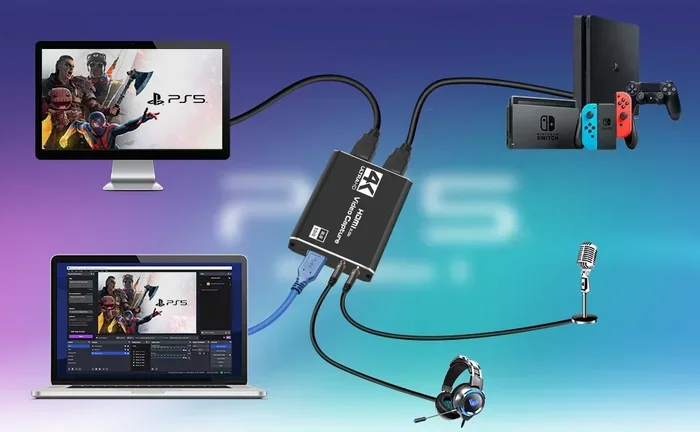
HDMI capture passthrough is a feature that lets your laptop display a video signal while simultaneously recording or streaming it. It works by sending the HDMI input to both your screen and a capture device at the same time. This means you never lose your live feed, making it perfect for streaming, video recording, and gameplay capture.
Have you ever wanted to record or stream something from an external device but still keep your laptop screen showing the live feed? That is exactly what HDMI capture passthrough does. It is one of the most useful features for anyone who streams, records videos, or needs to share a screen in real time. Whether you are a gamer, a teacher, or a content creator, understanding how passthrough works can save you a lot of frustration. Let us break it all down in simple terms.
When you connect an HDMI source to a capture card, the card grabs the video signal and sends it to your laptop. But here is the key question: what happens to the signal going to your monitor? With passthrough enabled, the card sends the same signal to your display too. So you get to watch the live feed without any delay. At the same time, your laptop records or streams the content. It is like having your cake and eating it too.
Key Takeaways
- HDMI passthrough keeps your display active: You can watch and record the same source without interruption.
- It is essential for streamers and content creators: Passthrough ensures zero lag between what you see and what you capture.
- Most modern capture cards support it: Popular devices like Elgato and AVerMedia include passthrough as a standard feature.
- Laptop GPU and RAM matter for smooth passthrough: A good GPU temperature and enough laptop RAM make a big difference in capture quality.
- Setup is simple: Plug in the capture card, install software, and enable passthrough mode in minutes.
- There are a few common pitfalls: Signal loss, driver issues, and resolution mismatches can cause problems if not addressed.
📑 Table of Contents
What Is HDMI Capture Passthrough?
HDMI capture passthrough is a feature found in HDMI capture cards that splits the incoming video signal into two paths. One path goes to your laptop for recording or streaming. The other path goes directly to your monitor or TV so you can see what is happening in real time. Without passthrough, your screen would go dark once the capture card takes over the signal. That is a big problem if you need to monitor what you are capturing.
Think of it like a water pipe splitting into two streams. The water (video signal) flows to both your screen and your laptop at the same time. Neither stream loses quality. You get a live view on your monitor and a captured version on your laptop. This is why passthrough is so important for anyone who works with external video sources.
How Does Passthrough Differ from Regular Capture?
In regular capture mode without passthrough, the HDMI signal gets routed only to the capture card. Your monitor loses the feed entirely. You would need a separate way to view the content, like using software preview windows. This can introduce lag and make timing difficult. With passthrough, the signal stays live on your display while the capture happens in the background. The difference is huge for real-time work.
How Does HDMI Passthrough Work?
The technology behind HDMI passthrough is simpler than it sounds. When you plug an HDMI source into a capture card, the card reads the signal. Then it duplicates it. One copy travels through the HDMI output port to your monitor. The other copy gets processed and sent to your laptop via USB. Both copies carry the same resolution, color depth, and frame rate.
The Role of the Capture Card
Your capture card acts as the middleman. It sits between your HDMI source (like a console, camera, or DVD player) and your laptop. The card has an HDMI input port and an HDMI output port. The input receives the signal from the source device. The output sends the same signal to your display. Meanwhile, the USB connection sends the captured data to your laptop for processing.
Most capture cards handle this automatically. You plug everything in, install the drivers, and enable passthrough in the software. Some cards even let you adjust the output resolution and frame rate independently for the passthrough path and the capture path. This flexibility is great for optimizing performance.
Why Laptop Hardware Matters
Not every laptop handles HDMI passthrough the same way. Your laptop hardware plays a big role in how smooth the experience is. The GPU needs to process both the display output and the incoming capture data at the same time. If your GPU is running too hot or struggling with the load, you may experience stuttering or dropped frames.
Similarly, your RAM affects how much video data your laptop can buffer at once. For smooth passthrough and recording, having enough memory is essential. If you are unsure about your current setup, checking your laptop RAM and keeping your system cool are great first steps. A well-maintained system ensures that your passthrough experience stays seamless.
Benefits of Using HDMI Capture Passthrough
There are many reasons why HDMI passthrough has become a standard feature on modern capture cards. Here are the biggest advantages:
- Zero display interruption: Your monitor keeps showing the live feed without any blackout or signal loss.
- Real-time monitoring: You can watch exactly what your audience sees while you stream or record.
- Lower latency: Passthrough routes the signal directly to your display, so there is almost no delay.
- Better workflow: You can switch between sources, adjust settings, and monitor everything from one screen.
- No extra hardware needed: You do not need a second monitor or a splitter to view your content.
- Consistent quality: The passthrough signal retains the original resolution and quality of the source.
For laptop users especially, passthrough is a game changer. You do not need a bulky external setup to get professional-quality results. A single capture card and your laptop are all you need to start recording or streaming with confidence.
Common Uses for HDMI Capture Passthrough
HDMI passthrough is not just for gamers. People in many different fields find it incredibly useful. Here are some of the most common scenarios where passthrough shines.
Game Streaming
This is probably the most popular use case. Gamers connect their console or PC to a capture card, and the passthrough lets them see the game on their laptop while streaming it to platforms like Twitch or YouTube. The real-time capture ensures that the stream matches what is on screen. There is no confusing delay between the action and what viewers see.
Video Production and Content Creation
Content creators use passthrough when recording tutorials, product reviews, or presentations. A camera or another device feeds video into the capture card. The creator watches the live feed on their laptop through passthrough while the card records a high-quality file in the background. This setup is clean, efficient, and professional.
Educational and Business Presentations
Teachers and presenters often need to share a physical document camera, a DVD player, or another device with a remote audience. Passthrough lets them monitor what is being shared on their laptop while the audience receives the feed through a video conferencing tool. It makes hybrid presentations much easier to manage.
Security and Surveillance
Some people use HDMI passthrough with security cameras or DVR systems. The live feed stays visible on a laptop screen while the capture card records footage for later review. This is a simple and affordable way to set up a basic surveillance system using a laptop.
How to Set Up HDMI Capture Passthrough on a Laptop
Setting up passthrough is easier than most people think. You do not need to be a tech expert. Follow these steps and you will be up and running in no time.
- Get a compatible capture card: Make sure your capture card supports HDMI passthrough. Most modern cards from brands like Elgato, AVerMedia, and Magewell include this feature.
- Connect the HDMI source: Plug your source device (console, camera, etc.) into the HDMI input on the capture card using a quality cable.
- Connect the passthrough output: Use the HDMI output port on the capture card to connect to your laptop’s external monitor or TV.
- Connect the capture card to your laptop: Use the USB cable that came with the capture card. Plug it into a USB port on your laptop.
- Install the drivers and software: Download the latest drivers from the capture card manufacturer’s website. Install the capture software that comes with the card.
- Enable passthrough mode: Open the capture software and look for the passthrough or loopthrough option. Turn it on.
- Check your display: You should now see the HDMI source on your external monitor. At the same time, the capture software should be recording or streaming the feed.
Once everything is set up, you can adjust settings like capture resolution, bitrate, and audio input inside the software. Most capture tools give you a preview window too, so you can double-check that the passthrough signal looks correct.
Quick Tips for a Smooth Setup
- Use a high-speed USB port (USB 3.0 or later) for the best capture performance.
- Keep your capture card drivers up to date to avoid compatibility issues.
- Use a short, high-quality HDMI cable between the source and the capture card to reduce signal loss.
- If you experience lag, lower the capture resolution or frame rate in your software settings.
- Make sure your laptop is plugged in and not running on battery power during long recording sessions.
Things to Consider When Choosing a Capture Card
Not all capture cards are created equal. Before you buy one, consider these factors to make sure you get the right one for your needs.
Resolution and Frame Rate Support
Look for a card that supports the resolution and frame rate you need. If you want to capture 1080p at 60fps, make sure the card handles that natively. Some cards support even 4K passthrough, but they tend to cost more and require a more powerful laptop.
USB Connection Type
USB 3.0 is the minimum recommended for smooth passthrough. USB 2.0 cards can work but may struggle with higher resolutions. If your laptop has USB-C, look for a card with a USB-C connection or a reliable USB-C to USB-A adapter.
Software Compatibility
Make sure the capture card software works with your operating system. Most cards support Windows and macOS, but some are better optimized for one than the other. Check the manufacturer’s website for compatibility details before purchasing.
Passthrough Latency
Some cards introduce more latency in the passthrough path than others. If you plan to stream or record live, low latency is critical. Look for cards that advertise “zero-lag passthrough” or “real-time passthrough” in their specifications.
Build Quality and Port Options
A sturdy build and multiple input options give you more flexibility. Some cards offer both HDMI and SDI inputs. Others include audio embedding or separate audio outputs. Think about what devices you will connect and choose accordingly.
Common Problems and How to Fix Them
Even with the best setup, you might run into issues. Here are some common problems and their solutions.
No signal on the passthrough output: This usually means the passthrough mode is not enabled in the software. Check your settings and make sure the output is turned on. Also, verify that your HDMI cable is securely connected.
Dropped frames during capture: This is often caused by a weak USB connection or insufficient laptop processing power. Try using a different USB port or closing background applications to free up resources.
Audio and video are out of sync: Check your audio settings in the capture software. Make sure the audio input matches the HDMI source. Updating your audio drivers can also help.
Resolution mismatch: If the passthrough signal looks blurry or distorted, your source device and capture card may be set to different resolutions. Match the resolution settings on both ends for a clean picture.
Final Thoughts
HDMI capture passthrough is a simple yet powerful feature that makes a huge difference for anyone working with external video sources on a laptop. Whether you are streaming gameplay, recording tutorials, or running a presentation, passthrough keeps your display live while your laptop handles the recording or streaming. It removes the hassle of signal loss, extra monitors, and complicated setups.
The key is to choose a capture card that supports passthrough, use quality cables, and make sure your laptop hardware can handle the workload. With the right setup, you can achieve professional results without needing expensive equipment. If you are serious about video capture or streaming, passthrough is not a luxury. It is a necessity. Start exploring your options today and see how much easier your workflow becomes.
Frequently Asked Questions
What is the difference between HDMI passthrough and HDMI splitting?
HDMI passthrough sends the same signal to both your display and your capture device simultaneously. HDMI splitting copies the signal to multiple outputs without capturing it. Passthrough is specifically designed for recording and streaming workflows where you need both a live view and a captured copy.
Do I need a special laptop for HDMI capture passthrough?
You do not need a special laptop, but a decent one helps. Your laptop should have a USB 3.0 port, a capable GPU, and enough RAM to handle video processing. If your laptop struggles with video tasks, passthrough may lag or drop frames. Checking your system specs before buying a capture card is always a smart move.
Can I use HDMI capture passthrough with a gaming console?
Yes, absolutely. Gaming consoles like the PlayStation and Xbox work great with HDMI capture cards that support passthrough. You connect the console to the capture card, and the passthrough output goes to your laptop screen. The capture card records or streams the gameplay in real time while you watch it live.
Does HDMI passthrough affect video quality?
No, passthrough does not reduce video quality. The signal is duplicated, not compressed, on the display path. The quality you see on your monitor is identical to the original source. The captured file quality depends on your capture card and software settings, not the passthrough feature itself.
Can I use HDMI capture passthrough for live events?
Yes, many event organizers use passthrough setups to project and record live content simultaneously. A camera or presentation source feeds into the capture card, and the passthrough output keeps the venue screen active while the laptop records the event. It is a reliable and straightforward solution for live production.
Is HDMI capture passthrough the same as loopthrough?
The terms are often used interchangeably, but there is a subtle difference. Passthrough typically refers to sending the signal to both a display and a capture device. Loopthrough usually refers to passing the signal through multiple devices in a chain. In practice, most capture card manufacturers use the terms to mean the same thing.