What Is an Apple Superdrive
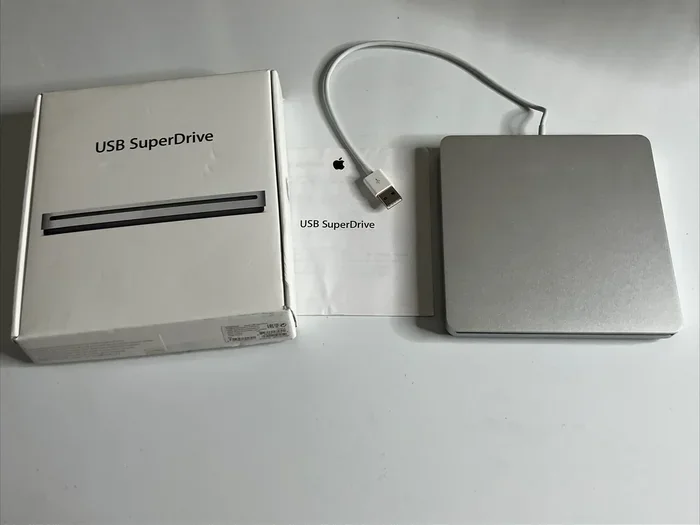
The Apple Superdrive is a compact external USB optical drive made by Apple that lets you read and burn CDs and DVDs. It connects easily to Mac laptops and works without extra power cables. This small accessory brings back disc compatibility for modern MacBooks that lack built-in drives.
The Apple Superdrive is one of those simple accessories that still matters for many people. If you own a MacBook or a Mac desktop and need to work with CDs or DVDs, this little drive can be a lifesaver. It is compact, portable, and designed to work seamlessly with Apple devices.
Many modern laptops have dropped disc drives entirely. Apple was one of the first to remove the optical drive from its MacBook lineup back in 2008. Since then, users have had to find alternatives for playing or burning discs. The Apple Superdrive emerged as the official solution from Apple itself.
In this guide, we will cover everything you need to know about the Apple Superdrive. We will look at what it does, how it works, and whether it is still worth using today.
Key Takeaways
- What it is: The Apple Superdrive is a slim external CD and DVD reader/writer designed for Mac computers.
- How it connects: It uses a single USB cable and draws power directly from the laptop, so no extra power adapter is needed.
- What it does: You can play CDs, rip music, burn DVDs, and install software from discs with this drive.
- Compatibility: It works best with MacBooks and Mac desktops but has limited support on Windows PCs.
- Who needs it: It is useful for users who still rely on physical discs for media, software, or data backup.
- Current relevance: While Apple no longer sells it officially, it remains a popular accessory for older Mac users.
📑 Table of Contents
What Is the Apple Superdrive?
The Apple Superdrive is a small external optical disc drive made by Apple Inc. It is designed to read and write CDs and DVDs. The drive connects to your computer through a USB cable and does not need a separate power source.
This drive is also known as the Apple USB SuperDrive. It has a sleek, slim design that matches the look of Apple laptops and desktops. The device is lightweight and easy to carry around, making it a great travel companion.
How Does It Work?
The Apple Superdrive uses a standard USB connection to communicate with your computer. When you plug it in, your Mac recognizes it automatically. There is no need to install drivers or software on macOS.
The drive uses a laser to read data from optical discs. When burning a disc, the laser writes data onto a blank CD or DVD. The process is straightforward and works just like any other external optical drive.
What Discs Does It Support?
The Apple Superdrive supports a range of disc formats. Here is a quick look at what you can use with it:
- CD-ROM: Read-only CDs for software and music
- CD-R: Recordable CDs for burning data or audio
- CD-RW: Rewritable CDs that can be erased and reused
- DVD-ROM: Read-only DVDs for movies and software
- DVD-R: Recordable DVDs for burning data or video
- DVD+R: Another recordable DVD format
- DVD-RW: Rewritable DVDs for repeated use
- DVD+RW: Another rewritable DVD format
- DVD+R DL: Dual-layer DVDs with extra storage
The drive does not support Blu-ray discs. It is limited to CDs and DVDs only. If you need Blu-ray support, you will need a different drive.
Why Did Apple Remove the Built-In Drive?
Apple removed the optical drive from its laptops for a few key reasons. The first was thinness. Apple wanted to make the MacBook as thin and light as possible. An internal optical drive adds bulk and weight to a laptop.
The second reason was digital distribution. Over time, more people started downloading software, music, and movies online. Physical discs became less common. Apple believed the future was digital, and they were right in many ways.
However, not everyone moved away from discs. Some people still prefer physical media for movies, music collections, and software installations. Others need discs for work or school. That is where the Apple Superdrive comes in handy.
What Can You Do With an Apple Superdrive?
The Apple Superdrive opens up several possibilities for Mac users. Here are the most common uses:
Playing CDs and DVDs
You can use the drive to watch movies or listen to music from physical discs. Just insert the disc, open it in your preferred app, and enjoy. It works with Apple Music, DVD Player, and other compatible apps on macOS.
Burning Data Discs
Need to back up files or share large folders? You can burn data onto CDs or DVDs using the Superdrive. This is still useful for people who prefer physical backup methods or need to share files with others who do not use cloud storage.
Ripping Music and Movies
You can rip audio CDs to import songs into your music library. Similarly, you can rip DVDs to create digital copies of your movie collection. The drive makes it easy to digitize your physical media.
Installing Software from Discs
Some software still comes on discs. This is common with certain creative applications, educational software, and older programs. The Apple Superdrive lets you install these programs even on modern MacBooks that lack a built-in drive.
Compatibility: Which Devices Work With the Superdrive?
The Apple Superdrive was designed primarily for Apple devices. Here is a breakdown of compatibility:
MacBooks
The drive works with most MacBook models. This includes MacBook Air and MacBook Pro laptops from 2008 onward. It is especially useful for older MacBooks that never had a built-in optical drive.
iMacs and Mac Minis
If you use an iMac or Mac Mini that lacks a built-in Superdrive, this external drive is a perfect match. It connects via USB and works instantly with macOS.
Windows PCs
Apple officially states that the Superdrive works only with Mac computers. It may not function properly on Windows PCs. Some users have found workarounds, but official support is limited to Apple devices.
iPad and iPhone
The Apple Superdrive does not work with iPads or iPhones. These devices do not support external optical drives through their operating systems.
Is the Apple Superdrive Still Worth Buying?
This is a question many people ask, especially since Apple stopped selling the Superdrive officially. Here are some factors to consider:
Pros of the Apple Superdrive
- Compact design: It is thin and lightweight, easy to carry in a laptop bag
- No extra power needed: It draws power from the USB port alone
- Plug and play: Works instantly on macOS without setup
- Apple build quality: The design and build are consistent with Apple standards
- Quiet operation: The drive runs smoothly without loud spinning noises
Cons of the Apple Superdrive
- No longer sold by Apple: You can only find it secondhand or from third-party sellers
- Limited disc support: No Blu-ray or HD DVD compatibility
- Windows incompatibility: Not officially supported on Windows PCs
- USB-A connection: Uses older USB-A ports, so you may need an adapter for newer laptops with USB-C
- Price: Since it is discontinued, prices can be inflated on resale markets
Alternatives to Consider
If the Apple Superdrive is too expensive or hard to find, there are other options. Many third-party brands make external USB optical drives. Brands like LG, Asus, and Samsung offer affordable alternatives. These drives often support Blu-ray as well, which the Apple Superdrive does not.
When choosing an alternative, look for one that is USB-C compatible if you have a newer laptop. You might also consider a laptop mouse or other USB accessories that use the same connection type, as the Superdrive shares that USB dependency.
Tips for Using Your Apple Superdrive
Here are some practical tips to get the most out of your Apple Superdrive:
- Keep the lens clean: Dust can build up on the laser lens over time. Use a soft, lint-free cloth to gently clean it.
- Use quality blank discs: Cheap discs may not burn properly or may degrade faster. Invest in reputable brands for best results.
- Store discs properly: Keep your CDs and DVDs in protective cases to prevent scratches and dust buildup.
- Check your USB port: Make sure the port provides enough power. Some USB hubs may not supply sufficient power for the drive.
- Update your macOS: Keep your system updated for the best compatibility and performance with the drive.
Common Problems and How to Fix Them
Drive Not Recognized by Mac
If your Mac does not detect the Superdrive, try unplugging and replugging the USB cable. You can also try a different USB port. Restarting your Mac often solves this issue quickly.
Disc Not Playing or Burning
If a disc does not work, check for scratches or smudges. Clean the disc gently with a soft cloth. Also, make sure the disc format is supported by the drive.
Drive Makes Unusual Noises
Loud clicking or grinding sounds can indicate a problem. Stop using the drive immediately and check for debris around the disc tray. If the noise continues, the drive may need replacement.
Final Thoughts
The Apple Superdrive is a simple but useful accessory for Mac users who still work with optical discs. It brings back the ability to play, burn, and rip CDs and DVDs on modern laptops that no longer include built-in drives. While Apple has discontinued the product, it remains a reliable option for those who need disc support.
If you are deciding whether to invest in one, think about how often you use physical discs. For occasional use, a good RAM upgrade or other laptop enhancement might give you more value. But if discs are part of your daily routine, the Apple Superdrive is still a solid choice.
Consider your needs carefully. Check the price and availability before buying. And remember, the best investment for your laptop depends on what you actually use day to day.
Frequently Asked Questions
Can I use the Apple Superdrive with a MacBook Pro M1 or M2?
Yes, the Apple Superdrive works with MacBook Pro models that have USB-A ports or use a USB-C adapter. Since the drive connects via USB, you just need the right cable or adapter to match your laptop’s ports. It works smoothly with macOS on these newer chips.
Why does Apple no longer sell the Superdrive?
Apple discontinued the Superdrive because fewer people use physical discs today. Most software, movies, and music are now available digitally. Apple shifted its focus to cloud services and digital downloads, making the optical drive less relevant for most users.
Can I burn Blu-ray discs with the Apple Superdrive?
No, the Apple Superdrive only supports CDs and DVDs. It cannot read or burn Blu-ray discs. If you need Blu-ray support, you will need to buy a different external drive from a third-party manufacturer.
Does the Apple Superdrive need an external power adapter?
No, it does not. The drive draws all the power it needs directly from the USB connection to your Mac. This makes it very portable and convenient to use without carrying extra cables or adapters.
Can I use the Apple Superdrive on a Windows PC?
Apple officially does not support the Superdrive on Windows PCs. It is designed and tested for macOS only. Some users may find workarounds, but there is no guarantee of full functionality or compatibility on Windows systems.
How fast is the Apple Superdrive when burning discs?
The drive supports standard burning speeds for CDs and DVDs. It typically burns CDs at up to 24x speed and DVDs at up to 8x speed. Actual speeds may vary depending on the disc quality and the file size you are burning.
=== CONCLUSION ===
The Apple Superdrive remains a handy little device for anyone who still needs to work with optical discs on a Mac. Its compact size, plug-and-play simplicity, and Apple-quality build make it a reliable choice. While it is no longer sold by Apple, it continues to serve users who rely on CDs and DVDs for media, software, or data storage.
Whether you are a student, a creative professional, or a casual user, the Superdrive can fill a gap that modern laptops have left behind. Just keep in mind its limitations, like the lack of Blu-ray support and the need for a USB-A connection.
If you found this guide helpful, consider sharing it with others who might still be using optical discs with their MacBooks. And always think about what accessories truly add value to your workflow before making a purchase.