What Is Msedgeexe
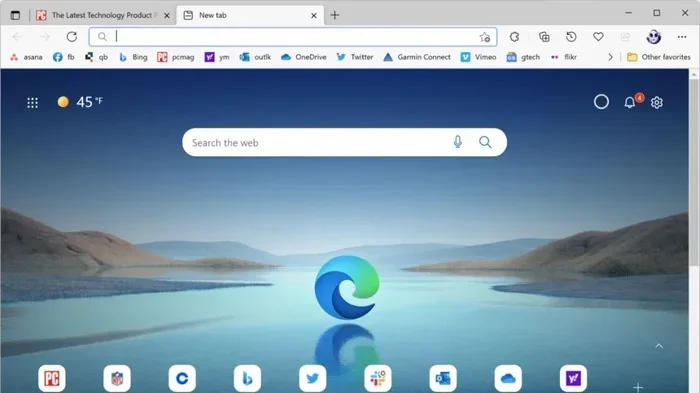
Msedgeexe is the executable file for the Microsoft Edge browser on Windows laptops and PCs. It is a legitimate Windows process that handles browsing, updates, and background tasks. Understanding what msedgeexe does helps you manage laptop performance and troubleshoot issues.
You open your laptop one morning and notice something called msedgeexe running in the background. It’s using your CPU. It’s eating up your memory. You start to wonder what on earth it is and whether you should be worried. You are not alone.
Millions of Windows laptop users see this process every day and have the same questions. So let us clear it up once and for all. Msedgeexe is simply the executable file that runs the Microsoft Edge browser on your computer. It is not a virus. It is not some mysterious background app trying to steal your data. It is a core part of how Microsoft Edge works on Windows 10 and Windows 11 machines.
In this guide, we will walk through everything you need to know about msedgeexe. We will cover what it does, why it uses system resources, how to check if it is legitimate, and what you can do if it is causing problems. Whether you are a casual browser or a power user, this article will help you understand and manage this process with confidence.
Key Takeaways
- Core System Process: Msedgeexe is the official executable for Microsoft Edge, essential for browser operations.
- Normal Resource Usage: It naturally uses CPU and memory while browsing, but high usage may need attention.
- Security Verified: The real msedgeexe file is digitally signed by Microsoft and safe to keep.
- Manageable Through Task Manager: You can monitor and control its activity using built-in Windows tools.
- Related to Overall PC Health: Keeping Edge updated and managing its processes contributes to better laptop performance.
- Not a Virus: Many users mistake it for malware, but it is a genuine Microsoft component.
📑 Table of Contents
What Is Msedgeexe?
Msedgeexe stands for Microsoft Edge Executable. It is the main program file that launches and runs the Edge browser on Windows systems. When you click the Edge icon on your taskbar or desktop, this process wakes up and handles everything you see on screen. Every tab you open, every video you stream, and every webpage you load runs through msedgeexe.
The file lives in a specific folder on your laptop. The real, legitimate version is located in the Microsoft Edge application directory, usually under Program Files. If you find it somewhere else, that could be a red flag. We will cover how to verify this later in the article.
How Msedgeexe Works in the Background
Even when you close the Edge browser window, msedgeexe may still run in the background. This is by design. Microsoft built Edge to handle several tasks automatically:
- Push notifications from websites
- Background updates for the browser
- Extension maintenance and sync
- Search indexing for faster results
- Telemetry data collection for improvements
This background activity is normal. However, it is also the reason many users notice msedgeexe consuming resources even when they are not actively browsing. Your laptop may feel a bit slower because of it.
Why Does Msedgeexe Use So Much CPU?
If you open Task Manager and see msedgeexe hogging your CPU, you are not imagining things. This is a common issue, especially on older laptops or machines with limited system resources. But there is usually a simple explanation.
Edge is built on the Chromium framework, which is the same engine that powers Google Chrome. This framework is powerful but also resource-heavy. Each tab you open creates a separate process, and each one uses its own slice of CPU and memory. So if you have twenty tabs open, you are essentially running twenty mini-processes all tied to msedgeexe.
Common Reasons for High CPU Usage
Several factors can cause msedgeexe to spike your CPU usage. Here are the most common ones:
- Too many open tabs. Every tab eats memory and CPU cycles. The more tabs, the heavier the load.
- Heavy websites. Sites with lots of video, animations, or ads demand more from your processor.
- Browser extensions. Some extensions run constantly in the background and can slow things down significantly.
- Outdated Edge version. Older versions may have bugs or inefficiencies that newer updates fix.
- Hardware acceleration conflicts. Sometimes the GPU and CPU clash over rendering tasks, causing one to work harder than it should.
The good news is that you can usually fix high CPU usage without uninstalling Edge. We will share some quick tips below.
Is Msedgeexe Safe or a Virus?
This is one of the most common questions people ask about msedgeexe. The short answer is yes, it is safe. The real msedgeexe file is digitally signed by Microsoft Corporation. It is a trusted Windows process and an essential part of the Edge browser.
However, malware authors sometimes name their malicious files something similar to trick users. This is called process spoofing. A fake msedgeexe could be hiding somewhere unusual on your system, pretending to be the real thing. Here is how you can tell the difference.
How to Verify the Real Msedgeexe File
Follow these steps to confirm that your msedgeexe is legitimate:
- Open Task Manager by pressing Ctrl + Shift + Esc.
- Find Microsoft Edge or msedgeexe in the Processes tab.
- Right-click it and select Open File Location.
- The file should be in a path like C:\Program Files (x86)\Microsoft\Edge\Application.
- Right-click the file, go to Properties, and check the Digital Signatures tab.
- You should see Microsoft Corporation listed as the signer.
If the file location looks suspicious or there is no digital signature, run a full antivirus scan immediately. Better safe than sorry.
How to Manage Msedgeexe and Improve Laptop Performance
If msedgeexe is slowing down your laptop, you have several options to keep it in check. You do not need to be a tech expert to do any of this. These are simple steps anyone can follow.
Quick Tips to Reduce Msedgeexe Resource Usage
- Close tabs you are not using. This is the single easiest way to free up CPU and memory.
- Disable unnecessary extensions. Go to Edge Settings, then Extensions, and remove anything you do not need.
- Turn off background apps. In Edge Settings, find System and turn off the option that lets Edge keep running in the background.
- Update Edge regularly. Go to Settings and About Microsoft Edge to check for updates.
- Use sleeping tabs. Edge has a built-in feature that puts inactive tabs to sleep, saving resources.
- Check startup programs. Some apps launch Edge automatically at startup, which can pile up processes. Visit Task Manager’s Startup tab and disable anything you do not need.
These tips work for any Windows laptop, regardless of brand or model. The goal is to keep msedgeexe running lean so it does not drain your system resources when you need them for other tasks.
When to Consider Alternatives
If you find that Edge and msedgeexe simply do not work well with your laptop’s hardware, there are alternatives. Google Chrome, Mozilla Firefox, and Brave are all solid browsers that run on Windows. Each has its own executable process, so switching browsers means switching which background process uses your CPU and memory.
Some users also find that lighter browsers are better for older laptops. If your machine struggles with modern browsing, you might want to explore options designed for lower system requirements. This ties into broader PC optimization strategies, much like choosing the right RAM for your laptop or ensuring your CPU cooler is working properly to keep temperatures in check.
Speaking of laptop components, if you are dealing with overall sluggish performance, it might be worth checking whether your RAM on your laptop is sufficient. Insufficient memory forces your processor to work harder, and that can make every background process, including msedgeexe, feel more impactful. Similarly, investing in the right upgrades for your PC lifespan can make a noticeable difference in day-to-day performance.
Msedgeexe and Windows 10 vs Windows 11
Microsoft has made changes to how msedgeexe operates between Windows 10 and Windows 11. On Windows 11, Edge is deeply integrated into the operating system. It handles many system-level tasks, including rendering certain settings pages and web-based notifications. This means msedgeexe may run more frequently on Windows 11 than it did on Windows 10.
On Windows 10, Edge is still a core browser but is slightly less embedded in the system. You may notice fewer background processes on older Windows versions. Regardless of which version you use, the tips in this article apply equally well.
Key Takeaways
- Legitimate Process: Msedgeexe is the official executable for Microsoft Edge and is safe to keep on your laptop.
- Background Activity Is Normal: It runs even when Edge is closed to handle updates, sync, and notifications.
- High CPU Usage Has Common Causes: Too many tabs, heavy websites, and outdated versions are usually to blame.
- Verify the File Location: Always check that msedgeexe is in the Microsoft Edge folder and digitally signed.
- Easy to Manage: Simple steps like closing tabs, updating Edge, and disabling extensions can dramatically reduce resource usage.
- Related to Overall System Health: Managing msedgeexe is part of a broader approach to keeping your laptop fast and efficient, much like monitoring GPU idle temperatures or ensuring you have enough RAM for your laptop.
Conclusion
Msedgeexe is a normal, essential part of using Microsoft Edge on your Windows laptop. It is not a virus, not a scam, and not something you need to fear. It is simply the engine that powers your browsing experience. Like any engine, it can sometimes use more resources than you would like, but with the right management, it runs smoothly and efficiently.
By understanding what msedgeexe does and how to control it, you take charge of your laptop’s performance. You can browse with confidence, knowing that this process is working for you, not against you. Keep your browser updated, manage your tabs, and regularly check your system resources. These small habits add up to a faster, more reliable laptop experience over time.
Remember, every process on your laptop serves a purpose. Msedgeexe is no different. Treat it with the same care you would give any other part of your system, and it will serve you well for years to come.
Frequently Asked Questions
Is msedgeexe a virus or malware?
No, msedgeexe is a legitimate executable file created by Microsoft for the Edge browser. It is digitally signed and safe. However, always verify its file location and digital signature to make sure it has not been replaced by a malicious copy.
Can I disable msedgeexe on my laptop?
You cannot completely remove msedgeexe if you use Microsoft Edge, as it is the core process that runs the browser. You can, however, limit its background activity through Edge settings and Task Manager to reduce its impact on system performance.
Why does msedgeexe use so much CPU on my laptop?
High CPU usage from msedgeexe is usually caused by too many open tabs, heavy websites, browser extensions, or an outdated Edge version. Closing unused tabs and updating the browser typically resolves the issue.
Where is the msedgeexe file located on Windows?
The real msedgeexe file is found in the Microsoft Edge application folder, typically under C:\Program Files (x86)\Microsoft\Edge\Application. If you find it elsewhere, it may be a fake file, and you should run a security scan right away.
Does msedgeexe run on Windows 10 and Windows 11?
Yes, msedgeexe runs on both Windows 10 and Windows 11. On Windows 11, it may run more frequently because Edge is more deeply integrated into the operating system for system-level tasks and web-based features.
How is msedgeexe different from iexplore.exe?
Msedgeexe is the executable for Microsoft Edge, the modern Chromium-based browser. Iexplore.exe was the executable for Internet Explorer, the older browser Microsoft has retired. They are completely different processes from different browser families.