What Is a Url Bar
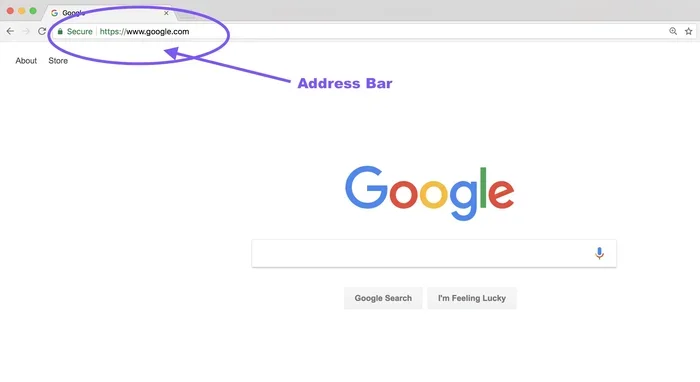
The URL bar, also known as the address bar, is the narrow field at the top of your web browser where you type or see website addresses. It is one of the most important parts of any browser, acting as your gateway to every website you visit. Understanding how it works helps you browse safer and faster on your laptop. This guide breaks down everything from basic function to pro tips for everyday use.
Every time you open a web browser on your laptop, there is a thin rectangular field sitting right at the top of the window. You type web addresses into it, see the current page’s link inside it, and sometimes even use it to search the internet. That field is the URL bar, and it is one of the most used tools you interact with every single day. Despite how often you use it, many people do not fully understand what it does or how to get the most out of it.
In this guide, we will walk through everything you need to know about the URL bar. We will cover what it is, where to find it, how it works, and simple tips that make your browsing better. Whether you are new to laptops or have been using one for years, this article has something useful for you.
Key Takeaways
- What it does: The URL bar displays and accepts web addresses, letting you navigate to any site on the internet.
- Where to find it: It sits at the top of every major web browser on your laptop, including Chrome, Firefox, Edge, and Safari.
- More than just addresses: Modern URL bars also work as search bars, letting you type queries directly.
- Security indicator: The URL bar shows padlock icons and HTTPS signals that help you spot safe websites.
- Performance link: Your laptop’s RAM affects how smoothly your browser handles URL bar tasks.
- Customization options: You can resize, hide, or extend the URL bar depending on your browser and preferences.
📑 Table of Contents
What Exactly Is a URL Bar?
The URL bar is the text field in your web browser that shows the address of the current webpage. URL stands for Uniform Resource Locator. In simple terms, it is the web address that tells your browser exactly where to go on the internet. When you type a web address and hit Enter, the URL bar sends that request to the server hosting the site, and the page loads on your screen.
You might also hear people call it the address bar, the browser toolbar, or the location bar. These are all names for the same thing. Every major browser uses it, including Google Chrome, Mozilla Firefox, Microsoft Edge, Apple Safari, and Opera. No matter which browser you prefer, the URL bar lives at the top of the window and serves as your main navigation tool.
Modern browsers have made the URL bar even more powerful over the years. It now handles more than just web addresses. You can type search queries directly into it, access bookmarks, view site security details, and even manage downloads. Think of it as the control center for your web browsing experience.
How the URL Bar Differs from the Search Bar
Many people confuse the URL bar with a search bar. In the past, browsers kept these two features separate. You would type a web address in one and a search query in the other. Today, most modern browsers have combined them into a single field. When you type a short phrase like “weather forecast” into the URL bar, your browser automatically runs it through your default search engine. When you type a full web address like “https://www.example.com,” the browser takes you directly to that site.
This combined design makes browsing faster and simpler. You no longer need to decide whether to use the URL bar or a search bar. Just type what you need, and the browser figures out the rest.
Where to Find the URL Bar on Your Laptop
The URL bar sits at the very top of your browser window, just below the title bar that shows the name of the current webpage. It is easy to spot because it is usually a long, thin white or light-gray field with a small lock icon or globe icon on the left side. On most laptops, the URL bar stretches across the full width of the browser window, giving you plenty of room to type long web addresses.
Here is where you will find the URL bar in popular browsers:
- Google Chrome: At the very top, just below the tab bar. It includes a search icon and a lock icon on the left.
- Mozilla Firefox: Positioned at the top of the window with a location icon and a search icon on the right side.
- Microsoft Edge: Sits at the top with a search field and a lock icon on the left.
- Apple Safari: Found at the top of the browser on macOS, with a search field and a lock icon on the left.
- Opera: Located at the top with a search bar and a URL input field combined.
No matter which browser you use, the URL bar always lives at the top. If you ever cannot find it, try pressing F6 or Ctrl+L on your keyboard. These shortcuts will highlight the URL bar immediately, making it easy to spot and use.
Using Your Mouse or Trackpad with the URL Bar
Clicking inside the URL bar is simple. Just move your cursor to the top of the browser window and click once. On a laptop, you can use the trackpad to tap or click on the bar. You can also use keyboard shortcuts to jump straight to it. Pressing Ctrl+L (or Cmd+L on a Mac) instantly places your cursor in the URL bar, ready for you to type a new address or search term.
How the URL Bar Works
Understanding how the URL bar works helps you browse with more confidence. When you type a web address into the bar, your browser does several things behind the scenes in a fraction of a second. First, it checks whether what you typed looks like a complete web address. If it does not start with “http://” or “https://,” the browser assumes you want to search and sends your input to your default search engine. If it does look like a full address, the browser connects directly to that website’s server and loads the page.
The URL bar also displays important security information. When you visit a secure website, you will see a small padlock icon next to the address. This tells you the connection between your browser and the website is encrypted. If a site is not secure, the browser may show a warning icon or mark the connection as “Not Secure.” Paying attention to these signals is one of the simplest ways to protect your personal information while browsing.
What Does a URL Look Like?
A typical web address in the URL bar includes several parts. Let us break down a common example:
- https:// — This is the protocol. It tells your browser how to communicate with the website.
- www. — This is the subdomain. It identifies the specific section of the website.
- example — This is the domain name. It is the unique name of the website.
- .com — This is the top-level domain. It tells you what type of organization runs the site.
- /path/page — This is the specific page or resource on the website.
When you see all of these parts together in the URL bar, you know exactly where you are on the internet. Over time, reading URLs becomes second nature and helps you judge whether a site is trustworthy before you even click.
The Role of RAM in URL Bar Performance
Have you ever noticed your browser slowing down when you have many tabs open? The URL bar itself is lightweight, but the browser as a whole uses your laptop’s memory to keep everything running smoothly. Your RAM plays a big role in how fast your browser responds when you type a new address or switch between tabs. If your laptop has limited memory, the URL bar and browser may feel sluggish, especially when you have many tabs open at once.
For smooth browsing, having enough RAM matters. Many modern laptops come with 8GB of memory, which handles everyday browsing well. If you want to know more about how much memory your laptop needs for comfortable web use, check out this guide on how much 8GB of RAM costs for a laptop. More RAM means faster tab switching, quicker page loads, and a more responsive URL bar experience overall.
URL Bar vs Search Bar: What Is the Difference?
Even though most modern browsers combine the URL bar and search bar into one field, the two serve different purposes. The URL bar is designed to take you directly to a specific website using its exact web address. The search bar (or search engine field) is designed to return results based on keywords and queries.
Here is a simple way to tell the difference:
- Type www.youtube.com in the URL bar — you go directly to YouTube.
- Type funny cat videos in the URL bar — your browser searches the web for that phrase.
Some browsers still include a separate search bar below or beside the URL bar. This was more common in older browser designs. Today, the combined approach is the standard because it reduces clutter and makes navigation faster. If you prefer a dedicated search bar, most browsers let you customize your toolbar layout through the settings menu.
When to Use Each
Use the URL bar when you already know the exact website address. This is the fastest way to reach a specific page. Use the search function when you are looking for something but do not know the exact website. For example, if you want to buy a book, typing the store’s address directly into the URL bar is faster than searching for it. But if you want to compare prices across stores, using the search function through the URL bar saves you time.
Security Features of the URL Bar
The URL bar is one of your first lines of defense against unsafe websites. Modern browsers use several visual cues in and around the URL bar to help you stay safe online. Understanding these cues is essential for anyone who browses the web regularly.
HTTPS and the Padlock Icon
When you visit a secure website, the URL bar displays a padlock icon and the address begins with “https://” instead of “http://.” The “s” stands for secure, meaning the connection between your browser and the website is encrypted. This encryption protects sensitive data like passwords, credit card numbers, and personal messages from being intercepted by third parties.
If you see “http://” without the “s” or a warning icon in the URL bar, proceed with caution. The site may not be encrypting your data, which could put your privacy at risk. Never enter personal information on a site that does not show a secure connection indicator in the URL bar.
Identifying Suspicious URLs
Scammers often create fake websites that look almost identical to real ones. They change just one or two letters in the web address to trick you. For example, “g00gle.com” instead of “google.com.” Always double-check the URL bar before entering any personal details. Look for misspellings, extra words, or unusual domain endings. A careful glance at the URL bar can save you from phishing attacks and identity theft.
Browser Warnings and the URL Bar
Modern browsers also display full-page warnings if they detect a dangerous site. You might see a red screen, a warning triangle, or a message saying “This site may harm your computer.” These warnings appear partly because of the information shown in the URL bar and the browser’s security checks. Always take these warnings seriously and avoid visiting flagged sites.
Tips for Using the URL Bar More Effectively
Once you understand what the URL bar does, you can start using it more efficiently. Here are some practical tips that will improve your daily browsing:
1. Use Keyboard Shortcuts
Keyboard shortcuts save you time and make navigation feel effortless. Press Ctrl+L (or Cmd+L on Mac) to jump directly to the URL bar from anywhere on the page. Press Ctrl+Enter to automatically add “www.” and “.com” to whatever you type. For example, type “youtube” and press Ctrl+Enter, and the browser opens youtube.com instantly.
2. Edit Only the Part You Need
You do not always need to highlight the entire web address to edit it. Double-click inside the URL bar to select the domain name portion, or triple-click to select the entire address. This makes it quick to change just the website you are visiting without deleting the whole thing.
3. Drag and Drop Links into the URL Bar
If you see a link on a webpage that you want to open in a new tab, you can drag it directly into the URL bar and release it. This is a quick alternative to right-clicking and selecting “Open in new tab.” It works in all major browsers and is a handy trick for multitasking.
4. Use the URL Bar to Access Bookmarks
Start typing a bookmarked site name in the URL bar, and your browser will suggest matching bookmarks and search suggestions. You can press Enter to open the suggestion without needing to navigate through your bookmark menu. This is a fast way to revisit your favorite sites.
5. Clear Your Browsing Data Regularly
The URL bar stores suggestions based on your browsing history. Over time, this can slow down suggestions and take up memory. Clearing your browsing data regularly keeps the URL bar responsive and helps protect your privacy. You can do this through your browser’s settings under “Privacy and Security.”
Common URL Bar Mistakes to Avoid
Even experienced laptop users sometimes make mistakes when using the URL bar. Here are a few common ones to watch out for:
- Ignoring the security indicators: Skipping the padlock icon check can leave you vulnerable to fake or unsafe websites.
- Trusting shortened URLs blindly: Links like “bit.ly/xyz” hide the real destination. Use a link expander tool before clicking unfamiliar shortened URLs.
- Not clearing the bar after a search: After searching, the URL bar may still show the search engine’s results page URL. Always check that you are on the actual site you intended to visit.
- Using the URL bar for sensitive logins on unsecured sites: Never type passwords into a site that does not show HTTPS in the URL bar.
- Overlooking browser updates: Outdated browsers may not display the latest security features in the URL bar. Keep your browser updated for the safest experience.
Avoiding these simple mistakes makes your browsing safer and more efficient. A little attention to the URL bar goes a long way toward protecting your data and improving your online experience.
Final Thoughts
The URL bar might look like a small, simple field at the top of your browser, but it is one of the most powerful tools you have for navigating the web. It shows you where you are, lets you go anywhere, and helps you stay safe with built-in security indicators. Taking a few minutes to understand how it works and how to use it well can transform the way you browse on your laptop.
From keyboard shortcuts to security checks, the tips in this guide are easy to apply right away. Start using the URL bar more intentionally, and you will notice faster, safer, and more confident browsing every single day. The more you know about this everyday tool, the more control you have over your online experience.
Frequently Asked Questions
What is the URL bar used for?
The URL bar is used to type web addresses and navigate to specific websites. It also displays the current page’s address and shows security indicators like the padlock icon. Modern browsers let you use it for search queries too.
Is the URL bar the same as the address bar?
Yes, the URL bar and address bar are the same thing. Both terms refer to the text field at the top of your browser where you see and type web addresses. Different browsers may use one name or the other.
Can the URL bar do more than just show web addresses?
Absolutely. Today’s URL bar also works as a search field, displays site security status, shows bookmark suggestions, and can even manage downloads. It has evolved into a central navigation hub for your browser.
How do I find the URL bar on my laptop?
The URL bar is always at the top of your browser window. You can also press Ctrl+L (or Cmd+L on Mac) to instantly highlight it. It is a thin field with a lock or globe icon on the left side.
Why does the URL bar sometimes show a warning icon?
A warning icon in the URL bar means the browser has detected a potential security issue with the website. This could be an insecure connection, a fake or phishing site, or a certificate problem. Always avoid entering personal information when you see a warning.
Does having more RAM affect URL bar performance?
The URL bar itself uses very little memory, but your overall browser performance depends on your laptop’s RAM. More memory helps your browser run smoothly, especially when you have many tabs open alongside using the URL bar frequently.
=== CONCLUSION ===
The URL bar is a simple yet essential part of every web browser on your laptop. It is your direct line to every website, search query, and online service you use daily. Understanding how it works, where to find it, and how to use it safely gives you more control over your browsing experience. From security indicators to keyboard shortcuts, the small tips in this guide can make a big difference. Take a moment to explore your URL bar more closely — you might be surprised at how much it can do.