What Is Too Hot for a Cpu
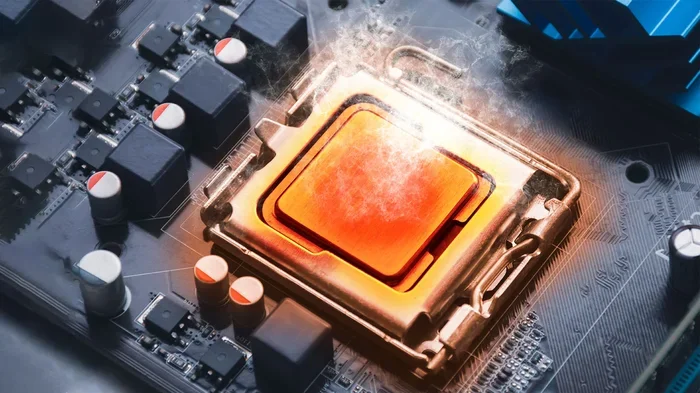
A CPU running above 90°C (194°F) under load is generally considered too hot and can cause long-term damage. Most processors are designed to operate safely between 40°C and 80°C, with thermal throttling kicking in around 90°C to 95°C. Keeping your CPU temperature in check through proper laptop cooling, clean fans, and good ventilation is essential for performance and longevity.
This is a comprehensive guide about What Is Too Hot For A Cpu.
Key Takeaways
- Safe Range: Most CPUs should stay between 40°C and 80°C during normal use and under 90°C under heavy load.
- Thermal Throttling: When temperatures hit 90°C to 95°C, your processor slows down automatically to protect itself.
- Overheating Causes: Dust buildup, dried thermal paste, poor ventilation, and high workload all contribute to excessive heat.
- Cooling Solutions: Using a quality CPU cooler, cleaning fans regularly, and improving airflow can dramatically lower temperatures.
- Long-Term Damage: Sustained high heat reduces component lifespan and can lead to permanent hardware failure.
- Monitoring Matters: Regularly checking your internal temperature with software helps you catch problems early.
[FEATURED_IMAGE_PLACEHOLDER]
Your computer’s processor works hard every single day. Whether you are gaming, editing videos, or just browsing the web, your CPU generates heat. And when that heat goes beyond safe limits, trouble starts brewing. So, what is too hot for a CPU? The short answer is anything above 90°C (194°F) during regular use. But the full picture is a bit more nuanced, and understanding it can save your hardware from serious damage.
In this guide, we will walk you through everything you need to know about CPU temperature limits. You will learn what causes overheating, how to spot the warning signs, and what you can do to keep your processor running cool. Whether you use a laptop or a desktop, this information matters. Because heat is the silent killer of computer components.
Let us start with the basics. Every processor has a safe operating temperature range. Staying within that range means your system runs smoothly and lasts longer. Going beyond it invites thermal throttling, performance drops, and eventually, hardware failure. The good news is that preventing this is easier than most people think.
What Temperature Is Too Hot for a CPU?
Understanding safe temperature ranges is the first step toward protecting your processor. Different workloads produce different amounts of heat, so your cpu temperature will fluctuate throughout the day. The key is knowing where the danger zones are.
Normal Temperature Ranges
Here is a simple breakdown of what to expect:
- Idle Temperature: 30°C to 50°C (86°F to 122°F) when your computer is not doing much.
- Light Use: 50°C to 65°C (122°F to 149°F) during web browsing, office work, or streaming.
- Heavy Load: 65°C to 85°C (149°F to 185°F) during gaming, video editing, or rendering.
- Danger Zone: Anything above 90°C (194°F) under load is a red flag.
- Critical Limit: Most CPUs will shut down automatically above 100°C to prevent destruction.
These numbers apply to most modern processors from Intel and AMD. However, some high-performance chips are designed to run warmer under full load. Always check your specific processor’s specifications for the exact maximum junction temperature, also known as Tjmax.
Why Does Your CPU Get Hot?
Heat is a natural byproduct of electrical activity inside your processor. When electricity flows through billions of transistors, some of it converts into thermal energy. The faster and harder your CPU works, the more heat it produces. Here are the most common reasons your processor heat spikes:
- Heavy workloads: Running demanding software, games, or multiple apps at once.
- Dust buildup: Dust clogs fans and heatsinks, blocking airflow over time.
- Dried thermal paste: The compound between your CPU and cooler degrades after a few years.
- Poor ventilation: Laptops especially suffer when vents are blocked by surfaces like beds or couches.
- High ambient temperature: Using your computer in a hot room makes cooling much harder.
- Background processes: Malware or runaway software can push your CPU usage to 100% without you knowing.
Each of these factors alone might not cause major problems. But when they combine, temperatures can climb fast. And sustained high heat is where the real damage begins.
The Dangers of an Overheating CPU
Many people ignore high temperatures because their computer still works. But that does not mean nothing is wrong. Overheating causes both immediate and long-term problems that can seriously affect your system.
Thermal Throttling and Performance Loss
When your processor gets too hot, it does something clever to protect itself. It slows down. This is called thermal throttling. Your CPU reduces its clock speed to generate less heat. The result? Your computer feels sluggish. Games stutter. Videos lag. And no amount of restarting will fix it until the temperature drops.
Thermal throttling is a safety feature, not a bug. But it is a clear sign that your cooling solution is not keeping up. If you notice sudden performance drops, check your internal temperature first. It is often the culprit behind frustrating slowdowns.
Long-Term Hardware Damage
Short bursts of high heat are usually fine. But running your CPU at extreme temperatures day after day takes a toll. Here is what can happen over time:
- Degraded thermal paste: High heat accelerates the drying out of thermal compound, creating a vicious cycle.
- Fan bearing wear: Fans working overtime to cool a hot CPU wear out faster.
- Motherboard stress: Excessive heat radiates to nearby components, shortening their lifespan.
- Capacitor failure: Heat is the number one enemy of capacitors on your motherboard.
- Permanent silicon degradation: Extreme temperatures can physically damage the processor die over time.
Think of heat like sun exposure for your skin. A little is fine. But years of repeated damage add up. Protecting your hardware from excessive heat is one of the best investments you can make.
How to Monitor Your CPU Temperature
You cannot fix what you cannot see. That is why monitoring your cpu temperature is so important. Fortunately, several free tools make this easy.
Best Free Monitoring Tools
- HWMonitor: A simple, reliable tool that shows real-time temperatures, voltages, and fan speeds.
- Core Temp: Lightweight and focused specifically on per-core temperature readings.
- Open Hardware Monitor: Provides detailed sensor data for both CPU and GPU.
- MSI Afterburner: Popular among gamers for its on-screen overlay and monitoring features.
Set up your monitoring tool and let it run during your typical workload. Pay attention to peak temperatures under load and idle temperatures when your system is not doing much. If your operating temperature regularly exceeds 90°C under load, it is time to take action.
Common Causes of CPU Overheating
Identifying the root cause is essential for fixing overheating problems. Here are the most common culprits and how to spot them.
Dust and Dirt Buildup
This is the number one cause of overheating in both laptops and desktops. Over weeks and months, dust accumulates on fan blades, clogs heatsink fins, and blocks ventilation openings. Even a thin layer of dust can significantly reduce cooling efficiency. If you have not cleaned your computer in over six months, dust is likely a major factor.
Thermal Paste Degradation
Thermal paste fills microscopic gaps between your CPU and its cooler, ensuring efficient heat transfer. But this paste dries out over time, usually after two to three years. When it does, heat transfer becomes less efficient, and temperatures rise. Reapplying thermal paste is one of the most effective and cheapest cooling upgrades you can perform.
Inadequate Cooling Solutions
Not all cooling solutions are created equal. Stock coolers that come with processors are designed for basic workloads. If you push your CPU hard with gaming or content creation, you may need an upgrade. A quality air cooler or liquid cooling solution can make a massive difference in keeping temperatures under control.
If you are wondering what kind of cooling system is right for your setup, check out What Is The Best Cpu Cooler for a detailed guide on choosing the right option for your needs.
Poor Airflow and Ventilation
Even the best cooler will struggle if air cannot flow freely through your system. In laptops, this often means using your device on soft surfaces like pillows or blankets that block the vents. On desktops, cable management and case fan placement play a huge role in maintaining good airflow. A well-ventilated case with properly configured fans keeps hot air out and cool air flowing in.
How to Keep Your CPU Cool
Prevention is always better than repair. Here are practical steps you can take right now to lower your processor temperatures and extend your hardware’s lifespan.
1. Clean Your Computer Regularly
Use compressed air to blow dust out of your fans, vents, and heatsinks every three to six months. For laptops, pay special attention to the exhaust vents. For desktops, open the case and clean all visible dust. This simple maintenance task can drop temperatures by 5 to 10 degrees Celsius.
2. Replace Thermal Paste
If your computer is more than two years old and has never had its thermal paste replaced, now is a good time. Remove the cooler, clean off the old paste with isopropyl alcohol, apply a pea-sized dot of fresh thermal paste, and reattach the cooler. This small effort can yield impressive temperature improvements.
3. Improve Airflow
For desktop users, make sure your case fans are working properly and arranged to create positive airflow. Intake fans at the front pull cool air in, and exhaust fans at the back push hot air out. For laptop users, consider a laptop cooling pad with built-in fans to boost airflow from below.
4. Manage Your Workload
Sometimes the simplest fix is reducing the load on your processor. Close unused applications, check for background processes eating up resources, and avoid running too many heavy programs simultaneously. If you are a gamer, you might also want to read about Is Fortnite A Cpu Or Gpu Game to understand how different games stress your hardware differently.
5. Upgrade Your Cooling System
If basic maintenance does not solve your overheating issues, it may be time for a hardware upgrade. An aftermarket air cooler or an all-in-one liquid cooler can handle significantly more heat than stock solutions. These upgrades are especially worthwhile for users who overclock or run demanding workloads regularly.
Protecting your investment goes beyond just cooling. If you want to learn more about what contributes to the overall longevity of your system, read What Is Best Investment For Lifespan Of Pc for insights on keeping your hardware running strong for years.
When to Worry About CPU Temperature
Not every temperature spike is a reason to panic. But certain situations demand immediate attention. Here is when you should take action:
- Your computer shuts down unexpectedly: This is your CPU hitting its critical thermal limit and triggering a safety shutdown.
- You see blue screen errors: Overheating can cause system instability and BSOD crashes.
- Fans run at full speed constantly: If your fans are always at maximum RPM, your cooling system is struggling.
- Performance drops suddenly: Thermal throttling kicks in when temperatures spike, causing noticeable slowdowns.
- Burning smell or unusual noises: These are emergency signs. Shut down immediately and inspect your hardware.
If you experience any of these symptoms, power down your computer and let it cool completely. Then investigate the root cause using the tips above. Ignoring these warning signs can lead to irreversible damage.
Quick Tips to Prevent Overheating
- Keep your computer on a hard, flat surface to allow proper ventilation.
- Use a can of compressed air for quick dust removal between deep cleanings.
- Set your fan curves to be more aggressive in your BIOS or software.
- Avoid placing your laptop near heat sources like radiators or windows with direct sunlight.
- Update your drivers and BIOS, as manufacturers often include thermal management improvements.
- Undervolt your CPU if you are comfortable with advanced settings, reducing heat without sacrificing performance.
Final Thoughts
So, what is too hot for a CPU? Anything consistently above 90°C (194°F) under load is too hot and needs attention. Your processor is the brain of your computer, and treating it with care pays off in performance and longevity. By monitoring your temperatures, keeping your system clean, and investing in proper cooling, you can avoid the worst consequences of overheating.
Remember that heat management is not just about comfort, it is about protecting your investment. A few minutes of maintenance each year can add years of reliable service from your hardware. Keep your CPU temperature in check, and your computer will reward you with smooth, stable performance for a long time to come.
Take action today. Check your temperatures, clean your system, and make sure your cooling solution is up to the task. Your processor will thank you for it.
Frequently Asked Questions
What temperature is too hot for a CPU during gaming?
During gaming, a CPU temperature above 90°C (194°F) is considered too hot. Most processors are designed to handle up to about 85°C under heavy gaming loads comfortably. If your CPU regularly exceeds 90°C while gaming, you should improve your cooling solution or reduce your workload.
Can a hot CPU damage other components?
Yes, excessive heat from a CPU can radiate to nearby components like the motherboard, RAM, and GPU. Over time, this sustained heat exposure can degrade these parts faster than normal. Keeping your processor cool helps protect your entire system.
How often should I replace my thermal paste?
Thermal paste should typically be replaced every two to three years. If you notice your temperatures creeping up over time even after cleaning dust, dried thermal paste is likely the cause. Replacing it is inexpensive and can make a noticeable difference.
Is 80°C too hot for a CPU?
No, 80°C is generally safe for a CPU under heavy load. Most processors operate well within the 65°C to 85°C range during demanding tasks. However, if 80°C is your idle temperature, that could indicate a cooling problem that needs attention.
Do laptop coolers really help reduce CPU temperature?
Yes, laptop cooling pads can help reduce CPU temperatures by 3 to 10 degrees Celsius depending on the model and your setup. They work best when they blow air directly into your laptop’s intake vents. However, a cooling pad cannot fix underlying issues like dust buildup or dried thermal paste.
What is thermal throttling and is it bad?
Thermal throttling is when your CPU automatically reduces its clock speed to lower heat output. It is a protective feature, not a defect. However, frequent thermal throttling means your cooling system is not keeping up, and sustained throttling can reduce your processor’s lifespan over time.