What Is the Ins Key
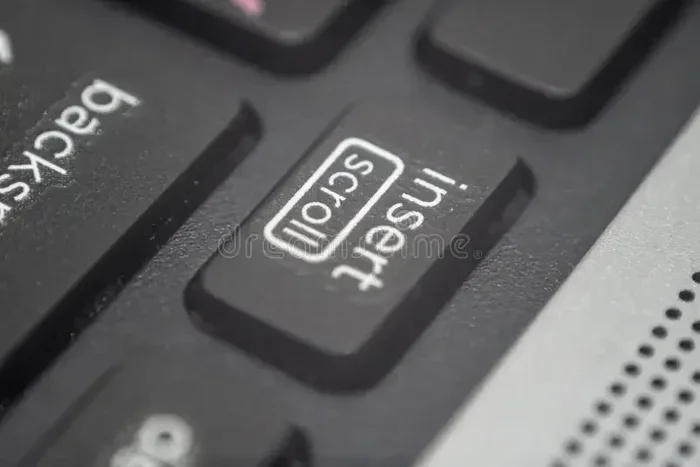
The Ins Key is a often-overlooked button on your laptop keyboard that controls how text gets inserted while typing. It switches between insert mode and overwrite mode, changing how characters appear in documents, spreadsheets, and text fields. Knowing when and how to use the Ins Key can save you from accidental text deletions and improve your typing efficiency.
Key Takeaways
- The Ins Key toggles between insert and overwrite mode, controlling how new text interacts with existing text.
- Most modern laptops hide the Ins Key or combine it with another key, making it easy to miss.
- Pressing Ins Key by accident can delete text in overwrite mode, which catches many users off guard.
- The Ins Key is essential for spreadsheet and document editing, especially in Excel and Word.
- You can enable or disable the Ins Key through keyboard settings or function key combinations.
- Understanding the Ins Key improves your typing speed and helps avoid frustrating editing mistakes.
📑 Table of Contents
What Is the Ins Key?
The Ins Key is short for the Insert key. It lives on your laptop keyboard, though you might not even notice it. This small key has a big job. It controls how new text interacts with the text already on your screen.
When you type, the Ins Key decides whether your new characters push existing text forward or replace it. Think of it like a toggle switch. Flip it one way, and your typing inserts smoothly. Flip it the other way, and your typing overwrites what is already there.
Many laptop users go years without ever touching this key. That is because most laptops today hide it or combine it with another key. But once you learn what it does, you will wonder how you ever lived without knowing about it. The Ins Key is a quiet powerhouse for anyone who types a lot.
If you are curious about other laptop keyboard features, check out what the laptop mouse is called. Understanding your full keyboard layout helps you use your laptop more effectively.
Where Is the Ins Key Located on a Laptop?
Finding the Ins Key on a laptop can be tricky. Unlike a full desktop keyboard, laptops have limited space. Manufacturers often shrink or relocate certain keys to save room.
On most full-sized laptop keyboards, the Ins Key sits near the top-right area. It is usually close to the Delete key and the Home key. You might find it in the row above the arrow keys. On smaller laptops, the Ins Key often hides as a secondary function. You may need to hold down the Fn key to access it.
Here are common locations where you might find the Ins Key:
- Near the Delete key on the right side of the keyboard
- Combined with another key, requiring the Fn key to activate
- In the numeric keypad area, if your laptop has one
- Above the arrow keys on larger laptop models
If you cannot find it, do not worry. Many modern laptops simply do not include a dedicated Ins Key. Instead, they offer a software alternative or a function key combo. This design choice saves space but can confuse users who need the feature.
Ins Key on Different Laptop Brands
Different laptop brands handle the Ins Key in their own way. Dell laptops often place it as a shared function key. HP laptops sometimes include it in the numeric keypad area. Lenovo ThinkPads usually keep it as a standalone key. Apple MacBooks do not have a traditional Ins Key at all, but macOS offers built-in alternatives for insert functionality.
How Does the Ins Key Work?
The Ins Key operates in two modes: insert mode and overwrite mode. Understanding these two modes is the key to using the Ins Key correctly.
In insert mode, new text slides into the gap. It pushes the existing text forward without removing anything. This is the default mode on most computers. When you type in a document, you are usually in insert mode.
In overwrite mode, new text replaces the existing text character by character. Each letter you type overwrites the character at the cursor position. This mode is useful when you want to replace specific text quickly. But it can be dangerous if you accidentally turn it on without realizing.
Most word processors and text editors show you which mode you are in. A simple indicator at the bottom of the screen usually displays either “Insert” or “Ovr” or “Overwrite.” If you see “Ovr,” the Ins Key has been toggled on.
The Role of the Ins Key in Text Editing
The Ins Key plays a big role in text editing workflows. When you are fixing a typo in the middle of a paragraph, insert mode lets you slip new letters in seamlessly. When you are replacing a block of text, overwrite mode lets you type over it directly.
Spreadsheet programs like Excel rely heavily on the Ins Key too. When you are editing cells, switching between insert and overwrite can change how your data looks. Many spreadsheet users toggle the Ins Key without even thinking about it.
If you want to learn more about other laptop hardware components that affect your typing experience, you might find what the RAM on a laptop does helpful. A well-equipped laptop handles heavy typing and editing tasks much more smoothly.
Common Uses for the Ins Key
The Ins Key might seem simple, but it serves several important purposes. Here are the most common ways people use it every day.
1. Editing Documents Without Losing Text
Insert mode is your best friend when editing long documents. You can add sentences, fix names, or insert commas without deleting surrounding text. The Ins Key keeps your original content safe while you make changes.
2. Replacing Text Quickly
Overwrite mode shines when you need to swap out a word or phrase. Instead of deleting and retyping, you simply toggle the Ins Key and type over the old text. This saves time, especially in code editing or data entry.
3. Working with Spreadsheets
Excel users benefit greatly from the Ins Key. When editing cell contents, insert mode lets you add characters mid-entry. Overwrite mode lets you replace entire cell values in one smooth motion. Many Excel power users keep the Ins Key toggle handy at all times.
4. Programming and Code Editing
Programmers use the Ins Key more than most people realize. When writing or editing code, insert mode prevents accidental overwrites of important syntax. Switching to overwrite mode can be handy for quick find-and-replace tasks within a line of code.
For more tips on keeping your laptop running smoothly for all these tasks, check out how to know what RAM is compatible with your laptop. The right memory setup ensures your editing software runs without lag.
Ins Key Problems and How to Fix Them
Like any laptop feature, the Ins Key can cause headaches. The most common problem is accidentally toggling it on and not knowing how to turn it off. Suddenly, every letter you type replaces the next character instead of inserting before it.
Here are the most common Ins Key problems and their solutions:
- Text is overwriting instead of inserting — Press the Ins Key once to toggle back to insert mode. This is the most frequent issue and the easiest fix.
- The Ins Key does not respond at all — Check if your laptop uses a Fn key combination to access it. Try holding Fn and pressing the Ins Key key.
- The Ins Key works in some programs but not others — Some applications override the Ins Key behavior. Check the program settings for keyboard shortcut options.
- The Ins Key is missing from your laptop — Use the On-Screen Keyboard in Windows or keyboard shortcuts to access insert functionality.
If your laptop keyboard feels unresponsive in general, the issue might go beyond the Ins Key. Sometimes hardware problems affect multiple keys at once. For more on keeping your laptop hardware in top shape, explore what good RAM for a laptop looks like. Proper hardware keeps all your keyboard functions working as they should.
How to Check Your Ins Key Status
Windows users can check the Ins Key status in the status bar of most applications. Look at the bottom-left or bottom-right corner of your screen. You should see “Insert” or “Ovr” displayed. On Mac, the insert functionality works differently, and macOS does not always show a visual indicator for overwrite mode.
Tips for Using the Ins Key Like a Pro
Once you understand the Ins Key, a few pro tips can make your typing experience even better. These small habits save time and prevent frustrating mistakes.
- Glance at the status bar before you start typing a long document. Make sure you are in insert mode.
- Use the Ins Key shortcut to toggle quickly. On most keyboards, pressing the Ins Key once switches modes instantly.
- Train your muscle memory. If you use overwrite mode often, practice toggling the Ins Key without looking at the keyboard.
- Be careful when typing in the middle of a sentence. Accidentally hitting the Ins Key mid-sentence can cause unexpected text replacement.
- Customize your keyboard settings in Windows or your operating system if the Ins Key behavior does not match your preferences.
Ins Key Shortcuts You Should Know
Keyboard shortcuts make the Ins Key even more powerful. In most Windows applications, pressing Ins Key toggles between insert and overwrite mode. In some programs, you can combine it with Ctrl or Shift for additional functions. Learning these shortcuts turns a simple key into a productivity tool.
Another useful trick is to use the Ins Key when copying and pasting. In many text editors, pressing Ctrl+Insert copies selected text, while Shift+Insert pastes it. These classic shortcuts date back to early computing and still work today.
Frequently Asked Questions
Can I use the Ins Key on a laptop without a numeric keypad?
Yes, you can. On laptops without a numeric keypad, the Ins Key is usually found as a shared function key. Hold down the Fn key and press the key labeled with “Ins” or “Insert.” Some laptops also let you enable the Ins Key through the On-Screen Keyboard in Windows settings.
Why does the Ins Key sometimes not work?
The Ins Key may not work if it is set as a secondary function and you are not pressing the Fn key. Driver issues or keyboard settings can also interfere. Try updating your keyboard drivers or checking your laptop manufacturer’s support page for specific function key configurations.
Is the Ins Key the same as the Insert key?
Yes, they are the same thing. Ins Key is simply a shorter way of saying Insert Key. Both terms refer to the same keyboard key that toggles between insert and overwrite modes on your laptop.
How do I turn off overwrite mode?
Press the Ins Key once to switch back to insert mode. You should see the “Insert” or “Ovr” indicator in your application’s status bar change accordingly. If it does not change, try restarting your application or checking your keyboard settings in your operating system.
Does the Ins Key work in all programs?
Most text-based programs support the Ins Key, including Word, Excel, Notepad, and web browsers. However, some specialized applications or games may override or ignore the Ins Key behavior. The key’s functionality depends on how each program handles keyboard input.
What happens if I press Ins Key by accident?
If you accidentally press the Ins Key, your typing will switch to overwrite mode. New characters will replace existing text instead of inserting before it. Simply press the Ins Key again to return to insert mode and resume normal typing. This quick fix takes only a second once you know what to look for.
Conclusion
The Ins Key is one of those laptop features that quietly does its job in the background. Most people never think about it until something goes wrong. But understanding how this key works gives you more control over your typing and editing experience.
Whether you are writing a report, editing a spreadsheet, or coding a new project, the Ins Key helps you work the way you want. It lets you choose between inserting new text smoothly or replacing existing text quickly. Both modes have their place, and knowing when to use each one makes you a more efficient typist.
Take a moment to find the Ins Key on your laptop keyboard. Practice toggling between insert and overwrite modes. Once you build the habit, you will wonder how you ever managed without it. Small keys like this one make a big difference in your daily laptop experience.