What Is Command Option Escape

Command Option Escape is a powerful Mac keyboard shortcut that opens the Force Quit Applications window. It lets you instantly close frozen or unresponsive apps without restarting your laptop. Every Mac user should know this essential shortcut for quick troubleshooting and smooth productivity.
Have you ever been in the middle of an important project on your Mac laptop when suddenly an app freezes? Your cursor spins endlessly. The screen locks up. You try clicking everywhere but nothing responds. This is exactly the moment when Command Option Escape becomes your best friend.
This keyboard shortcut is one of the most useful tools built into macOS. It gives you a fast way to close apps that have stopped working. Whether you are a student, a professional, or just someone who uses a Mac daily, knowing this shortcut saves you time and frustration. In this guide, we will cover everything you need to know about Command Option Escape and how to use it like a pro.
Key Takeaways
- Force Quit Made Easy: Command Option Escape opens the Force Quit window in seconds
- Saves Time: You can close frozen apps without restarting your entire laptop
- Simple Shortcut: Press Command + Option + Escape together on your keyboard
- Works on All Macs: This shortcut works on every Mac laptop and desktop
- Prevents Data Loss: Force quitting can protect your system from crashes caused by stuck apps
- Pair With Other Shortcuts: Combine it with other Mac shortcuts for maximum productivity
📑 Table of Contents
- What Is Command Option Escape?
- When Should You Use Command Option Escape?
- How To Use Command Option Escape Step by Step
- Other Essential Mac Shortcuts You Should Know
- Common Mistakes People Make with Command Option Escape
- Troubleshooting: What If Command Option Escape Does Not Work?
- Final Thoughts on Command Option Escape
What Is Command Option Escape?
Command Option Escape is a built-in Mac keyboard shortcut. When you press these three keys together, a special window pops up on your screen. This window is called the Force Quit Applications window. It shows you a list of all the apps currently running on your Mac.
From this list, you can select any app that has stopped responding and force it to close. This is much faster than trying to click the red X button or waiting for the app to unfreeze on its own. Think of it as an emergency exit button for your Mac.
The shortcut works on every Mac laptop and desktop. It has been part of macOS for many years. Apple built it into the system specifically to help users deal with frozen or unresponsive applications. It is one of those hidden gems that many people never discover until they really need it.
How Does It Work?
Here is the simple process. You press Command, Option, and Escape at the same time. The Force Quit Applications window appears immediately. You scroll through the list of open apps. You click on the one that is not responding. Then you click the Force Quit button. The app closes within seconds.
It really is that simple. No complicated steps. No need to restart your whole computer. This shortcut is part of what makes the Mac operating system so user-friendly. Even if you are not very tech-savvy, you can learn to use it in under a minute.
When Should You Use Command Option Escape?
There are several situations where this shortcut comes in very handy. Let us look at the most common ones. Understanding when to use it helps you respond faster and keep your workflow smooth.
App Freezes and Crashes
The most obvious reason to use Command Option Escape is when an app freezes. This happens more often than you might think. Sometimes a browser tab with too many videos can cause your entire browser to lock up. A heavy design app like Photoshop might stop responding after a long session. Even a simple word processor can freeze unexpectedly.
Instead of waiting and hoping the app comes back, you use the shortcut. You force quit the frozen app. Then you can reopen it fresh and get back to work. This prevents you from losing valuable time during your workday.
System Slowdowns
Sometimes your Mac laptop starts running slowly. Multiple apps running in the background can eat up your RAM and processing power. When your system feels sluggish, opening the Force Quit window lets you see which apps are using the most resources. You can close the ones you do not need right away.
Your laptop’s overall performance depends on many factors, including how well you manage your open apps. Using Command Option Escape regularly when things slow down is a smart habit. It keeps your system responsive and fast.
Unresponsive Dock or Menu Bar
On rare occasions, the Dock or the menu bar at the top of your screen might become unresponsive. You cannot right-click. You cannot open new apps from the Dock. In these situations, Command Option Escape is your go-to fix. You can force quit the Finder or any other system process that is causing the issue.
How To Use Command Option Escape Step by Step
Let us walk through the exact steps. Follow along and you will master this shortcut in no time.
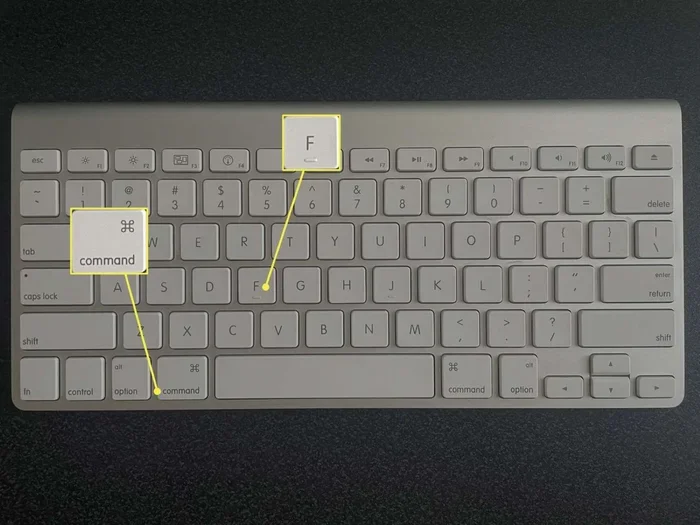
- Press the three keys together: Command (⌘), Option (⌥), and Escape (⎋). Hold them at the same time.
- Wait for the window: The Force Quit Applications window appears on your screen.
- Find the frozen app: Look through the list of open applications. The unresponsive one is usually marked as “Not Responding.”
- Select the app: Click on the name of the app you want to close.
- Click Force Quit: Press the Force Quit button at the bottom of the window.
- Confirm if needed: Some apps will ask you to confirm. Click Force Quit again to confirm.
That is all there is to it. You can also use this shortcut to quit apps normally. Simply select the app and click Quit instead of Force Quit. This gives you a gentle way to close apps without the forceful termination.
Quick Tips for Using the Shortcut
- Keep your fingers ready: The three keys are close together on your keyboard. Practice the finger position so it becomes second nature.
- Use it proactively: If you notice an app acting weird, do not wait. Force quit it early before it affects the rest of your system.
- Check your app list: Before force quitting, check if you have unsaved work in the app. Force quitting will close the app without saving.
- Combine with other shortcuts: After force quitting, you can use Command + Q to quit other apps normally.
Other Essential Mac Shortcuts You Should Know
Command Option Escape is just one of many powerful Mac shortcuts. Learning a few more can make your laptop experience much better. Here are some shortcuts that every Mac user should know.
Command + Option + Esc vs. Command + Q
It is important to understand the difference between these two shortcuts. Command + Q quits an app normally. It saves your work and closes the app the proper way. Command Option Escape forces an app to close immediately, even if it is not responding. Use Command + Q for routine quitting and Command Option Escape for emergencies.
Command + Option + Delete
On some Mac keyboards, pressing Command + Option + Delete will immediately force quit the frontmost app. This is an even faster way to close a frozen app without opening the Force Quit window. It is a great alternative that saves you one extra step.
Command + Tab for App Switching
Another very useful shortcut is Command + Tab. This lets you switch between open apps quickly. If an app is frozen but you need to switch to another one, use Command + Tab first. Then you can go back and use Command Option Escape to close the frozen app.
Keeping your laptop running smoothly is a smart investment for the lifespan of your PC or Mac. Shortcuts like these help you manage your system more efficiently and reduce wear and tear on your hardware.
Common Mistakes People Make with Command Option Escape
Even though this shortcut is simple, people sometimes make mistakes when using it. Here are a few things to watch out for.
Force Quitting Without Saving
The biggest mistake is force quitting an app that has unsaved work. When you force quit, the app closes immediately. Any unsaved changes are lost. Always try to save your work first if you have time. Use Command + S to save quickly before using the shortcut.
Confusing It with Other Shortcuts
Some people mix up Command Option Escape with other Mac shortcuts. Remember that Command + Option + Escape opens the Force Quit window. Command + Option + Delete force quits the front app directly. Each shortcut has a different purpose. Knowing the difference helps you respond faster.
Using It Too Often
Force quitting should be a last resort. If you find yourself using Command Option Escape multiple times a day, there might be a bigger problem. The app you are using could be outdated or incompatible with your Mac. Your laptop mouse or trackpad drivers might need updating. Check for underlying issues instead of relying on force quit every time.
Not Checking for Updates
Frozen apps are often caused by software bugs. Apple releases macOS updates regularly to fix these issues. Keeping your system updated reduces the need to use force quit. Make it a habit to check for updates in your System Settings.
Troubleshooting: What If Command Option Escape Does Not Work?
In rare cases, you might find that Command Option Escape does not work. This is unusual but it can happen. Here are some things you can try.
First, make sure you are pressing all three keys at the same time. Timing matters. If you press them one after another, the shortcut will not trigger. Practice pressing them simultaneously until it becomes smooth.
Second, check your keyboard settings. Go to System Settings and look at Keyboard shortcuts. Make sure the Force Quit shortcut is enabled. It should be enabled by default, but sometimes it gets turned off accidentally.
Third, try restarting your Mac. If your system is deeply frozen, even the shortcut might not work. A full restart clears most temporary issues. Once your Mac boots back up, everything should work normally again.
If you are still having trouble, your laptop might have a hardware issue. A failing keyboard or an outdated CPU cooler that causes overheating can lead to unresponsive behavior. In these cases, checking your hardware health is important.
Final Thoughts on Command Option Escape
Command Option Escape is one of those essential Mac shortcuts that everyone should know. It is simple, fast, and incredibly useful. Whether you are dealing with a frozen browser, a stuck design app, or a slow system, this shortcut gives you instant control. It turns a frustrating situation into a quick fix.
The beauty of this shortcut is that it works on every Mac. It does not matter which model you have or which version of macOS you are running. Command Option Escape is always there for you when you need it. Make it a habit to use it whenever an app stops responding. Your future self will thank you the next time your laptop freezes during an important task.
Take a few minutes today to practice the shortcut. Press Command + Option + Escape a few times. Get comfortable with the Force Quit window. Once you know how to use it, you will wonder how you ever lived without it. It is a small shortcut that makes a big difference in your daily Mac experience.
Frequently Asked Questions
What does Command Option Escape do on a Mac?
Command Option Escape opens the Force Quit Applications window on your Mac. This window lets you see all running apps and close any that are frozen or not responding. It is a quick way to regain control of your system without restarting your laptop.
How do I press Command Option Escape?
Press the Command key, the Option key, and the Escape key at the same time. All three keys are located close together on your Mac keyboard. Practice the finger position until it feels natural and easy to do quickly.
Is Command Option Escape the same as quitting an app normally?
No, they are different. Command + Q quits an app normally and saves your work. Command Option Escape forces the app to close immediately, even if it is frozen. Use force quit only when an app is not responding to normal quit commands.
Will I lose my work if I use Command Option Escape?
Yes, if the app has unsaved work, force quitting will close it without saving. Always try to save your work first using Command + S before using the shortcut. This prevents any data loss from unsaved changes.
Can Command Option Escape fix a completely frozen Mac?
If your entire system is frozen, the shortcut might not work. In that case, you may need to press and hold the power button to force restart your Mac. Regular restarts and updates help prevent deep system freezes.
Does Command Option Escape work on all Mac models?
Yes, it works on every Mac laptop and desktop. Whether you have a MacBook Air, MacBook Pro, iMac, or Mac Mini, this shortcut is built into macOS and works the same way across all models.