What Is a Dism Error 87
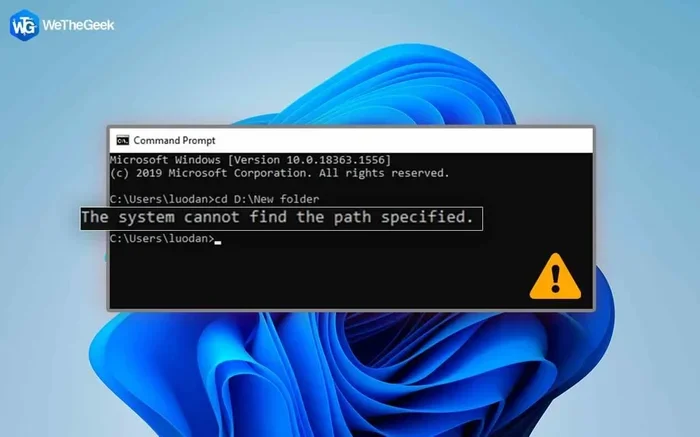
DISM Error 87 is a common Windows command-line error that stops your system repair tool from working properly. It usually shows up when you try to run the DISM command to fix Windows Update or image problems on your laptop. The good news is that a few simple fixes can resolve this error quickly and get your PC running smoothly again.
If you have ever stared at your laptop screen and seen DISM Error 87 pop up after typing a command, you know how frustrating it can be. This error basically tells you that something went wrong with the DISM tool, which Windows uses to fix system image problems. The error message usually says “The parameter is incorrect,” and it can stop your repair process in its tracks.
The good news? You are not alone, and this error is very fixable. Thousands of laptop users run into DISM Error 87 every day, and most of them solve it without needing a technician. In this guide, we will walk you through exactly what causes this error and how to fix it step by step. Whether you are a beginner or a seasoned user, you will find clear, practical advice here.
DISM stands for Deployment Image Servicing and Management. It is a powerful command-line tool built into Windows. People use it to repair the Windows image, fix corrupted files, and resolve update issues. Think of it as a deep repair tool for your operating system. When something goes wrong with Windows Update or system files, DISM is often the first tool people turn to. That is why seeing Error 87 feels so alarming. But dont worry. We will break it all down for you.
Key Takeaways
- What It Is: DISM Error 87 is an “invalid parameter” error that occurs when running the DISM command on Windows.
- Common Causes: Corrupted system files, wrong command syntax, outdated Windows components, or malware interference.
- Easy Fixes: Running SFC first, checking command syntax, updating Windows, and resetting the component store all work.
- Prevention: Keeping your system updated and running regular maintenance scans helps avoid this error.
- Related Tools: SFC and DISM work together as Windows’ built-in repair toolkit for laptop health.
📑 Table of Contents
What Exactly Is DISM Error 87?
DISM Error 87 is an error code that appears when the DISM command does not accept one of the parameters you typed. In simple terms, it means Windows did not understand the command you gave it. The full error message usually reads: “Error: 87. The parameter is incorrect.” This can happen on Windows 10, Windows 11, and even older versions.
This error is different from other DISM errors because it typically points to a syntax or input problem rather than a deep system failure. However, it can still block important repairs. Many users try to run DISM /Online /Cleanup-Image /RestoreHealth to fix Windows Update problems, and Error 87 stops them dead in their tracks.
Understanding this error starts with knowing how the DISM tool works. The tool reads every part of your command very carefully. If even one letter is wrong, one slash is missing, or one word is misspelled, it will throw Error 87. This makes it both easy to fix and annoying to deal with. The key is knowing what to look for.
Common Symptoms of DISM Error 87
Here are the most common signs that you are dealing with this error:
- The command prompt displays “Error: 87. The parameter is incorrect.”
- The DISM process stops immediately without completing any repair.
- Windows Update keeps failing even after multiple attempts.
- System file corruption warnings appear alongside the error.
- You are unable to run any DISM-related repair commands.
If you notice any of these symptoms, you are in the right place. The fixes below will help you get past this roadblock.
Why Does DISM Error 87 Happen?
Several things can trigger DISM Error 87 on your laptop. Understanding the root cause helps you pick the right fix. Here are the most common reasons this error appears.
Incorrect Command Syntax
The most frequent cause of Error 87 is a typo or formatting mistake in your command. DISM commands are very precise. One extra space, one missing slash, or one wrong letter can cause the entire command to fail. For example, typing “DISM /Online /Cleanup-image /RestoreHealth” with a lowercase “c” in Cleanup might trigger the error. Always double-check your commands before pressing Enter.
Corrupted System Files
Sometimes the real problem is deeper. Corrupted system files can interfere with how DISM reads and processes commands. When key Windows files are damaged, the tool may not recognize valid parameters. This creates a cycle where DISM cannot fix the problem because the problem is blocking DISM. That is why running the SFC (System File Checker) tool first is so important.
Outdated Windows Components
An outdated Windows image or component store can also cause Error 87. If your system files are from an older build, they may not support certain DISM parameters. This is especially common if you have not installed Windows updates in a while. Keeping your system current helps prevent this issue.
Malware or Virus Interference
Malicious software can modify or corrupt system files that DISM relies on. Some malware specifically targets Windows system components to weaken your PC. If you have not run a full virus scan recently, malware could be the hidden cause of your DISM Error 87.
Running DISM Without Admin Rights
DISM is a powerful tool that requires administrator privileges. If you run the command prompt as a standard user, DISM may not have the permissions it needs. This can result in Error 87. Always make sure you open Command Prompt as an administrator before running any DISM commands.
How to Fix DISM Error 87
Now that you know what causes this error, let us get into the fixes. Each method below is simple and effective. Try them in order, starting with the easiest solution.
Fix 1: Check Your Command Syntax Carefully
Before trying anything else, review the exact command you typed. The correct format for the most common DISM repair command is:
DISM /Online /Cleanup-Image /RestoreHealth
Make sure every slash is forward-facing, every word is spelled correctly, and there are no extra spaces. Copying and pasting the command from a trusted source can help you avoid typos. If you typed the command manually, retype it carefully and try again.
Fix 2: Run SFC Before DISM
The System File Checker tool scans your system for corrupted files and repairs them automatically. Running SFC first can fix the underlying issue that is causing DISM Error 87. Here is how to do it:
- Open the Start menu and type “cmd.”
- Right-click Command Prompt and select “Run as administrator.”
- Type
sfc /scannowand press Enter. - Wait for the scan to complete. This may take 10 to 15 minutes.
- Restart your laptop and try the DISM command again.
Many users find that SFC fixes the problem on its own, making the DISM step unnecessary. This is because SFC handles basic file corruption that might be triggering the error.
Fix 3: Use the Correct DISM Command for Your Windows Version
Different versions of Windows sometimes use slightly different DISM parameters. Make sure you are using the command that matches your version. For Windows 10 and Windows 11, the standard restore command works in most cases. If you are on an older version, check Microsoft’s official documentation for the correct syntax.
Also, make sure your laptop is plugged in and connected to a stable power source. Running DISM commands on battery power can sometimes cause interruptions that lead to errors.
Fix 4: Reset the Component Store
If the Windows component store is corrupted, DISM may not function properly. You can reset it using the following steps:
- Open Command Prompt as administrator.
- Type
DISM /Online /Cleanup-Image /StartComponentCleanupand press Enter. - Wait for the process to finish.
- Then run
DISM /Online /Cleanup-Image /RestoreHealthagain.
This clears out old or corrupted component files and replaces them with fresh ones. It often resolves stubborn DISM errors that other fixes cannot touch.
Fix 5: Update Windows Completely
Running all available Windows updates can fix compatibility issues that cause Error 87. Here is what to do:
- Go to Settings > Update & Security (or Settings > Windows Update).
- Click “Check for updates.”
- Install all available updates.
- Restart your laptop.
- Try the DISM command again.
Windows updates often include patches for known DISM issues. Keeping your system up to date is one of the best ways to prevent this error from returning.
Fix 6: Scan for Malware
Run a full system scan using Windows Defender or your preferred antivirus software. Malware can corrupt the very system files that DISM needs to function. A clean scan removes this threat and may resolve Error 87 as a side effect.
For a deeper scan, you can also use the Microsoft Malicious Software Removal Tool. It is free, official, and designed to catch threats that standard antivirus might miss.
Fix 7: Run DISM in Safe Mode
If nothing else works, booting into Safe Mode and running DISM there can help. Safe Mode loads only the essential drivers and services, which reduces the chance of interference. To boot into Safe Mode:
- Go to Settings > Update & Security > Recovery.
- Under “Advanced startup,” click “Restart now.”
- Choose Troubleshoot > Advanced Options > Startup Settings.
- Click “Restart” and press F4 to enter Safe Mode.
Once in Safe Mode, open Command Prompt as administrator and run your DISM command again. This method works well when third-party software is causing conflicts.
Preventing DISM Error 87 in the Future
Once you have fixed Error 87, you will want to keep it from coming back. Prevention is always easier than repair. Here are some simple habits that keep your laptop healthy.
First, keep your Windows system updated at all times. Updates patch known bugs and improve compatibility with system tools like DISM. Second, run regular SFC scans at least once a month. This catches file corruption early before it grows into bigger problems. Third, use a reputable antivirus program and keep it updated. Malware is one of the top causes of system file damage.
Fourth, be careful when typing commands in the Command Prompt. Always double-check your syntax before pressing Enter. If you are unsure about a command, look it up on Microsoft’s official support site. Finally, avoid shutting down your laptop abruptly during system repairs. Always let processes like DISM and SFC complete fully before turning off your PC.
Taking care of your laptop with these simple habits goes a long way. It keeps your system running smoothly and reduces the chances of running into errors like DISM Error 87 again.
DISM Error 87 vs. Other Common DISM Errors
DISM can throw several different error codes. Understanding how Error 87 compares to others helps you troubleshoot more effectively.
| Error Code | Meaning | Common Fix |
|---|---|---|
| Error 87 | Invalid parameter or command syntax | Check and correct the command |
| Error 50 | DISM operation failed | Run SFC first, then retry DISM |
| Error 1726 | Remote procedure call failed | Reset Windows Update components |
| Error 0x800f081f | Component store is corrupted | Reset the component store |
Error 87 stands out because it is almost always caused by user input rather than deep system corruption. This makes it one of the easiest DISM errors to fix. Most of the time, simply retyping the command correctly solves the problem immediately.
When to Seek Professional Help
In most cases, you can fix DISM Error 87 on your own using the steps above. However, there are times when professional help makes sense. If you have tried all the fixes and the error still appears, there may be a deeper hardware or software issue at play. Similarly, if your laptop is showing multiple errors at once, a professional technician can diagnose the root cause more effectively.
Also, if you are not comfortable working with Command Prompt or system-level tools, do not hesitate to ask for help. A friend, family member, or local tech repair shop can walk you through the process safely. Your laptop is a significant investment, and protecting it is always worth the effort.
Another great resource is checking whether your laptop’s other components are working properly. For instance, if you are also noticing temperature issues, learning about what a good idle GPU temperature is can help you spot other potential hardware problems. Similarly, if you are wondering about your laptop’s memory, checking guides on whether 8GB RAM is good for a laptop can give you a clearer picture of your system’s overall health.
Final Thoughts on DISM Error 87
DISM Error 87 is a frustrating but very solvable problem. It usually stems from a simple typo in your command or a minor system file issue. By following the fixes in this guide, most users can resolve the error within minutes. The key is to stay patient, check your syntax carefully, and work through each solution one at a time.
Remember that DISM and SFC are your best friends when it comes to Windows repair. They are built into your system for a reason. Learning how to use them properly saves you time, money, and headaches. Keep your system updated, run regular scans, and handle your commands with care. Your laptop will thank you for it.
If you found this guide helpful, share it with someone who might be struggling with the same error. Sometimes all it takes is one clear set of instructions to get a friend’s laptop back on track. And if you are dealing with laptop performance questions in general, exploring topics like what the RAM does in a laptop can give you a broader understanding of how your system works.
Frequently Asked Questions
What does DISM Error 87 mean?
DISM Error 87 means “The parameter is incorrect.” It appears when the DISM command does not recognize one of the arguments you typed. This usually happens because of a typo, missing slash, or wrong syntax in the command you entered.
Can DISM Error 87 damage my laptop?
No, DISM Error 87 itself does not damage your laptop. It is simply a command rejection message. However, if the underlying issue that triggered the DISM command is left unfixed, it could lead to bigger problems over time. Always address the root cause of why you were running DISM in the first place.
Why does DISM Error 87 keep coming back?
If Error 87 keeps appearing, it usually means there is a persistent issue with your command syntax or corrupted system files. Make sure you are typing the command exactly right, and run an SFC scan to check for file corruption. Updating Windows completely can also stop the error from recurring.
Is DISM Error 87 specific to Windows 10?
No, DISM Error 87 can appear on Windows 10, Windows 11, and older Windows versions. The error is not version-specific. It is related to how the DISM tool interprets your command, which works the same way across supported Windows versions.
How long does it take to fix DISM Error 87?
Most fixes take between 5 and 20 minutes. Checking your command syntax takes just a few seconds. Running SFC or DISM repairs can take 10 to 15 minutes depending on the size of your system. Updating Windows may take longer if there are many pending updates.
Do I need to be a tech expert to fix DISM Error 87?
Not at all. The fixes in this guide are designed for users of all skill levels. You just need to follow the steps carefully and type commands exactly as shown. If you are unsure about anything, ask a friend or seek help from a professional. There is no shame in getting a little assistance with your laptop.