What Is the Function of a Graphics Card
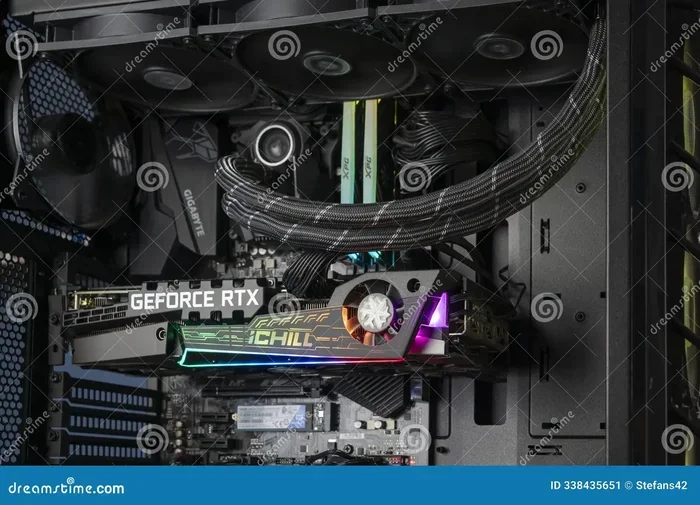
The function of a graphics card is to process and render visual data so your screen displays images, videos, and games smoothly. It handles GPU computing, frame rendering, and display output tasks that your CPU alone cannot manage efficiently. Whether you game, edit video, or just browse the web, the graphics processing unit plays a vital role in your system.
Every time you open your laptop or sit down at your desktop, a tiny but mighty component works behind the scenes to bring everything you see to life. That component is the graphics card. It is the engine that turns raw data into the images, videos, and animations displayed on your screen.
Whether you are a casual user who watches movies, a gamer chasing smooth frame rates, or a creative professional editing 4K video, understanding the function of a graphics card helps you make smarter choices about your hardware. In this guide, we will break down exactly what a graphics card does, how it works, and why it matters for your everyday computing experience.
Key Takeaways
- Core Visual Processing: The graphics card renders images, video, and 3D graphics by handling millions of calculations per second.
- Dedicated vs Integrated: A dedicated GPU offers far more power than integrated graphics built into the CPU.
- Gaming and Creativity: A strong GPU directly impacts gaming frame rates, video editing speed, and 3D rendering quality.
- VRAM Matters: Video memory stores textures and frame data, and more VRAM means smoother performance at higher resolutions.
- Driver Updates Are Key: Keeping your graphics driver current ensures optimal performance and compatibility with new software.
📑 Table of Contents
- What Does a Graphics Card Do?
- Dedicated Graphics vs Integrated Graphics
- Key Components of a Graphics Card
- Why the Graphics Card Matters for Gaming
- Graphics Cards for Creative Work
- How to Choose the Right Graphics Card
- Common Graphics Card Problems and How to Fix Them
- How to Check Your Graphics Card Information
- The Future of Graphics Cards
- Conclusion
What Does a Graphics Card Do?
A graphics card, also called a GPU or video card, is a specialized processor designed to handle visual data. Your computer’s main processor, the CPU, handles general tasks like running programs and managing files. The graphics processing unit takes over everything related to what you see on screen.
Think of it this way. The CPU is like a manager who handles many different jobs. The GPU is like a team of artists focused on one thing: drawing pictures really fast. When you open a game, watch a YouTube video, or even just move your mouse across the desktop, the GPU is hard at work calculating and rendering every single pixel.
The Rendering Process
Rendering is the technical term for creating an image from data. When you play a game, the GPU takes 3D models, textures, lighting data, and shader calculations, and turns them into a 2D image on your monitor. This happens dozens of times every second. In a smooth game running at 60 frames per second, the GPU renders 60 complete images every single second.
The function of a graphics card goes beyond just games too. Video editing software, 3D modeling tools, and even web browsers rely on GPU acceleration. When you scroll through a complex webpage or watch a high-resolution video, the GPU helps deliver a fluid experience.
How the GPU Works with Other Components
The GPU does not work alone. It communicates with your system’s RAM, storage drive, and CPU to pull data and send finished images to your monitor. The speed of this communication depends on the interface connecting the card to your motherboard, such as PCIe (Peripheral Component Interconnect Express).
A faster connection means the GPU can receive data and send back rendered frames more quickly. This is why the graphics card function depends not just on the GPU itself but also on the rest of your system working together.
Dedicated Graphics vs Integrated Graphics
Not all graphics cards are the same. There are two main types: dedicated GPUs and integrated graphics. Understanding the difference helps you know what your system can do and what upgrades might help.
Dedicated Graphics Cards
A dedicated GPU is a separate piece of hardware with its own VRAM (video RAM) and cooling system. It sits in a slot on your motherboard and handles all visual processing independently. Brands like NVIDIA and AMD make the most popular dedicated graphics cards for consumers.
Dedicated cards are essential for gaming, professional video editing, 3D rendering, and machine learning tasks. They deliver the raw power needed for demanding visual workloads. If you want to play modern games at high settings or edit video with effects, a dedicated GPU is a must.
Integrated Graphics
Integrated graphics are built directly into the CPU chip. They share system memory with the rest of your computer and use much less power. This makes them perfect for laptops and budget desktops where space and energy efficiency matter.
Integrated graphics handle everyday tasks like web browsing, document editing, and streaming video just fine. However, they struggle with heavy workloads like modern gaming or professional 3D work. For many users, integrated graphics are enough, but they do not match the function of a graphics card designed for serious performance.
Key Components of a Graphics Card
A graphics card is more than just the GPU chip. Several components work together to deliver visual performance. Let us look at each one.
GPU Core
The GPU core is the brain of the card. It contains thousands of small cores designed to handle parallel calculations. These cores process pixels, vertices, and shader instructions simultaneously. More cores generally mean better performance in tasks that can be split across many small calculations.
VRAM (Video RAM)
VRAM stores textures, frame buffers, and other visual data that the GPU needs quick access to. More VRAM allows you to run higher resolutions and more detailed textures without slowdowns. For 1080p gaming, 8GB of VRAM is a solid baseline. For 4K work or modern AAA games, 12GB or more is recommended.
Cooling System
GPUs generate a lot of heat under load. A good cooling system, whether it uses fans, heat pipes, or vapor chambers, keeps the card running at safe temperatures. Overheating can cause thermal throttling, which slows down the GPU and reduces performance.
Power Connectors
High-performance graphics cards need extra power from your power supply unit (PSU). They use connectors like 6-pin, 8-pin, or 12-pin PCIe power inputs. Make sure your PSU has the right connectors and enough wattage to support your GPU.
Why the Graphics Card Matters for Gaming
Gaming is one of the most demanding tasks you can put a computer through. The function of a graphics card directly determines your gaming experience in several ways.
Frame Rate and Smoothness
Frame rate measures how many images the GPU can render per second. Higher frame rates mean smoother motion and a more responsive feel. Competitive gamers aim for 144 frames per second or higher, which requires a powerful GPU capable of keeping up with fast-paced action.
A weak graphics card will drop frames, causing stuttering and lag. This is especially noticeable in open-world games with large environments and many on-screen effects.
Resolution Support
The GPU also determines which resolutions you can comfortably use. Running a game at 4K requires four times the processing power of 1080p. A strong graphics card handles this with ease, while an older or weaker card may need to drop to lower settings or resolutions.
For the best gaming experience, match your GPU to your monitor’s resolution and refresh rate. This ensures you get the smoothest possible visuals without wasting money on unnecessary power.
Graphics Cards for Creative Work
Gaming is not the only use for a powerful GPU. Creative professionals rely on the function of a graphics card for their daily work.
Video Editing and Color Grading
Video editing software like Adobe Premiere Pro and DaVinci Resolve uses GPU acceleration to preview effects, apply color grading, and export final videos. A dedicated GPU dramatically reduces render times and makes the editing timeline feel responsive even with heavy effects.
3D Modeling and Animation
Programs like Blender, Maya, and Cinema 4D use the GPU to render 3D scenes. The more powerful your graphics card, the faster you can see previews and export finished animations. This is where GPU rendering really shines compared to CPU-only rendering.
Is a graphics card necessary for programming? For most coding tasks, the answer is no. But if you are working with machine learning, data visualization, or GPU-accelerated development, a dedicated GPU makes a huge difference. You can read more about this topic in our article Is Graphics Card Necessary for Programming to understand when a GPU truly matters for coding work.
How to Choose the Right Graphics Card
Choosing the right GPU depends on what you plan to do with your computer. Here are some practical guidelines.
Match the GPU to Your Needs
If you only browse the web and watch videos, integrated graphics are fine. For casual gaming at 1080p, a mid-range GPU from NVIDIA or AMD will serve you well. For 4K gaming or professional creative work, invest in a high-end card with plenty of VRAM.
Check Your Power Supply
Before buying a new GPU, check your PSU’s wattage and available power connectors. A powerful graphics card can require a 650W or higher power supply. Running an underpowered system can cause crashes and instability.
Consider Your Budget
Graphics cards range from around $100 for budget options to over $1,500 for flagship models. Set a realistic budget based on what you need. You do not always need the most expensive card to get a great experience.
Common Graphics Card Problems and How to Fix Them
Even the best GPUs can run into issues. Here are some common problems and simple solutions.
Driver Issues
Outdated or corrupted graphics drivers are one of the most common causes of display problems. Always keep your GPU drivers up to date. Both NVIDIA and AMD release regular driver updates that improve performance and fix bugs. You can download the latest drivers directly from the manufacturer’s website.
Overheating
If your card shuts down during heavy use or games look glitchy, overheating could be the cause. Clean dust from fans and heatsinks, make sure your case has good airflow, and consider reapplying thermal paste if the card is older.
Artifacts and Screen Glitches
Visual artifacts like flashing colors or strange lines on screen can signal a failing GPU. Try testing the card in another system or updating drivers first. If the problem persists, the hardware may need replacement.
How to Check Your Graphics Card Information
Not sure what GPU you currently have? Checking is easy on any system.
On Windows, right-click your desktop and select Display Settings, then click Advanced Display. You will see your GPU model and current resolution. On macOS, click the Apple menu, choose About This Mac, and look for the Graphics section.
For detailed information, you can use free tools like GPU-Z or the built-in Task Manager on Windows. These tools show your GPU name, VRAM amount, driver version, and current usage levels.
Want to learn more about related laptop components? Check out our guide on what the RAM of a laptop does, as system memory works hand-in-hand with your GPU for smooth multitasking and performance.
The Future of Graphics Cards
The GPU industry is evolving fast. New technologies like ray tracing, AI-powered upscaling (such as NVIDIA DLSS and AMD FSR), and more efficient chip designs are changing what graphics cards can do. Ray tracing simulates realistic light behavior in real time, making games and renders look incredibly lifelike.
AI upscaling lets a GPU render a game at a lower resolution and then use machine learning to upscale it to your monitor’s native resolution. This delivers high frame rates without sacrificing visual quality. These technologies are becoming standard in modern GPUs and are reshaping the function of a graphics card in both gaming and professional work.
As software becomes more visually demanding, the role of the GPU will only grow. From virtual reality to cloud gaming and AI-generated graphics, the graphics processing unit continues to push the boundaries of what your screen can display.
Conclusion
The function of a graphics card is essential to nearly everything you do on a computer. From displaying your desktop to rendering complex 3D scenes and delivering smooth gaming experiences, the GPU is a cornerstone of modern computing. Whether you have a dedicated card or rely on integrated graphics, understanding what your GPU does helps you get the most out of your system.
Keep your drivers updated, monitor your temperatures, and choose hardware that matches your needs. With the right graphics card and proper care, your computer will deliver stunning visuals for years to come. If you are curious about GPU temperatures and performance, our guide on what is a good idle GPU temperature offers practical tips for keeping your card running cool and efficient.
Take the time to learn about your GPU. A little knowledge goes a long way in improving your computing experience and getting the best value from your hardware investment.
Frequently Asked Questions
What is the main function of a graphics card?
The main function of a graphics card is to process and render visual data so images, videos, and games appear on your monitor. It handles calculations for pixels, textures, lighting, and 3D models, turning raw data into the visuals you see on screen every day.
Do I need a dedicated graphics card for everyday use?
No, most everyday tasks like web browsing, video streaming, and document editing work fine with integrated graphics. A dedicated GPU becomes important for gaming, video editing, 3D modeling, and other visually demanding workloads.
How does VRAM affect graphics card performance?
VRAM stores visual data that the GPU needs to access quickly. More VRAM allows smoother performance at higher resolutions and with more detailed textures. For 1080p gaming, 8GB is usually enough, while 4K work or modern games benefit from 12GB or more.
Can I upgrade the graphics card in my laptop?
In most laptops, the GPU is soldered onto the motherboard and cannot be upgraded. Desktop computers allow GPU upgrades by swapping out the old card and installing a new one in a PCIe slot. If you are considering a laptop upgrade, check whether your model has a replaceable GPU or if you need a new device entirely.
What temperature should my graphics card run at?
A good idle GPU temperature is typically between 30°C and 50°C. Under heavy load, temperatures up to 80°C are normal for most modern cards. If your GPU consistently runs above 85°C under load, consider improving your case airflow or cleaning the fans to prevent thermal throttling.
How often should I update my graphics card drivers?
Updating your GPU drivers every few weeks or whenever a new major game or application is released is a good practice. Driver updates often include performance optimizations, bug fixes, and support for new features that can improve your experience significantly.