What Is the Function of Ram in a Computer
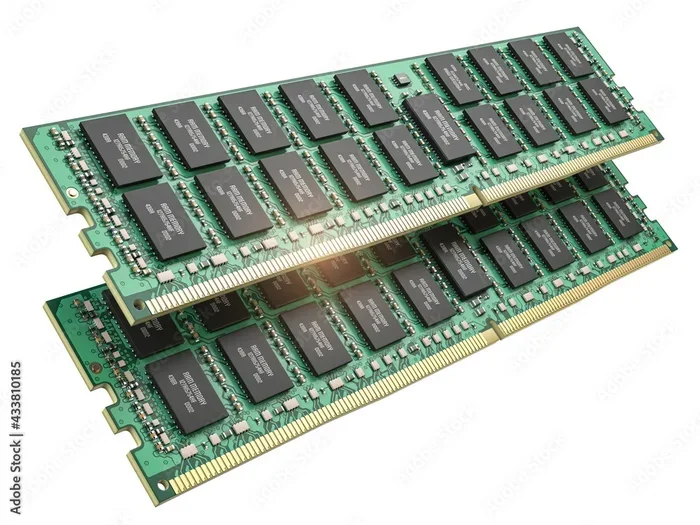
The function of RAM in a computer is to serve as temporary, high-speed memory that stores data your processor needs right now. Without RAM, your computer would struggle to open apps, run programs, or even load your operating system smoothly. RAM acts like a short-term workspace where your computer keeps frequently used information within arm’s reach of the CPU. Understanding how RAM works helps you make smarter choices about upgrades and system performance.
RAM stands for Random Access Memory. It is one of the most important parts of any computer. If your computer were a busy office, RAM would be the large desk where you spread out all your work documents. The bigger the desk, the more papers you can have open at once without shuffling things around.
But what exactly does RAM do, and why does it matter so much? In this guide, we will break down the function of RAM in a computer in simple terms. You will learn how it works, why it affects speed, and what you can do to get the most out of your system. Whether you are a casual user or a power user, this article has something valuable for you.
Key Takeaways
- RAM serves as short-term memory: It holds data your computer is actively using right now, making everything faster.
- More RAM means better multitasking: You can run more apps at once without slowdowns.
- RAM speed and type matter: DDR4 and DDR5 offer different performance levels that impact your system.
- RAM is volatile memory: It clears all stored data when you turn off your computer.
- Upgrading RAM is one of the easiest ways to boost performance: It costs less than replacing your whole system.
- Knowing your RAM needs depends on usage: Gaming, video editing, and basic tasks all require different amounts.
📑 Table of Contents
- What Is RAM and How Does It Work?
- Why RAM Matters for Computer Speed
- RAM vs Other Types of Computer Memory
- Types of RAM Used in Computers Today
- How Much RAM Do You Actually Need?
- Can You Upgrade Your RAM?
- Common RAM Problems and How to Fix Them
- Expert Tips for Getting the Most Out of Your RAM
- Conclusion
What Is RAM and How Does It Work?
Random Access Memory is a type of computer memory that stores data temporarily. Your computer uses RAM to hold information that the processor needs to access quickly. Unlike your hard drive or SSD, which stores data permanently, RAM only keeps data while your computer is turned on.
Here is a simple way to think about it. When you open a web browser, your computer loads the browser program into RAM. When you open a spreadsheet, that goes into RAM too. The more programs you open, the more RAM gets used. When RAM fills up, your computer slows down because it has to borrow space from your storage drive, which is much slower.
The Role of RAM in Data Processing
Your CPU (central processing unit) is the brain of your computer. But even the fastest brain needs quick access to information. RAM bridges the gap between your slow storage drive and your super-fast processor. It provides a middle ground where data can be read and written at incredible speeds.
When you click on an app, here is what happens behind the scenes:
- Your computer fetches the app data from your storage drive.
- It copies that data into RAM for quick access.
- The processor reads from RAM and runs the app.
- When you close the app, the RAM space is freed up.
This whole process happens in milliseconds. Without RAM, your processor would waste time waiting for data from your storage drive every single time. That is why RAM function is so critical to everyday computing.
Why RAM Matters for Computer Speed
RAM directly affects how fast your computer feels. When you have enough RAM, your system runs smoothly. Apps launch quickly, files open instantly, and switching between programs feels seamless. When you run low on RAM, everything grinds to a halt.
Think about it this way. Imagine you are working at a tiny desk with a huge stack of papers. Every time you need a different document, you have to dig through the pile. That takes time. Now imagine you have a massive desk where everything is spread out and within reach. That is the difference between having enough RAM and not having enough.
RAM and Multitasking Performance
One of the biggest benefits of having sufficient computer memory is smooth multitasking. If you like to have multiple browser tabs open while listening to music and editing a document, you need a good amount of RAM.
Each open tab and running program takes up a portion of your memory. Modern web browsers are especially memory-hungry. Chrome, for example, can use several hundred megabytes per tab. Multiply that by twenty tabs, and you can see why RAM adds up quickly.
Here are some real-world examples of how RAM impacts multitasking:
- 4 GB of RAM: Fine for basic web browsing and word processing. Struggles with heavy multitasking.
- 8 GB of RAM: Handles most everyday tasks comfortably. Good for casual gaming and light photo editing.
- 16 GB of RAM: Excellent for multitasking, moderate gaming, and professional work like video editing.
- 32 GB or more: Built for power users, programmers, and heavy workloads like 3D rendering.
If you want to learn more about how much RAM you actually need, check out our guide on how much RAM do you need in a laptop.
RAM vs Other Types of Computer Memory
It is easy to confuse RAM with other forms of memory. Let us clear up the differences so you understand exactly where RAM fits in your system.
RAM vs Storage (HDD and SSD)
Your storage drive is where your files, apps, and operating system live permanently. When you save a document, it goes to your storage drive. RAM is different because it only holds data temporarily while your computer is running.
Storage drives are much slower than RAM. A typical SSD reads data at around 500 to 7,000 MB per second. RAM, on the other hand, can move data at speeds of 25,000 MB per second or more. That is a huge difference.
When your RAM fills up, your computer starts using a technique called “paging.” It moves less-used data from RAM back to your storage drive. This is called using a swap file or virtual memory. It keeps your system running, but it is much slower than using actual RAM.
RAM vs Cache Memory
Your processor also has its own small memory called cache. Cache is even faster than RAM, but it is also much smaller. Cache holds the most frequently used data right inside the processor chip. RAM sits one step back and holds a larger pool of data that the cache does not have room for.
Think of it as a layered system:
- Cache: The fastest, smallest memory inside the CPU.
- RAM: The fast, medium-sized memory outside the CPU.
- Storage: The slower, large-capacity memory for permanent files.
All three work together to make your computer feel fast and responsive.
Types of RAM Used in Computers Today
Not all RAM is the same. Over the years, technology has evolved, and new types of RAM have been introduced. Understanding the different kinds helps you make informed decisions about your system.
DDR4 RAM
DDR4 is the most common type of RAM found in modern computers. It stands for Double Data Rate 4th generation. DDR4 offers fast speeds and good power efficiency. Most laptops and desktops built in the last several years use DDR4 memory.
DDR4 RAM typically runs at speeds between 2133 MHz and 3200 MHz for consumer systems. Higher-speed modules are available for enthusiasts and professionals, but they cost more.
DDR5 RAM
DDR5 is the newest generation of RAM. It offers faster speeds, higher capacity, and better power efficiency than DDR4. DDR5 modules start at speeds of 4800 MHz and can go much higher.
Right now, DDR5 is still becoming mainstream. Newer motherboards and processors support it, but DDR4 remains the standard for most systems. If you are building a new computer or upgrading, DDR5 is worth considering for future-proofing.
SRAM vs DRAM
There are two broad categories of RAM: SRAM (Static RAM) and DRAM (Dynamic RAM). The RAM in your computer is DRAM. It needs to be refreshed thousands of times per second to hold data. SRAM is faster and does not need refreshing, but it is much more expensive and used mainly inside processor cache.
When people talk about what RAM is good for in a computer, they are almost always referring to DRAM. It is the workhorse memory that keeps your system running smoothly.
How Much RAM Do You Actually Need?
The right amount of RAM depends on what you use your computer for. Different tasks demand different levels of memory capacity. Here is a practical breakdown.
Basic Use (Web Browsing, Word Processing)
If you mainly use your computer for browsing the web, sending emails, and writing documents, 8 GB of RAM is plenty. You will have enough headroom for a few dozen browser tabs and a couple of open applications.
Gaming
Modern games are demanding. They need lots of memory to load textures, maps, and game logic quickly. Most games recommend 16 GB of RAM for a smooth experience. Some newer titles even list 32 GB as the ideal amount.
If you are a gamer, check out our article on is 16 GB of RAM good for a laptop for more specific guidance.
Professional and Creative Work
Video editing, 3D modeling, and music production are memory-intensive tasks. These applications load large files into RAM for processing. If you work in these fields, 32 GB or more is recommended. It gives you the freedom to work with large files without slowdowns.
Programming and Development
Developers often run multiple tools at once: code editors, browsers with dev tools, virtual machines, and databases. 16 GB is a solid starting point. If you work with large datasets or run many virtual machines, 32 GB or more will serve you better.
Can You Upgrade Your RAM?
One of the best things about RAM is that it is often upgradeable. Unlike your processor or graphics card, adding more memory is usually straightforward and affordable. Let us look at how you can do it.
Checking Your Current RAM
Before upgrading, you need to know what you currently have. On Windows, you can open Task Manager and go to the Performance tab. On a Mac, you can check “About This Mac.” These tools show you how much RAM is installed and how much is being used.
You should also check what type of RAM your computer supports. Some older laptops have RAM soldered to the motherboard, which means it cannot be upgraded. Newer laptops and most desktops allow you to add or replace RAM modules easily.
Steps to Upgrade Your RAM
If your computer supports RAM upgrades, here is the general process:
- Buy compatible RAM modules for your system.
- Power off your computer and unplug it.
- Open the case or access panel.
- Locate the RAM slots on your motherboard.
- Remove existing modules if needed (press the clips on either side).
- Insert the new modules at a 45-degree angle and press down firmly.
- Close the case and power on your computer.
If you are not comfortable doing this yourself, a local computer shop can usually handle it for a small fee. For more detailed instructions, you can read our guide on how to upgrade the RAM of a laptop.
When RAM Upgrades Make the Most Difference
Upgrading RAM gives you the biggest performance boost when your system is running low on memory. If you regularly see your memory usage above 80 percent, adding more RAM will make a noticeable difference. Your apps will open faster, multitasking will feel smoother, and your system will be more responsive overall.
However, if you already have plenty of RAM for your workload, adding more will not help much. There is a point of diminishing returns. For most users, 16 GB is the sweet spot where you get excellent performance without overspending.
To understand more about what RAM does and why it matters, visit our article on what does the RAM do in a laptop.
Common RAM Problems and How to Fix Them
Even with the right amount of RAM, you can sometimes run into issues. Here are the most common problems and their solutions.
High Memory Usage
If your computer feels slow and your memory usage is always high, try closing programs you are not using. Browser tabs are a common culprit. Each tab uses memory, and having dozens open can eat up several gigabytes.
You can also check your startup programs. Some apps launch automatically when you turn on your computer and run in the background, using RAM even when you are not actively using them. Disabling unnecessary startup apps can free up significant memory.
RAM Not Being Recognized
Sometimes after installing new RAM, your computer does not recognize it. This can happen if the modules are not seated properly or if they are incompatible with your motherboard. Try removing and reseating the modules. If that does not work, check your motherboard’s supported RAM list.
Frequent Crashes or Blue Screens
Faulty RAM can cause system instability. If your computer crashes randomly or shows blue screen errors, your memory modules might be defective. You can use built-in tools like Windows Memory Diagnostic to test your RAM for errors.
Expert Tips for Getting the Most Out of Your RAM
Want to squeeze every bit of performance from your memory? Here are some expert tips that make a real difference.
- Keep your operating system updated: OS updates often include memory management improvements that help your system run more efficiently.
- Use lightweight apps: Choose lighter alternatives to heavy programs when possible. For example, use a lightweight browser instead of a resource-heavy one.
- Restart your computer regularly: This clears out used RAM and frees up memory for fresh sessions.
- Monitor your memory usage: Keep an eye on Task Manager or Activity Monitor. Knowing your usage patterns helps you plan upgrades.
- Match RAM sticks in pairs: If you have two RAM slots, use matched pairs of the same size and speed for optimal dual-channel performance.
For more tips on managing your computer’s memory, check out our article on what RAM is good for in a laptop.
Conclusion
The function of RAM in a computer is simple yet essential. It provides fast, temporary storage for data that your processor needs right now. Without RAM, your computer would be painfully slow, and multitasking would be nearly impossible.
Understanding how RAM works empowers you to make better decisions about your system. You can choose the right amount of memory for your needs, troubleshoot performance issues, and even upgrade your RAM when the time comes. Whether you are a student, a gamer, a professional, or just someone who wants a smooth computing experience, RAM plays a vital role in your daily workflow.
Take a moment to check your current memory usage. If it is consistently high, consider upgrading. A small investment in more RAM can breathe new life into an older computer and make even a newer system feel faster. Your computer’s short-term memory is one of the easiest upgrades you can make, and the results speak for themselves.
Frequently Asked Questions
What is the main function of RAM in a computer?
RAM serves as your computer’s short-term memory. It temporarily stores data that the processor needs to access quickly while you are working. When you open apps, browse the web, or edit files, the data lives in RAM so your CPU can reach it instantly.
How much RAM do I need for everyday use?
For most everyday tasks like web browsing, email, and word processing, 8 GB of RAM is sufficient. If you multitask heavily or use more demanding applications, 16 GB provides a comfortable buffer. Power users and gamers should consider 32 GB or more.
Can too much RAM slow down your computer?
No, having too much RAM will not slow down your computer. However, there is a point where adding more RAM provides no additional benefit. If your system already has enough memory for your workload, extra RAM simply goes unused.
What happens when RAM is full?
When RAM is full, your computer starts using your storage drive as temporary memory through a process called paging. This is much slower than using RAM, so your system will feel sluggish. Closing unused programs or upgrading your RAM can fix this problem.
Is RAM the same as storage memory?
No, RAM and storage are very different. Storage (like an SSD or HDD) holds your files and apps permanently. RAM is temporary and only stores data while your computer is running. RAM is also much faster than storage, which is why it is so important for performance.
Does upgrading RAM improve gaming performance?
Yes, upgrading RAM can improve gaming performance, especially if your system is running low on memory. Most modern games benefit from 16 GB of RAM or more. However, if you already have enough RAM, adding more will not significantly boost frame rates.