The Six Basic Components That A Computer Needs To Function
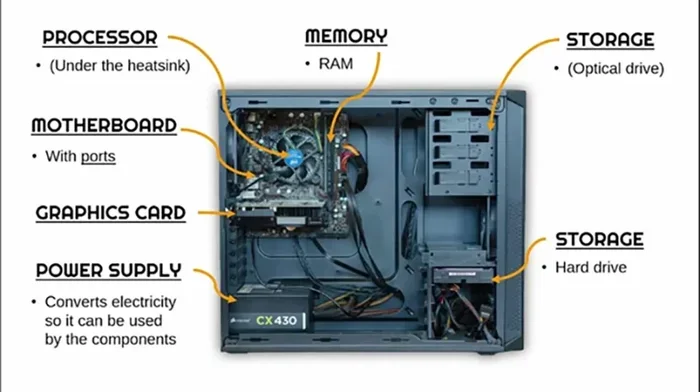
A computer needs six basic components to work properly: the central processing unit, random access memory, storage, the motherboard, the power supply unit, and input/output devices. Each part plays a vital role in keeping your system running smoothly. Without even one of these parts, your computer simply will not turn on or function.
Every computer, whether a desktop computer or a laptop, relies on six basic parts to work. These computer parts form the foundation of computer architecture. If you want to understand how your computing system runs, you need to know what each piece does. This guide breaks down all six components in simple terms. You do not need to be a tech expert to follow along. Let us dive into the essential computer parts that make your machine tick.
Understanding computer hardware helps you make better buying decisions. It also helps you troubleshoot problems when something goes wrong. Whether you are building a new rig or upgrading an old one, knowing these parts is key. We will cover each component step by step. By the end, you will have a clear picture of how a computer works from the inside out.
Key Takeaways
- The CPU is the brain: It handles all calculations and instructions your computer receives.
- RAM boosts speed: More memory means your system runs faster and handles more tasks at once.
- Storage holds your data: Choose between a hard drive and an SSD based on your needs.
- The motherboard connects everything: It is the backbone that links all components together.
- The PSU powers your system: Without proper wattage, your computer will not start.
- I/O devices let you interact: Keyboards, mice, and monitors are essential for daily use.
- Each component matters equally: A weak part can slow down or break the whole system.
📑 Table of Contents
- What Are The Six Basic Computer Components?
- The Central Processing Unit (CPU)
- Random Access Memory (RAM)
- Storage Devices
- The Motherboard
- Power Supply Unit (PSU)
- Input and Output Devices
- How All Six Components Work Together
- Common Mistakes People Make With Computer Components
- Final Thoughts On The Six Basic Computer Components
What Are The Six Basic Computer Components?
Before we get into the details, let us list all six parts. The six basic components that a computer needs to function are:
- The Central Processing Unit (CPU)
- Random Access Memory (RAM)
- Storage (Hard Drive or SSD)
- The Motherboard
- The Power Supply Unit (PSU)
- Input and Output Devices
Think of these parts like organs in a body. Each one has a specific job. And just like the human body, they all need to work together. If one part fails, the whole system suffers. Let us now look at each one in detail.
Why Knowing Your Computer Parts Matters
Knowing your PC components gives you power. You can upgrade parts yourself. You can spot problems faster. You can also save money by avoiding unnecessary upgrades. For example, if your computer runs slow, you might think you need a new machine. But often, adding more memory modules or switching to a faster storage device solves the problem. Learning about computer basics pays off in many ways.
The Central Processing Unit (CPU)
The CPU is often called the brain of the computer. It processes every instruction you give. When you click a link or open a program, the processor chip handles the work. It reads data, performs calculations, and sends results back. Without a CPU, your system unit is just an empty box.
What Does The CPU Do?
The CPU performs three main tasks. It fetches instructions from memory. It decodes what those instructions mean. Then it executes the task. This cycle happens millions of times per second. Modern CPUs have multiple cores, which means they can handle several tasks at once. This is called multitasking. A faster CPU means smoother performance.
When you shop for a new computer, the CPU is the first thing to check. Brands like Intel and AMD make popular choices. Each brand offers different speed levels and core counts. Your choice depends on what you plan to do. Simple tasks like browsing need less power. Video editing and gaming demand stronger processors.
How To Choose The Right Processor
Here are a few tips for picking the right CPU:
- Check the clock speed measured in gigahertz (GHz).
- Look at the number of cores for multitasking.
- Match the CPU to your use case (gaming, work, or casual use).
- Make sure your motherboard supports the processor type.
Do not overspend on a CPU you do not need. A mid-range chip handles everyday tasks just fine. Save your budget for parts that matter more to your workflow.
Random Access Memory (RAM)
Random access memory is your computer’s short-term memory. It holds data that the CPU needs right now. When you open a browser with many tabs, RAM keeps them active. When you close a program, RAM frees up space. The more RAM you have, the more tasks your computer can handle at once.
RAM is one of the easiest computer parts to upgrade. If your system feels slow when multitasking, more RAM often fixes the issue. You can upgrade the RAM of a laptop with basic tools and a little patience. Before you buy new RAM, it helps to check the RAM of a laptop first to see what you currently have and what slots are available.
Why RAM Matters For Performance
RAM directly affects how fast your computer responds. Here is why it matters:
- More RAM allows more programs to run at the same time.
- Faster RAM reduces loading times for apps and files.
- Enough RAM prevents your system from freezing during heavy tasks.
- RAM works hand in hand with your storage for smooth operation.
Without enough RAM, your computer starts swapping data to the storage drive. This slows everything down. You will notice lag when switching between apps or loading large files.
How Much RAM Do You Need?
The right amount of RAM depends on what you do. Here is a simple breakdown:
- 4 GB: Basic browsing and word processing.
- 8 GB: Everyday use, light gaming, and office work.
- 16 GB: Heavy multitasking, photo editing, and moderate gaming.
- 32 GB or more: Video editing, 3D rendering, and professional workloads.
Most users will be happy with 8 GB to 16 GB. If you are unsure, start with 8 GB and upgrade later. Memory modules are affordable and easy to swap in.
Storage Devices
Storage is where your computer keeps all your files. Documents, photos, videos, and programs all live on your storage device. There are two main types: hard disk drives (HDDs) and solid state drives (SSDs). The debate between a hard drive vs SSD is one of the most common in computer parts discussions.
Hard Drive vs SSD
HDDs use spinning disks to read and write data. They offer large storage space at a lower price. SSDs use flash memory with no moving parts. They are much faster and more durable. Here is a quick comparison:
- HDD: Cheaper per gigabyte, slower speeds, more prone to damage from drops.
- SSD: Faster boot times, more durable, higher cost per gigabyte.
For most users, an SSD is the better choice. Your computer will boot up in seconds and apps will load much faster. If you need a lot of storage for media files, you can pair a small SSD with a larger HDD.
Choosing The Right Storage For Your Needs
When picking storage, consider these factors:
- How much space do you need? Plan for at least 256 GB for an SSD.
- What is your budget? SSDs cost more but offer better speed.
- Do you need portable storage? External drives are great for backups.
- Will you use cloud storage instead? This reduces the need for large local drives.
Storage is a key part of your computer architecture. A fast storage device makes everything on your PC feel snappier. It is one of the best upgrades you can make for an older machine.
The Motherboard
The motherboard is the main circuit board inside your system unit. It connects all the motherboard components together. Every part plugs into the motherboard in some way. The CPU, RAM, storage, and expansion cards all connect through it. Without a motherboard, none of your essential computer parts can communicate.
What Does The Motherboard Do?
The motherboard serves as the communication hub. It routes data between the CPU, RAM, storage, and other parts. It also provides power connections for each component. The motherboard determines what kind of CPU and RAM you can use. It also controls how many drives and expansion cards you can add.
When you look at a motherboard, you will see many slots and ports. Each one serves a specific purpose. The CPU socket holds the processor. The RAM slots accept memory modules. The PCIe slots connect graphics cards and other add-ons. SATA ports link storage drives.
Key Features To Look For In A Motherboard
- Socket type: Must match your CPU (e.g., LGA 1700 or AM5).
- RAM support: Check how many slots and what speed it supports.
- Expansion slots: PCIe slots for graphics cards and other add-ons.
- Connectivity: USB ports, audio jacks, and networking options.
- Form factor: ATX, Micro-ATX, or Mini-ITX depending on your case size.
The motherboard sets the limits for your build. Always check compatibility before buying any part. A mismatch can cause problems or prevent your system from working at all.
Power Supply Unit (PSU)
The PSU converts wall outlet power into usable electricity for your computer. Every component needs power to run. The PSU delivers that power through cables connected to the motherboard, CPU, storage, and other parts. A weak or faulty PSU can damage your entire system.
Why Power Supply Matters
Your power supply unit is often overlooked. But it is one of the most important PC components. Here is why it matters:
- A bad PSU can fry other parts when it fails.
- Insufficient wattage causes random shutdowns and instability.
- A quality PSU runs cooler and lasts longer.
- Efficient PSUs save electricity and reduce heat output.
Always buy a reliable PSU from a trusted brand. Your computing system depends on steady, clean power. A surge or power fluctuation can ruin components if the PSU does not regulate voltage properly.
How To Pick The Right PSU
Follow these tips when choosing a power supply:
- Calculate your total power draw using an online PSU calculator.
- Add a 20 to 30 percent buffer for future upgrades.
- Look for an 80 Plus certification for efficiency.
- Choose modular or semi-modular cables for cleaner cable management.
- Check that it has enough connectors for all your components.
A good PSU protects your investment. It keeps everything running safely. Never cheap out on this part. A failing power supply can take down your entire desktop computer with it.
Input and Output Devices
The final group of essential computer parts includes input and output devices. These are how you interact with your computer. Input devices send data into the system. Output devices display or produce results from the system. Together, they make your computer hardware useful and accessible.
Essential Input Devices
Input devices let you control and communicate with your computer. The most common ones include:
- Keyboard: Lets you type commands and text.
- Mouse: Controls the cursor and clicks on screen elements. A mouse for a laptop computer is essential for navigation, and you can explore options at the best place to purchase a laptop computer.
- Webcam: Enables video calls and streaming.
- Microphone: Captures audio for calls and recordings.
- Scanner: Converts physical documents into digital files.
These devices vary widely in design and price. You do not need top-of-the-line gear for everyday tasks. A basic keyboard and mouse work perfectly for most users. Choose based on comfort and your specific needs.
Output Devices You Need
Output devices show you what your computer is doing. The most important ones are:
- Monitor: Displays visuals. You can buy a secondary monitor to boost productivity.
- Speakers: Produce sound for music, videos, and calls.
- Printer: Produces physical copies of digital documents.
- Headphones: Provide private audio output.
The monitor is the most critical output device. Without it, you cannot see what your computer is doing. Choose a screen size and resolution that fits your work. A good monitor makes a big difference in your daily experience.
How All Six Components Work Together
Now that you know each part, let us see how they work as a team. When you turn on your computer, the PSU powers up the motherboard. The motherboard boots the CPU. The CPU loads the operating system from your storage drive into RAM. Once everything is in memory, the CPU processes your commands. The output devices display the results. You use input devices to give new commands. This cycle repeats thousands of times per second.
Every part depends on the others. A slow storage drive bottlenecks the CPU. Not enough RAM forces the system to swap data constantly. A weak PSU causes instability across the board. The best computer architecture balances all six components. No single part matters more than the rest. They must work in harmony for peak performance.
Quick Tips For Maintaining Your Computer Components
- Keep your computer clean and dust-free to prevent overheating.
- Update drivers regularly for all computer parts.
- Monitor temperatures using built-in or third-party tools.
- Back up your storage data frequently.
- Use a surge protector to safeguard your PSU and motherboard.
- Upgrade RAM or storage before buying a whole new machine.
Regular maintenance keeps your system unit running smoothly. Simple habits can extend the life of your computer by years. You save money and avoid headaches in the long run.
Common Mistakes People Make With Computer Components
Many users make avoidable mistakes when dealing with computer hardware. Here are a few to watch out for:
- Skipping the PSU quality: A cheap power supply can damage expensive parts.
- Ignoring compatibility: Not all RAM or CPUs work with every motherboard.
- Underestimating storage needs: Running out of space slows down your system.
- Neglecting cooling: Overheating shortens the life of your CPU and other parts.
- Buying too much too soon: Match your parts to your actual needs, not hypothetical future ones.
Avoiding these mistakes saves time and money. Take your time when choosing PC components. Research each part before you buy. Your future self will thank you.
Final Thoughts On The Six Basic Computer Components
The six basic components that a computer needs to function form the backbone of every machine. The CPU processes instructions. RAM handles short-term memory. Storage keeps your files safe. The motherboard ties everything together. The PSU delivers power. And input/output devices let you interact with the system. Each part is essential. Together, they create a working computing system that powers your daily life.
Whether you are a casual user or a power user, understanding these parts helps you make smarter choices. You can troubleshoot problems faster. You can upgrade strategically. And you can build or buy a computer that fits your needs perfectly. Take what you have learned here and apply it. Your knowledge of computer architecture will serve you well for years to come.
Frequently Asked Questions
What Are The Six Basic Components Of A Computer?
The six basic components are the CPU, RAM, storage (HDD or SSD), the motherboard, the power supply unit, and input/output devices. Each part plays a unique role in keeping your computer running.
Can A Computer Work Without RAM?
No, a computer cannot function without RAM. The CPU needs RAM to hold data it is actively using. Without memory, the system will not boot or run any programs.
How Often Should I Upgrade My Computer Components?
It depends on your needs and budget. Most users upgrade every three to five years. Focus on RAM and storage first, as they offer the most noticeable performance gains.
Is The Motherboard The Most Important Component?
No single part is the most important. All six components work together. The motherboard is the backbone, but a weak CPU or PSU will limit the whole system.
What Happens When The Power Supply Fails?
A failing PSU can cause random shutdowns, failure to boot, or even damage to other parts. Always use a quality power supply with proper wattage for your system.
Do I Need A Special Mouse For A Laptop?
You do not need a special mouse, but a good one improves productivity. You can find the right mouse for a laptop computer at most electronics retailers. Choose one that fits your hand and workflow comfortably.