Can You Upgrade Mini PC RAM Here Is What You Need To Know
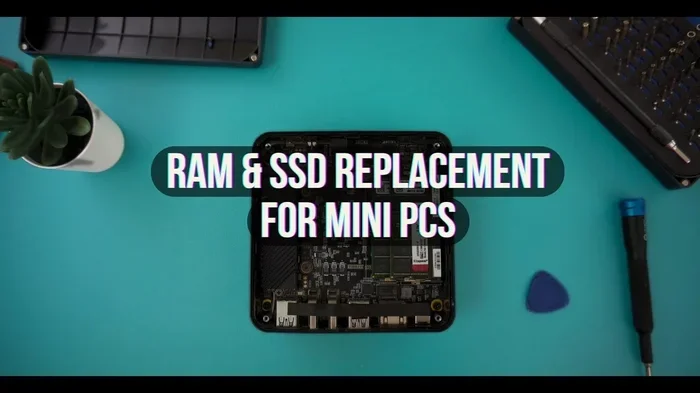
Yes, you can upgrade Mini PC RAM in most cases, but it depends on your model, motherboard, and memory slots. A Mini PC RAM upgrade can breathe new life into a slow machine, giving you faster multitasking and smoother performance. In this guide, we walk you through everything you need to know about upgrading memory in a compact PC.
This is a comprehensive guide about Can You Upgrade Mini Pc Ram.
Key Takeaways
- Most Mini PCs allow RAM upgrades: Check your model first to confirm expandable slots.
- SODIMM modules are standard: Mini PCs use small form factor RAM sticks, not full-size desktop RAM.
- DDR4 is the most common type: Some newer models support DDR5, so verify compatibility before buying.
- Max RAM varies by model: Your Mini PC may support 16GB, 32GB, or even 64GB depending on the motherboard.
- Dual channel boosts performance: Installing matching RAM sticks in pairs gives you better speeds.
- Upgrading is affordable: A Mini PC RAM upgrade costs far less than buying a new computer.
[FEATURED_IMAGE_PLACEHOLDER]
Can You Upgrade Mini PC RAM Here Is What You Need To Know
A Mini PC is a fantastic choice for people who want a compact, powerful machine without taking up much desk space. But one question almost everyone asks is whether you can upgrade the RAM inside these tiny systems. The short answer is yes, in most cases you can. But the real answer depends on your specific Mini PC model, its motherboard design, and the type of memory slots it has.
Upgrading Mini PC RAM is one of the easiest and most affordable ways to improve performance. Whether you use your Mini PC for work, streaming, light gaming, or running multiple applications at once, more memory can make a noticeable difference. This guide covers everything you need to know, from checking compatibility to picking the right RAM modules.
If you have ever wondered about upgrading RAM in a laptop or similar compact device, the process for a Mini PC is quite similar. You will open the case, locate the memory slots, and swap in new modules. Let us dive into the full breakdown so you feel confident about your next upgrade.
What Is Mini PC RAM and Why Does It Matter
RAM, or Random Access Memory, is the short-term memory your computer uses to handle tasks right now. When you open a browser, run a program, or play a game, all of that activity lives in your RAM. The more RAM you have, the more tasks your Mini PC can handle at the same time without slowing down.
Mini PCs use a special type of RAM called SODIMM (Small Outline Dual In-Line Memory Module). These are smaller than standard desktop RAM sticks, which makes sense given the compact size of a Mini PC. SODIMM modules are the same type used in laptops, so they are easy to find and relatively affordable.
The amount of RAM your Mini PC comes with can vary. Many entry-level models ship with 4GB or 8GB. That is fine for basic tasks like web browsing and watching videos. But if you want to run heavier software, edit photos, or multitask with many apps open, you will likely need more. This is where a Mini PC RAM upgrade becomes valuable.
Can You Upgrade RAM in a Mini PC
The answer is yes for most Mini PCs, but not all of them. Some models come with soldered RAM, which means the memory is permanently attached to the motherboard. In those cases, you cannot upgrade the RAM. However, the majority of popular Mini PC brands use removable SODIMM slots that allow upgrades.
Before you buy any RAM, you need to check a few things about your specific Mini PC. Let us walk through the key factors.
Check Your Mini PC Model Specifications
Start by looking up your Mini PC model number. The manufacturer usually lists the maximum supported RAM, the number of memory slots, and the RAM type on the product page or in the user manual. For example, some Mini PCs support up to 16GB while others can handle 32GB or even 64GB of total memory.
Here is a quick checklist to follow:
- Find your Mini PC model number: Look on the bottom of the device or in the system settings.
- Check the maximum RAM support: This tells you the ceiling for your upgrade.
- Count the available RAM slots: Some Mini PCs have one slot, others have two or more.
- Identify the RAM type: DDR4 is standard now, but some newer models use DDR5.
- Verify if RAM is soldered: If it is, you cannot upgrade at all.
If you are unsure how to check these details, many websites and forums have detailed specs for popular Mini PC models. A quick search with your model name and “specifications” usually brings up everything you need.
Soldered vs Upgradeable RAM
Some Mini PC manufacturers choose to solder RAM directly onto the motherboard. This saves space inside the tiny chassis and keeps the device thinner. However, it also means you are stuck with whatever RAM the Mini PC came with. Brands like some Intel NUC models and certain Beelink or Minisforum units vary in this regard, so always double-check before purchasing.
On the other hand, many Mini PCs are designed with user-accessible RAM slots. This makes them much more flexible and future-proof. If you plan to buy a Mini PC and want the option to upgrade later, look for models that clearly state they have replaceable SODIMM slots.
Types of RAM Compatible with Mini PCs
Not all RAM is the same, and using the wrong type will not work. Mini PCs primarily use two types of memory: DDR4 and DDR5. Understanding the differences helps you make the right purchase.
DDR4 RAM
DDR4 is the most common RAM type found in Mini PCs today. It is reliable, widely available, and offers great performance for everyday tasks and moderate workloads. Most Mini PCs built in the last few years use DDR4 RAM, and it comes in various speeds, typically ranging from 2666MHz to 3200MHz.
If your Mini PC uses DDR4, you have plenty of options to choose from. You can buy single sticks or kits of two sticks for dual channel mode, which improves performance by allowing the RAM to communicate with the processor more efficiently.
DDR5 RAM
DDR5 is the newer generation of memory. It offers higher speeds and better efficiency compared to DDR4. Some newer Mini PC models support DDR5, but these tend to be pricier. If you are building or upgrading a high-performance Mini PC, DDR5 is worth considering for future-proofing.
One important thing to know is that DDR5 RAM is not backward compatible with DDR4 slots, and vice versa. You cannot put DDR5 RAM into a DDR4 slot, and you cannot put DDR4 RAM into a DDR5 slot. Always confirm which type your Mini PC supports before purchasing.
How to Upgrade Mini PC RAM Step by Step
Upgrading the RAM in your Mini PC is a straightforward process. You do not need to be a tech expert to do it. Here is a simple step-by-step guide.
Step 1: Gather Your Tools
You will need very little to upgrade your Mini PC RAM. A small Phillips-head screwdriver is usually enough. Some Mini PCs use thumb screws that do not require any tools at all. Make sure you have your new SODIMM RAM modules ready and a clean, flat workspace.
Step 2: Power Down and Unplug
Turn off your Mini PC completely and unplug it from the power outlet. If your Mini PC has a battery (some portable models do), remove it if possible. This ensures your safety and protects the components from static damage.
Step 3: Open the Case
Most Mini PCs have a removable side panel or a bottom cover held in place by screws. Carefully remove the screws or release the clips and set the cover aside. Be gentle inside the case to avoid touching any sensitive components.
Step 4: Locate the RAM Slots
The RAM slots are easy to spot. They are long, thin slots with small clips on either end. If there is already a RAM stick installed, you will see it seated in one of the slots. Take note of how the existing RAM is positioned so you can match the new one.
Step 5: Remove the Old RAM (If Needed)
If you are replacing existing RAM, gently push the clips on either side of the stick outward. The RAM will pop up at an angle. Carefully pull it straight out. If you are adding RAM to empty slots, you can skip this step.
For a detailed walkthrough of the process, you can refer to our guide on how to upgrade RAM on a laptop, since the process is very similar for Mini PCs.
Step 6: Install the New RAM
Align the notch on the bottom of the SODIMM stick with the ridge in the RAM slot. Press the stick firmly and evenly at a 45-degree angle until the clips on both sides click into place. The RAM should sit flat against the motherboard once fully seated.
Step 7: Close the Case and Test
Replace the cover or side panel, screw it back in if needed, and plug your Mini PC back in. Power it on and check the system settings to confirm the new RAM is recognized. On Windows, you can go to Task Manager and click the Performance tab to see your total RAM.
How Much RAM Do You Really Need in a Mini PC
The right amount of RAM depends on what you use your Mini PC for. Here is a simple breakdown to help you decide.
| Use Case | Recommended RAM |
|---|---|
| Basic browsing and office tasks | 8GB |
| Multitasking with several apps | 16GB |
| Photo and video editing | 32GB |
| Light gaming | 16GB |
| Heavy multitasking and creative work | 32GB to 64GB |
For most users, 16GB strikes the perfect balance between performance and cost. It handles everyday tasks with ease and can manage moderate creative work or gaming. If you use your Mini PC for basic purposes only, 8GB is usually enough.
Keep in mind that dual channel RAM gives you a performance boost. If your Mini PC has two RAM slots, installing two matching sticks (for example, two 8GB sticks instead of one 16GB stick) will improve memory bandwidth and overall responsiveness.
Common Mistakes to Avoid When Upgrading Mini PC RAM
Even though upgrading RAM is simple, there are a few common mistakes people make. Avoiding these will save you time, money, and frustration.
Buying the Wrong RAM Type
The most common mistake is purchasing the wrong type of RAM. Always confirm whether your Mini PC uses DDR4 or DDR5 before you buy. Mixing types will not work and could damage your system. Also, check the speed rating and make sure it matches or is compatible with your motherboard.
Ignoring the Maximum RAM Limit
Every Mini PC has a maximum RAM capacity. Buying a 32GB stick for a system that only supports 16GB total is a waste of money. Check the specifications first and buy accordingly.
Not Matching RAM Sticks for Dual Channel
If your Mini PC supports dual channel, install matching pairs of RAM. Using different brands, sizes, or speeds can cause compatibility issues or prevent dual channel mode from activating.
Forgetting to Ground Yourself
Static electricity can damage sensitive components. Always touch a metal surface or use an anti-static wrist strap before handling RAM or any internal components. It is a small precaution that can save you from a big problem.
Expert Tips for Getting the Most Out of Your Mini PC RAM Upgrade
Here are some expert insights to help you get the best results from your Mini PC RAM upgrade.
First, consider your future needs. If you plan to use your Mini PC for a few more years, it is worth investing in a bit more RAM than you currently need. Technology evolves fast, and software becomes more demanding over time. Buying 16GB or 32GB now can help your Mini PC stay relevant longer.
Second, check if your Mini PC supports XMP profiles in the BIOS. XMP allows you to run your RAM at its advertised speed instead of the default lower speed. This can give you a noticeable performance boost, especially in demanding tasks.
Third, keep your old RAM if it is still in good condition. You can use it as a spare or in another compatible device. Upgrading RAM is one of the most cost-effective improvements you can make, and it is a great way to extend the life of your Mini PC without spending a fortune on a new one.
If you are curious about the overall cost of upgrading RAM or want to compare options, you can check out our article on the cost of RAM upgrade on a laptop for pricing insights that apply to Mini PCs as well.
Frequently Asked Questions
Can all Mini PCs have their RAM upgraded?
No, not all Mini PCs allow RAM upgrades. Some models have soldered RAM that cannot be removed or replaced. Always check your specific Mini PC model’s specifications before assuming it is upgradeable. Look for models that list removable SODIMM slots if upgrading RAM is important to you.
What type of RAM do Mini PCs use?
Most Mini PCs use SODIMM DDR4 RAM, which is the same type found in laptops. Some newer models support DDR5 SODIMM modules. Always confirm the RAM type your Mini PC supports before purchasing new memory to avoid compatibility issues.
How much does a Mini PC RAM upgrade cost?
The cost varies depending on the RAM type and capacity you need. A single 8GB DDR4 SODIMM stick typically costs between $20 and $40. A 16GB kit of two sticks usually ranges from $40 to $80. Overall, upgrading your Mini PC RAM is one of the most affordable performance improvements you can make.
Can I mix different RAM brands in my Mini PC?
You can mix RAM brands in most cases, but it is best to use matching sticks for optimal performance. Using different brands, sizes, or speeds can sometimes cause instability or prevent dual channel mode from working properly. Matching sticks is always the safer choice.
Will upgrading my Mini PC RAM improve gaming performance?
Yes, upgrading RAM can improve gaming performance, especially if your current memory is below 8GB. More RAM helps with smoother multitasking, faster loading times, and better frame rates in many games. However, for demanding games, a dedicated GPU also plays a major role in overall performance.
How do I know if my Mini PC recognizes the new RAM after an upgrade?
After installing new RAM, restart your Mini PC and open the Task Manager on Windows. Go to the Performance tab and click on Memory. It will show your total RAM and how many slots are being used. If the new RAM is not showing, try reseating the sticks or checking the BIOS settings.
Conclusion
Upgrading Mini PC RAM is one of the simplest and most impactful ways to boost your compact computer’s performance. Whether you are dealing with slow multitasking, long load times, or just want to future-proof your system, adding more memory is a smart move. The process is straightforward, the cost is low, and the results are immediate.
Remember to check your Mini PC’s specifications before buying anything. Confirm the RAM type, the number of available slots, and the maximum supported capacity. Choose matching SODIMM sticks for the best performance, and follow the installation steps carefully. With the right RAM and a little patience, your Mini PC will feel faster and more capable than ever.
If you found this guide helpful, consider exploring more resources on PC upgrades and maintenance to get the most out of your hardware. A small investment in RAM can go a long way toward keeping your Mini PC running smoothly for years to come.
Frequently Asked Questions
What is Can You Upgrade Mini Pc Ram?
Can You Upgrade Mini Pc Ram is an important topic with many practical applications.