Which Memory Loses Its Data When Computer Is Turned Off

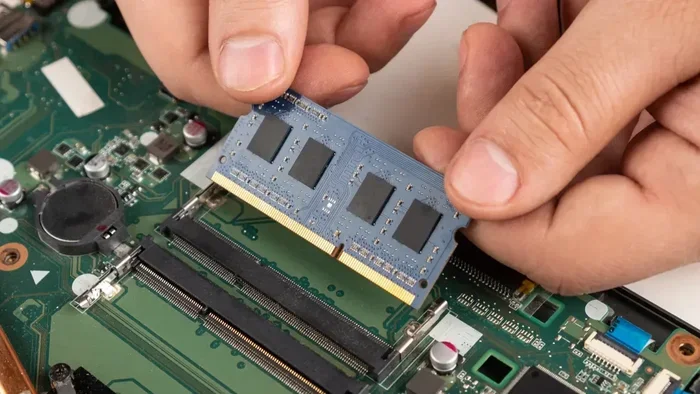
RAM (Random Access Memory) is the type of memory that loses its data when the computer is turned off. This is because RAM is volatile memory, meaning it needs a constant power supply to keep your data intact. When your PC shuts down, the power cuts out and everything stored in RAM disappears instantly.
Key Takeaways
- RAM is volatile memory: It loses all stored data once the computer loses power, making it temporary storage.
- ROM and SSDs are non-volatile: These retain data even when the system is completely powered off.
- Cache memory also loses data: L1, L2, and L3 caches are types of volatile memory just like RAM.
- Understanding memory types helps you troubleshoot: Knowing the difference saves you from unnecessary panic when your PC restarts.
- Upgrading your RAM can boost performance: More system memory means smoother multitasking and faster app loading.
- The boot process relies on non-volatile memory: Your BIOS and firmware live on ROM to survive every shutdown.
📑 Table of Contents
Which Memory Loses Its Data When Computer Is Turned Off?
Have you ever been working on an important document, and suddenly your computer crashed or you accidentally hit the power button? If so, you probably noticed that all your unsaved work vanished. That happens because your computer uses different types of memory, and not all of them hold onto your data.
The short answer is RAM — Random Access Memory. It is the main type of volatile memory in your computer that loses everything when the power goes off. But there is much more to this story. Let us break it down step by step so you understand exactly how your computer handles data storage and why some memories stick around while others do not.
Understanding the difference between volatile and non-volatile memory is crucial for anyone who uses a computer regularly. It affects everything from how your system boots up to how you troubleshoot common problems. This guide covers everything you need to know.
What Is Volatile Memory?
Volatile memory is any type of computer memory that needs a constant flow of electricity to keep your data saved. The moment power is cut, all the information stored in it disappears. Think of it like a whiteboard — as long as someone is writing on it, the content stays visible. But the second the eraser comes out, everything is gone.
Your computer has several types of volatile memory. The most common ones include:
- RAM (Random Access Memory) — the main workspace for your operating system and apps
- Cache memory — ultra-fast memory built into your CPU
- GPU VRAM — video memory used by your graphics card
How Volatile Memory Works
Volatile memory stores data as electrical charges inside tiny capacitors or transistors. These charges represent your binary data — the ones and zeros that make up everything your computer processes. As long as electricity flows, those charges stay in place and your data remains accessible.
But here is the catch. Once the power supply stops, the charges leak away almost instantly. There is no backup mechanism. This is fundamentally different from non-volatile memory like your hard drive or SSD, which stores data using physical or magnetic methods that do not depend on electricity.
If you want to learn more about how your system memory works, check out our detailed guide on what is the RAM of a laptop to understand the technical side of things.
Types of Memory That Lose Data When the PC Is Off
Now let us look at the specific types of volatile memory that wipe clean every time you shut down your computer. Each one plays a unique role, but they all share the same vulnerability — they cannot survive without power.
1. RAM (Random Access Memory)
RAM is the most important volatile memory in your computer. It serves as the temporary workspace where your operating system, apps, and active processes live. When you open a browser, a game, or a spreadsheet, the relevant data gets loaded into RAM for quick access.
Here is what happens when you turn off your computer:
- All running applications lose their data
- Unsaved documents and files in memory are erased
- System processes and background tasks stop completely
- The RAM modules reset to a blank state
There are two main types of RAM you should know about:
- DRAM (Dynamic RAM) — the standard RAM found in most computers. It needs constant refreshing to maintain data.
- SRAM (Static RAM) — faster but more expensive, often used for cache memory.
2. CPU Cache Memory
Your processor has its own built-in volatile memory called cache. It comes in three levels — L1, L2, and L3 cache. Cache memory is incredibly fast and holds the most frequently used data for immediate access by the CPU.
However, just like RAM, cache memory is entirely dependent on power. When your computer shuts off, all cached data is lost. This is why your system needs to reload everything from your storage drive the next time you boot up.
3. GPU Video Memory (VRAM)
If you have a dedicated graphics card, it has its own VRAM. This memory stores textures, frames, and other visual data needed for rendering graphics. VRAM is also volatile, meaning it loses all its data when the power is cut. This is why games and graphic-heavy applications need to reload assets every time you start them.
Types of Memory That Keep Data After Shutdown
On the flip side, your computer has plenty of non-volatile memory that retains data even when everything is powered down. Knowing the difference helps you understand where your important files actually live.
1. ROM (Read-Only Memory)
ROM stores your computer’s firmware, including the BIOS or UEFI that helps your system boot up. ROM is programmed during manufacturing and typically cannot be easily modified. It survives every shutdown and restart without losing a single bit of data.
2. Hard Disk Drives (HDD) and Solid State Drives (SSD)
Your primary storage drive — whether it is an HDD or an SSD — is non-volatile. These drives use magnetic platters (HDD) or flash memory (SSD) to store your files permanently. Your photos, documents, operating system, and applications all live here.
If you are looking to upgrade your storage, you might want to explore options like the biggest NVMe SSD available for your setup.
3. USB Drives and External Storage
Your USB flash drives, external hard drives, and SD cards also use non-volatile storage. They keep your data safe regardless of whether they are connected to a powered-on computer.
Volatile vs. Non-Volatile Memory: A Comparison
To make things clearer, here is a simple comparison table showing the key differences between these two types of memory:
| Feature | Volatile Memory | Non-Volatile Memory |
|---|---|---|
| Data Retention | Loses data when powered off | Retains data without power |
| Speed | Much faster | Slower |
| Cost | More expensive per GB | Cheaper per GB |
| Examples | RAM, Cache, VRAM | HDD, SSD, ROM, USB drives |
| Primary Use | Temporary workspace | Permanent storage |
| Power Dependency | Requires constant electricity | Does not need power |
This table shows why your computer needs both types. Volatile memory gives you speed and performance, while non-volatile memory gives you reliable, long-term data storage. They work together to deliver the experience you rely on every day.
Why Does This Matter for Your Computer?
Understanding which memory loses data when your computer is turned off is not just a technical curiosity. It has real-world implications that affect how you use and maintain your PC.
Unsaved Work and Data Loss
The most immediate concern is losing unsaved work. When your computer loses power unexpectedly, everything in RAM disappears. This is why word processors and other apps constantly remind you to save. Modern apps also use auto-save features to minimize the risk.
Boot Process and Firmware
When you press the power button, your computer relies on non-volatile memory (ROM/UEFI) to start the boot process. The firmware stored on the motherboard tells the system how to load the operating system from your SSD or HDD into RAM. Without non-volatile memory surviving shutdowns, your computer would have no instructions to follow.
System Performance
The amount of RAM in your system directly impacts performance. More RAM means more apps can run simultaneously without slowing down. If you find your computer struggling with multitasking, you may want to consider upgrading. Learn more about how to upgrade the RAM of a laptop to boost your system speed.
Troubleshooting Common Issues
Knowledge of memory types helps when troubleshooting. For example, if your computer keeps freezing or showing errors after a reboot, it could point to issues with your storage drive (non-volatile) rather than RAM. On the other hand, random crashes during use often suggest a problem with your volatile memory.
Common Mistakes People Make
- Assuming all memory is the same: Many people do not realize RAM and storage drives serve completely different purposes.
- Not saving work frequently: Since RAM is volatile, any unsaved data is at risk the moment power is lost.
- Confusing RAM with storage: Running out of storage space is not the same as needing more RAM. They are separate issues.
- Ignoring cache memory: Cache plays a big role in speed, but many users overlook it when diagnosing performance problems.
Quick Tips to Protect Your Data
- Always use auto-save features in your apps
- Save important files to your SSD or HDD, not just to RAM
- Use a uninterruptible power supply (UPS) to prevent sudden shutdowns
- Keep regular backups of critical data on external drives or cloud storage
- Monitor your RAM usage through Task Manager to catch performance issues early
Expert Insight
Tech professionals often emphasize that understanding your computer memory hierarchy is the first step toward smarter computing. A system with fast volatile memory paired with reliable non-volatile storage delivers the best balance of speed and safety. If you are unsure about how much RAM your laptop currently has, you can learn how to find out the RAM of your laptop in just a few clicks. Also, if you are wondering about your current RAM capacity, check our guide on is 8GB of RAM enough for a laptop to see if an upgrade makes sense for your needs.
Conclusion
RAM is the type of memory that loses its data when your computer is turned off. As volatile memory, it requires constant power to retain information. In contrast, your storage drives, ROM, and other non-volatile memory types keep your files safe through every shutdown and restart.
Knowing this difference is more than just trivia. It helps you save your work more wisely, troubleshoot problems faster, and upgrade your system with confidence. The next time your PC restarts unexpectedly, you will understand exactly why your open apps disappeared but your saved files remained untouched.
The takeaway is simple: treat RAM as a workspace, not a warehouse. Always save your important data to non-volatile storage before shutting down, and your digital life will stay safe and sound.
Frequently Asked Questions
Which type of memory loses its data when the computer is turned off?
RAM (Random Access Memory) is the primary type of memory that loses all its data when the computer is turned off. RAM is classified as volatile memory, meaning it needs a constant power supply to retain information. Other volatile memory types like CPU cache and GPU VRAM also lose data upon shutdown.
Why does RAM lose data when the computer is off?
RAM stores data as electrical charges inside tiny transistors and capacitors. These charges hold the binary data your computer uses. When the power is cut, the charges dissipate almost instantly, and all stored information is erased. This is the fundamental nature of volatile memory.
Is ROM also affected when the computer is turned off?
No, ROM (Read-Only Memory) is non-volatile and retains its data even when the computer is completely powered off. ROM stores essential firmware like the BIOS or UEFI that your computer needs to boot up. This is why your system can start up every time you press the power button.
Does an SSD lose data when the power is off?
No, an SSD (Solid State Drive) is non-volatile storage and does not lose data when the computer is turned off. SSDs use flash memory to store data permanently without requiring electricity. Your files, operating system, and applications remain safe on the SSD through shutdowns and restarts.
What is the difference between volatile and non-volatile memory?
Volatile memory like RAM requires constant power to keep data intact and loses everything when electricity is cut. Non-volatile memory like HDDs, SSDs, and ROM retains data without power. Volatile memory is much faster and is used for active tasks, while non-volatile memory provides permanent storage for your files and programs.
Can I prevent RAM from losing data when my computer shuts down?
No, there is no way to prevent RAM from losing its data during a normal shutdown because that is how volatile memory fundamentally works. However, you can protect your work by enabling auto-save features in your applications, using a UPS to avoid unexpected power loss, and always saving important files to non-volatile storage like an SSD or HDD before shutting down.