How To Fix A Mouse That Dont Move Cursor On Desktop
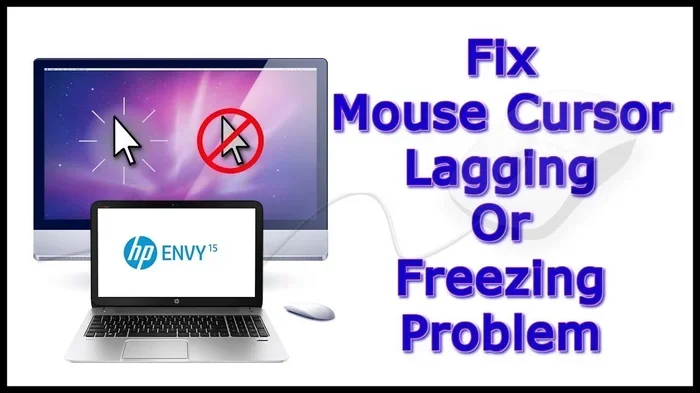
A mouse that wont move the cursor on your desktop is frustrating but usually easy to fix. Whether you have a wired or wireless mouse, the problem often comes down to driver issues, connection problems, or simple settings glitches. This guide walks you through every proven fix to get your mouse cursor moving again quickly.
There is nothing more annoying than moving your mouse across the pad and watching the cursor sit still. You click, you wiggle, you tap — but nothing happens. Your desktop feels frozen even though the rest of the computer might be running fine. This is a common problem that affects wired mice, wireless mice, and laptop touchpads alike.
The good news is that a mouse that does not move the cursor is usually not a serious hardware failure. In most cases, the fix is simple and takes just a few minutes. This guide covers every possible reason your cursor might be stuck and gives you clear steps to solve each one. Whether you use a Logitech mouse, a Dell mouse, an HP mouse, or any other brand, these tips will help you get back to work.
Before you try anything complicated, take a breath and work through this guide from top to bottom. We start with the easiest fixes and move toward more advanced solutions. By the end, your mouse pointer will be moving smoothly again.
Key Takeaways
- Check the basics first: USB ports, batteries, and cable connections solve most cursor issues.
- Update or reinstall mouse drivers: Outdated drivers are a leading cause of a frozen cursor on desktop.
- Try a different USB port or receiver: A faulty port can make your mouse pointer stop responding.
- Adjust mouse settings: Pointer speed and accessibility options can cause cursor movement problems.
- Reset the mouse: A simple reset often fixes unresponsive wireless and wired mice.
- Test on another device: This helps you determine if the problem is with the mouse or the computer.
- Clean the sensor and surface: Dust and debris can physically block cursor movement.
📑 Table of Contents
- Why Your Mouse Cursor Is Not Moving
- Quick Fixes To Try Right Now
- How To Update or Reinstall Mouse Drivers
- Fix Wireless Mouse Connection Problems
- Check and Adjust Mouse Settings in Windows
- Physical Problems That Stop Cursor Movement
- Advanced Troubleshooting Steps
- When To Replace Your Mouse
- How To Prevent Mouse Cursor Problems in the Future
- Conclusion
Why Your Mouse Cursor Is Not Moving
Understanding the root cause makes fixing the problem much easier. Several things can stop a mouse from moving the cursor on a desktop computer. Here are the most common reasons:
Dead or Weak Batteries
If you use a wireless mouse, the batteries might be drained. A low battery sends weak signals to the receiver, which can make the cursor lag or stop completely. This is the number one cause of wireless mouse problems.
Loose or Damaged Cable
A wired mouse relies on a USB cable to send signals. If the cable is loose, bent, or damaged, the connection drops. Your cursor freezes even though the mouse is perfectly fine inside.
Outdated or Corrupt Drivers
Every mouse needs drivers to talk to your operating system. When these drivers become outdated or corrupt, the mouse and the computer lose communication. The cursor stops moving even when you shake the mouse.
USB Port Problems
A faulty USB port can prevent your mouse from working at all. Dust inside the port, a loose connection, or a damaged controller can all cause this issue.
Mouse Settings Gone Wrong
Sometimes the problem is not hardware at all. Windows mouse settings, pointer speed, or accessibility features can accidentally be changed. This makes the cursor appear stuck or unresponsive.
Quick Fixes To Try Right Now
Before diving into advanced troubleshooting, try these quick fixes. Many users solve their cursor problem with just one of these steps.
Check the USB Connection
Unplug your mouse and plug it back in firmly. If you use a USB hub, remove it and connect the mouse directly to the computer. A direct connection often fixes cursor not moving issues instantly.
Replace the Batteries
For wireless mice, swap in fresh batteries. Even if the old batteries seem fine, they might not deliver enough power for a stable connection. This is a simple fix that works more often than you would think.
Try a Different USB Port
Move your mouse to another USB port on the back of your computer. Front panel ports sometimes provide less power or have weaker connections. A different port can bring your cursor back to life.
Restart Your Computer
A simple restart clears temporary glitches that can freeze the mouse driver. Save your work and reboot. This fixes many minor software hiccups that cause cursor problems.
Test the Mouse on Another Device
Plug your mouse into a different computer or laptop. If the cursor moves there, the problem is with your desktop, not the mouse. If it still does not work, the mouse itself might be defective.
How To Update or Reinstall Mouse Drivers
Drivers are the software that lets your computer understand what your mouse is doing. When drivers break or get outdated, your mouse pointer stops responding. Updating or reinstalling them is one of the most effective fixes.
Update Mouse Drivers Through Device Manager
Open Device Manager by right-clicking the Start button and selecting it from the menu. Find the mouse category and expand it. Right-click your mouse device and choose Update Driver. Follow the prompts and let Windows search for the latest driver software. Restart your computer after the update finishes.
Uninstall and Reinstall the Mouse Driver
Sometimes a clean reinstall works better than an update. In Device Manager, right-click your mouse and select Uninstall Device. Restart your computer. Windows will automatically reinstall the correct driver during boot. Check if your cursor moves after the system comes back up.
Download Drivers From the Manufacturer Website
Go to the website of your mouse brand. Logitech, Microsoft, Dell, and HP all offer free driver downloads. Find your exact mouse model, download the latest driver, and install it. This method gives you the most up-to-date software and often fixes stubborn cursor issues.
Expert Tip: If you recently updated Windows, the driver might have been reset. Always check Device Manager after a major system update to make sure your mouse driver is working correctly.
Fix Wireless Mouse Connection Problems
Wireless mice offer freedom but can develop connection issues that stop the cursor from moving. These problems are usually easy to solve with a few simple steps.
Reconnect the Wireless Receiver
Unplug the USB receiver from your computer. Wait ten seconds and plug it back in. Make sure the receiver is seated firmly in the port. Some mice need you to press a sync button on the bottom of the mouse or on the receiver to re-establish the connection.
Move the Receiver Closer to the Mouse
USB receivers work best when they are within a few feet of the mouse. If the receiver is buried behind your desk or plugged into a long cable, the signal might be weak. Try plugging the receiver into a front USB port or use a USB extension cable to bring it closer to the mouse.
Remove Interference From Other Devices
Wireless mice use radio frequency signals. Other wireless devices, USB 3.0 ports, and even fluorescent lights can interfere with the signal. Unplug nearby Bluetooth devices or USB hubs temporarily and see if the cursor starts moving.
If you are struggling with a specific brand, check out our guide on how to connect a wireless mouse to a laptop for detailed pairing steps that also apply to desktop setups.
Check and Adjust Mouse Settings in Windows
Sometimes the mouse hardware is fine, but the settings tell the computer to ignore it or limit its movement. Adjusting these settings can bring your cursor back.
Check Mouse Speed and Sensitivity
Go to Settings > Bluetooth & Devices > Mouse (or Control Panel > Mouse). Look at the Pointer Options tab. Make sure the pointer speed slider is not set all the way to the left or right. A middle position works best for most users. Uncheck the box for Enhance Pointer Precision if it is causing erratic movement.
Disable Mouse Acceleration
Mouse acceleration changes cursor speed based on how fast you move the mouse. Some users find this feature makes the cursor feel unpredictable. Disabling it gives you a more linear and predictable cursor response. This is especially helpful for users who do precise work like graphic design or gaming.
Check Accessibility Settings
Windows has accessibility features that can affect mouse behavior. Go to Settings > Accessibility > Mouse. Make sure Mouse Keys is turned off. When Mouse Keys is on, the keyboard controls the cursor instead of the mouse, which can make it seem like the mouse is not working at all.
Physical Problems That Stop Cursor Movement
Not all cursor problems are software-related. Physical issues with the mouse itself or the surface you use can prevent the cursor from moving.
Clean the Mouse Sensor
Dust, hair, and crumbs can block the optical sensor on the bottom of your mouse. Use a soft cloth or compressed air to clean the sensor area gently. For optical mice, make sure the sensor lens is clear and unobstructed.
Check the Mouse Pad or Surface
Some surfaces do not work well with optical sensors. Thick fabric, glass, or uneven surfaces can confuse the sensor and stop cursor movement. Try using your mouse on a flat, solid surface like a desk or a proper mouse pad. If your mouse pad is worn out, it might be time for a replacement.
If you are dealing with a laptop touchpad issue, you can find helpful steps in our guide on how to fix my laptop mouse pad.
Inspect the Cable for Damage
Look closely at the entire length of the mouse cable. Frayed sections, kinks, or chewed spots mean the internal wires are broken. Even if the cable looks okay from the outside, bending it gently near the connectors can reveal hidden damage. A damaged cable means the mouse needs replacement.
Try the Mouse on a Different Surface
Take your mouse to another room and use it on a different desk or table. If the cursor moves normally there, the original surface is the problem. Some desks have glossy finishes or textures that interfere with optical tracking.
Advanced Troubleshooting Steps
If none of the above fixes work, try these more advanced solutions. They address deeper software and hardware conflicts that can freeze your cursor.
Boot Into Safe Mode
Safe Mode loads only the essential drivers and software. If your cursor works in Safe Mode but not normally, a third-party program or driver is causing the conflict. Uninstall recent software or roll back recent driver updates to find the culprit.
Create a New Windows User Profile
Corrupted user settings can affect mouse behavior. Creating a new user profile with default settings helps you test this theory. If the cursor works in the new profile, the issue is in your original profile settings, not the mouse itself.
Run the Windows Hardware Troubleshooter
Windows has a built-in troubleshooter for hardware problems. Go to Settings > System > Troubleshoot > Other Troubleshooters and run the Hardware and Devices troubleshooter. It can automatically detect and fix common mouse issues.
Perform a System Restore
If the cursor problem started recently, a System Restore can roll your computer back to a time when everything worked. Search for Create a Restore Point in the Start menu, open System Restore, and choose a restore point from before the problem began.
For wireless mouse users specifically, you may also want to check out our article on how to connect a wireless mouse to a laptop for additional pairing and connectivity tips that apply to desktop use as well.
When To Replace Your Mouse
Sometimes the best fix is a new mouse. If you have tried every step above and the cursor still does not move, the mouse might be physically broken. Here are signs it is time to replace your mouse:
- The cursor works on other computers but not yours.
- The mouse makes clicking sounds but the cursor does not respond.
- The cable is visibly damaged and cannot be repaired.
- The wireless receiver is physically broken or lost.
- The mouse is several years old and no longer supported by driver updates.
When buying a new mouse, consider whether you need a wired or wireless model. Wireless mice offer more desk freedom, while wired mice tend to have faster response times and never need charging. For help setting up a new mouse, check out our guide on how to make a mouse work on a laptop which covers initial setup steps that work for desktops too.
How To Prevent Mouse Cursor Problems in the Future
Once you get your cursor working again, a few simple habits can prevent the problem from coming back.
- Keep your drivers updated: Check for driver updates once a month or enable automatic updates in Device Manager.
- Use a quality surge protector: Power surges can damage USB ports and connected devices.
- Clean your mouse regularly: Wipe the sensor and bottom of the mouse every few weeks to prevent dust buildup.
- Replace batteries on schedule: For wireless mice, change batteries before they fully die to avoid weak signal issues.
- Avoid yanking the cable: Pull gently on the connector, not the cable itself, to prevent internal wire damage.
These small habits keep your mouse pointer responsive and your desktop workflow smooth. Prevention is always easier than troubleshooting, so build these practices into your routine.
Conclusion
A mouse that does not move the cursor on your desktop is a solvable problem. Start with the quick fixes — check connections, replace batteries, and try a different USB port. Move on to driver updates and settings adjustments if those do not work. For wireless mice, focus on reconnecting the receiver and removing signal interference. Physical cleaning and surface checks address hardware issues that software cannot fix.
Most of the time, one of these steps brings your cursor back to life. The key is to work through the list systematically rather than guessing. Each fix takes only a few minutes, and together they cover nearly every possible cause.
Do not let a stuck cursor slow you down. Follow the steps in this guide, and you will be clicking and scrolling again before you know it. Share this article with anyone you know who is dealing with a frozen mouse pointer — it could save them hours of frustration.
Frequently Asked Questions
Why does my mouse cursor freeze randomly on my desktop?
Random cursor freezes are usually caused by driver conflicts, low batteries in wireless mice, or USB port issues. Try updating your mouse drivers and connecting the mouse directly to a back USB port. If you use a wireless mouse, replace the batteries and move the receiver closer to the mouse.
How do I know if my mouse is broken or just the cursor is stuck?
Test your mouse on another computer. If the cursor moves normally on the other computer, the mouse is fine and the problem is with your desktop settings or drivers. If the cursor does not move on any computer, the mouse itself is likely broken.
Can a virus or malware cause my mouse cursor to stop moving?
Yes, in rare cases malware can interfere with mouse drivers or system processes. Run a full antivirus scan if you have tried all the normal fixes and the cursor still does not respond. A clean system scan can rule out software conflicts.
Why does my wireless mouse cursor jump around instead of moving smoothly?
Jumping cursors are often caused by wireless interference, low batteries, or a dirty sensor. Move the USB receiver closer to the mouse, replace the batteries, and clean the sensor on the bottom of the mouse. Also, avoid using the mouse near other wireless devices or USB 3.0 ports.
What should I do if my mouse works but the cursor does not appear on screen?
This usually means the mouse driver is not loading properly. Open Device Manager, uninstall the mouse device, and restart your computer. Windows will reinstall the driver automatically. You can also try pressing Windows key + Ctrl + M to toggle mouse visibility settings.
Is it better to use a wired or wireless mouse to avoid cursor problems?
Wired mice have fewer connection issues and do not depend on batteries, making them more reliable for cursor stability. Wireless mice offer more convenience but can suffer from signal interference and battery problems. Choose based on your needs — both types work well when properly maintained.
=== META TITLE ===
How To Fix Mouse Cursor That Wont Move On Desktop
=== URL SLUG ===
how-to-fix-mouse-cursor-not-moving-on-desktop
=== SEO TITLE ===
How To Fix A Mouse That Dont Move Cursor On Desktop
=== FEATURED IMAGE ALT TEXT ===
Person fixing a computer mouse with cursor not moving on desktop screen