How To Fix A Mouse That Doesnt Move Cursor Right Now
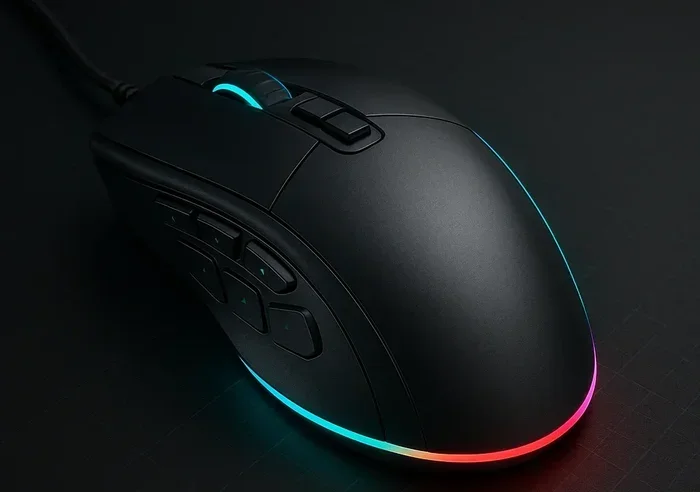
A mouse that wont move your cursor can stop you in your tracks. Whether your wired or wireless mouse has frozen, your trackpad is unresponsive, or your pointer just vanished, this guide walks you through every fix that works. You will learn simple steps to restore your mouse cursor movement fast, no tech skills needed.
There is nothing more frustrating than sitting down to work and finding that your mouse cursor wont move. You move the mouse or glide your finger across the trackpad, but the pointer just sits there. Maybe it jumps around randomly, or maybe it disappears altogether. Whatever the symptom, a mouse that doesnt move cursor can bring your entire day to a halt.
The good news is that most cursor problems are easy to fix. You do not need to be a tech expert. In this guide, we walk you through every proven solution step by step. From checking physical connections to updating drivers and tweaking settings, we cover it all. By the end, you will know exactly what to do to get your pointer working again right now.
Key Takeaways
- Check Physical Connections First: A loose USB plug or dead battery causes most cursor problems.
- Update or Reinstall Mouse Drivers: Outdated drivers are a top reason your mouse cursor stops moving.
- Adjust Mouse Settings in Windows: Simple setting changes can fix a frozen cursor quickly.
- Clean Your Mouse and Trackpad: Dirt and dust often block sensor readings and cause cursor issues.
- Try Safe Mode to Isolate the Problem: This helps you tell if a software conflict is to blame.
- Know When to Replace Hardware: Sometimes the mouse itself is dead and needs a new one.
📑 Table of Contents
- Why Does Your Mouse Cursor Stop Moving?
- Quick Fixes to Try Right Now
- How to Update Mouse Drivers on Windows
- Adjusting Mouse Settings in Windows
- Troubleshooting Wireless Mouse Connection Issues
- When to Consider Using a Different Mouse or Input Device
- Preventing Future Mouse Cursor Problems
- When to Seek Professional Help
- Conclusion
Why Does Your Mouse Cursor Stop Moving?
Before you jump into fixes, it helps to understand what might be causing the problem. A mouse cursor not moving can stem from many different sources. Sometimes the issue is as simple as a dead battery. Other times, it is a software conflict or a driver problem. Let us break down the most common causes.
Dead or Weak Batteries
If you use a wireless mouse, the batteries might simply be dead. A low battery often causes the cursor to slow down or stop moving entirely. This is the first thing to check when your wireless mouse stops working. Replace the batteries with fresh ones and see if that solves the problem.
Loose or Damaged USB Connections
For wired mice, a loose USB connection can cut off the signal. Unplug the receiver or cable, wait a few seconds, and plug it back in firmly. Try a different USB port if the first one does not work. Sometimes a faulty port is the real culprit behind a mouse not responding on laptop.
Outdated or Corrupt Drivers
Windows relies on drivers to communicate with your mouse. If a driver becomes outdated or corrupt, your cursor may freeze or vanish. This is one of the most common reasons a mouse cursor stops working after a system update. Updating or reinstalling the driver often fixes this right away.
Trackpad or Touchpad Sensor Issues
If you are using a laptop trackpad, dirt, moisture, or wear can interfere with the sensor. A sticky mouse pad or a scratched surface can cause erratic cursor behavior. Cleaning the trackpad and checking for damage can make a big difference.
Software Conflicts
Sometimes a newly installed program conflicts with your mouse settings. Antivirus software, system optimizers, or even a recent Windows update can interfere with cursor movement. These conflicts can make it seem like your laptop mouse is broken when it is really a software issue.
Quick Fixes to Try Right Now
Before you dive into advanced troubleshooting, try these quick fixes. Many people solve their cursor problem in under two minutes with these simple steps.
Restart Your Computer
It sounds too simple, but restarting your computer clears temporary glitches. A fresh reboot can resolve a frozen mouse cursor caused by a minor software hiccup. Save your work, shut down, wait ten seconds, and turn back on.
Check That the Mouse Is Enabled
On laptops, the trackpad can sometimes get accidentally disabled. Look for a function key (usually F6, F7, or F9) with a touchpad icon. Press it to re-enable the pad. If you use an external mouse, make sure it is turned on and the power switch is in the correct position.
Try a Different USB Port
A bad USB port can mimic a dead mouse. Unplug your mouse receiver or cable and try another port. If the cursor starts moving, the original port may be damaged or loose.
Replace the Batteries
For wireless mice, pop open the battery compartment and insert fresh batteries. Even if the old batteries seem fine, they may not provide enough power for the receiver. This is a quick fix that solves many wireless mouse cursor problems.
How to Update Mouse Drivers on Windows
If the quick fixes did not work, the next step is to check your drivers. Outdated drivers are one of the top causes of a mouse that doesnt move cursor on Windows computers. Here is how to update them the easy way.
First, right-click the Start button and select Device Manager. Scroll down and find the section called Mice and other pointing devices. Expand it and right-click your mouse device. Choose Update driver and follow the prompts. Windows will search for the latest driver online and install it.
If updating does not help, try uninstalling the driver. Right-click the mouse device again and select Uninstall device. Restart your computer, and Windows will automatically reinstall a fresh driver. This simple trick fixes many cursor movement issues caused by corrupt files.
You can also visit the website of your mouse manufacturer. Logitech, Microsoft, and HP all offer free driver downloads. Download the latest driver for your specific model and install it manually. This ensures you get the most up-to-date version that works with your system.
Adjusting Mouse Settings in Windows
Sometimes the problem is not your hardware at all. Your mouse settings may be configured in a way that stops the cursor from moving properly. Adjusting these settings can bring your pointer back to life.
Check Mouse Speed and Sensitivity
Go to Settings, then Devices, then Mouse. Click on Additional mouse options. In the Pointer Options tab, check the box that says Enhance pointer precision. If it is already checked, try unchecking it. This can fix cases where the cursor moves too fast or too slow to control.
Disable Mouse Acceleration
Mouse acceleration can cause unpredictable cursor behavior. To turn it off, open the Registry Editor by typing regedit in the search bar. Navigate to HKEY_CURRENT_USER\Control Panel\Mouse. Find the MouseSpeed value and set it to 0. Restart your computer. This disables acceleration and gives you a more predictable cursor on your screen.
Check for Multiple Mouse Devices
Windows sometimes gets confused when multiple pointing devices are connected. You might have a trackpad, a USB mouse, and a Bluetooth mouse all active at the same time. Go to Device Manager and disable any device you are not currently using. This can stop conflicts that cause the cursor to jump or freeze.
Troubleshooting Wireless Mouse Connection Issues
Wireless mice offer freedom, but they can also introduce connection problems. If your wireless mouse cursor keeps cutting out or not moving at all, the connection between the receiver and the mouse is likely the issue.
Re-Pair the Mouse with the Receiver
Unplug the USB receiver, wait a few seconds, and plug it back in. Then turn off the mouse and turn it back on. Most wireless mice will automatically reconnect within a few seconds. If yours does not, you may need to press a pairing button on the bottom of the mouse.
Reduce Wireless Interference
USB 3.0 devices, Wi-Fi routers, and even microwaves can interfere with wireless mouse signals. Move the receiver closer to the mouse and away from other devices. If you use a USB hub, try plugging the receiver directly into your computer for a stronger signal.
Update the Wireless Receiver Firmware
Some wireless receivers need firmware updates to work properly with newer versions of Windows. Check the manufacturer website for any available updates. Keeping your receiver up to date can prevent many wireless mouse not working issues before they start.
When to Consider Using a Different Mouse or Input Device
If you have tried every fix and the cursor still does not move, it may be time to consider alternatives. Sometimes the mouse hardware itself has failed, and no amount of troubleshooting will bring it back.
You can try using the laptop trackpad as a temporary replacement. If the trackpad works fine, the problem is likely with your external mouse. In that case, you may want to invest in a new one. For those who prefer not to use a trackpad, you might explore how to use a laptop without a mouse using keyboard shortcuts and on-screen controls until you get a replacement.
Many people also find that switching to a different brand or type of mouse solves persistent cursor issues. Optical mice work well on most surfaces, while laser mice offer more precision. If you are dealing with a mouse that keeps freezing, a new model with a better sensor might be all you need.
If you use a wireless mouse and keep running into connection problems, you might want to try a wired option for reliability. Alternatively, you could look into how to connect a wireless mouse to laptop using Bluetooth instead of a USB receiver. This can sometimes bypass connection issues entirely and give you a more stable experience.
Preventing Future Mouse Cursor Problems
Once you get your cursor working again, you do not want it to happen again. A few simple habits can keep your mouse and trackpad running smoothly for months.
- Keep your mouse clean: Wipe the sensor and bottom of the mouse regularly with a soft cloth. Dust and grime build up fast and can block the sensor.
- Replace batteries on schedule: Do not wait until the mouse dies. Swap out batteries every few months to avoid sudden cursor failures.
- Update drivers regularly: Check for driver updates once a month. Windows Update usually handles this, but a manual check never hurts.
- Use a quality mousepad: A clean, smooth surface helps optical sensors track accurately and prevents erratic cursor movement.
- Avoid extreme temperatures: Heat and cold can affect both batteries and sensor performance. Keep your workspace at a comfortable temperature.
Taking these small steps goes a long way toward preventing the kind of mouse cursor not moving problems that ruin your workflow. Prevention is always easier than troubleshooting.
When to Seek Professional Help
Most cursor problems can be fixed at home with the steps in this guide. But sometimes the issue points to a deeper hardware or system problem. If your mouse works on another computer but not yours, or if the cursor issues started after a major system change, it may be time to consult a professional.
A technician can run deeper diagnostics on your USB ports, motherboard connections, and operating system integrity. They can also check for malware that might be interfering with your input devices. Do not hesitate to reach out if you feel stuck. Getting help early can save you time and prevent further damage to your system.
Conclusion
A mouse that doesnt move cursor can feel like a disaster, but it is almost always fixable. Start with the quick checks, move to driver updates, and work your way through the settings adjustments. Most of the time, one of these steps will bring your pointer back to life. Remember to keep your equipment clean, update your drivers regularly, and replace batteries before they die. With the right approach, you will be back to working smoothly in no time. Do not let a stuck cursor slow you down, take action today and get your mouse cursor moving again right now.
Frequently Asked Questions
Why does my mouse cursor stop moving suddenly?
Sudden cursor stoppage is usually caused by a dead battery, loose USB connection, or a driver glitch. Check the power source and connections first, then update your mouse drivers. Most of the time, a simple restart or battery swap fixes the problem.
Can a dirty mouse sensor cause the cursor to stop moving?
Yes, dust and grime on the sensor can block its ability to track movement. Clean the bottom of your mouse with a soft, dry cloth. For trackpads, wipe the surface gently and make sure it is dry before use.
How do I know if my mouse driver needs updating?
If your cursor freezes, jumps, or stops responding after a Windows update, the driver is likely the issue. Open Device Manager, find your mouse under Mice and other pointing devices, and check for available updates. A driver update often resolves these problems quickly.
Is it better to use a wired or wireless mouse to avoid cursor issues?
Wired mice tend to have fewer connection problems because they rely on a direct cable connection. Wireless mice offer more convenience but can suffer from interference or battery issues. Choose based on your needs, and keep wireless batteries fresh to minimize problems.
What should I do if my laptop trackpad stops working but the external mouse works fine?
This usually means the trackpad is disabled or has a sensor issue. Try pressing the function key that toggles the trackpad on and off. If that does not work, you can check your settings or look into how to fix my laptop mouse pad for more detailed troubleshooting steps.
Can a virus or malware cause my mouse cursor to stop moving?
Yes, some malware can interfere with system processes including mouse input. Run a full system scan with your antivirus software to rule this out. Keeping your operating system and security software up to date helps prevent these kinds of issues.