How To Use Mac Without Mouse and Still Get Work Done
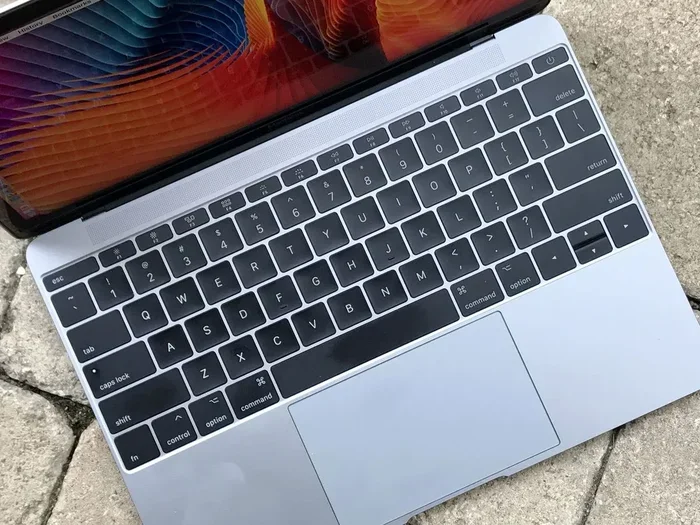
Using a Mac without a mouse is easier than you think. With the right trackpad gestures, keyboard shortcuts, and accessibility features, you can navigate your Mac efficiently and get work done without ever reaching for a mouse. This guide covers everything you need to know about using Mac without a mouse, from basic navigation to advanced productivity tricks.
Have you ever found yourself in a situation where your mouse just stopped working? Or maybe you are traveling and forgot your mouse at home. Whatever the reason, using a Mac without a mouse is a skill that can save you a lot of frustration. The good news is that macOS is designed to be fully navigable without a mouse. You can do almost everything using the trackpad, keyboard, or even your voice. In this guide, we will walk you through every method, tip, and trick you need to stay productive.
Many people think a mouse is essential for working on a Mac. But that is simply not true. The trackpad on a MacBook is incredibly powerful. And if you learn the right keyboard shortcuts for Mac, you can work faster than most people who rely on a mouse. Whether you are a student, a professional, or just someone who wants to get more out of their Mac, this guide has you covered. Let us dive in.
Key Takeaways
- Trackpad gestures are powerful: Mastering Mac trackpad gestures can replace most mouse functions entirely.
- Keyboard shortcuts save time: Learning essential keyboard shortcuts for Mac dramatically speeds up your workflow.
- Accessibility tools help everyone: Voice Control and other macOS accessibility features make mouse-free navigation possible for all users.
- Right-clicking works without a mouse: You can right click on a Mac trackpad easily using built-in settings.
- Setup takes minutes: Configuring your Mac for a mouse-free experience is quick and straightforward.
📑 Table of Contents
Why Use a Mac Without a Mouse?
There are many reasons you might need or want to use your Mac without a mouse. Maybe your mouse battery died. Maybe your mouse stopped working unexpectedly. Or maybe you just want a cleaner desk setup. Whatever the reason, using Mac without a mouse is a practical skill that everyone should have.
Using the trackpad and keyboard can actually make you more productive. You do not have to move your hand back and forth between the keyboard and a mouse. Everything stays within easy reach. This means less strain on your wrist and faster workflow. Plus, macOS has built-in features that make trackpad and keyboard navigation smooth and intuitive.
Common Situations Where You Need Mouse-Free Navigation
Here are some common scenarios where knowing how to navigate without a mouse really helps:
- Your wireless mouse runs out of battery mid-task
- You are working on a MacBook and the trackpad is your only pointing device
- You are at a coffee shop or traveling and forgot your mouse
- You have a broken mouse and need to finish an urgent project
- You want a minimalist desk setup with fewer cables and devices
People who regularly use a laptop without a mouse often find that they become more efficient over time. The keyboard and trackpad combination allows for quick, fluid movements that a mouse sometimes slows down.
Mastering the Mac Trackpad
The Mac trackpad is one of the best pointing devices ever made. It supports a wide range of gestures that can replace almost every mouse function. Learning these gestures is the single most important step in using a Mac without a mouse.
Basic Trackpad Gestures
Start with these fundamental gestures. They are the building blocks of trackpad navigation:
- Single tap: This is your left click. Just lightly tap the trackpad to select items.
- Two-finger tap: This acts as your right click. It opens context menus just like a mouse right-click would.
- Two-finger scroll: Place two fingers on the trackpad and move them up or down to scroll through pages.
- Pinch open or closed: Use two fingers to zoom in or out on images, documents, and web pages.
- Swipe with three fingers: Swipe left or right to switch between full-screen apps.
These basic gestures cover most of your daily needs. Once you get comfortable with them, you will wonder how you ever lived without them.
Advanced Trackpad Gestures
Once you have the basics down, try these advanced gestures to boost your productivity:
- Four-finger swipe up: This opens Mission Control, showing all your open windows and desktops.
- Four-finger swipe down: This shows your desktop, hiding all open windows.
- Four-finger swipe left or right: Switch between different Spaces or virtual desktops.
- Force Click: Press firmly on the trackpad to look up a word, preview a file, or open a link in a peek window.
- Two-finger rotate: Rotate images or PDFs by placing two fingers on the trackpad and turning them.
These gestures take a little practice, but they are incredibly powerful. Many people who switch from using a mouse to trackpad-only navigation report that they work faster within just a few days.
How to Enable and Customize Trackpad Gestures
You can adjust trackpad settings to match your preferences. Here is how:
- Open System Settings (or System Preferences on older macOS versions).
- Click on Trackpad in the sidebar.
- Go to the Point & Click tab to adjust tapping speed and enable right-click.
- Visit the More Gestures tab to turn on or off specific gestures like Mission Control and Spaces.
Take a few minutes to explore these settings. Customizing your trackpad to your workflow makes a big difference in comfort and speed.
Essential Keyboard Shortcuts for Mac
Keyboard shortcuts are the secret weapon of mouse-free Mac users. They let you navigate, edit, and control your Mac entirely from the keyboard. Learning even a handful of these shortcuts will dramatically improve your efficiency.
Navigation Shortcuts
These shortcuts help you move around your Mac without touching a mouse:
- Command + Space: Opens Spotlight search to find apps, files, and more instantly.
- Command + Tab: Switch between open applications.
- Command + ` (backtick): Switch between windows of the same app.
- Control + Left/Right Arrow: Switch between full-screen apps or Spaces.
- Command + L: Jump to the address bar in Finder and web browsers.
These shortcuts work across almost every app on your Mac. Practice them daily until they become second nature.
Editing and Productivity Shortcuts
When working with text or files, these shortcuts are invaluable:
- Command + C: Copy selected text or files.
- Command + V: Paste copied content.
- Command + X: Cut selected text or files.
- Command + Z: Undo the last action.
- Command + Shift + Z: Redo an undone action.
- Command + A: Select all content on the page or in a folder.
- Command + S: Save the current document or file.
You can also copy and paste without a mouse using just the trackpad and these shortcuts. Simply select text by holding the Shift key and using the arrow keys, then use Command + C and Command + V. This is a huge time saver.
Window and Desktop Management Shortcuts
Keep your workspace organized with these handy shortcuts:
- Command + M: Minimize the current window.
- Command + Option + M: Minimize all windows of the active app.
- Command + H: Hide the active app.
- Command + Option + H: Hide all other apps.
- Command + Option + D: Show or hide the Dock.
- Command + F3: Open Mission Control.
These shortcuts help you manage your workspace efficiently. You can quickly hide distractions, minimize clutter, and switch between tasks without ever touching a mouse.
Using Accessibility Features to Navigate
macOS comes packed with accessibility features that make it possible to navigate your entire Mac without a mouse. These tools are not just for people with disabilities. Anyone can benefit from them.
Voice Control
Voice Control lets you control your Mac entirely with your voice. You can open apps, click buttons, dictate text, and even edit documents. To set it up:
- Go to System Settings.
- Click on Accessibility.
- Select Voice Control and turn it on.
- Follow the on-screen instructions to set up voice commands.
Once enabled, you can say things like “Click File,” “Scroll down,” or “Open Safari.” Voice control is especially useful when you are multitasking and your hands are busy with other work.
Keyboard Navigation
macOS allows you to navigate the entire interface using just the keyboard. Here are the key settings:
- Full Keyboard Access: This lets you move focus to every button, menu, and control using the Tab key. Go to System Settings > Keyboard > Keyboard Shortcuts > Full Keyboard Access to enable it.
- Tab Key Navigation: Press Tab to move between interactive elements on screen. Press Shift + Tab to move backward.
- Space Bar to Click: When an item is focused, press the Space bar to click it, just like a mouse click.
- Arrow Keys: Use arrow keys to navigate menus, lists, and text fields.
These features make macOS accessibility a powerful tool for mouse-free navigation. They take a bit of getting used to, but once you do, you will wonder how you ever managed without them.
Switch Control
Switch Control is another powerful accessibility feature. It lets you use external switches, the keyboard, or the trackpad to navigate your Mac item by item. While it is designed for users with significant physical disabilities, it can also serve as an alternative navigation method for anyone.
Setting Up Your Mac for Mouse-Free Productivity
Getting your Mac ready for a mouse-free workflow is simple. A few small adjustments can make a huge difference in how smoothly you navigate without a mouse.
Enable Trackpad Right Click
If you want to right click without a mouse on your Mac, you need to enable this feature first. Here is how:
- Open System Settings.
- Go to Trackpad.
- Under the Point & Click section, look for “Secondary click.”
- Select “Click or tap with two fingers.”
Now you can right-click on any item by tapping the trackpad with two fingers. This is essential for accessing context menus and options.
Adjust Trackpad Tracking Speed
A fast tracking speed makes navigation feel responsive and smooth. To adjust it:
- Go to System Settings > Trackpad.
- Find the Tracking Speed slider.
- Move it to the right for faster cursor movement.
Finding the right speed is personal. Experiment until you find a setting that feels comfortable for you.
Enable Hot Corners
Hot Corners let you trigger actions by moving your cursor to a corner of the screen. This is a great mouse-free shortcut:
- Top Left Corner: Mission Control
- Top Right Corner: Desktop
- Bottom Left Corner: Launchpad
- Bottom Right Corner: Put Display to Sleep
To set up Hot Corners, go to System Settings > Desktop & Dock > Hot Corners. Click on a corner and choose an action.
Use the Touch Bar (If Available)
If you have a MacBook Pro with a Touch Bar, you can use it as an additional control layer. The Touch Bar shows context-sensitive shortcuts and controls for the app you are currently using. This can reduce the need for a mouse even further.
Tips and Tricks for Power Users
Once you are comfortable with the basics, these advanced tips will take your mouse-free Mac experience to the next level.
Use Spotlight for Everything
Spotlight is more than just a search tool. You can use it to open apps, calculate math, convert currencies, check the weather, and even do simple calculations. Just press Command + Space and start typing. This is one of the fastest ways to navigate your Mac without a mouse.
Master the Trackpad Scrollbar
You can scroll through documents and web pages by placing two fingers on the trackpad and swiping. But did you know you can also click and drag the scrollbar using the trackpad? Just tap and hold at the scrollbar position, then drag. This gives you precise control over scrolling.
Create Keyboard Shortcuts for Your Favorite Actions
macOS lets you create custom keyboard shortcuts for almost any menu command. Here is how:
- Open System Settings > Keyboard > Keyboard Shortcuts.
- Select App Shortcuts.
- Click the “+” button to add a new shortcut.
- Choose the app, enter the menu command name exactly as it appears, and assign a key combination.
This is a great way to streamline your workflow and reduce the need for a mouse even more.
Quick Tips for Better Mouse-Free Productivity
- Keep your hands on the keyboard as much as possible. Use the trackpad only when you need precise pointing.
- Learn one new shortcut every day. Within a week, you will have a solid foundation of shortcuts.
- Use the Command key as your primary modifier key. Most Mac shortcuts revolve around it.
- Practice trackpad gestures during downtime. The more you use them, the more natural they become.
- Explore macOS accessibility settings regularly. Apple adds new features with every update.
Common Mistakes to Avoid
When learning to use a Mac without a mouse, people often make these mistakes:
- Ignoring trackpad settings: Default settings may not be optimized for your workflow. Spend time customizing them.
- Not learning keyboard shortcuts: Shortcuts are the fastest way to navigate. Without them, you are missing out on huge time savings.
- Forgetting about accessibility features: Voice Control and Switch Control are powerful tools that many people overlook.
- Sticking to old habits: It takes a few days to adjust to mouse-free navigation. Push through the awkward phase.
Expert Insights on Mouse-Free Mac Workflow
Many professionals and productivity experts swear by mouse-free workflows. The trackpad and keyboard combination offers a level of efficiency that a mouse simply cannot match. When your hands stay on the keyboard, you spend less time reaching for a mouse and more time focused on your actual work.
Apple designs macOS with keyboard and trackpad navigation in mind. Every major feature includes support for trackpad gestures and keyboard shortcuts. This is by design. Apple wants you to be able to use your Mac without a mouse if you choose to.
If you are transitioning from a Windows PC where you relied heavily on a mouse, give yourself time to adjust. The learning curve is real but short. Within a week or two, you will find that using the trackpad and keyboard feels natural and fast.
Conclusion
Using a Mac without a mouse is not only possible but can actually be more efficient than using one. The Mac trackpad is a powerful tool, and when combined with keyboard shortcuts and accessibility features, it gives you everything you need to work without a mouse. Start by mastering the basic trackpad gestures and essential keyboard shortcuts. Then explore the accessibility features and customization options to build a workflow that suits you.
Remember, the goal is not to never use a mouse again. The goal is to have options. When your mouse is not available, you should still be able to get your work done quickly and efficiently. With the tips and tricks in this guide, you will be fully prepared for any situation. Practice regularly, stay curious, and enjoy the freedom of a mouse-free Mac workflow.
If you ever want to revisit the basics of navigating without a pointing device, you can also explore how to use a laptop without a mouse for general tips that apply across platforms. And if you ever need help with copy and paste without a mouse, there are plenty of resources available to sharpen those skills further.
Frequently Asked Questions
Can I use a Mac without any pointing device at all?
Yes, you can. macOS supports full keyboard navigation and Voice Control. You can open apps, click buttons, type text, and navigate the entire interface using just the keyboard or your voice. The trackpad is the most common alternative, but it is not the only option.
How do I right-click on a Mac trackpad without a mouse?
You can right-click by tapping the trackpad with two fingers. Make sure this is enabled in System Settings > Trackpad > Point & Click by selecting “Click or tap with two fingers.” You can also press the bottom-right corner of the trackpad if you prefer that method.
What are the best keyboard shortcuts for navigating a Mac without a mouse?
The most useful shortcuts are Command + Space for Spotlight search, Command + Tab to switch apps, Command + C/V for copy and paste, and Control + Arrow keys to switch between Spaces. Learning these will cover most of your daily navigation needs.
Is Voice Control really useful for Mac navigation?
Yes, Voice Control is surprisingly powerful. You can open apps, click on-screen elements, dictate text, and even edit documents using voice commands. It is especially helpful when your hands are busy or when you prefer a completely hands-free experience.
How long does it take to get comfortable using a Mac without a mouse?
Most people feel comfortable within one to two weeks of regular practice. The first few days may feel awkward, but as you build muscle memory with shortcuts and gestures, it becomes second nature. Stick with it and you will see a big improvement in your workflow.
Can I connect a wireless mouse to my Mac if I change my mind?
Absolutely. You can connect a wireless mouse to your laptop via Bluetooth or a USB receiver. macOS supports most wireless mice out of the box. However, many users find that after learning trackpad and keyboard shortcuts, they prefer the simplicity of going mouse-free.