What Is a Gutter Margin in Word
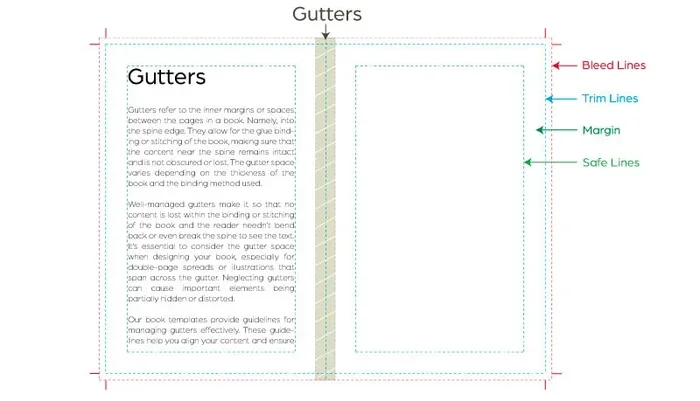
A gutter margin in Word is an extra space added to the inside edge of a page, mainly used for binding. It keeps text from getting lost near the spine when you print and staple documents. Setting it up takes just a few clicks in the Page Setup dialog.
If you have ever printed a multi-page document and noticed that the text near the spine gets cut off or hard to read, you have run into a common problem. The fix is simple. It is called a gutter margin. This extra strip of space on the inside edge of your page keeps your text safe from the binding. Whether you are printing a book, a report, or a booklet, understanding how gutter margins work in Microsoft Word can save you a lot of frustration.
Many people never even notice the gutter margin option in Word. It hides in the Page Setup menu, and most users skip right past it. But once you know what it does and how to use it, you will wonder how you ever managed without it. In this guide, we will walk you through everything you need to know. We will cover what a gutter margin is, why it matters, how to set it up, and when to use it. Let us dive in.
Key Takeaways
- Gutter margin prevents text loss: It adds extra space near the binding side so nothing gets hidden when pages are stapled or bound.
- Easy to set up in Word: You can find gutter margin settings under Layout > Margins > Custom Margins in just a few clicks.
- Useful for books and reports: Any multi-page document that gets bound benefits from a gutter margin setting.
- Gutter position matters: You can choose left or top gutter depending on how your document will be bound.
- Default margin is zero: Word does not add a gutter margin by default, so you must set it manually when needed.
📑 Table of Contents
- What Is a Gutter Margin in Word?
- Why Gutter Margins Matter for Your Documents
- How to Set a Gutter Margin in Microsoft Word
- When to Use a Gutter Margin vs. When Not To
- Common Mistakes People Make with Gutter Margins
- Pro Tips for Perfect Gutter Margins
- Gutter Margins and Document Performance
- Final Thoughts on Gutter Margins in Word
What Is a Gutter Margin in Word?
A gutter margin is an additional margin added to the inside edge of a page. This inside edge is the side where pages bind together. In a book or a stapled document, the binding takes up some space. Without a gutter margin, your text can get pushed into that binding space and become hard to read.
Think of it this way. When you hold a printed booklet, the pages curve inward near the spine. That curve eats into your normal margin. The gutter margin adds extra room to compensate. It pushes the text further from the binding so it stays easy to read.
How Gutter Margins Differ from Regular Margins
Regular margins control the space around all four sides of a page. You have a top margin, bottom margin, left margin, and right margin. These keep your text away from the edges of the paper. A gutter margin is different. It only applies to the inside edge. It does not affect the outside edges at all.
Here is a quick comparison:
- Regular margins: Apply to all four sides of the page equally or as you set them.
- Gutter margin: Adds extra space only to the inside edge near the binding.
- Top gutter: Places extra space at the top of the page, useful for certain binding styles.
- Left gutter: Places extra space on the left side, the most common setup for books and reports.
Word lets you choose between a left gutter and a top gutter. The left gutter is the default and works for most documents. The top gutter is useful when your document is bound at the top, like a calendar or a notepad.
Why Gutter Margins Matter for Your Documents
You might be wondering why this even matters. Can you not just increase your regular left margin? The short answer is yes, but it is not ideal. A gutter margin gives you precise control. It adds space only where it is needed. This keeps your outside margins clean and balanced.
Here are some real situations where a gutter margin makes a big difference:
- Printing booklets: Booklets get stapled or saddle-stitched. The binding takes up space on the inside edge.
- Creating reports: Multi-page reports that get bound with a comb or spiral binding need extra inside space.
- Designing books: Authors and publishers use gutter margins to ensure text is readable after binding.
- Making calendars: Top-bound calendars benefit from a top gutter margin setting.
- Printing menus or flyers: Any document that gets folded or bound needs a gutter margin for a professional look.
Without a gutter margin, your readers might have to hold the page at an awkward angle to read text near the spine. That is not a good experience. A small extra margin goes a long way toward making your documents look polished and professional.
How to Set a Gutter Margin in Microsoft Word
Setting up a gutter margin in Word is straightforward. Follow these steps and you will be done in under a minute.
Step-by-Step Guide
- Open your document in Microsoft Word.
- Go to the Layout tab at the top of the ribbon.
- Click on Margins. A dropdown menu will appear.
- Select Custom Margins at the bottom of the dropdown.
- In the Page Setup dialog box, look for the Gutter field.
- Enter a value for the gutter margin. A common value is 0.5 inches or 1 inch.
- Choose the Gutter Position. Select Left or Top depending on your binding style.
- Click OK to apply the changes to your document.
That is it. Your gutter margin is now set. You can preview the changes in the Print Layout view. The text on the inside edge will shift outward, giving you more breathing room near the binding.
Recommended Gutter Margin Sizes
The right gutter margin size depends on your document type. Here are some general guidelines:
- 0.25 inches: Works for documents with thin binding or no binding at all.
- 0.5 inches: A solid choice for most booklets and reports.
- 0.75 inches: Great for thicker books or documents with heavy binding.
- 1.0 inches: Best for large books or documents that will be perfect-bound.
Keep in mind that the more pages your document has, the more the spine curves. Thicker documents need a larger gutter margin. A good rule of thumb is to start with 0.5 inches and adjust based on your printout.
When to Use a Gutter Margin vs. When Not To
Not every document needs a gutter margin. In fact, using one when it is not needed can make your pages look unbalanced. Here is a simple guide to help you decide.
Use a Gutter Margin When
- You are printing a multi-page document that will be bound or stapled.
- Your document has more than 20 pages and will be spiral-bound or comb-bound.
- You are creating a book, booklet, or magazine layout.
- You notice text getting cut off or hard to read near the spine.
- You want your printed documents to look professional and polished.
Skip the Gutter Margin When
- You are printing single-page documents like letters or forms.
- Your document will not be bound or stapled.
- You are working with digital-only documents that will only be viewed on screen.
- Your document has fewer than 10 pages with no binding.
Knowing when to use a gutter margin saves you time and keeps your documents looking clean. For digital documents viewed on screens, gutter margins are generally unnecessary since there is no physical binding.
Common Mistakes People Make with Gutter Margins
Even experienced Word users make mistakes with gutter margins. Here are some common errors to avoid:
Forgetting to Set the Gutter Position
This is the most common mistake. You enter a gutter value but forget to choose Left or Top. Word defaults to Left, which works for most documents. But if your document is top-bound, you need to change this setting. Always double-check the gutter position before you print.
Using Too Much or Too Little Gutter Space
Setting the gutter too large wastes valuable page space. Your text area shrinks, and you might end up with more pages than needed. Setting it too small means the text still gets too close to the binding. Stick to the recommended sizes based on your document thickness.
Ignoring Print Preview
Always check your document in Print Preview before sending it to the printer. The Print Preview shows you exactly how the gutter margin will look on paper. You can catch problems early and make adjustments before wasting ink and paper.
Not Adjusting for Different Paper Sizes
If you switch between Letter and A4 paper sizes, your gutter margin needs might change. A4 paper is slightly narrower than Letter, so the binding takes up a larger percentage of the page. Review your gutter settings whenever you change paper sizes.
Pro Tips for Perfect Gutter Margins
Here are some expert tips that will help you get the best results every time you work with gutter margins in Word:
- Print a test page first. Always print one copy and check the gutter margin before printing the entire batch.
- Use the Print Layout view. This view shows you exactly how your margins will look on the printed page.
- Consider your binding method. Different binding methods take up different amounts of space. Adjust your gutter accordingly.
- Save your margin settings. If you use the same settings often, save them as a custom margin preset for quick access.
- Check your printer’s printable area. Some printers cannot print all the way to the edge. Factor this into your margin calculations.
These small tips can make a huge difference in the final output of your documents. Taking a few extra minutes to check your margins can save you from reprinting entire batches.
Gutter Margins and Document Performance
You might wonder if adding a gutter margin affects how Word handles your document. The short answer is no. Gutter margins are purely a layout and print setting. They do not change file size or document performance. You can add a gutter margin to a large document without noticing any slowdown.
That said, if you are working with very large documents that contain hundreds of pages, your system resources matter. Running Word smoothly with large files depends on having enough memory and a capable processor. If you find Word slowing down with large documents, you may want to check your system specs and consider upgrading. Having enough RAM in your laptop can make a big difference in how smoothly Word and other apps run.
For most users, a standard setup handles gutter margins and large documents with no issues at all. The gutter margin is a lightweight feature that adds value without impacting performance.
Final Thoughts on Gutter Margins in Word
The gutter margin is one of those features in Word that most people overlook. But once you know how to use it, you will wonder how you ever managed without it. It is a small setting that makes a big difference. Your printed documents look more professional, your text stays readable, and your readers have a better experience.
Whether you are printing a simple booklet or a full-length report, take a moment to set your gutter margin correctly. It only takes a few clicks, and the results speak for themselves. Next time you prepare a multi-page document for printing, remember the gutter margin. Your readers will thank you.
Start experimenting with gutter margins in your next project. You will quickly see the value they bring to your document layout and print quality.
Frequently Asked Questions
What is a gutter margin used for in Word?
A gutter margin adds extra space to the inside edge of a page where pages bind together. It prevents text from getting lost or hard to read near the spine. It is especially useful for booklets, reports, and books that get stapled or bound.
How do I add a gutter margin in Microsoft Word?
Go to the Layout tab, click Margins, and select Custom Margins. Enter a value in the Gutter field and choose the Gutter Position as Left or Top. Click OK to apply the changes to your document.
What is the default gutter margin value in Word?
The default gutter margin value in Word is 0 inches. Word does not add a gutter margin automatically. You must set it manually in the Page Setup dialog when your document requires extra space near the binding.
Can I use a top gutter margin instead of a left gutter margin?
Yes, you can. Word lets you choose between a Left gutter and a Top gutter. Use the Top gutter option when your document is bound at the top, such as a calendar or a notepad. The Left gutter is the standard choice for most books and reports.
Does a gutter margin affect document file size?
No, a gutter margin does not affect file size or document performance. It is purely a layout and print setting that controls where text appears on the page. Your document will run just as smoothly with or without a gutter margin.
What gutter margin size should I use for a booklet?
For most booklets, a gutter margin of 0.5 inches works well. If your booklet has many pages or uses thick binding, consider increasing it to 0.75 or 1.0 inches. Always print a test page to confirm the setting looks right before printing the full batch.