Dell Wyse 5070 Thin Client RAM SSD Upgrade Explained
The Dell Wyse 5070 Thin Client Ram Ssd Upgrade is one of the best ways to breathe new life into your compact workspace device. Adding more RAM and a faster SSD can dramatically improve performance, speed up boot times, and handle multitasking with ease. This guide walks you through everything you need to know, from choosing the right components to completing the upgrade yourself. You do not need to be a tech expert to get great results.
The Dell Wyse 5070 Thin Client Ram Ssd Upgrade is a smart move for anyone looking to squeeze more performance out of a compact workspace device. Thin clients like the Wyse 5070 are built to handle everyday tasks, but over time, they can feel slow. The good news is that upgrading the RAM and SSD is one of the simplest and most cost-effective ways to bring your device back to life.
Whether you use your Dell Wyse 5070 for office work, remote desktop connections, or light computing tasks, a memory and storage boost makes a noticeable difference. In this guide, we will walk you through every step of the process. You will learn what parts you need, how to install them, and what benefits to expect after the upgrade.
Upgrading your thin client is not just about speed. It is also about extending the useful life of your hardware. Instead of buying a new device, a few dollars spent on RAM and an SSD can give you years of reliable service. Let us dive into the details.
Key Takeaways
- Easy Upgrade Path: The Dell Wyse 5070 supports RAM and SSD upgrades with standard components, making the process simple and affordable.
- Big Performance Gains: Upgrading RAM and SSD together delivers faster boot times, smoother multitasking, and better overall responsiveness.
- Compatible Parts Are Widely Available: You can find DDR4 RAM and M.2 NVMe SSDs from many trusted brands at reasonable prices.
- No Special Tools Needed: A basic screwdriver and a little patience are all you need to complete the upgrade.
- Extends Device Lifespan: Upgrading instead of replacing saves money and reduces electronic waste.
- Follow Safety Steps: Proper grounding and careful handling prevent damage to sensitive components.
📑 Table of Contents
Why Upgrade the Dell Wyse 5070?
The Dell Wyse 5070 is a popular choice for businesses and home users alike. It is small, energy-efficient, and designed for cloud-based workloads. However, the base configuration often comes with limited RAM and storage. This can become a bottleneck when you run multiple applications or work with larger files.
Here are the main reasons to consider a Dell Wyse 5070 Thin Client Ram Ssd Upgrade:
- Faster Boot and Load Times: An SSD replaces the slower traditional storage, cutting boot time and app loading significantly.
- Better Multitasking: More RAM allows you to run several browser tabs, remote desktop sessions, and office apps without lag.
- Improved Remote Desktop Performance: Thin clients rely heavily on remote connections. More RAM and faster storage make these sessions smoother.
- Cost Savings: Upgrading costs a fraction of what a new thin client would cost.
- Extended Device Life: Keep your existing hardware relevant for several more years.
Many users are surprised at how much difference these two upgrades make. It is like giving your device a fresh start. The process is straightforward, and the results are immediate.
Understanding the Dell Wyse 5070 Hardware
Before you start upgrading, it helps to understand what is inside your Dell Wyse 5070. Knowing the hardware basics ensures you buy the right parts and avoid compatibility issues.
RAM Specifications
The Dell Wyse 5070 typically comes with DDR4 RAM soldered onto the motherboard. However, some models include a RAM slot that allows for expansion. The maximum supported RAM capacity varies by configuration, but many users find that upgrading to 16GB or 32GB provides a significant performance boost.
When selecting RAM for your Dell Wyse 5070 Thin Client Ram Ssd Upgrade, look for DDR4 SO-DIMM modules. These are the small form-factor memory sticks designed for compact devices. Make sure to check your specific model’s documentation for the exact RAM type and maximum supported capacity.
SSD Compatibility
The Dell Wyse 5070 uses an M.2 NVMe SSD slot. This is the same type of storage found in modern laptops and desktops. M.2 NVMe drives are small, fast, and easy to install. You can choose from a range of capacities, typically from 256GB up to 1TB or more.
When shopping for an SSD, look for NVMe M.2 2280 form factor drives. These are widely available and compatible with the Wyse 5070. Brands like Samsung, Crucial, and Kingston offer reliable options at various price points. For detailed guidance on SSD installation, check out our guide on Dell M 2 Nvme Ssd Install.
Checking Your Current Configuration
Before purchasing any parts, check what your Dell Wyse 5070 currently has installed. You can do this by opening the device and inspecting the existing RAM and SSD. Alternatively, check the device documentation or Dell support resources for your specific model number. This step prevents buying parts you do not need.
Choosing the Right RAM for Your Upgrade
Selecting the correct RAM is the first step in your Dell Wyse 5070 Thin Client Ram Ssd Upgrade journey. The wrong type of memory will not work, so pay close attention to the specifications.
RAM Type and Speed
The Dell Wyse 5070 uses DDR4 SO-DIMM RAM. This is a standard type of memory found in many laptops and compact devices. DDR4 RAM comes in different speeds, typically measured in megahertz (MHz). For the Wyse 5070, DDR4-2666MHz or DDR4-3200MHz modules work well.
Capacity Options
RAM is available in various capacities. Here is a quick comparison of common options:
- 8GB: Sufficient for basic tasks like web browsing and document editing.
- 16GB: Great for multitasking, running multiple remote desktop sessions, and light productivity work.
- 32GB: Ideal for users who run demanding applications or multiple virtual machines simultaneously.
For most users, 16GB strikes the perfect balance between performance and cost. If you are unsure about your needs, start with 16GB and upgrade later if necessary. You can also find more information about RAM options for Dell devices in our article on Dell Laptop I7 32Gb Ram 1Tb Ssd.
Where to Buy RAM
DDR4 SO-DIMM modules are available from many retailers and online stores. Look for reputable brands that offer warranties and positive reviews. Avoid the cheapest options, as they may have lower reliability. Stick with well-known manufacturers for the best results.
Choosing the Right SSD for Your Upgrade
The SSD is the other half of your Dell Wyse 5070 Thin Client Ram Ssd Upgrade. A faster SSD transforms how quickly your device responds, whether you are booting up, opening applications, or accessing files.
SSD Form Factor
The Dell Wyse 5070 uses an M.2 NVMe SSD in the 2280 form factor. This means the drive is 22mm wide and 80mm long. Make sure any SSD you purchase matches these dimensions. Most modern NVMe SSDs come in this standard size, so compatibility is rarely an issue.
Capacity Recommendations
SSD capacity depends on how you use your device. Here is a simple guide:
- 256GB: Enough for basic office work and a few applications.
- 512GB: A solid choice for most users who store documents, spreadsheets, and some media files.
- 1TB: Best for users who work with large files, store plenty of data, or run multiple applications simultaneously.
If you want the best experience, we recommend at least a 512GB SSD. For detailed steps on installing an SSD, visit our Dell M 2 Nvme Ssd Install guide. It covers the installation process in detail and applies directly to the Wyse 5070.
SSD Speed and Performance
NVMe SSDs are significantly faster than traditional SATA drives. They use the PCIe interface to deliver much higher read and write speeds. Look for SSDs with sequential read speeds of at least 3,000 MB/s for the best performance. Popular choices include the Samsung 970 EVO, Crucial P3, and Kingston NV2.
Step-by-Step Upgrade Guide
Now that you have the right parts, it is time to install them. The upgrade process is straightforward, but it requires care and patience. Follow these steps closely for a smooth experience.
Step 1: Gather Your Tools
You will need the following tools and materials:
- A small Phillips-head screwdriver
- An anti-static wrist strap (optional but recommended)
- Your new RAM module(s)
- Your new M.2 NVMe SSD
- A clean, flat workspace
Working on a non-conductive surface helps prevent static electricity from damaging your components. If you have an anti-static wrist strap, wear it throughout the process. You can also learn more about general laptop RAM upgrade procedures in our How To Upgrade The Ram Of A Laptop guide.
Step 2: Power Down and Disconnect
Shut down your Dell Wyse 5070 completely. Unplug the power cable and disconnect all peripherals, including monitors, keyboards, and USB devices. This ensures your safety and protects the device during the upgrade.
Step 3: Open the Case
The Dell Wyse 5070 has a removable bottom panel held in place by a few screws. Use your screwdriver to carefully remove these screws. Keep them in a safe place so you do not lose them. Gently lift off the bottom panel to expose the internal components.
Step 4: Install the RAM
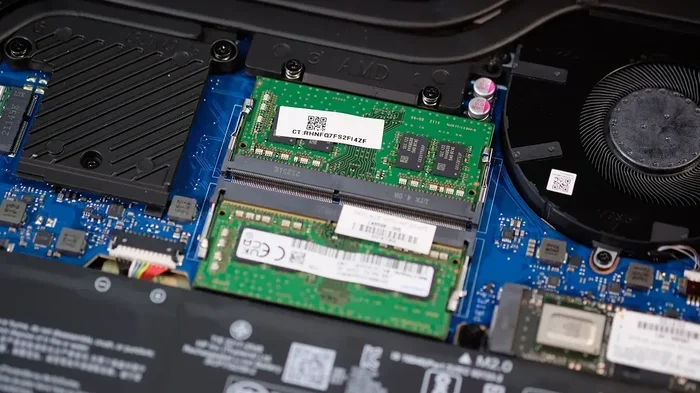
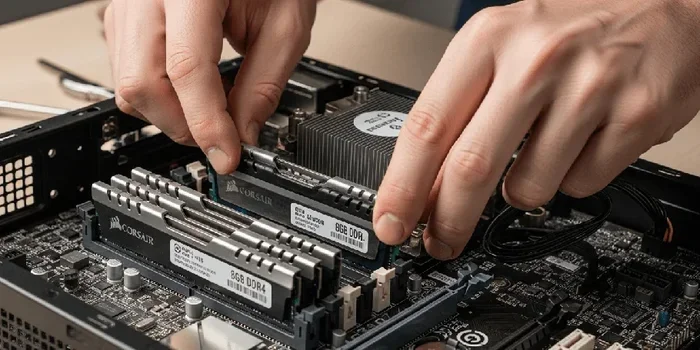
Locate the RAM slot on the motherboard. If your model has a replaceable RAM module, gently release the existing module by pushing the side clips outward. The module will pop up at an angle. Remove it carefully.
Align your new RAM module with the slot at a 45-degree angle. Press it firmly into place until the side clips snap back and lock the module in. You should hear a click when it is properly seated.
Step 5: Install the SSD
Locate the M.2 NVMe SSD slot on the motherboard. Insert your new SSD at a 30-degree angle into the slot. Press it down gently and secure it with the mounting screw. The SSD should sit flat against the motherboard.
For a detailed walkthrough of this process, our Dell M 2 Nvme Ssd Install article provides excellent visual guidance that applies directly to the Wyse 5070.
Step 6: Reassemble and Test
Replace the bottom panel and screw it back in. Reconnect all peripherals and the power cable. Power on your Dell Wyse 5070 and enter the BIOS or UEFI setup to verify that the new RAM and SSD are detected. If everything shows up correctly, you are all set. Enjoy your upgraded thin client!
Common Mistakes to Avoid
Even with a straightforward upgrade, mistakes can happen. Here are some common pitfalls to watch out for:
- Buying Incompatible Parts: Always double-check the RAM type and SSD form factor before purchasing. Not all DDR4 or M.2 drives are the same.
- Forcing Components: RAM and SSDs should slide in smoothly. If you feel resistance, stop and check the alignment. Forcing a component can damage the slot or the module.
- Skipping Anti-Static Precautions: Static electricity can silently destroy sensitive electronics. Always ground yourself before handling internal components.
- Over-Tightening Screws: Screws should be snug, not extremely tight. Over-tightening can strip threads or damage the motherboard.
- Forgetting to Update BIOS: After a hardware upgrade, check if a BIOS update is available. This can improve compatibility and stability.
Avoiding these simple mistakes ensures a smooth upgrade experience and protects your investment. Take your time, work carefully, and you will have great results.
Expected Performance Improvements
After completing your Dell Wyse 5070 Thin Client Ram Ssd Upgrade, you can expect several noticeable improvements in day-to-day use:
- Faster Boot Times: Your device will start up in seconds instead of minutes.
- Smoother Multitasking: Switching between applications and browser tabs becomes seamless.
- Quicker File Access: Opening, saving, and searching for files happens almost instantly.
- Better Remote Desktop Performance: Remote sessions feel more responsive with reduced lag.
- Lower Latency: Overall system responsiveness improves, making your workflow more efficient.
These gains are especially valuable for users who rely on their thin client for work throughout the day. The difference is immediate and significant. Many users report that their upgraded device feels like a brand-new machine.
Final Thoughts
The Dell Wyse 5070 Thin Client Ram Ssd Upgrade is one of the most worthwhile investments you can make for your compact workspace device. It is affordable, easy to do, and delivers real, measurable performance gains. Whether you are a business user managing multiple remote sessions or a home user looking for a faster computing experience, this upgrade ticks all the boxes.
By upgrading both the RAM and SSD, you address the two most common bottlenecks in thin client performance. The result is a device that feels faster, more responsive, and ready to handle whatever tasks you throw at it. Follow the steps in this guide, take your time, and enjoy the process of bringing your Dell Wyse 5070 back to peak performance.
Do not let a slow device slow you down. A simple upgrade can make all the difference. Start your Dell Wyse 5070 Thin Client Ram Ssd Upgrade today and experience the improvement for yourself.
Frequently Asked Questions
Can I upgrade the RAM on the Dell Wyse 5070 myself?
Yes, the Dell Wyse 5070 RAM upgrade is a straightforward process that most users can complete at home. You only need a small screwdriver and about 15 to 20 minutes of your time. Just make sure to follow the safety steps, like grounding yourself, to avoid any damage.
What type of SSD works with the Dell Wyse 5070?
The Dell Wyse 5070 uses an M.2 NVMe SSD in the 2280 form factor. These drives are widely available and come in various capacities. Look for PCIe NVMe drives from reputable brands for the best compatibility and performance.
How much RAM can the Dell Wyse 5070 support?
The maximum RAM capacity depends on your specific Wyse 5070 model. Most configurations support up to 16GB or 32GB of DDR4 RAM. Check your device documentation or Dell support resources to confirm the exact limit for your model before purchasing new memory.
Will upgrading the RAM and SSD void my warranty?
This depends on your warranty terms and where you purchased the device. In many cases, upgrading RAM and SSD does not void the warranty because these are user-replaceable components. However, it is always best to check with Dell or your retailer before proceeding with any hardware changes.
Do I need any special software after the upgrade?
No special software is required. The Dell Wyse 5070 should automatically detect the new RAM and SSD when you boot up. You may want to update the BIOS and check that your operating system recognizes the full capacity of the new components. A simple restart is usually all it takes.
How much does a Dell Wyse 5070 RAM and SSD upgrade cost?
The total cost depends on the RAM and SSD you choose. A 16GB DDR4 SO-DIMM RAM module and a 512GB NVMe SSD typically cost between $50 and $150 combined. This is a small price to pay compared to buying a new thin client, and the performance improvement is well worth the investment.